
How to Use System Search
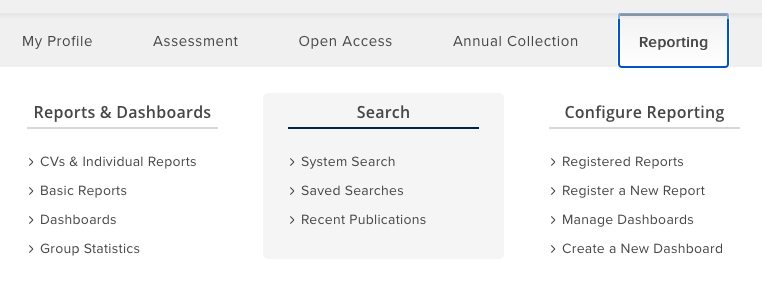
The System Search menu allows users to search Elements for specific content, save searches, and browse recent publications within your institution. If your institution has configured to "Show Elements search pages to users" on Menu > System admin > [GENERAL SETTINGS] > Global settings (V6.n System Admin > System Settings > Global Settings), then you will find the ability to search under Menu > Search & reporting > [SEARCH] > System search. (V6.n My Profile > Search > System Search.
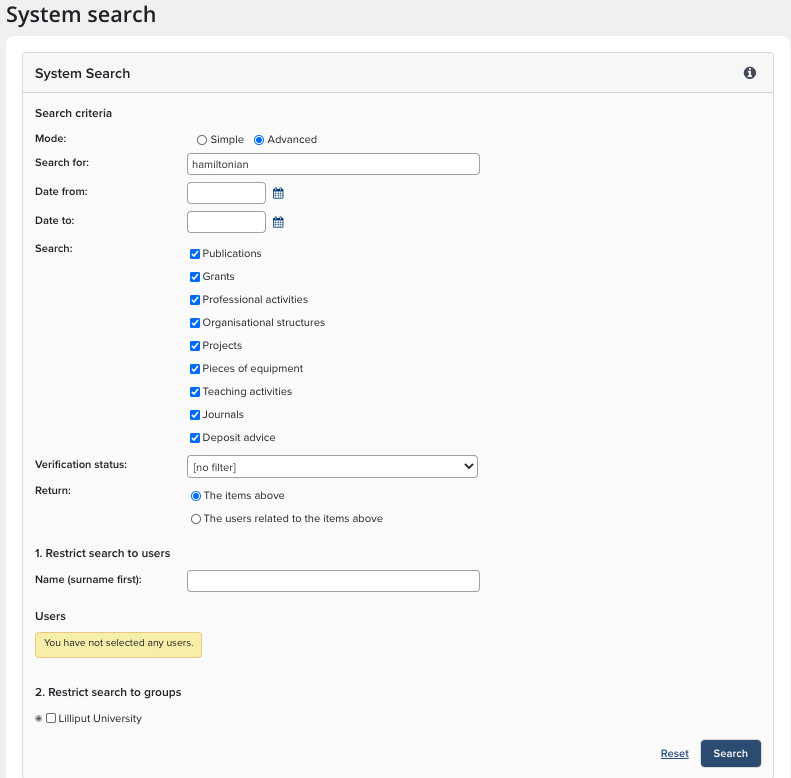
System search
Enter keywords, names, phrases or a wildcard (*) to search Elements:
Keyword: single word such as 'hamiltonian'
Phrase: group of words in double quotes, such as 'quantum effects'
In the advanced mode of the Elements system search, you can restrict the search further by setting dates and choosing which elements to search for:
Publications
Grants
Professional activities
Projects
Equipment
Teaching Activities
You can then choose to restrict returned results to:
Element types
Users related to the elements
Specific Groups
If you choose to view search results as elements, you will see a list of individual elements from the database along with links to institutional authors above each item:
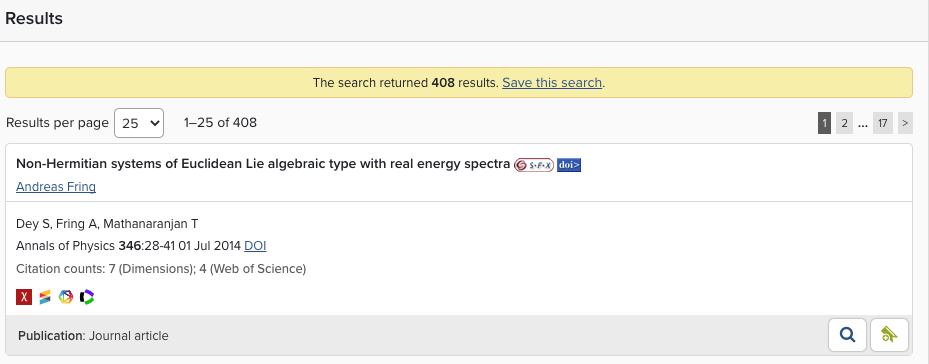
Click on the author names and you can view their full profiles, including a list of their other collaborators in your institution.
View the Full Details of the record by clicking on the magnifying glass icon or add it to the Workspace to manage duplicates or merge records.
Search results for users
If you choose to view search results as users, you will see a list of colleagues from your institution who have one or more elements that match your search query:
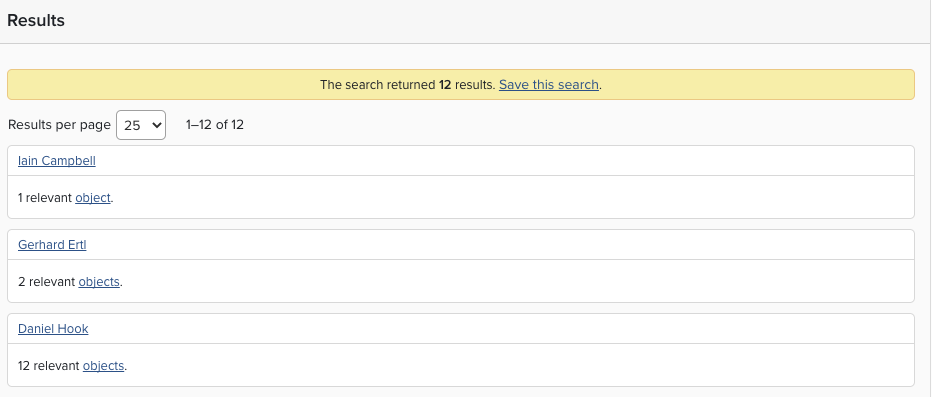
Click on a name to view a colleague’s profile, including all their publications and other elements.
Alternatively, click on the link below their name to view only their elements.
Search Indexes
The keyword search box includes searches for all the indexed fields and combines these into a catch-all index.
The results are ranked by recently modified date (most recent first) rather than relevance to the query.
Saved searches
You can save the terms used for a search of the database, so that they can be used again without typing in all the details of the query. To save a search, click on the ‘save this search’ link at the top of the list of results.
You will need to give the search a name, and then save it. Afterwards, you can access your saved searches via Saved Searches link in the Explore sitemap.
Recent publications
Click on Reporting > Search > Recent Publications to see details of publications that have been added to the database recently. Filter on a specific approval period (week, 2 weeks, month, 3 months) or a specific date range to restrict the set of recent publications.
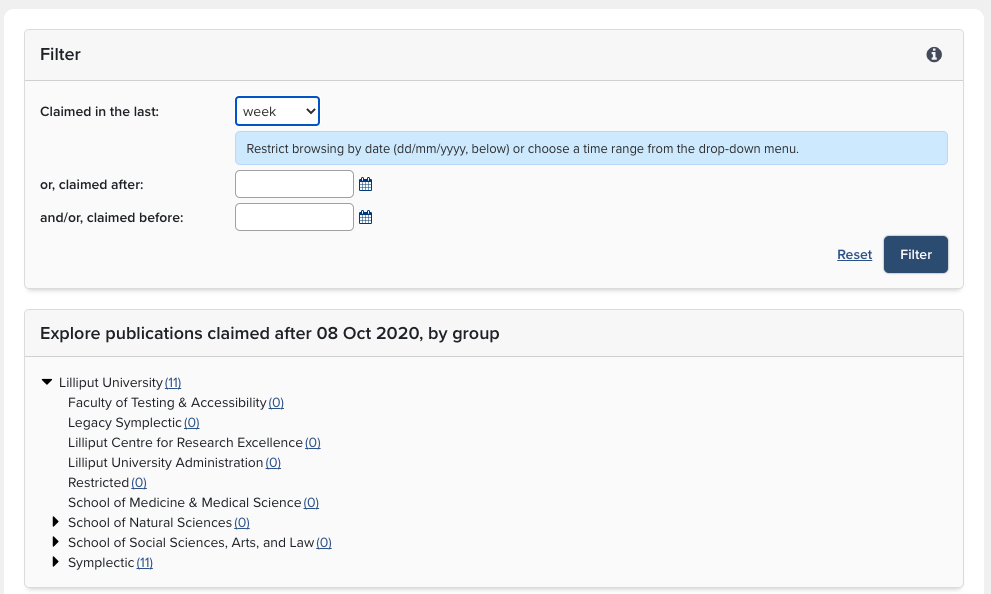
The results are displayed in an organisation tree in the bottom half of the screen. For each group within your institution, the number of recent publications will be shown in brackets after the name of the group.
Click on the number to see the list of publications. As with search results, the names of authors are also interactive links, enabling you to explore other publications from the authors.
Frequently asked questions
Q. How can I retrieve the results from a specific Elements field?
A. Currently, these types of requests are best fulfilled by a report. Use the "in product" reports available to Statisticians (via the Reporting tab) or custom reports using the API or the Reporting database.
Q. Can I perform a Boolean like "or" search entered in the search box?
A. Not currently.
Q. Does System Search retrieve results based on content in the "Overview" section of the CV/Profile?
A: Not currently.