
Guide to Import and Export of Publications
This guide will assist you to import and export items in the standard bibliographic format as well as exports in APA6 style to PDF, Word and tabular format to CSV.
Importing
You can import items from Google Scholar, Bibliographic Indexing services and Reference Management databases in RIS or BibTeX format. These items are first checked against existing records in Elements, and will become manual records in your claimed (Mine) publications.
To import items:
Have the RIS or BibTeX file containing your items stored on your computer or network in a location that you can access.
Log in to Elements and navigate to Profile & Work > Publications > Import Publications.
Browse for the file you have saved and then click on ‘Upload.’
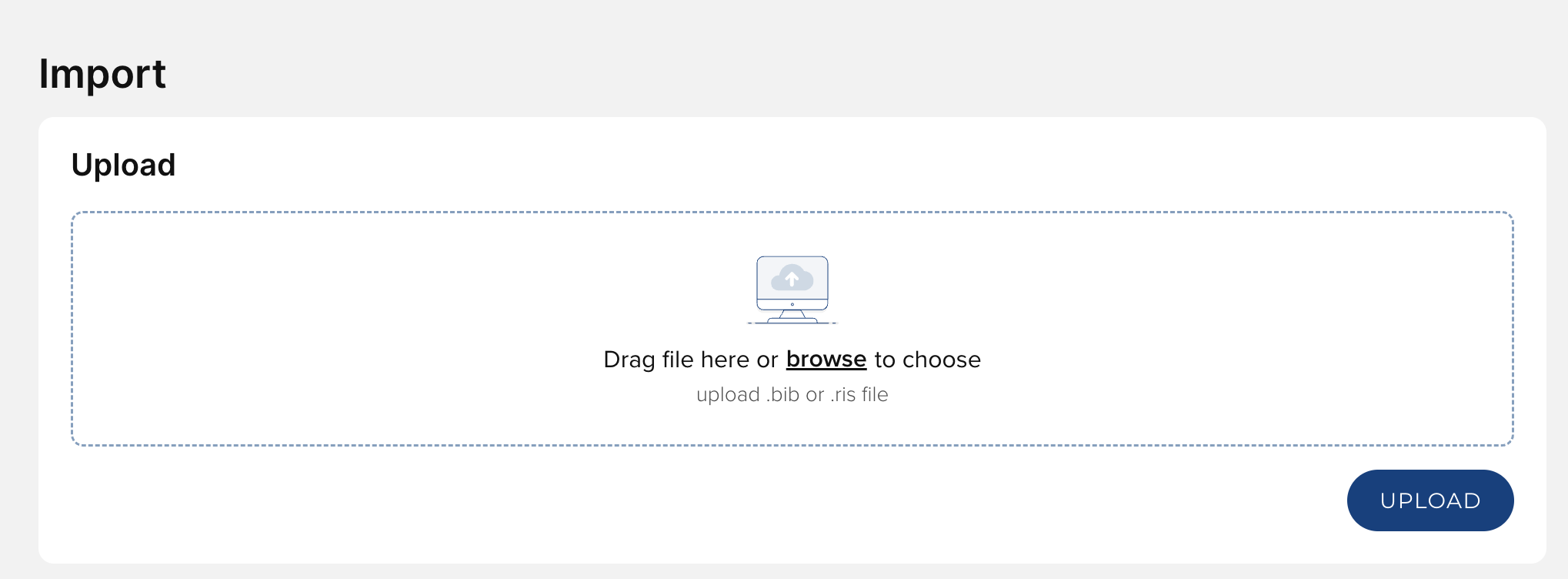
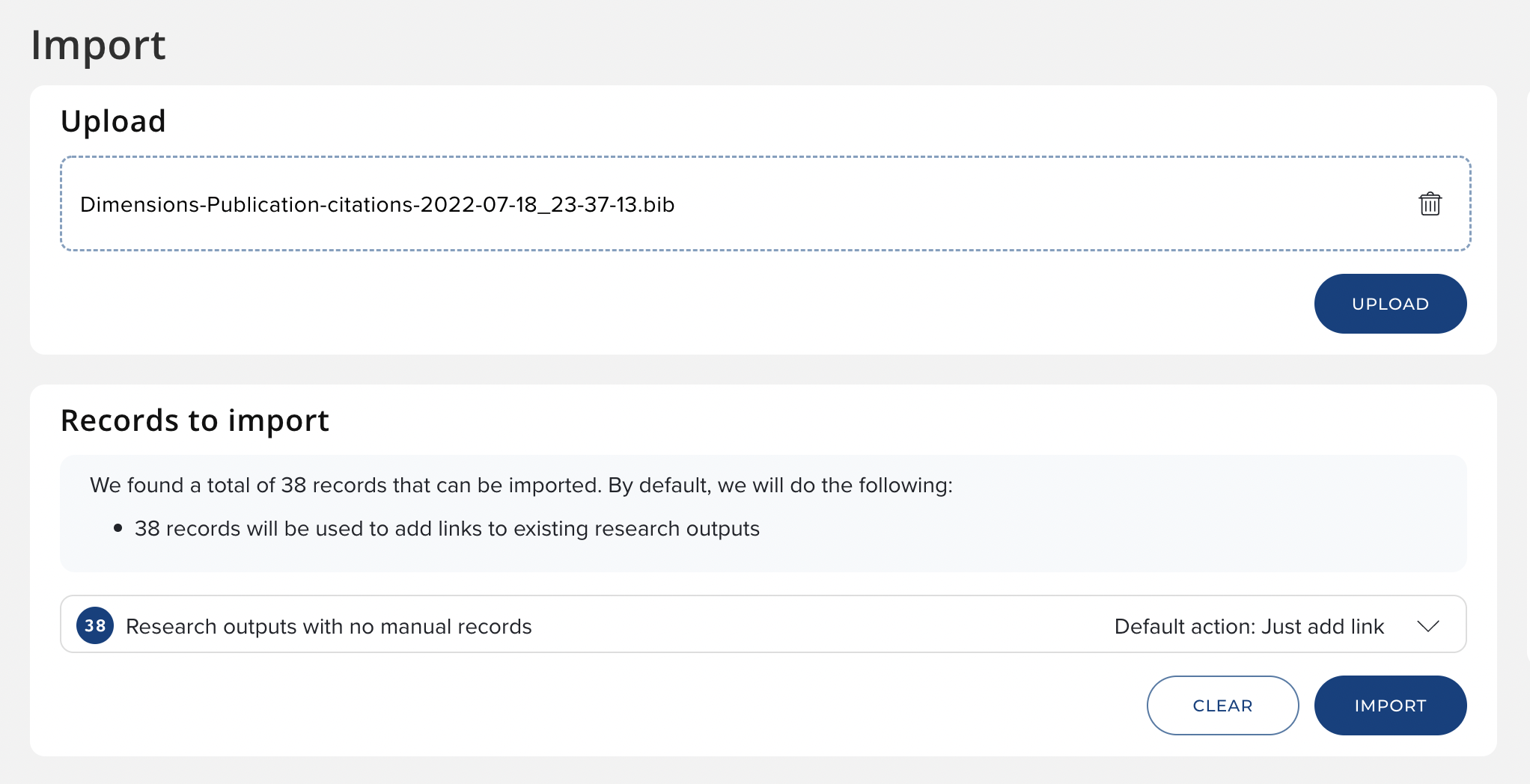
The system will compare the new publications with your current publications list (including any declined publications) and look for it in other users’ records as well. It will generate a list showing the new publications and any matches found with existing publications. For each publication that matches an existing record, you will be given a range of options.
For records that match an existing publication of yours, which has only online database records, you have three choices:
Choose Just add link to ignore the record when importing. If you are not already linked to the matched publication, a link will be created.
Choose Import as new to create a new publication based on the data from your file.
Choose Skip to ignore the record completely.
For records that match an existing publication of yours, which does have a manual source, you have four choices:
Choose Just add link to ignore the record when importing. If you are not already linked to the matched publication, a link will be created.
Choose Import as new to create a new publication based on the data from your file.
Choose Supplement existing to add a manual record to the matched publication, using data from your file. If you are not already linked to the matched publication, a link will be created.
Choose Skip to ignore the record completely.
Note: After importing, a comment is posted in history. This comment contains your user number and a message. Example 1. 3168 added to publication 2. Manual record added from import.
Exporting
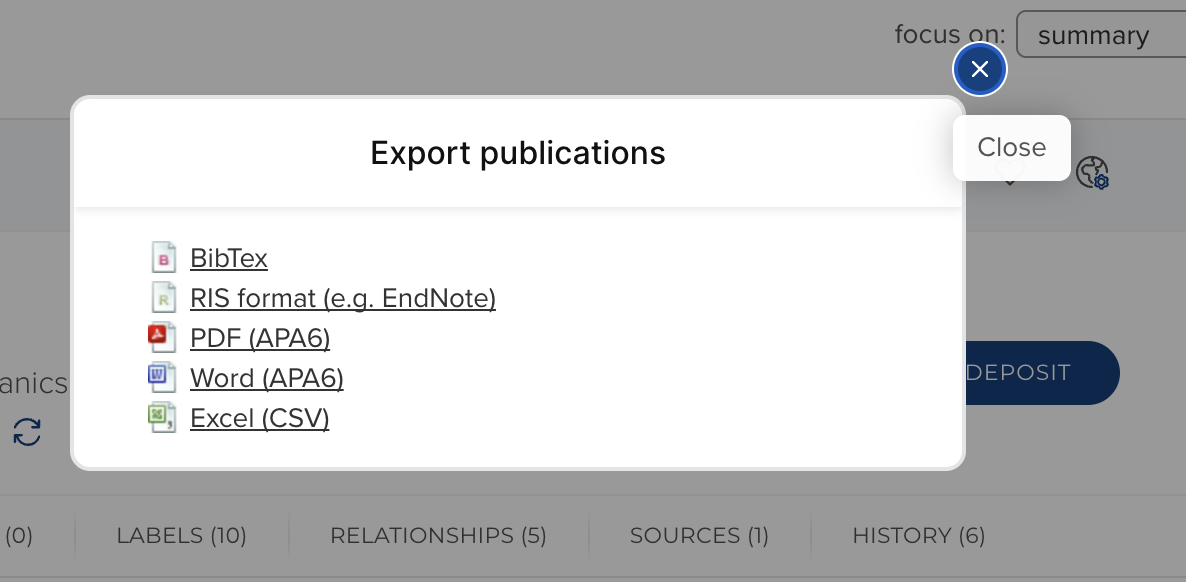
Data within Elements can be exported in the following formats:
BibTeX format (for MathSciNet and other reference management services)
RIS (Research Information Systems) format, for Reference Manager, EndNote and other reference management programs
PDF, suitable for print
RTF, suitable for MS Word and other text-based programs
CSV, for Excel and databases
Importing Publications for a Group of Users
For guidance for administrators acting on behalf of a group of users see Importing publications for a group of users.
RIS and BibTex mapping
Please see the attached spreadsheet for import/export mapping of RIS and BibTex in Elements.