
Teaching Activities module settings
Teaching Activities are a category of objects within Elements. The Teaching Activities module gives you the ability to:
edit Elements' built-in types of Teaching Activity
create new types of Teaching Activity
create custom underlying fields to record Teaching Activity data
to configure how Teaching Activities are displayed to users
to configure how users interact with Teaching Activities
Roles
The Category Admin can only do two things: 1.) Add other Category Admins 2.) Create or edit any object in a category type, noting that the only categories where the ability to create or edit an object is of value are the Impact and Equipment.
Teaching Activity Settings
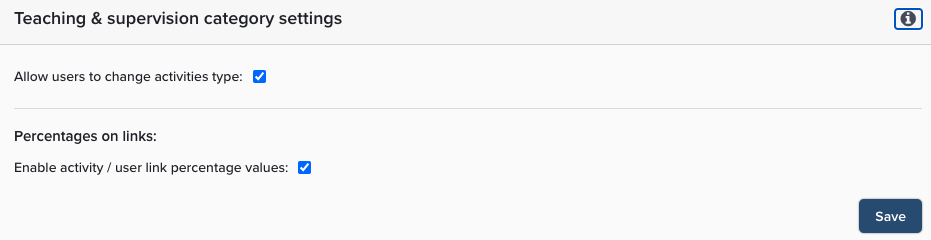
Navigate to System admin > Data category Settings > Teaching activities > Category settings.
Allow users to change teaching activity type
With this checkbox you can set whether users are allowed to change teaching activities from one type to another (e.g. from "Course developed" to "Program developed").
Enable teaching activity / user link percentage values
With this checkbox you can set whether users are allowed enter percentage values on their relationship with a Teaching Activity. For example, two users who co-taught a course may wish to each set their links to 50%.
Underlying Fields
Underlying fields are the containers available for storing data within a category (in this case Teaching Activities). All objects belonging to a particular category use the same set of underlying fields, which ensures data is portable between the different types of object within that category (types are explained below).
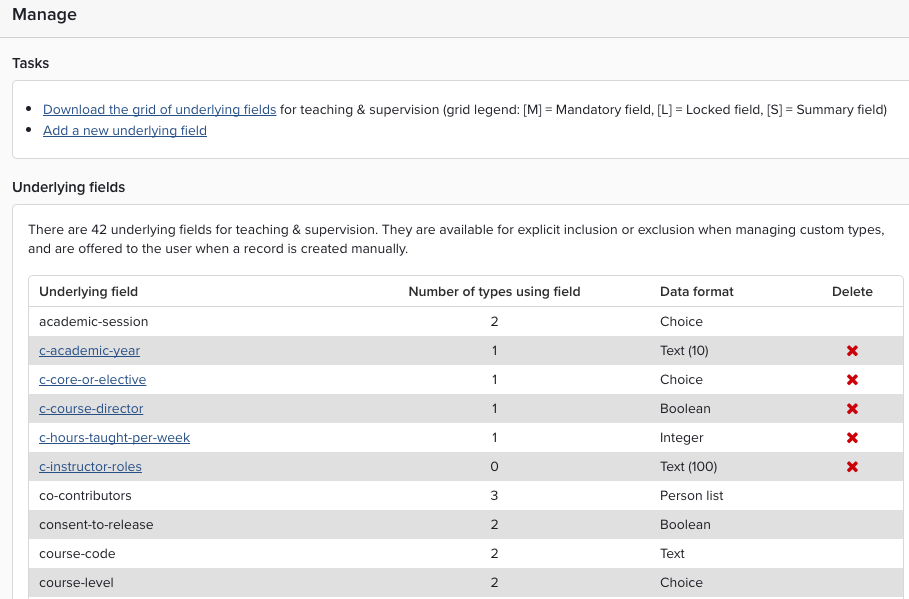
Navigate to System admin > Data category settings > Teaching activities > Underlying fields to view the current list of underlying fields for Teaching Activities. You can also download a grid (i.e. a table in CSV format) which details the underlying fields, their data formats, and how they are used in each different type of Teaching Activity object.
Create a new underlying field
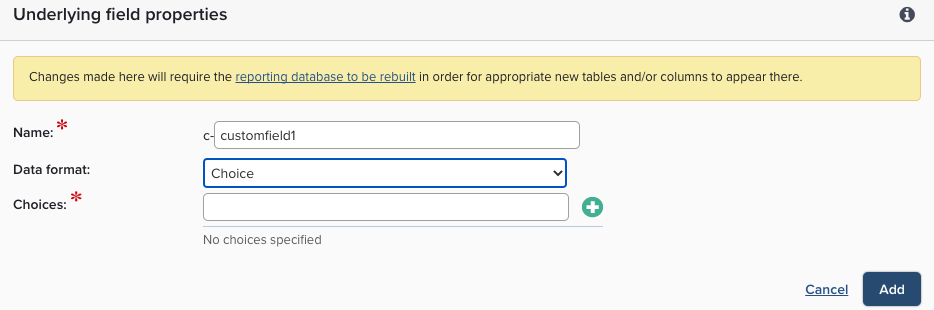
If the default underlying fields do not cover all of your data requirements you can create custom ones. Select the "Create a new underlying field"
Name
Choose a name for the underlying field. Custom types all begin with c- the display name for the underlying field is set via "Teaching Activity Types" and may be different for each type, depending on how the field is used (this is explained in more detail below).
Data format
Choose the format of the data to be stored. Depending which format you choose, there could be further options.
Edit an underlying field
Edit a custom underlying field by selecting the field name. Field's name and any data options can be edited, but not the data format. Default fields are fixed.
Delete an underlying field
Delete a custom underlying field by selecting on the red cross next to it. Deleting a field will permanently delete all data contained in it. This action cannot be undone, so use it with care. Default fields cannot be deleted.
Teaching Activity Types
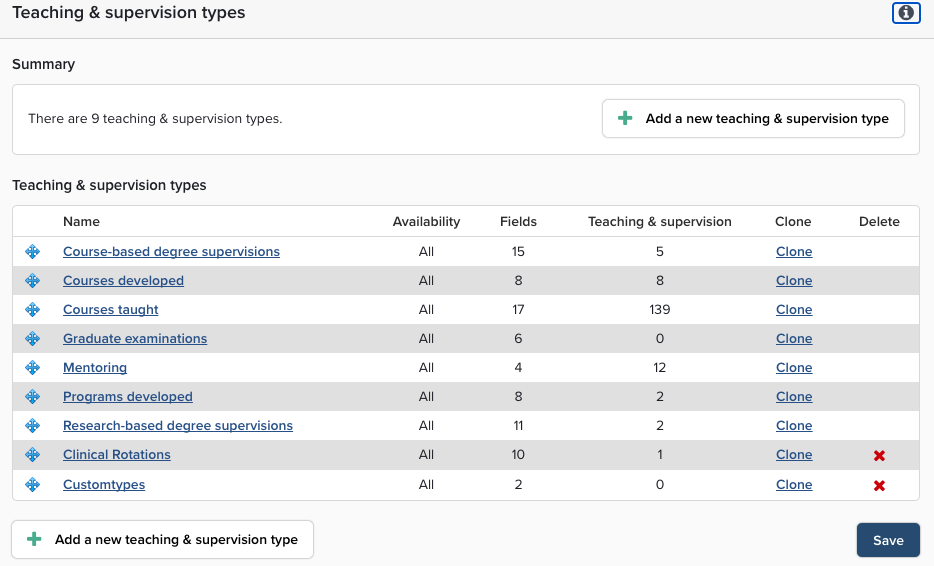
Types in Elements are sub-divisions of a category. Each type in Elements corresponds to a different type of object or activity in the real world. The Teaching Activity category contains seven default types, You can add your own custom types of Teaching Activity to complement these default types.
Note: Changes to types take are reflected immediately in Elements' user interface. We recommend making such changes task outside the normal usage hours of your system, to avoid users seeing inconsistent results whilst using.
Because all Teaching Activity objects belong to the same category, they store data using the same set of underlying fields. However, the usage of these fields can vary between types. For example, the underlying field 'title' has the following usages in the default types:
Teaching Activity Type | Usage of 'title' underlying field |
|---|---|
Course-based degree supervision | Output title |
Course developed | Course title |
Course taught | Course title |
Graduate examination | (not used) |
Mentoring | Topic of mentorship |
Program developed | Program title |
Research-based degree supervision | Thesis title |
This data model allows you (or a user) to change the type of an object without losing data. Even if an underlying field is not used by a particular data type, any data already contained in that field will be preserved when changing types.
Discovery Module
If Elements is connected to Discovery in addition you will be able to configure/control the type public visibility.
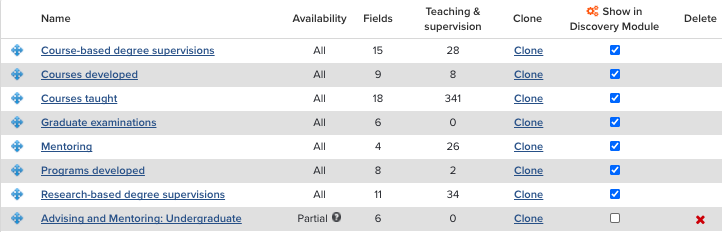
Add a new Teaching Activity type
There are two ways to add a new type of Teaching Activity:
Select add new type to create a new type from scratch.
Clone an existing type to create a copy of it, which you can then edit and save as a new custom type.
Delete a Teaching Activity type
Custom types can be deleted by selecting the red cross. You will receive a pop-up warning that any data associated with the activity type will also be deleted. Click through this warning only if you are sure you wish to remove the type and all associated data. Default types cannot be deleted.
Edit the properties of a Teaching Activity type
Select the name of a type to go to its 'Edit' page.
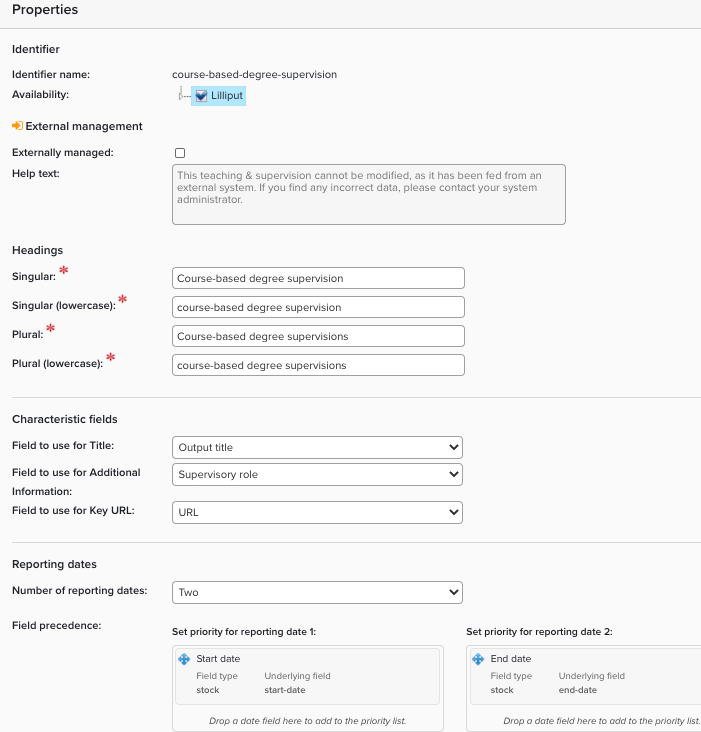
Availability
Controls which user groups can and cannot see this type. Expand the tree of user groups to see the availability of the type - it is available only to users in the checked groups. Users in the unchecked groups will not be able to create Teaching Activities of this type or use it in search filters.
By default, all types are available to all users (this includes newly-created custom types). To make a type unavailable to the whole organisation, uncheck the root node of the tree.
Externally Managed
Check this box if Teaching Activities of this type are fed to Elements from an external system. Elements will then allow users to use only external data for this type; they will not be able to create or edit Teaching Activities of this type. Additionally, they will not be able to change the type of any Teaching Activity to, or from, this externally managed type.
Note: checking this option only disables creation and editing of objects of this type via Elements' user interface. API accounts with appropriate permissions will still be able to create and edit objects of this type.
Headings
To change the display name of the type, enter the four different cases for the new name in the heading fields; you can alter the headings to reflect a more common use of a type at your institution.
Characteristic fields
Define which field to use for the title of Teaching Activities.
Additional information is used for display options in the Discovery Module.
Key URL is used to define a primary field when you have more than one URL field.
Reporting Date fields
Select which date field(s) will be used to set and determine priority for Reporting date. For some types, such as Courses Taught, you may want to configure two reporting dates, a start and end date. Activity types that are not bounded in time should have only one Reporting date.
Manage the Fields used by a Type
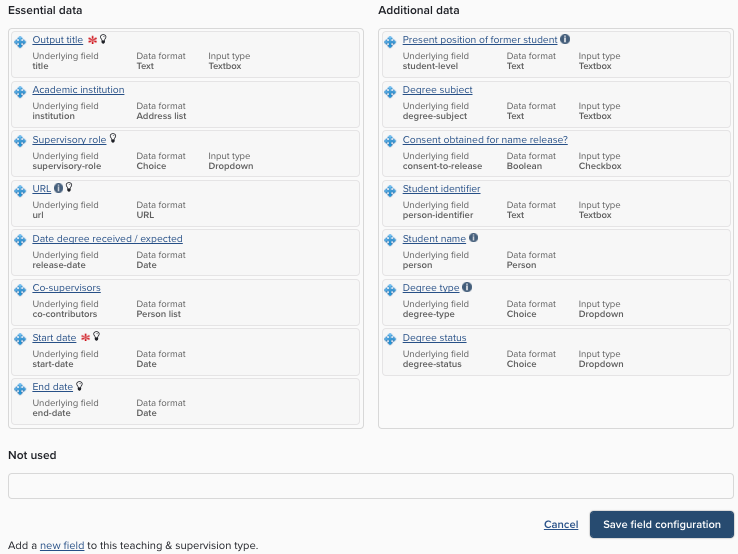
From a type's Edit page, you can also manage how a types uses the underlying fields that are available within the category. For each type, an underlying field can be either 'Essential data', 'Additional data' or 'Not used'. You can change a field from one to another by dragging and dropping them to the relevant box. You can also set the order in which the fields are laid out when users are creating or editing an object of this type.
Essential data: fields in this box will appear at the top of the page when users are creating or editing an object of this type. Note that 'essential' does not necessarily mean 'mandatory' - Elements will still allow an object to be created if some 'essential data' is missing.
Additional data: fields in this box will appear in a collapsible second section. You can use this for data that is desirable to have but not necessary for effective re-use of the data.
Not used: fields in this box will not appear at all when users are creating or editing an object. The field still exists and can contain data but there is no way to access or change that data through Elements' user interface. The field can still be accessed via Elements' API. Put fields in this box when they are not relevant to the Teaching Activity type in question.
Mandatory fields
Fields marked with a red asterisk (e.g. 'Course title' and 'Start date' in the screenshot above) are mandatory fields. They cannot be blank when creating or editing a field.
Summary fields
Fields marked with an 'i' symbol (e.g. 'Course code' in the screenshot above) are summary fields. They will be displayed in summary view for objects of this type.
Add a new field to a type
If the fields listed do not cover your data needs you can add a new field to the type. You must base the new field on one of the available underlying fields for the Teaching Activities category; if there is no suitable underlying field you must create one before you can add it to the type (see the Underlying Fields section above). Select "Add a new field to this teaching activity type" to go to the page where this is done.
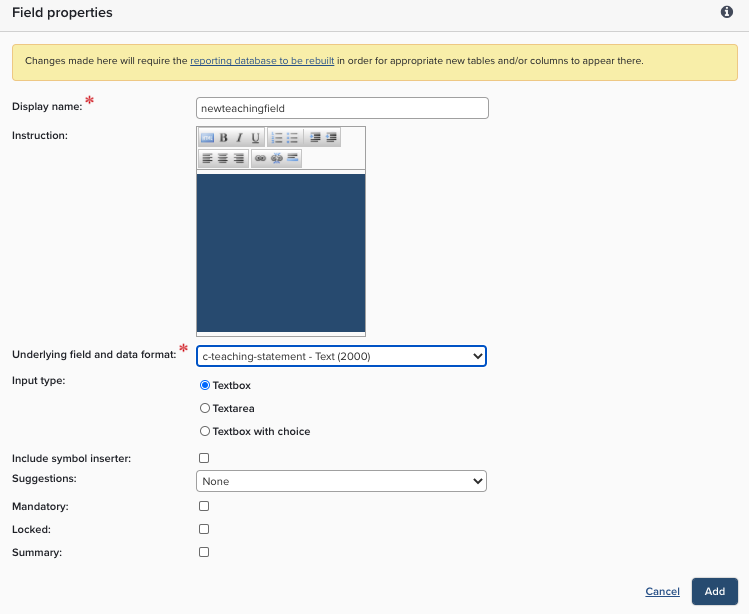
Set the following properties for the new field:
Display name: choose the name that will describe this field in the Elements user interface. For example, in the "Course taught" type, you might change the display name of "Academic session" to "Semester." The underlying field will still be "academic-session", but "Semester" will be displayed in data entry forms and elsewhere in the user interface.
Instruction: Help or guidance notes which will be displayed next to the field in data entry forms.
Underlying field and data format: select the underlying field that the new field will be based on. All underlying fields not already used by the type will be available here.
Include symbol inserter: If this option is checked, a button will be displayed in the data entry form, which opens a panel to assist with entering characters and symbols that may not be easily available from the keyboard.
Input type: depending on the data format, you may have a choice of input style to be used in data entry forms. For example, Text data can be entered via Textbox, Textarea, or Textbox with choice; Choice data can be entered via Dropdown, Grouped dropdown, or Radio buttons.
Mandatory: if this option is checked, the field must contain data.
Summary: if this option is checked, the field will display in Teaching Activity summaries in My Teaching Activities and the View Object screen.
Locked: if this option is checked, the values contained in this field cannot be modified, and it will be hidden when editing (if it is currently empty). A mandatory field cannot be locked.
Edit a field within a type
To edit a field already in use within a type, select the field name to edit all the properties described above.
Delete a field from a type
You can delete a custom field from a type by checking its "Delete this field:" box on the type's Edit page, then selecting "Update". Note that this only removes the field from display and data entry forms for objects of this type - any data stored in the underlying field continues to exist and will be accessible via Elements' API. Such data will become visible again if the type is re-edited to use the underlying field once again, or if the object's is changed to a different type that does use the underlying field.
Display of teaching activity types on the home page
Not relevant for Elements 6.x. You may wish to restrict the which types of Teaching Activity are displayed to the user in the 'My Summary' area of their home page.
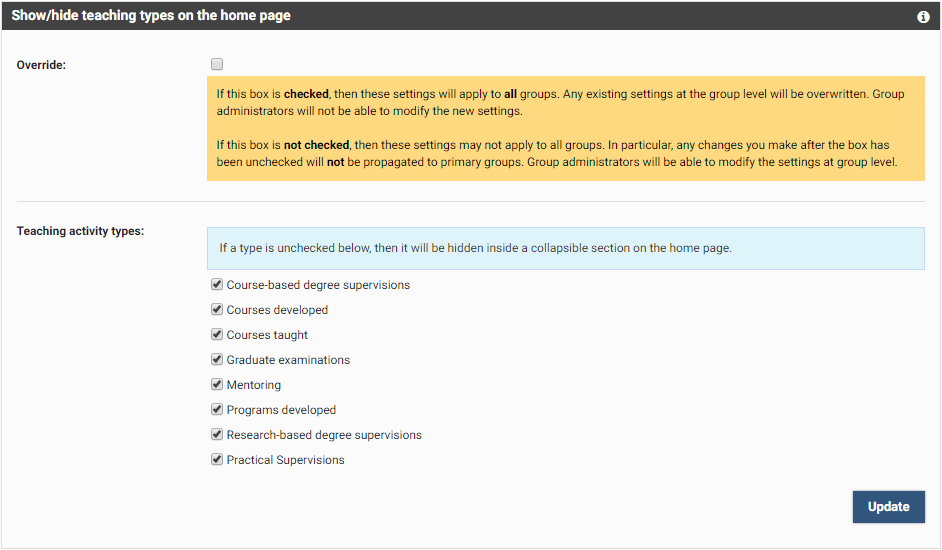
Check the 'Override' box if you wish these settings to be enforced across the whole system. When you select 'Update', these settings will permanently overwrite any settings made at the Primary Group level, thus affecting all users.
If you leave 'Override' unchecked, Primary Groups will keep their own settings i.e. users belonging to those groups will not be affected by changes made here.