
Annual Collection Administrator Guide
This document is a guide for Annual Collection administrators to configure the module and create annual collections. Annual Collection of publications prior to 2016 was required for the HERDC - Higher Education Research Data Collection Exercise. This was changed in 2016 to span a range of years for ERA 2018 and ERA 2023 and is subject to change. The steps to configuring are as follows:
Licence - check Annual Collection is enabled as part of the standard package from System Admin > Setup > Licence.
HR User Information - ensure that the Organisational field in the user feed is populated with values to create the group membership.
Configure the Permissions matrix.
Enable Auto-Nomination for harvested records and/or optionally add a custom field for manual records in the Publication Module.
Create and enable collection(s)
Configure collection(s)
Configure Labels or Publication Types and Underlying Fields.
Enable the Scheduled Jobs.
Licence
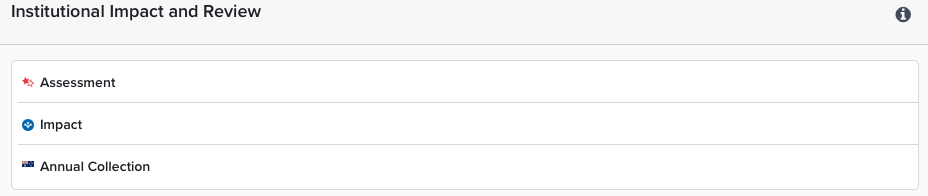
The Annual Collection module supports Australian institutions in the nomination, review and validation of individual publications, if your licence includes Annual Collection it will show in System Admin > Setup > Licence.
HR Information
To populate eligible users in a collection the HR feed must contain a group value in any one of the Organisational Specific or Generic user fields. To see how this is defined select System Admin > User Management > Add or Edit User Fields. To check the values populated in the user feed select System Admin > User Management > Manage Users and User Feed.

Role Configuration Permissions
There are three pre-configured default roles available for you to deal with assessment and administration in the system: Administrator (AD), Acceptor (AC) and Reviewer (RV). Defined for all collections by selecting Annual Collection > Configure Collections > Roles & Permissions. You can change from the default to suit your organisation. An explanation of each, as well as who may perform the action, is below:
Permission name | Explanation | AD | AC | RV |
|---|---|---|---|---|
Nominate publications on behalf of author | To nominate an item in the “Not Nominated” tab within the allowed groups | X | X | X |
Withdraw nomination | To withdraw a nomination | X | X | X |
Update affiliation information | To update author affiliation information | X | X | X |
Put nomination under review | To perform the “Review” action which puts the nomination into “Under Review” status | X | X | X |
Assess (accept or decline) a nomination | To Accept, or Decline to be made on nominations | X | X |
|
Accept (internal) group publications | To accept a publication for internal reporting purposes, nominations accepted internally will not contribute points to the collection. Note: This action may be enabled or disabled for all users, by disabling the action | X | X |
|
Request information from author/s about a nominated publication | To "Request information" changes the status and notifies the researcher on "Publications requiring attention" tab that they should respond. | X | X | X |
Provide information to assist with assessment of a nomination | To “Provide Information” for those publications that are of status “Pending Response”. | X |
| X |
Revert nomination to Nominated status | Allows the “Revert” action to be performed on assessed nominations, this will put them into “Under Review” status | X | X |
|
Administer group roles | For each collection you can add, edit and update the group roles of Administrator, Acceptor and Reviewer | X |
|
|
Administer group settings | For each collection you can add, edit and update the group settings | X |
|
|
View nomination history | Enables the viewing of the history of a nomination | X | X | X |
Add a comment to a publication nomination | Allows you to to add a comment to a nomination | X | X | X |
Update data source reference for nomination | Allows you to select an alternative data source for the nomination’s reference. | X | X |
|
Delete a nomination | Allows you to delete a nomination. Note: if this action is performed the nomination’s history is lost. | X | X |
|
Change contact author on group nominations | Allows the update of a default contact author to another associated author on the nomination | X | X | X |
Change author counts on group nominations | Allows you to manually override the number of authors counted on the bibliographic data source | X | X |
|
Change chapter counts on group nominations | Allows you to update the number of chapters counted on a nomination | X | X | X |
Change main chapter flag on group affiliations | Allows you to manually set the main chapter flag on book chapter nominations. User changes may be overridden if the synchronise main chapters scheduled job is run. | X | X |
|
Generate reports on a group | Allows you to access to the reporting area | X | X |
|
Manage evidence files for group nominations | Allows you to manage the evidence files uploaded | X | X | X |
There are also a number of actions which are permissible for standard users (Researchers), a summary is below.
Permission name | Explanation |
Appeal declined nominations for own objects | Researchers may appeal declined nominations, providing a reason for their appeal |
Change contact author on own nominations | Allows the researcher to change contact author details |
Change main chapter flag on own affiliations | Researchers may update the main chapter flag on book chapter nominations. User changes may be overridden if the synchronise main chapters scheduled job is run. |
Change data source record (own action) | Allows the researcher to update the data source used by the nomination |
Add comments to own publications | Researchers may add comments to a nomination |
Nominate own publications | Researchers may nominate publications they have claimed within Elements. |
Update any affiliation on authored publications | Update affiliation information of fellow authors on nominations a researcher has co-authored |
Provide additional information on nominations for own publications | Researchers are able to respond to requests for information from assessors via the action “Provide Information” |
Update own affiliations on authored publications | The researcher has the ability to update their own affiliation information for nominations they have contributed toward |
View history on own nominations | Researcher may view the history associated with a nomination. Note that researchers can view requests for information regardless of this permission |
View comments and requests for information on own nominations | Researcher may view comments and requests |
Withdraw own nominations | Researchers may withdraw their nominations, this may only be performed on nominations yet to be assessed |
Adding or Changing Roles
To grant a user a role in the Annual Collection, select Annual Collection > Configure Collections > Annual Collection Groups. From the Group configuration opage, identify the scope for the user by selecting the appropriate group. The top group allows the user to access and manage Collections from the entire institution. On the new form that opens, select 'roles' in the Manage roles associated with this group, choose the role by checking the box, and then select either a group, or by scrolling down the form, an individual.
Add a new collection
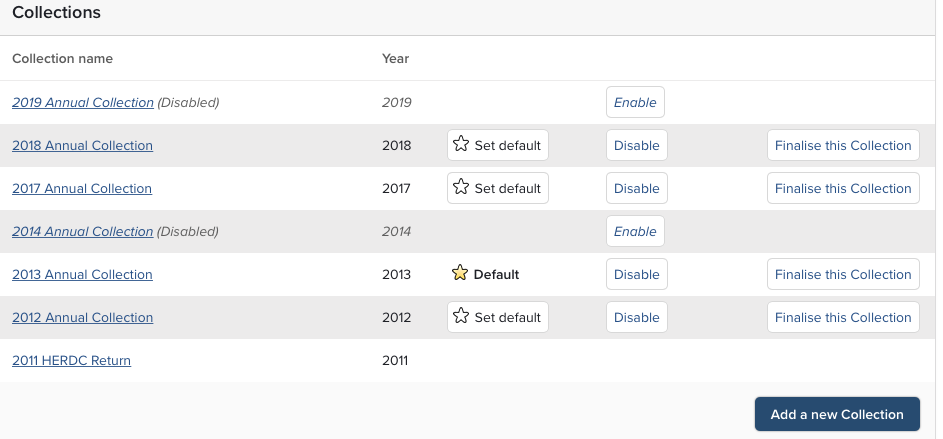
Before the workflow of including assessed nominations can begin a collection needs to be configured. To create a collection, select Annual Collection > Configure Collections > Collection Settings the first screen presented will be the settings page where a new collection can be added.
Collection Settings
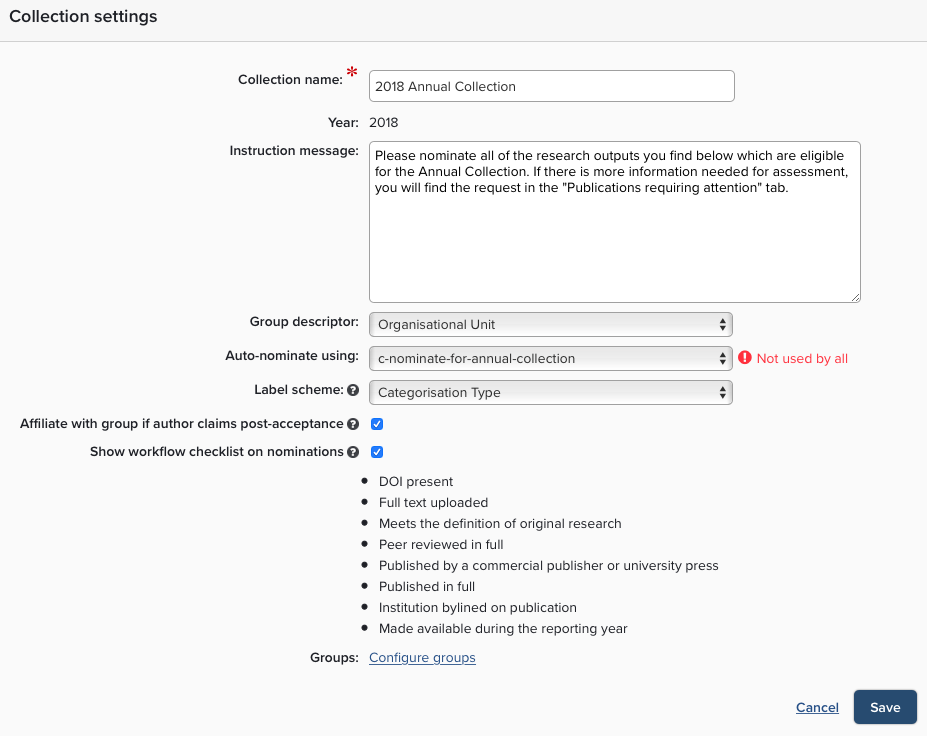
When adding collection or editing the properties of a collection the following configuration options are available:
Collection Name - Mandatory and usually indicates the year of the collection.
Year - Mandatory - it is not possible to have multiple collections defined within a year.
Instruction message - To guide researchers on how to manage items.
Group Descriptor - this is the lookup field used to populate groups.
Auto-nominate using - this is a lookup field to include manual records in the auto-nominate process.
Label Scheme - A single custom created label scheme can be included in the collection. Labels applied to nominated publications are displayed in a column within the Nominations Assessment page.
Affiliate with Group - check to ensure the author is associated with a publication and affiliation details are preserved.
Show workflow checklist - enable this to allow administrators to check list items. Shows in Nomination Assessment under the details.
Copy structure from an existing Collection - to configure the membership of groups.
Associate publication types to categories
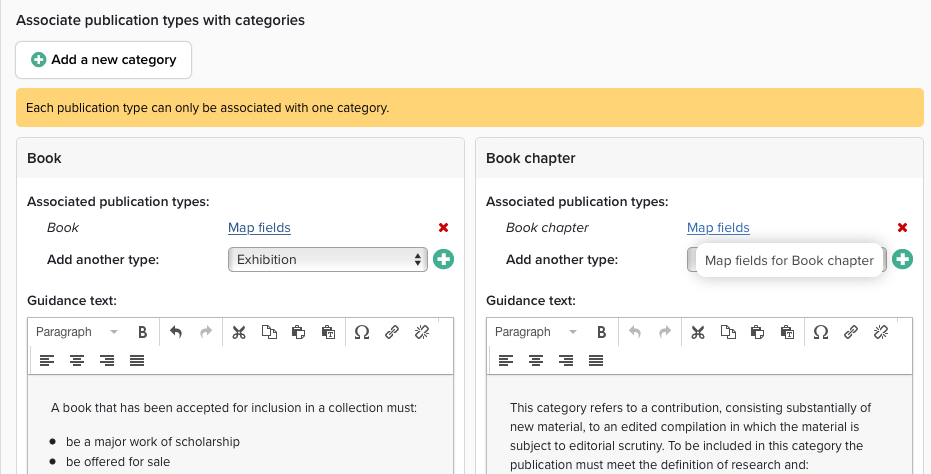
For each of the publication types - Books, Book Chapters, Conferences, and Journal Articles -- a default points calculation is preset in the system. This is historical and based on Higher Education Research Data Collection Exercise (subject to change from 2016). You may add additional types like NTRO's or Creative works by selecting Adding a New Category, zero points are allocated for this category.
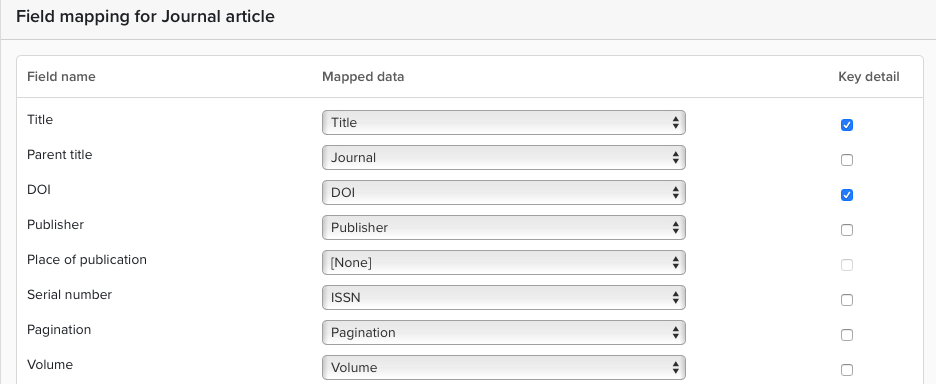
Field mappings
For each category, map the fields associated to ensure full coverage of the available data. Mapping a field and enabling key detail check box will ensure that if this field is missing, it will show in the Missing key fields report. Annual Collection > Manage Collections > Reports.
Working with Collections
Once a collection has been set up with the attributes above it is ready to be enabled, eligible users and their outputs will be nominated and available for assessment.
Once enabled the year may not be updated, however the other attributes may be changed.
More than one collection may be enabled at any time so that publications may be processed for multiple years.
Once the first year has been enabled it will immediately be set as the default, which means it will be the default year. Default collections can be changed when a new collection is enabled.
A collection must be enabled before nominations and assessment are populated.
Group Structure Creation
Select Annual Collection > Configure Collections > Annual Collection Groups.
The module optionally allows creation of a separate group reporting structure to that of Elements.
A group structure is established so that academics and assessment staff may have their publications recognised as being affiliated with their respective organisational units.
A group structure may be initially established by copying the structure set up within Elements, or after the creation of an initial collection when creating a new collection, the group structure may be copied from a existing configured collection.
Group Configuration
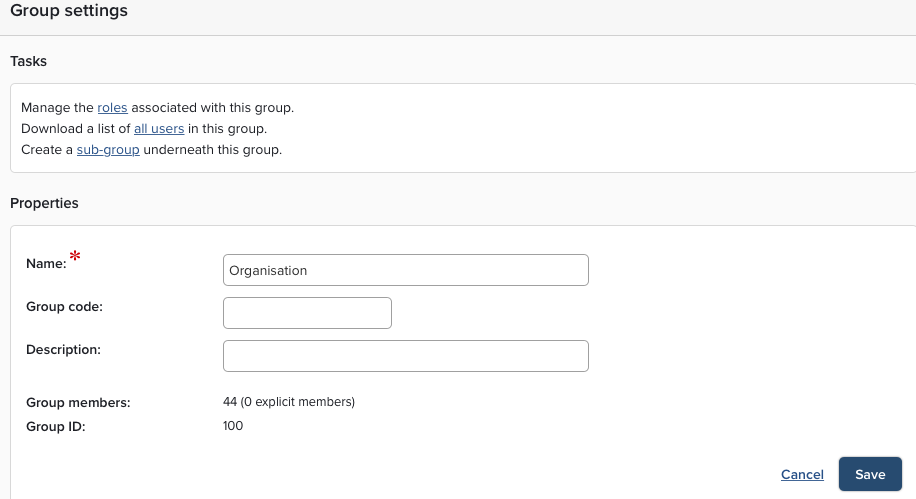
Select the + symbol for a parent group will expand the hierarchy to reveal child groups.
The number displayed after each group represents the number of explicit members in the group.
The number in brackets represents the number of implicit members (# of members in group and child groups)
Selecting a group allows you to configure the group settings.
Group Membership
Group membership is determined by a field in the HR feed for each staff member, this field is defined in collection settings via the group descriptor setting (shown earlier on the collection creation)
Group Roles
Select Annual Collection > Configure Collections > Annual Collection Groups
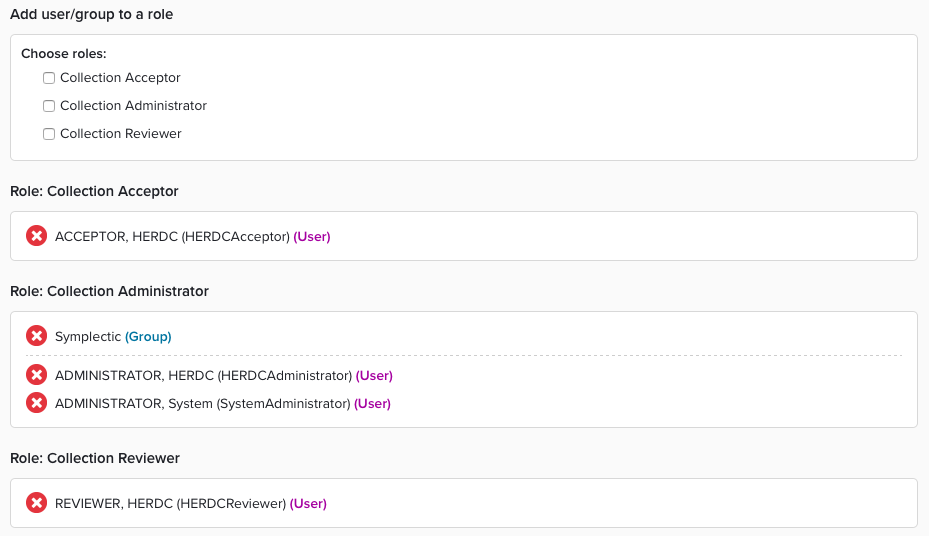
To assign group roles, select a group, select manage roles and add user or group. You can remove a user or group with the red X. If a role is enabled for a parent group it will apply to subordinate groups.
Note: Under Annual Collection Groups, subordinate group roles can be configured for each annual collection and group role assignment separately.
Scheduled Jobs
System Admin > Operations > Scheduled Jobs.
There are three scheduled jobs associated with Annual Collection processes, these may be run manually or scheduled to run at a set interval. It is recommended that these jobs are set to run no more frequently than once per hour.
HERDC: Auto-nomination
Publications which have been claimed by at least one institution affiliated author will be automatically nominated if they have been found via of the following data sources: PubMed, Web of Science or Scopus.
Also, nominations which been added to the system manually and have had the field used for auto- nominate set to “Yes” will be automatically nominated.
HERDC: Synchronise nominations
Once a nomination is made a small snapshot of the information contained within Elements. is created, contained within this snapshot is information on which authors have claimed the publication. This job will check all nominations in the HERDC module and the authors that are associated with them to see if any activity has taken place in Elements. relating to researchers claiming or rejecting potentially authored publications.
The “traffic light” indicators by nominations in the HERDC module and the fractions and point calculations made will be updated in accordance with the updated author information when this job is run.
HERDC: Synchronise main chapters
This is a job which will compare accepted book chapters in the system and by matching them via the ISBN field will calculate which of the chapters for a given author should be flagged as the “main chapter” which is used in the calculation of HERDC points for book chapters in the system.
The main chapter flag may be set on book chapters manually but if this job is run then these may be overridden. Note that book chapters are matched based on the ISBN-13 format.
Finalise
Collections can be finalised. If you finalise a collection this action prevents modifications and changes to a collection and will archive all nomination data. This creates a snapshot and preserves the collection in case of an audit. You should run the Finalise Exception report to determine what will prevent finalisation.
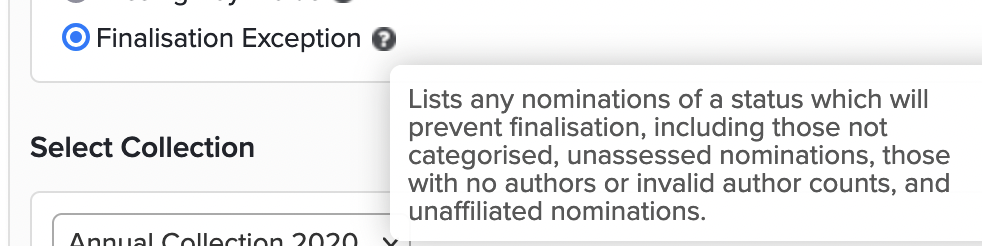
This action should only be taken once a return has been completely finished and no further changes are required. It is not reversible.
Disable
Collections can be disabled. Collections disabled will be unavailable in the user interface. This action prevents modifications, changes to a collection, and prevents automated updates. It does not however snapshot the publication metadata, labels, etc like finalising does. These could continue to change over time in Elements. Disabling a collection can be reversed.