
How to create links
Creating links
When you log into your Elements profile, you may see either a series of tasks in a carousel or banners displayed at the top of your home page. One of these is a prompt to create Links between publications and other items in the system.
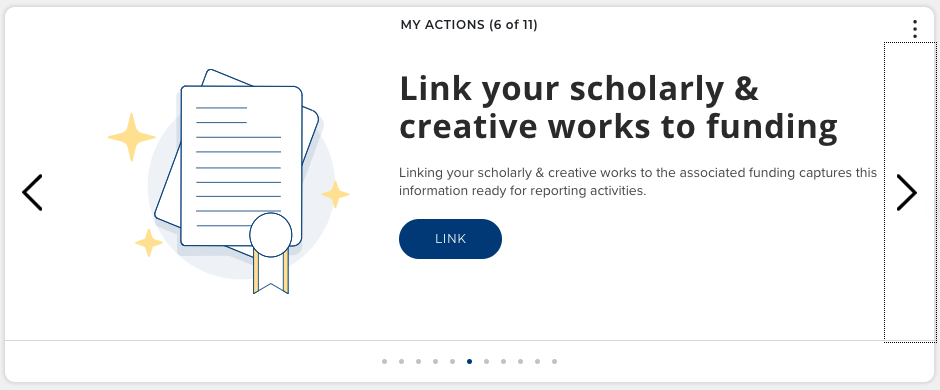
Clicking on the link takes you to the Create links page, which can also be reached via My Profile > Tools > Create Links.
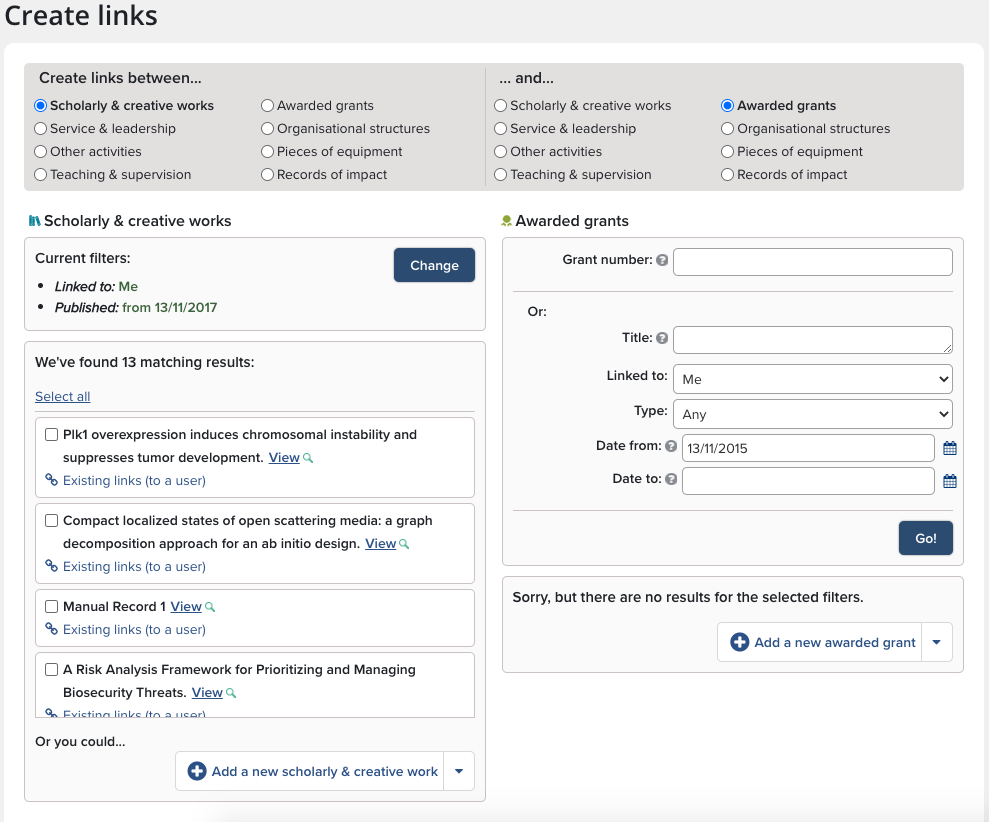
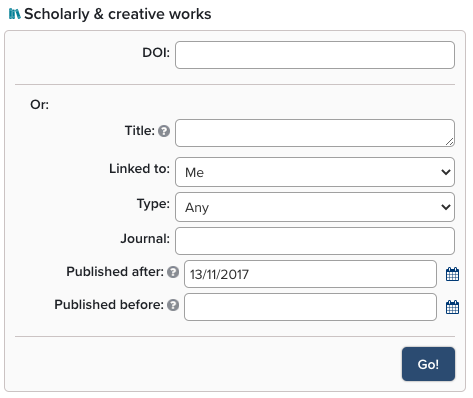
Creating a relationship between two items -- an article and a grant, for example -- only requires a couple of clicks. After you have filtered the items to bring up the correct article and grant, check the items. This will prompt Elements to open the "Click to create" menu.
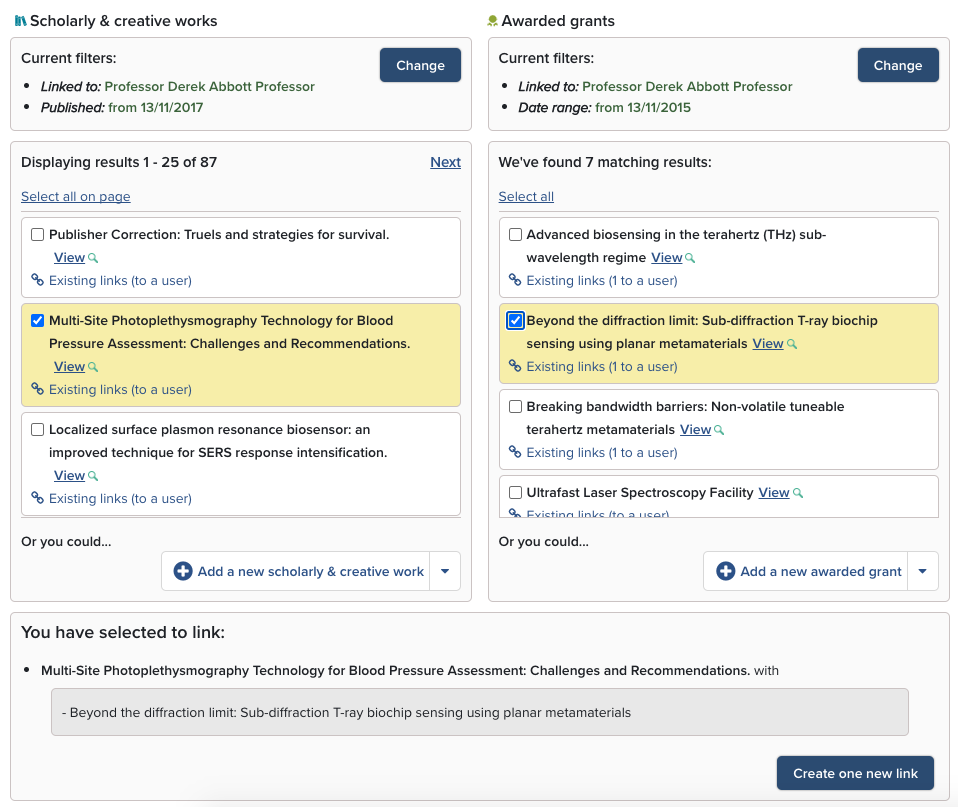
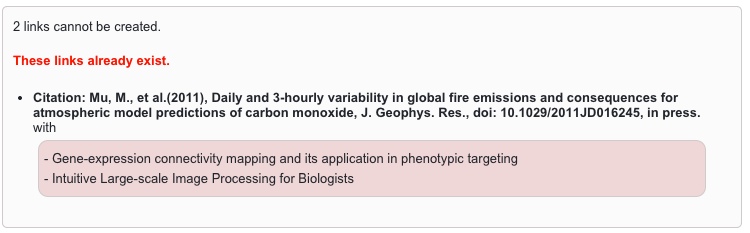
If a publication was supported by multiple grants, they can all be selected at this point and linked; however, if you attempt to link items that already have a relationship, Elements will display an error message.
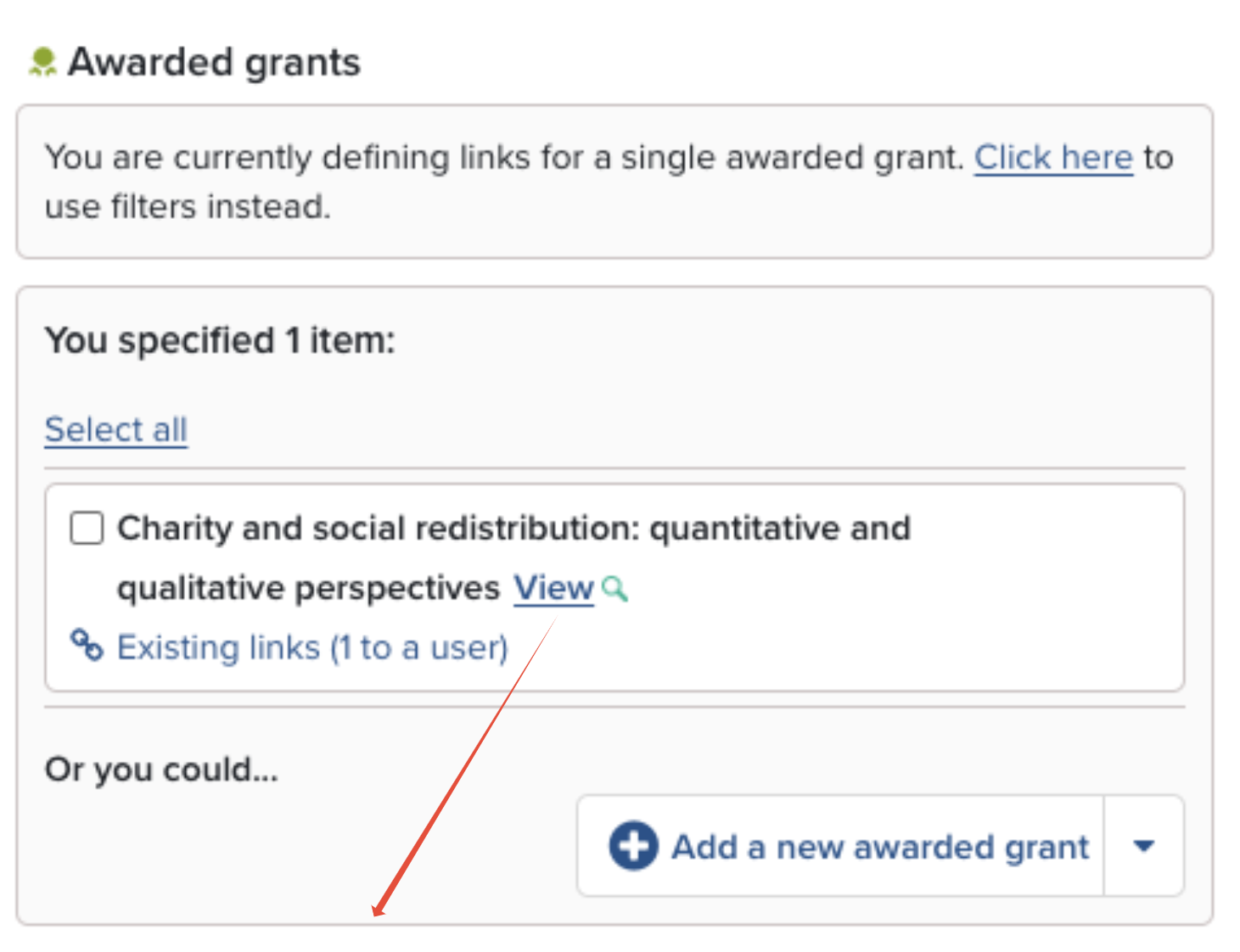
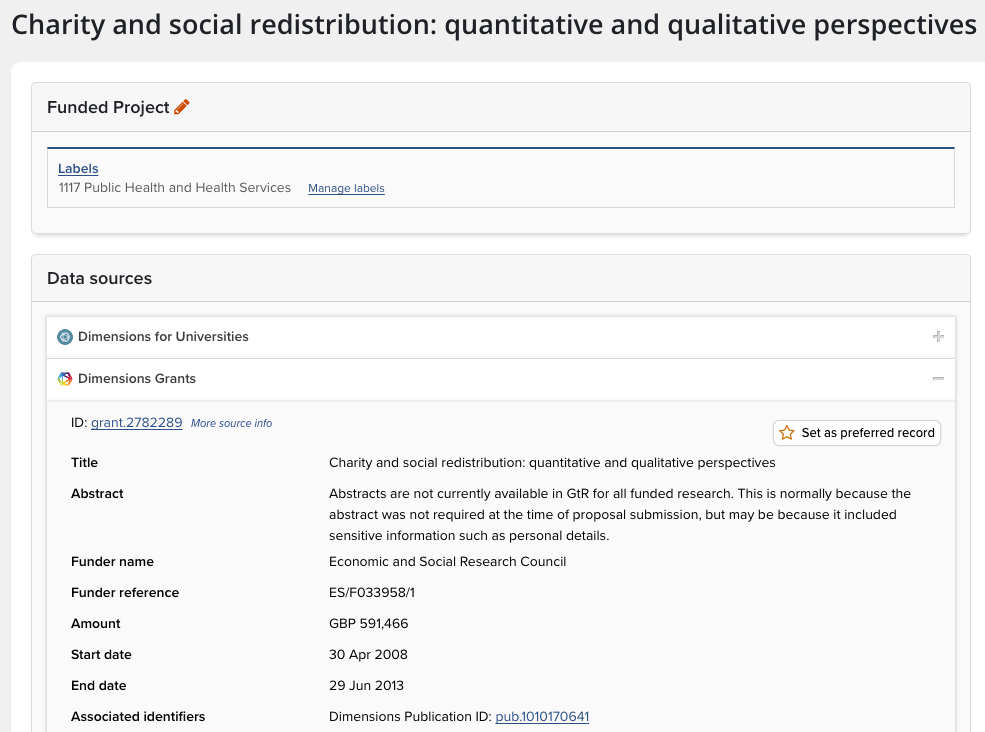
If the brief citation in the "Results" view does not provide enough information for you to decide on its relationship to other items, click on the View icon, which will open the full item in a separate tab.
Existing links
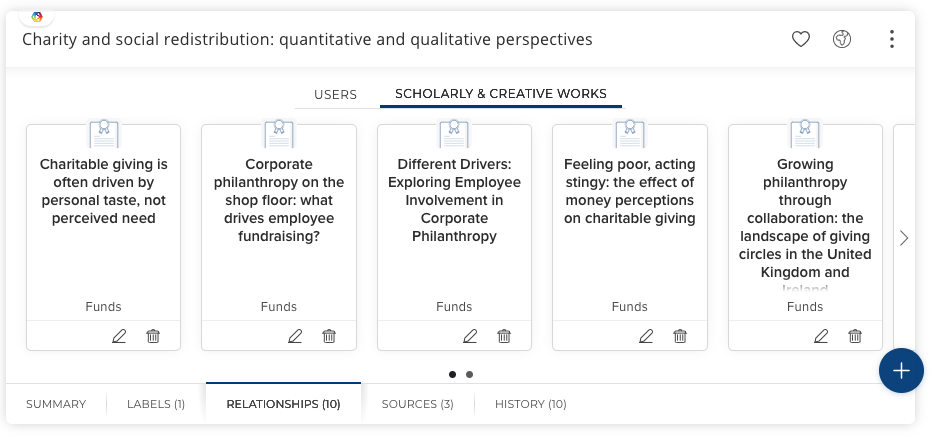
Clicking the "Relationships" tab in the summary view presents a view of the relationships currently defined in the system broken out by category.
Adding an item from the "Create links" page
If you wish, you can add a new item directly from the "Relationships" tab. Click the big blue + icon in the lower right-hand corner and then, from the subsequent screen, select the object type. Only available modules will be presented.
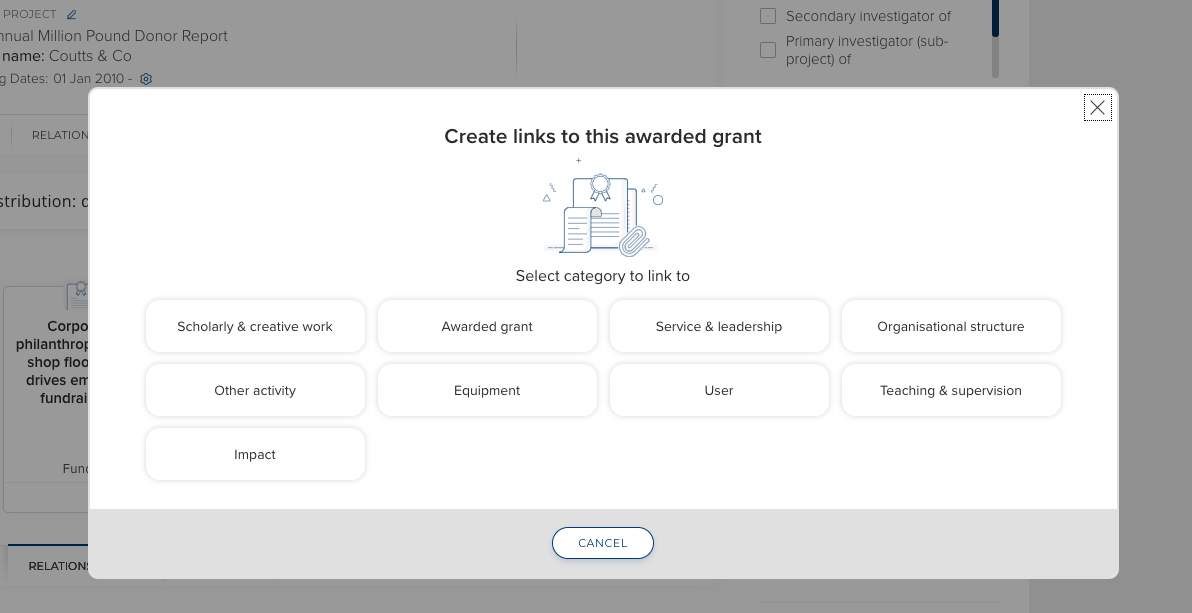
The resulting "Create Links" page will have the object where you began pre-selected. The Current filters will always default to items linked to your account with a date range set to the previous three years.
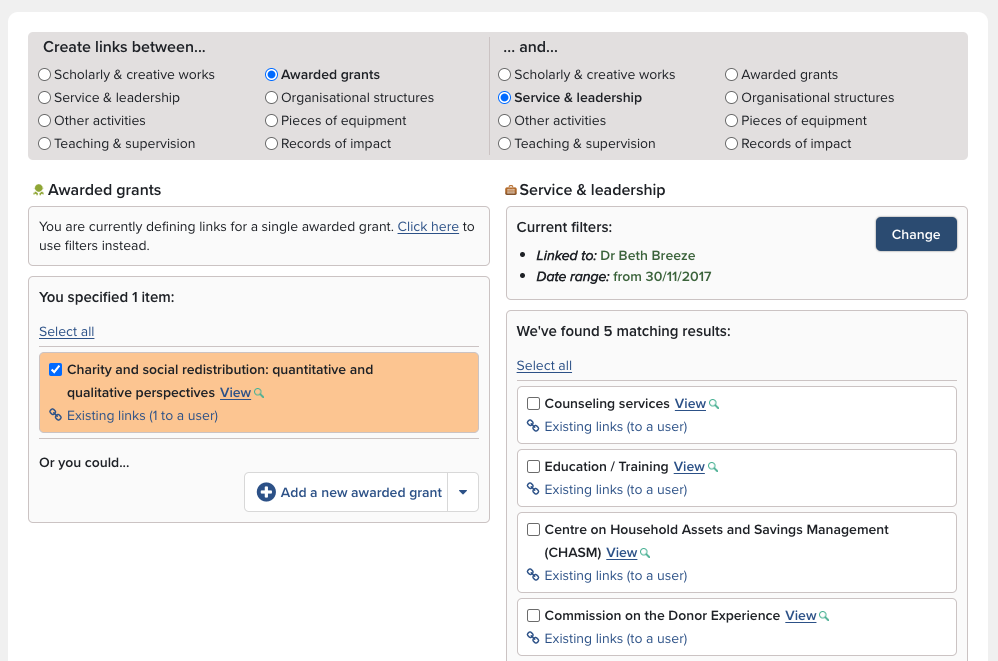
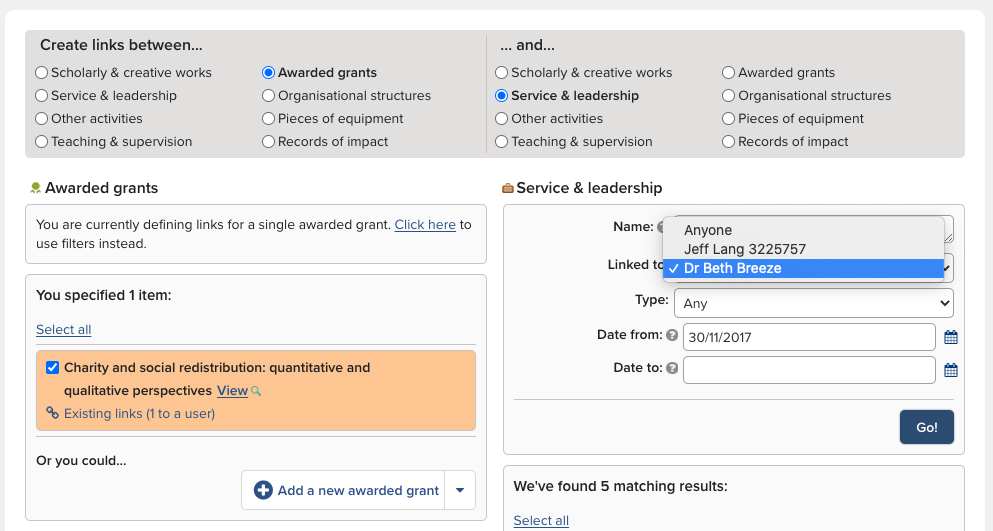
The Current filters can be broadened by clicking the "Change" button. In particular, if an expected item is not presented when you are the user, try changing the "Linked to" filter from your name to "Anyone."
Removing and editing links
To remove a link between objects, go to the "Relationships" tab and select a type of object ("Scholarly & Creative Works"). Click on the trashcan icon to remove a relationship.
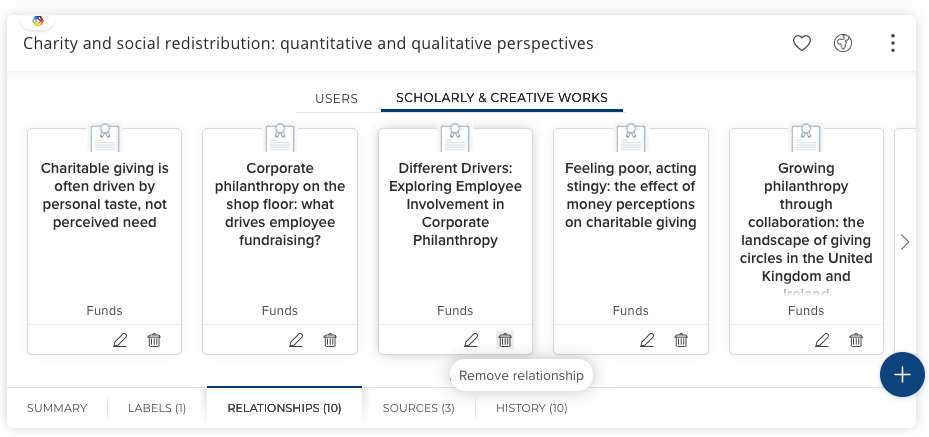
Please note that this will not delete the grant (or any other object), but only the relationship between the objects. When removing links between publications and users these will have a status of declined or "Not Mine".
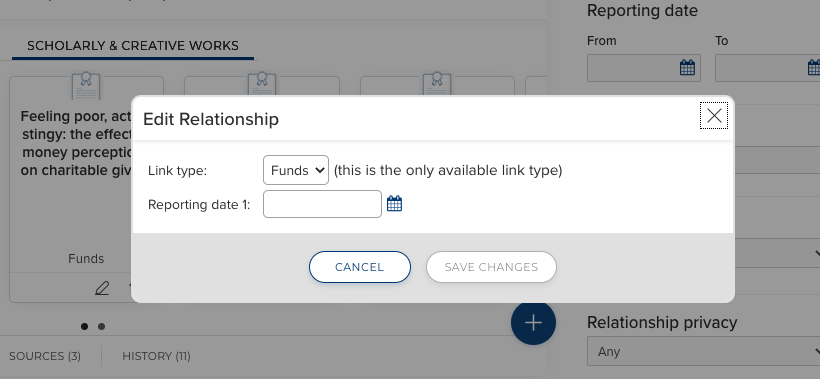
You can also click the pencil icon, which will open a window where relationship details can be edited.
Please also note that regular users of modules such as Organisational Structures, Pieces of Equipment, Impact, and Projects cannot add or delete links to these objects except for themselves. Only System Administrators, Research Information Administrator, and Category Admins can add or delete links.