
How to integrate the Altmetric - Explorer for Institutions with Elements
This article has been prepared for subscribers of the Altmetric - Explorer for Institution Edition
Introduction
Once implemented, Symplectic Elements typically becomes the system of record for an institution's research outputs.
This information - combined with basic HR (person) data and a configured Elements group structure - can be passed seamlessly from API V5.5 and above to Altmetric - Explorer for Institution Edition. Link to the EFI Implementation guide.
This short guide provides instructions on how to establish the connection between Altmetric - Explorer for Institution Edition and your institution’s version of Symplectic Elements.
What information will Altmetric retrieve from Elements?
Altmetric will automatically retrieve the following information from your version of Elements:
The institution’s author names;
Scholarly identifiers for publications that have been claimed by institutional authors;
Organisational group hierarchy of up to 4 levels;
Organisational group affiliations for all institutional authors
What happens after my Elements data are imported into Altmetric - Explorer for Institution Edition
When Altmetric connects with your version of Symplectic Elements for the first time, an initial mass import of all your authors, publications, departments, etc. will be carried out. (For customisation options, such as changing the colour scheme or importing a logo, please e-mail your contact on the Altmetric team.)
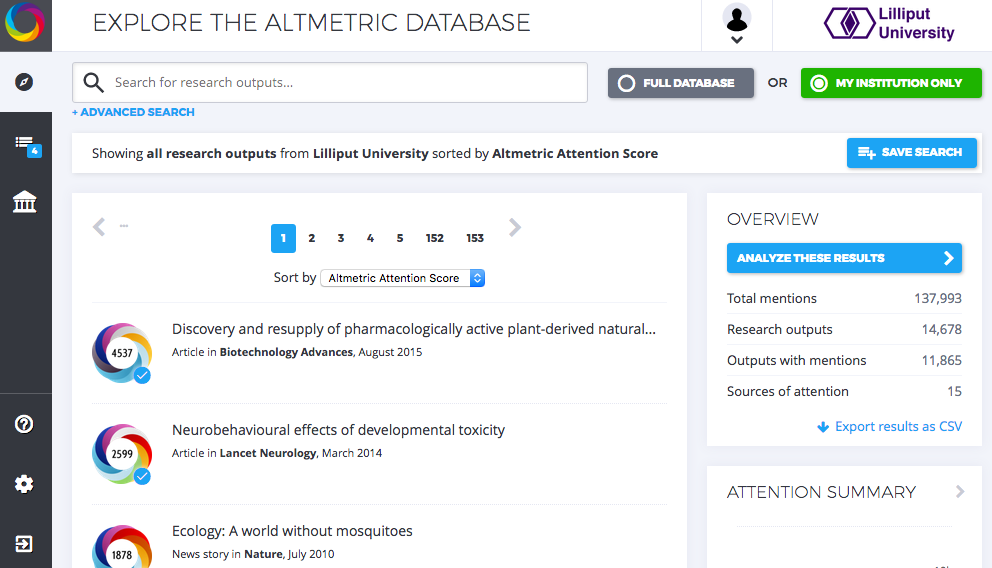
The authors, departments, and organisational hierarchy information will be used to populate the Authors and Departments tabs that can be found in “Explore my institution”.
Using the publications data that you have supplied (specifically, scholarly identifiers such as Digital Object Identifiers or DOIs), Altmetric will retrieve any attention data it has stored in association with these particular publications. Thus, attention data for all scholarly articles in your institution will be automatically supplied once the Elements connection is made. There is no further work required from you once you have provided Altmetric with access to your Elements API (see below).
Altmetric will use the authors, departments, and publications data from Elements to populate the lists visible in the Authors and Departments tab within “Explore my Institution”. The associated attention data paid to your institution's articles will be automatically matched to the authors, departments, and corresponding journal subjects.
Do lists of authors, publications, and groups Altmetric stay in sync with Elements?
Yes. All of the relevant data that Altmetric retrieves from Symplectic Elements are synced with Altmetric for Institutions regularly, at minimum on a daily basis. Updates or deletions of authors, publications, groups, and so on can be carried out in your institution’s Symplectic Elements. Altmetric for Institutions will subsequently reflect these changes after its latest daily (or more frequent) sync.
Making the connection
- If you are in the process of implementing Elements, your Symplectic Implementation Manager will handle all the setup and communication via Basecamp project.
- If your instance of Elements is hosted by Symplectic, your Altmetric EFI Implementation Manager will work with the Symplectic support team to complete the steps below. Clients only need to set up an API Account and keep a record of this at their end (See Step 2 below).
- If your Elements system is self-hosted, your institution’s Symplectic Elements administrator must carry out the following steps:
Open a firewall to provide Altmetric with access to your API.
Provide Altmetric with an Elements API endpoint.
1. Open a firewall to provide Altmetric with access to your Elements API
1.1. Firewall
Find an available port. To see the ports currently in use run this from a command line:
netstat -an | find /i "listening"1.2. Assign a SSL certificate to the port
Using a valid SSL certificate, locate the thumbprint and use it to assign the certificate to the chosen port. Replace the and before running this from a command line:
netsh http add sslcert ipport=0.0.0.0: certhash= appid={00112233-4455-6677-8899-AABBCCDDEEFF}Run this to see if your port is now listed:
netsh http show sslcert 2. Provide Altmetric with an Elements API endpoint
System administrators can configure the Elements API in the Manage API area under System Admin>API.
2.1 Use the existing API Endpoint setup in Elements, the address will look like:

or
Add a new API endpoint on the API Endpoints page with the following details:
Compatibility: Standard (use the latest version)
Scheme: HTTPS (Secure)
Port: as set up above
Path: elements-api-altmetric
This will create an endpoint with address like:
https://:/elements-api-altmetricNow ensure that it is enabled and update the page.
2.2 Add Altmetric as external system with allowed access
Add Altmetric’s two required systems on the System Admin>API Configuration page
Live: 164.132.63.174Live: 52.19.52.138
Staging: 51.254.16.223Staging: 52.208.189.116
2.3 Add API Account for Altmetric
Add a new API account for Altmetric to be able to connect to the API endpoint using credentials:
Username: altmetric
Password:
Account rights: none
Restart API under Scheduled Jobs
3. Send Altmetric your API details and credentials
Once you have enabled access for Altmetric to your Symplectic Elements API endpoint (and provided access for both Altmetric’s live and staging servers), please add the following details to your basecamp project group: a) The API endpoint URL b) The login credentials for Altmetric: Username: altmetric Password: [ensure that this is passed securely] You will hear back from an Altmetric team member about whether or not the connection with your Symplectic Elements API endpoint, was successful. Once the connection has been confirmed to be successful, Altmetric will schedule your implementation in order to begin pulling in your publications data from Symplectic Elements.