OA Policy Settings
This article applies to Elements v6.19 and below.
This article outlines how institutions with an Open Access Policy can configure Elements to comply with requirements by funders or to meet organisational strategic goals. OA Policy settings are apply to both Repository Tools 1 and Repository Tools 2.
When the OA Policy settings are configured, your end users will be prompted to upload full text for compliant publications. There are additional options available for enabling the deposit of publications when they are accepted for publication and the ability to upload full text when claiming publications found by searching the data sources. In the My Actions area of the Elements Home page, alerts are displayed for publications which meet the policy criteria and end users are guided to the deposit screens.
Open Access Policy Settings
The following configuration options are available:
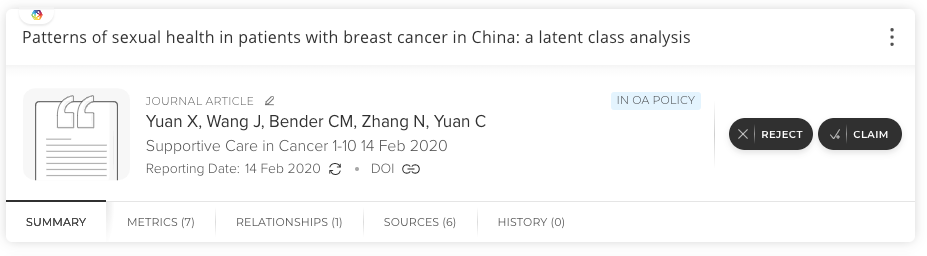
Group customisation can be at the Institutional or Primary Group level. Select from the dropdown groups.
Choose the Published or Accepted date as your primary source for the policy
Publication Type and Start Date - Select the publication types that your policy applies to and include the start date.
Please note that changes will not take effect until a full search re-index occurs.
Exclusions
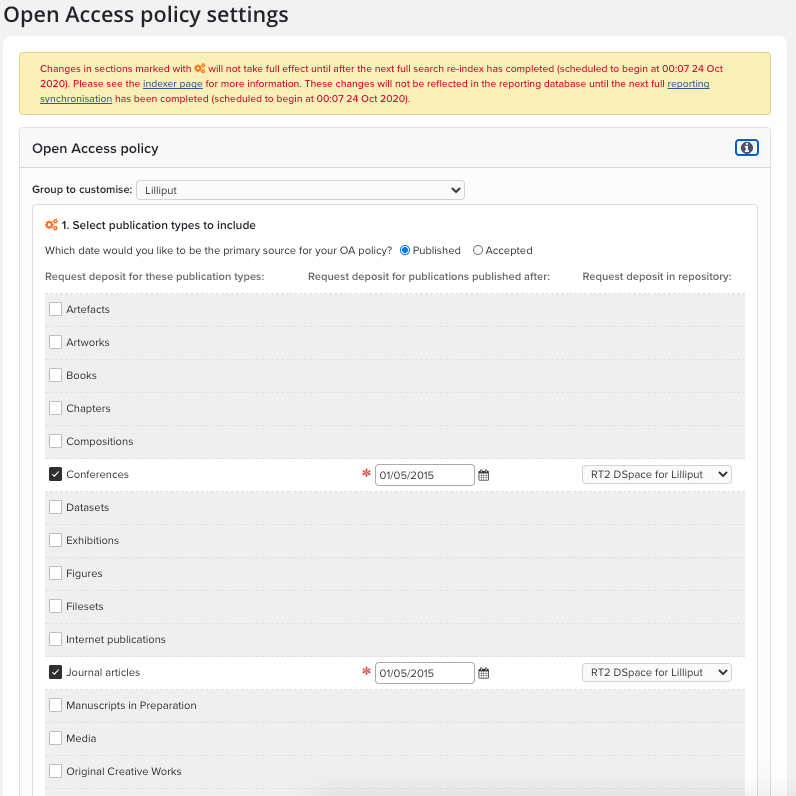
Inactive Users - Excludes publications for inactive users as indicated by your User Feed.
User Arrive Date - Exclude publications authored at other institutions. This requires the Arrival Date for the user to be populated in the User Feed.
User Leave Date - Exclude publications when users leave your institution. This requires the Leave Date for the user to be populated in the User Feed.
Waiver - Excludes publications that are subject to a permanent embargo. (RT1 only)
Embargo - Excludes publications that have an embargo applied. This requires the user to enter the correct embargo period during upload. (RT1 only)
Conference items without ISSN - Excludes Conference Items without an ISSN in order to eliminate ineligible conference papers.
Configure Compliance Settings
The minimum requirements for a publication to be compliant are as follows:
It is live in the repository
It has at least one file or OA location
It has a publication or acceptance date (as defined in section 1)
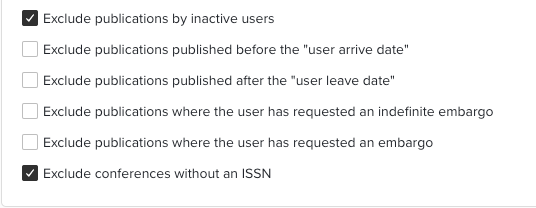
In this section, set additional constraints if desired.
Note: If the deposit deadline is not set, then the time elapsed between primary source date and deposit date will not be used to assess compliance.
Note: If the maximum embargo is not set, then file embargo periods will not be used to assess compliance, except for indefinitely embargoed files which are never compliant. If it is set to X days, then a publication will not be compliant if all of its (otherwise compliant) files have an embargo of more than X days after the publication date.
Existing options for Compliant file version include:
Accepted Version
Published Version
Submitted version
Supporting information
If no file version is set, then file version will not be used to assess compliance. If any versions are specified, then a publication can only be compliant if at least one of the file versions is out of embargo at the end of the specified period.
A note about Figshare for Institutions RT2 integrations
File versions are not part of the deposit configuration, if you use the OA monitor functionality, do not add file versions as all your deposits will be Non-compliant.
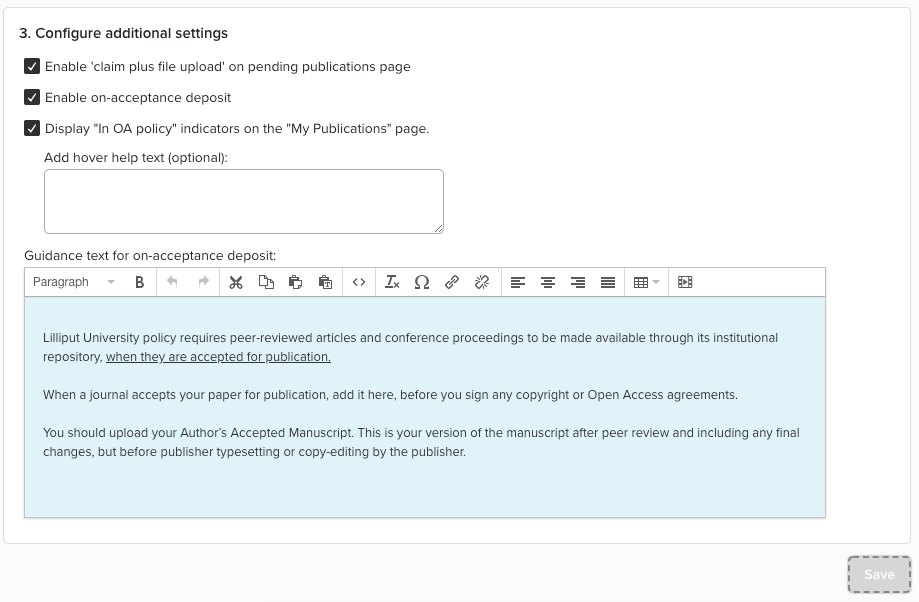
Configure Additional Settings
Claim Plus - Enable so that the Repository Deposit page will be presented when a publication is claimed. These publications are a result of a search against the external data sources. The icon below is presented from the Pending Publications:
On Acceptance Deposit - For institutions who want to encourage deposit of publications when they are accepted for publication. When you enable the check box end users are presented with the prompt Deposit Accepted Publications under "My Actions" on the Elements Home Page.
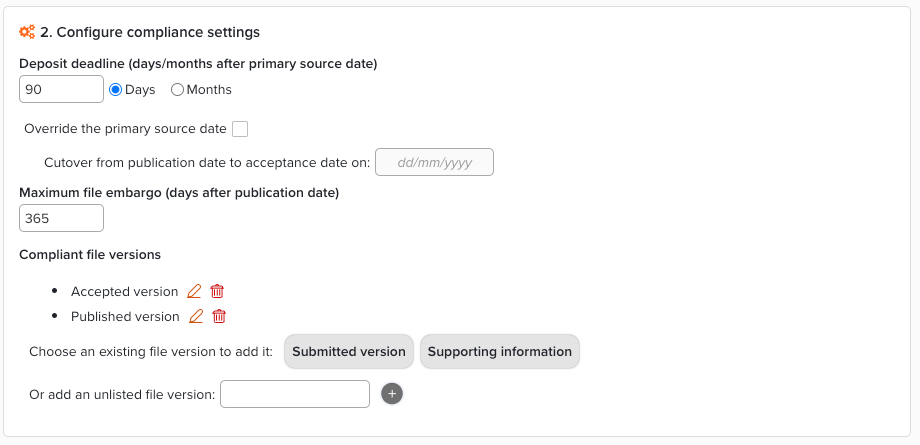
Displays - This displays an indicator on the My Publications page "In OA Policy" additionally you can add hover text for additional information.
Guidance Text - On acceptance deposit relies on manual data entry by end users, to assist them with this process, edit and format help guidance text. This guidance text appears after selecting the Deposit Accepted Publications link.
User Interface
When you select publication types and add a start date in the OA policy settings, you will notice that end users are presented with additional details on the brief summary screen when claiming items. This confirms that the item falls within the OA policy you have set.