
How to deposit full text into a repository via Elements
Depositing full text to your repository via the Elements interface is easy. Settings configured by your System Administrator determine some of the options you will see during deposit so use these instructions as a general guide. For help, email your repository staff from the link on the deposit page.
Scenario A: You have already claimed the item and it is in your “Claimed” folder
Menu > Profile & work > [RESEARCH OUTPUTS] > Deposit research outputs.
1. From the Summary View, click on the Deposit button.
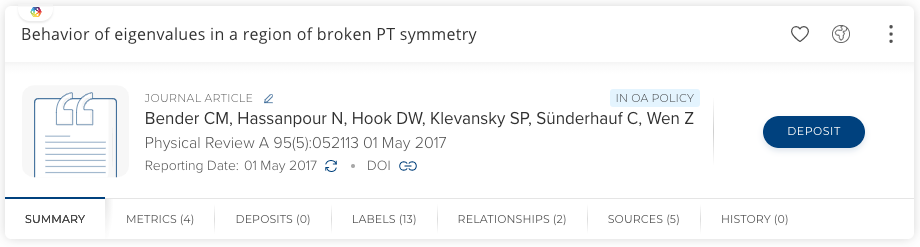
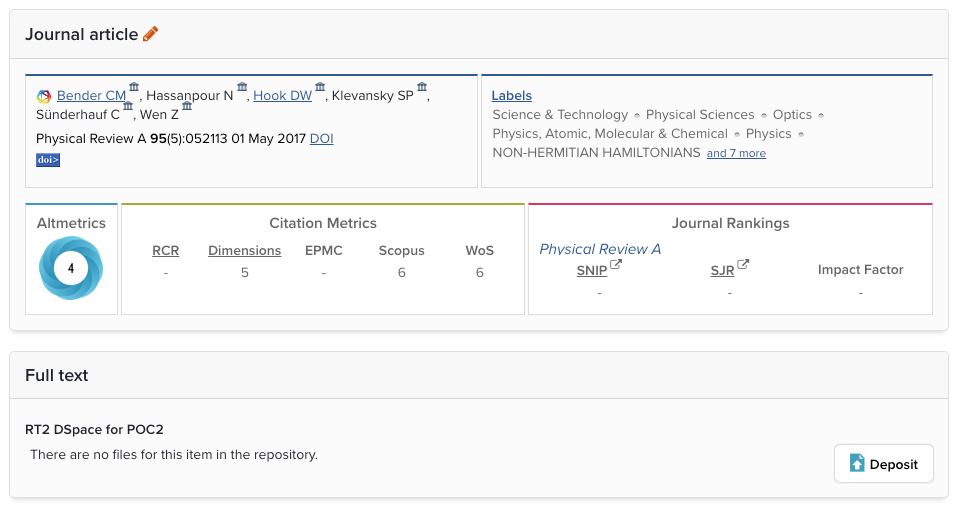
2. Alternately, from the “Full Object View,” select “Go to the deposit page.”
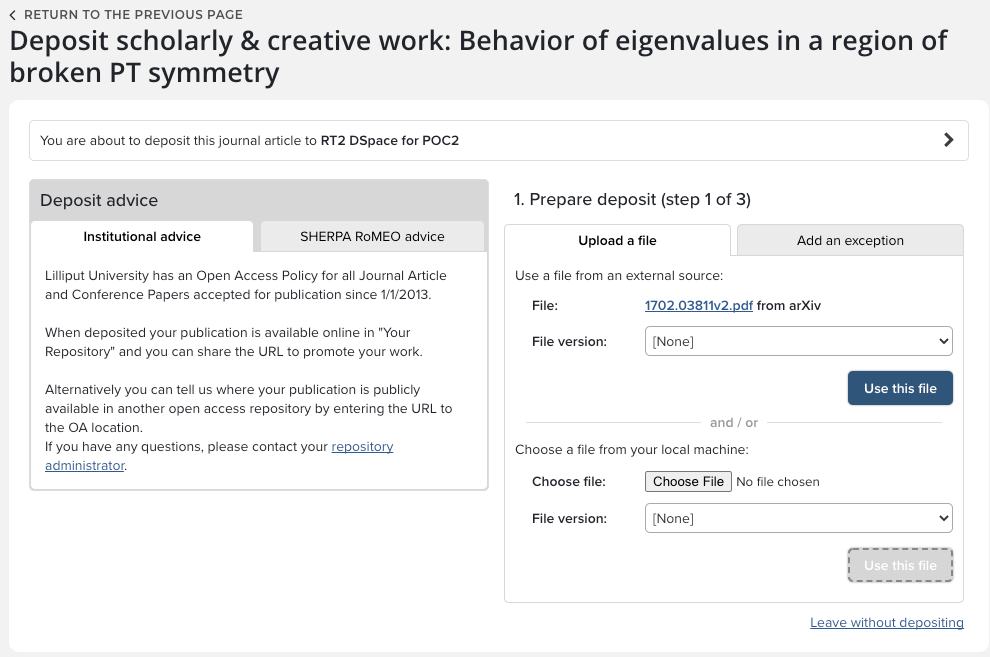
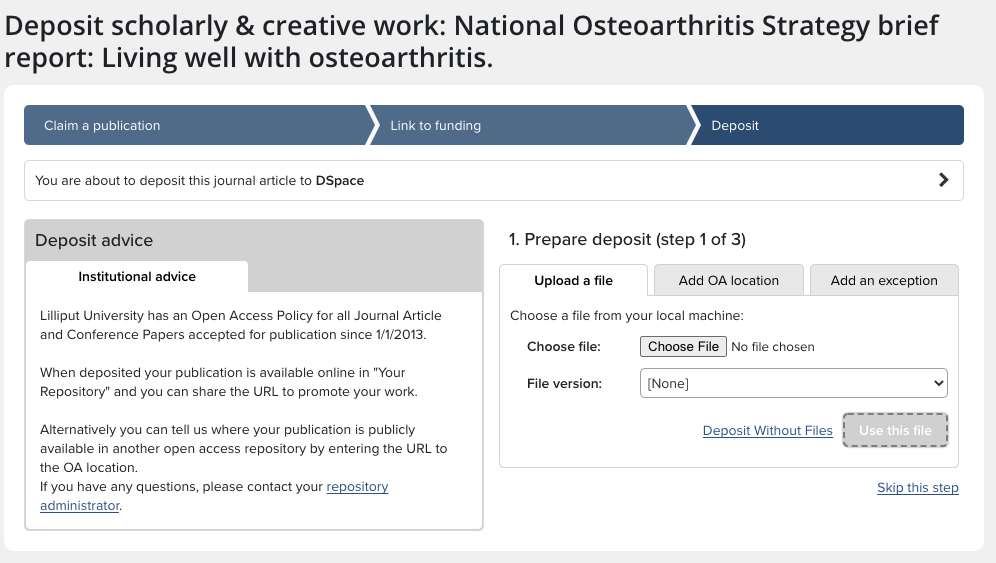
5. If a version of the document exists in arXiv (as is the case in our example) or other full text source such as Europe PubMed Central, then the file will be presented as an option for upload. Alternately, you can choose to upload from your computer.
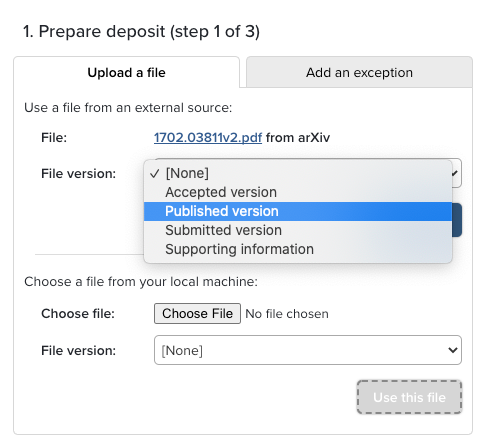
6. Pick an appropriate File version and click "Use this File."
7. Once the file has been uploaded, you may have the option of specifying an Embargo period for your article (though not every institution has this configuration enabled).
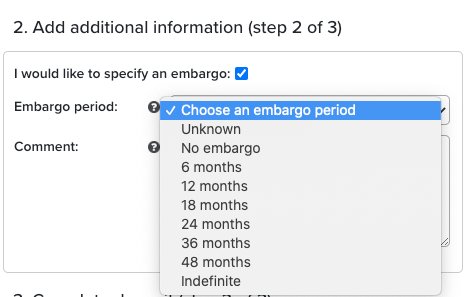
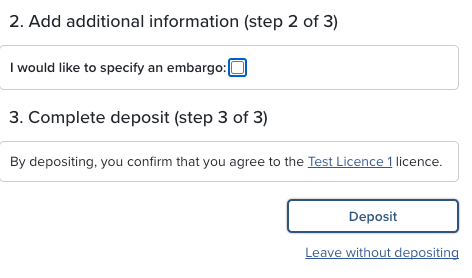
8. Depending on how your system is configured, you may be asked to accept the Distribution and Archiving rights license terms. When completed, click on the "Deposit" button.
What happens next?
If the deposit is live, then the Summary View will be updated to show Deposit (1), indicating one document has been transferred to the repository. Clicking on the tab will display additional information about the record.
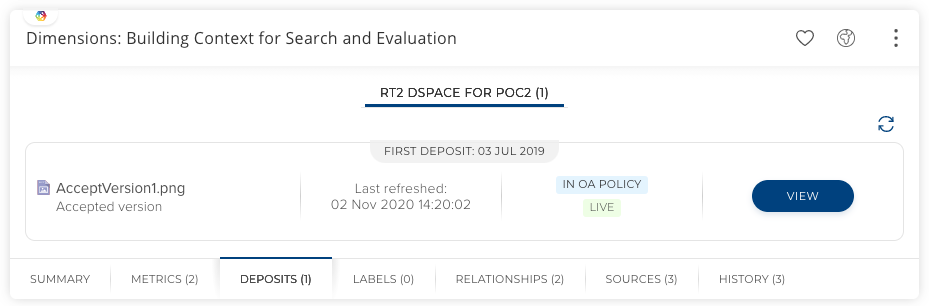
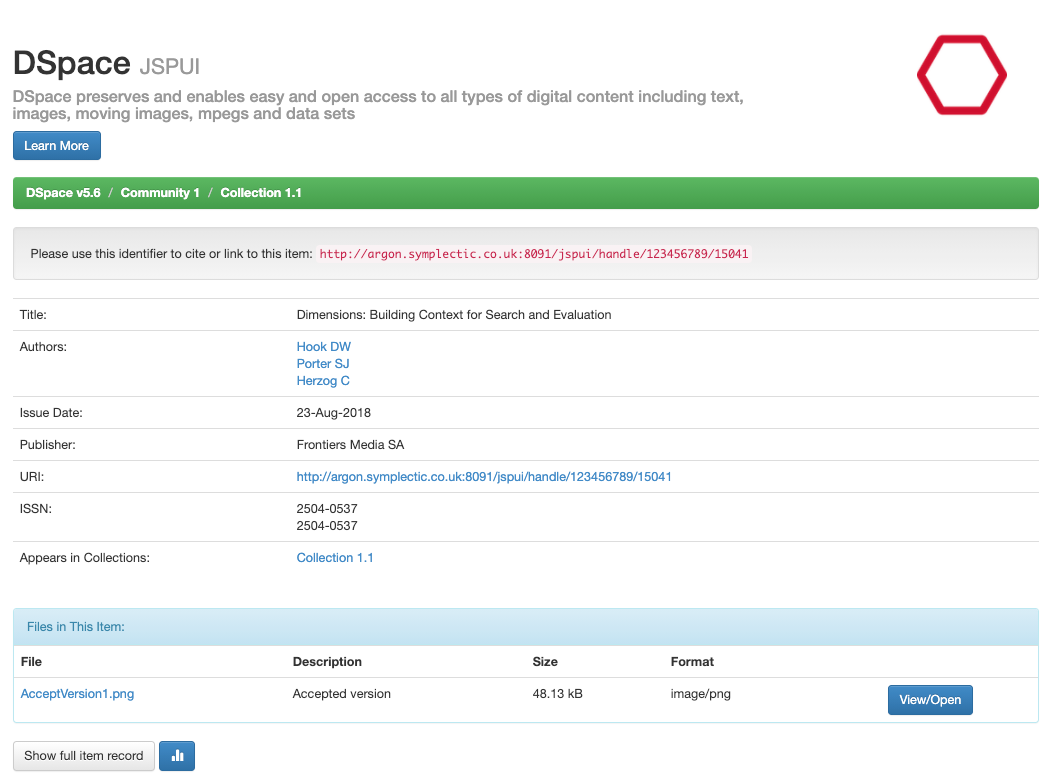
Also, clicking on the link for the file will download the deposited version of the text.
The Full Record view will show the date of deposit, another link that will allow you to download the document to your desktop, and an indicator of the status of the document in the repository ("Live").
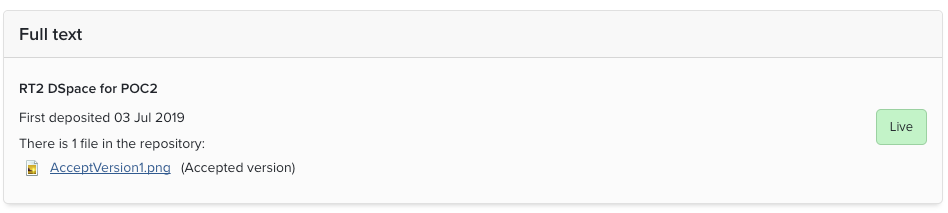
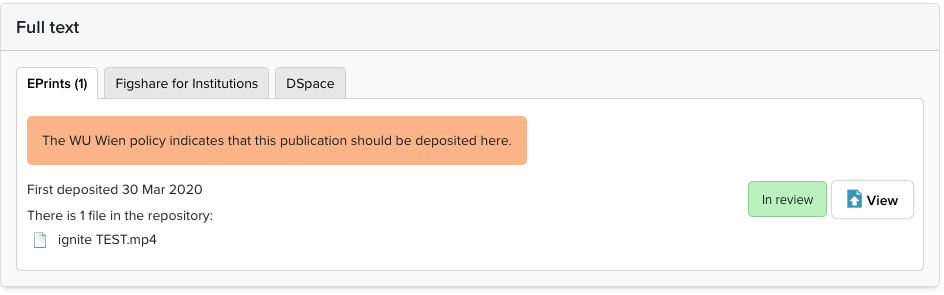
Depending on your repository policy, the full text deposit may not be available online immediately. Your repository administration will process your research output in accordance with the relevant publisher’s copyright policy. In this instance, the record will display as being "In review."
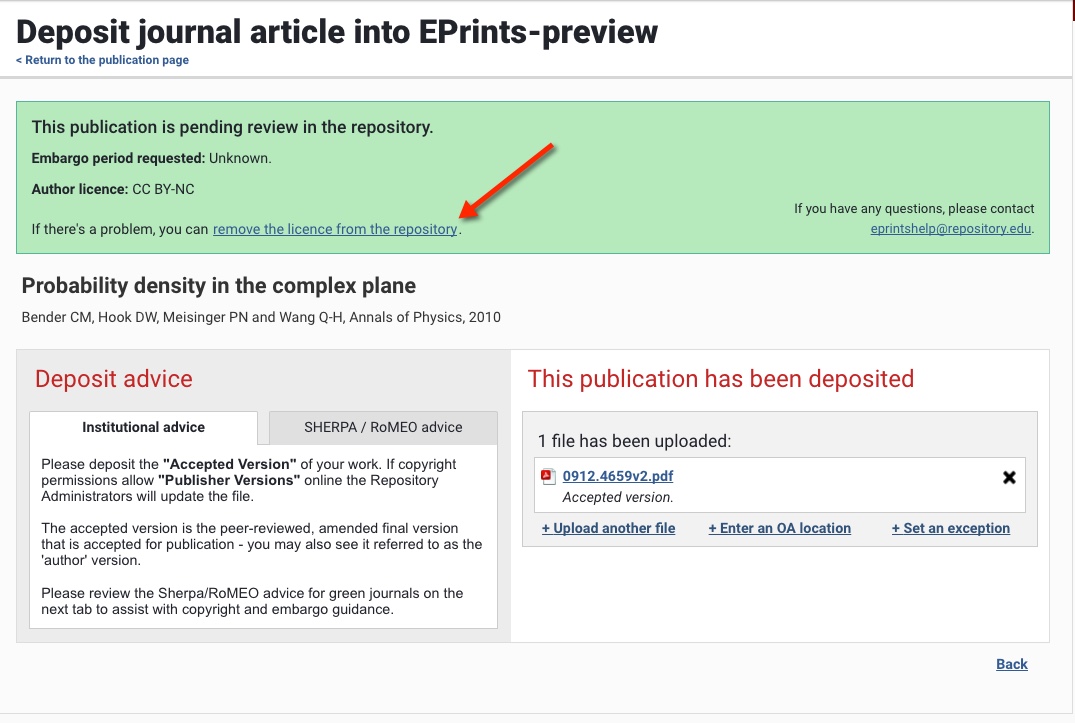
Depending on how your repository connection has been configured, you may have the option to withdraw the upload and remove the license from the repository. If you do see this option in your record, contact your repository staff using the email link on the deposit page.
Scenario B: You are about to claim the item
The following options will be presented differently depending on the Open Access Policy in place at your institution.
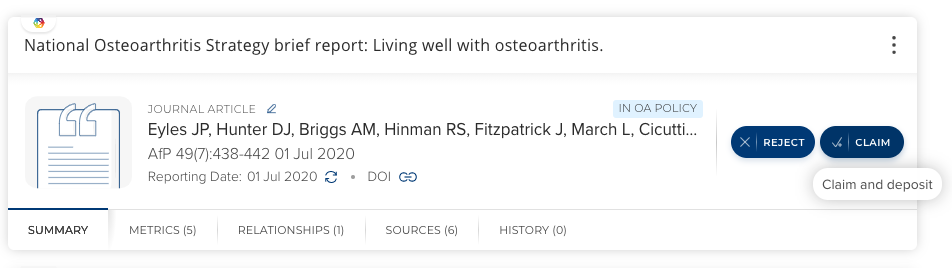
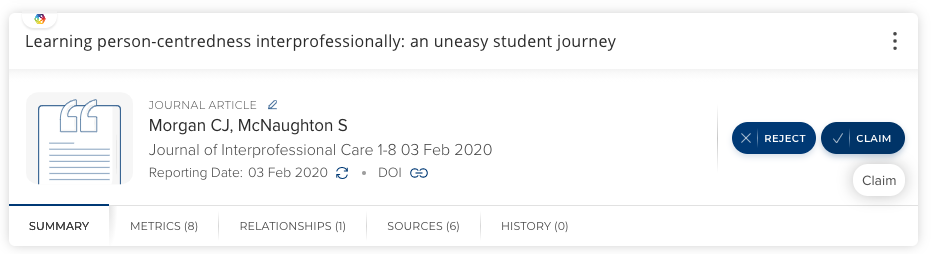
1. Click the Claim and Deposit or Claim button.
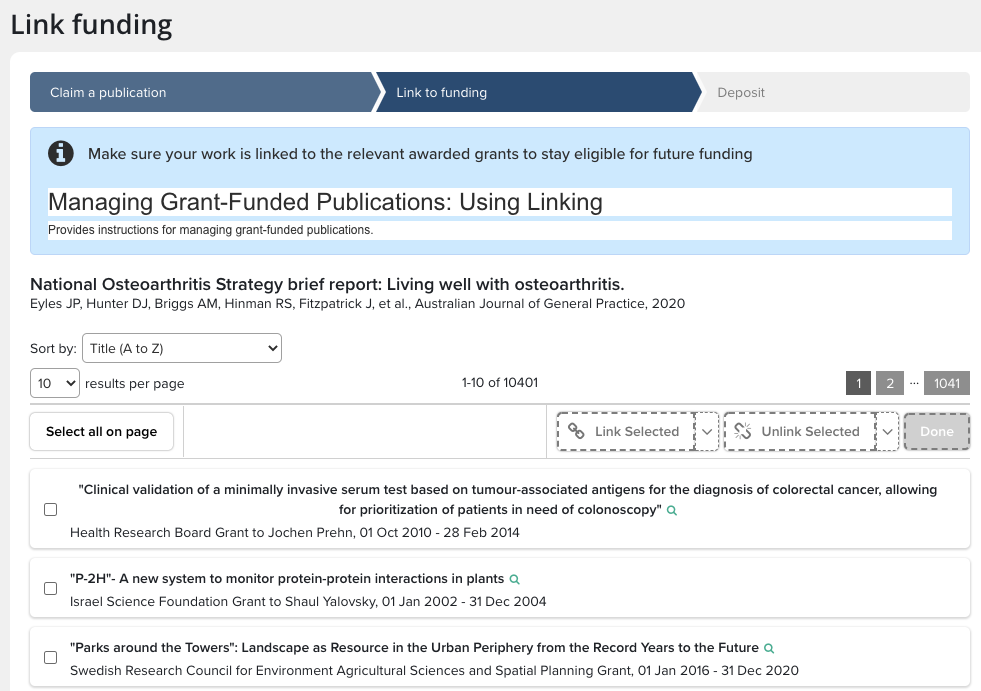
2. Link the article to Grant funding (if available) or click grant not listed.
3. When linking is complete, you will be taken to the Deposit journal article page. Follow the deposit steps to complete your deposit.
Frequently Asked Questions
Q: How do I know if my deposit is live ?
A: A link called “Repository Public URL” will appear beside the item on your publication page. This will appear when the repository staff has reviewed the full text.
Q: What is the “author’s accept manuscript” version?
A: This is the author’s final draft version, accepted for publication following peer review. It is not the publisher’s formatted version. Most journals allow authors to self-archive a copy of the ‘accepted manuscript’ version of their papers.
Q: How is the process for Accepted for Publications items entered manually different?
A: After adding an article manually, you will be guided through linking to Grants and then offered the deposit page. See instructions for Accepted for Publication Deposit:
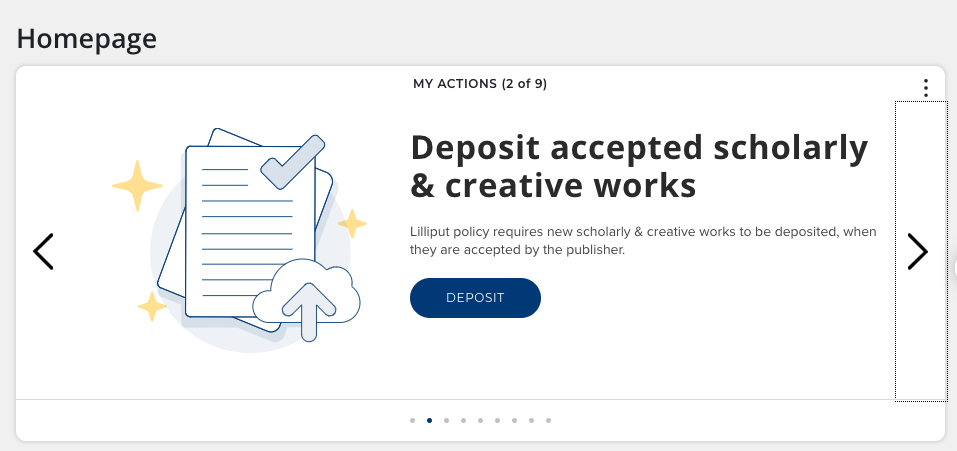
You can also access all the above options from the Home Page under “My Actions:”
Thanks to Jennifer Graham of the University of Auckland for allowing us to adapt some of her materials.