
Assessment - Quick Start Guide for Users
Note: In Elements v6.9+ the user interface for assessment users and reviewers changed significantly. In addition, a number of changes were made to configuration options. For more information please see this support article.
This guide explains the basics about building an Assessment Exercise and outlines how to manage the components of an exercise such as Lists and Items, along with the supporting information that may be required. When completed, you will have a discrete set of data which can be exported, printed, used for reporting, presented for evaluation, review or assessment.
How to Begin
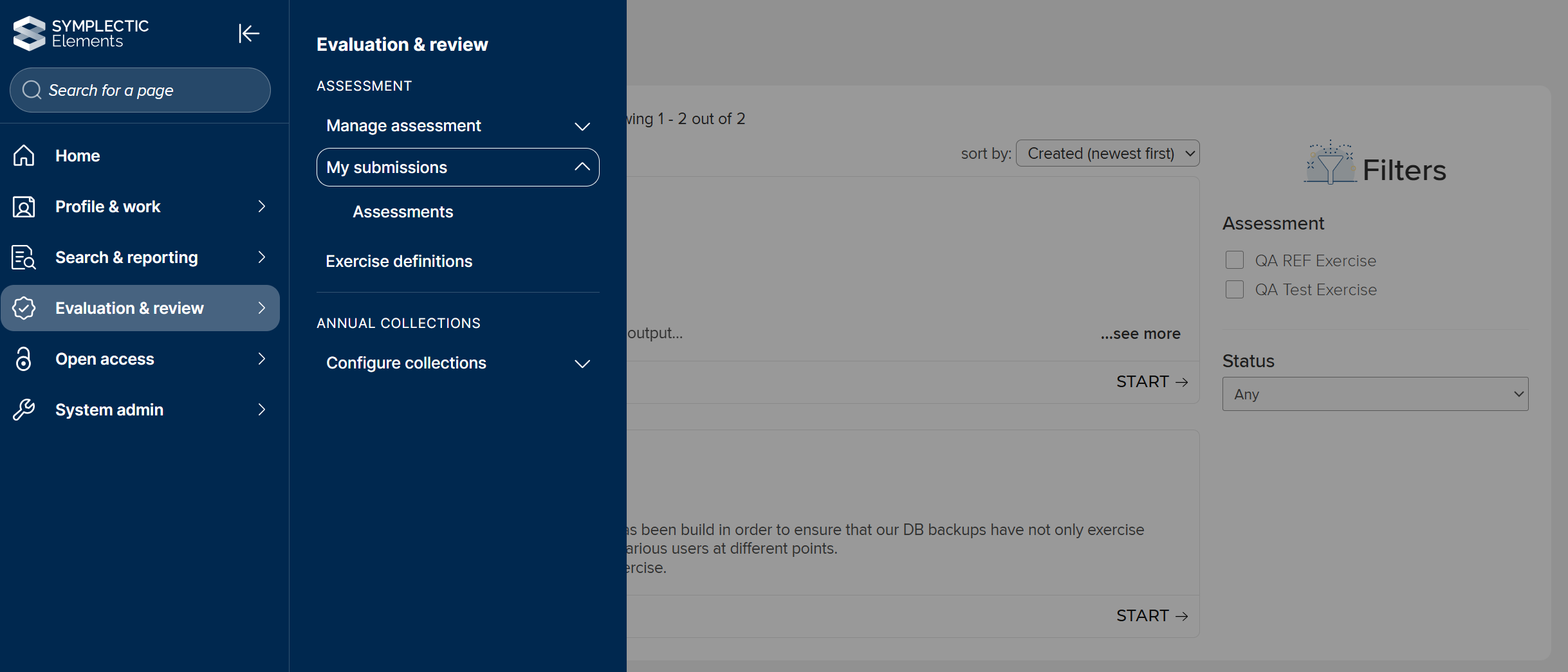
Begin by going to Evaluation & review > Assessment > My Submissions > Assessments
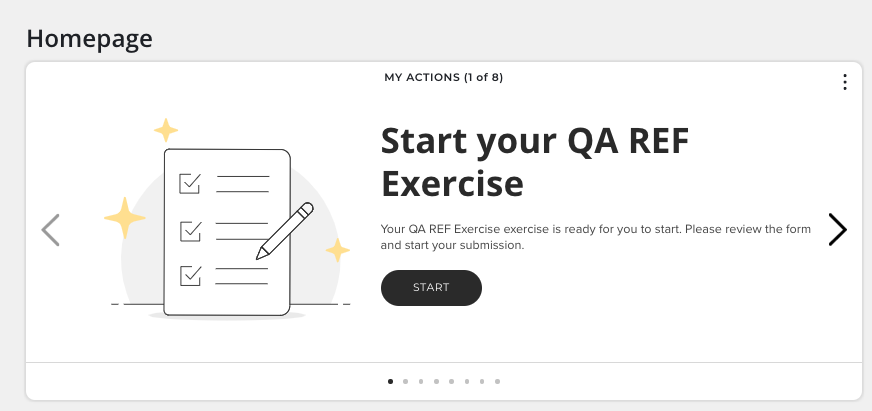
You may also be prompted to start, complete or take action on an exercise from the My Actions menu.
Manage your Assessment Exercise(s)
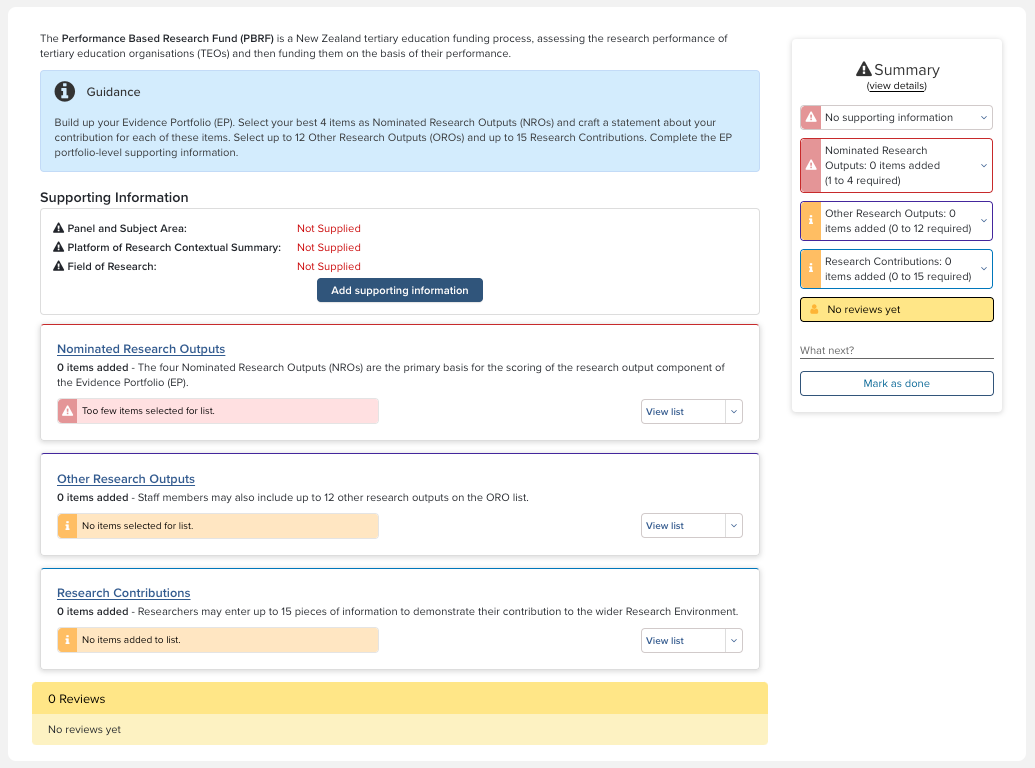
You may have multiple exercises to complete. Begin by selecting the one you would like to manage. Refer to the guidance text for instructions if you need help. The "Summary" panel on the right hand side of the page will alert you on which sections need to be completed. Your first task will usually be to select items. Be sure to note the number required. At the completion of any task, refer to the "What Next?" on the status panel.
Each exercise is organised in a hierarchy consisting of three levels:
Level 1 Exercise: You will be asked to add Supporting Information content for your whole exercise if required. In the example below, the name of the Exercise is "Research Quality Review 2016"
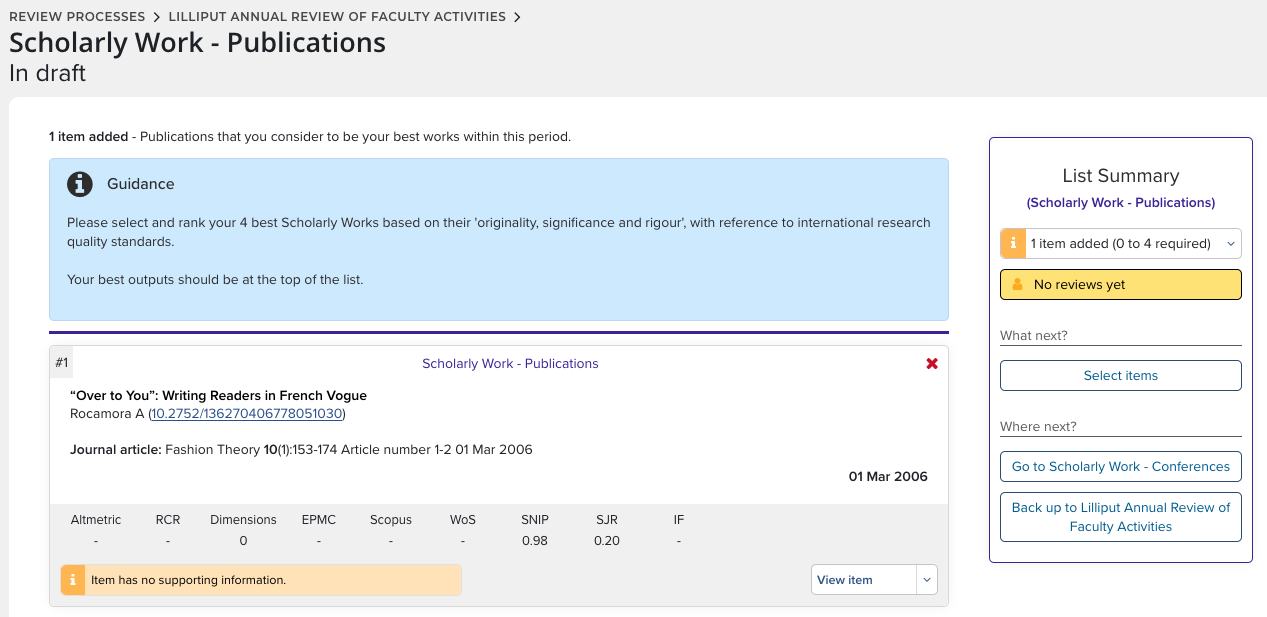
Level 2 List: You will be asked to manage items and, if required, add supporting information to summarise your list items. In the screen shot below, the name of the List is "Scholarly Work - Publications"
Level 3 Item: You will be asked to review and, if required, add supporting information to supplement your items. You can view details and navigate to the Elements view of the item.
If reviews are enabled and visible, you will see indicators in the yellow boxes to indicate the status.
Select Items
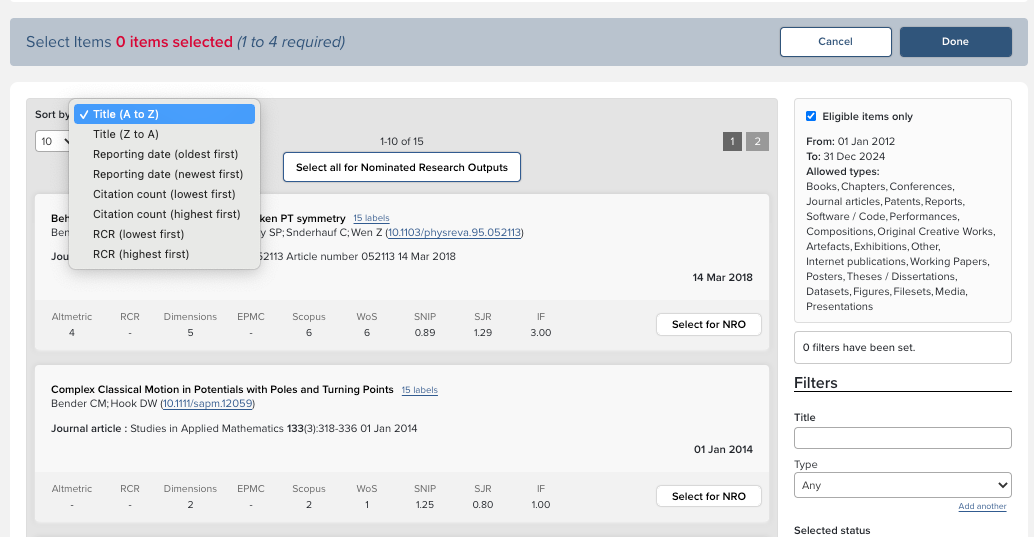
Each exercise will contain list(s) for you to manage items. Select the list you are working with to view the eligible items.

Each list page will be pre-populated with your eligible items. Eligibility is set by your administrator and based on your status, type, and date of each item. Filters allow you to narrow selections based on type, status, whether an item is a favorite or if it has a verified record (if your institution uses the verification workflow). You can narrow results using filters such as Title, Labels, DOI, Journal title, date ranges, and whether an item has a verified manual record.
You can use the Sort tool to arrange items by title, reporting date, citation count or RCR.
Last, provide supporting information or attach files, if required. As each requirement is completed, a checkmark will appear. Mark the list "Done" when you have completed your selections.
View Items
After you have selected an item you can view it in more detail by clicking the "View item" button. The "What next?" and "Where next?" links will take you to next steps.
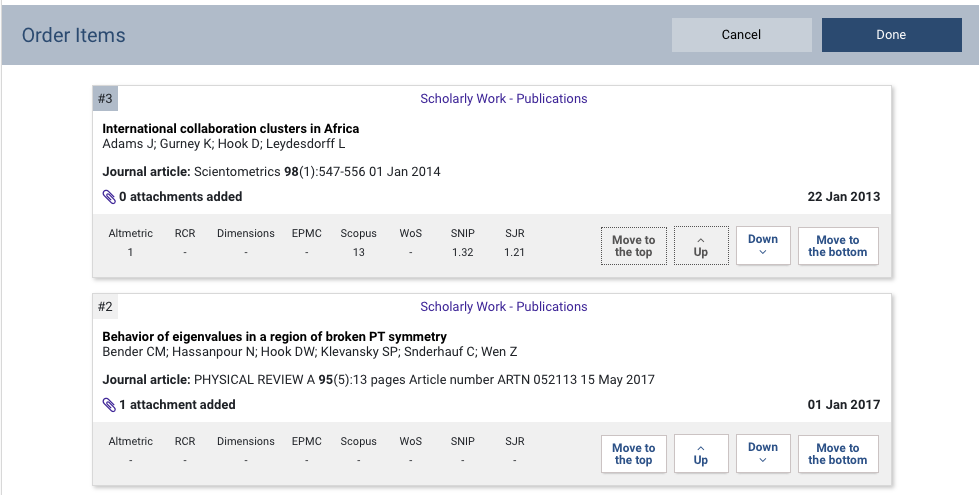
Order Items
Item order corresponds to selection order. If you need to change this, the 'List Status' panel contains links to 'Order List Items'. Use the buttons to rearrange the order of items. Mark the ordering as "Done" and the updated order will be refreshed.
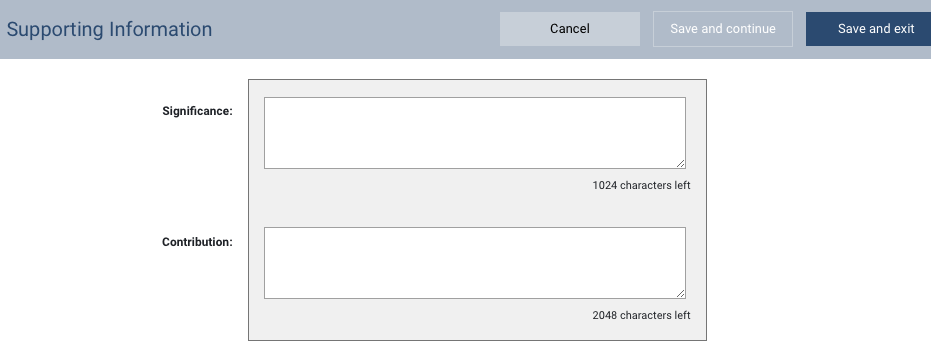
Manage Items with Supporting Information
You will notice that some Exercises, Lists or Items may require additional information. These items are flagged with an information status, indicating work is still required. Fill in and either "Save and continue" to save drafts or "Save and exit" if you have finalised your entry. Supporting information examples: Exercise, Review or Document Portfolio summaries to describe your whole exercise; Statements or summaries about the list of items; Descriptions or additional comments about an item.
The status panel will indicate if you have additional selections or supporting information to complete. If reviewing is in place and reviews are enabled, please mark the Assessment Exercise as ready for review. You can see the reviews on the page as they are completed by the Reviewer. When completed, you can export to Word or PDF, or view the Assessment Exercise.
Completed Exercises
When an exercise is completed, it may no longer available for updating. This is controlled by your Administrators.
Glossary of Terms
An Assessment Exercise is made up of lists and can include summaries or description fields. An Assessment Exercise will have a name, some examples: REF, PBRF, Research Quality Review or any others defined by your institution.
Lists are collections of items that you select, create, edit, order and manage. Lists will be named. Examples include: Research Outputs, Creative Outputs, NROs, and/or Narratives.
Items can be selected from Elements objects like individual Publications, Professional Activities, Teaching Activities, Impact and Grants. Items can also be created within the Exercise. Items not included in Elements might be private and confidential and only exist in an Assessment Exercise. Items can be ordered and supplemented with additional information
Supporting Fields are objects not sourced from Elements but created within an Assessment.
Status indicates the stage of your Assessment Exercise.