
Assessment Module Administration - Create an exercise using a template
Note: In Elements v6.9+ the user interface for assessment users and reviewers changed significantly. In addition, a number of changes were made to configuration options. For more information please see this support article.
This guide will assist you in creating an Assessment Exercise definition using the pre-defined templates. These templates can be used to support periodic institutional assessments such as the PBRF (NZ), REF (UK) and a Research Quality Review for internal review exercises. You can change components of the template configuration to suit your institution.
Steps to Creating an Assessment Exercise
Check you are licensed for Assessment.
Create an Exercise from a template and edit to suit your institution.
Configure who has access.
If you enable reviewing, determine who can review exercises.
Enable Reports.
Licence
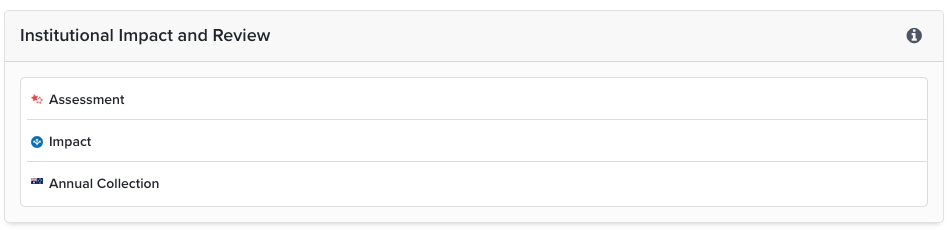
To see if you are licensed for the module, go to System Admin > General Settings > Licence. Assessment is listed in the 'Institutional Impact and Review' section. If it is greyed out, then you are not licensed. Depending on your subscription, the Assessment module may be subject to a separate licence key. Please raise a support request if you have questions.
Create an Exercise from a Template
An Assessment Exercise is made up of four components:
The whole exercise. Synonyms for "Exercise" are Portfolio, Document, or Review.
Lists of items that form the content of the exercise and are only created within an exercise. These consist of Supporting Fields. Examples of Supporting fields are: descriptions, commentary, codes, and categories.
Lists of items selected from Elements that form the content of the exercise. These may include Publications, Teaching Activities, Professional Activities, Impact, and Grants.
The roles for each exercise. Example include the users who can access the exercise and those who can review them.
As a System Administrator, go to Evaluation & review > Assessment > Exercise Definition and then select the appropriate template. The template pre-populates the eligibility, lists and supporting information. Change or alter the template to suit your institution.

The Assessment Exercise Definition Page
The Assessment Exercise Definition Page has several sections:
Exercise
Lists
Supporting fields
Scoresets
Stages
Stage transitions
Users
Managers
Attachment types
Units
Advanced
Edit assessment exercise
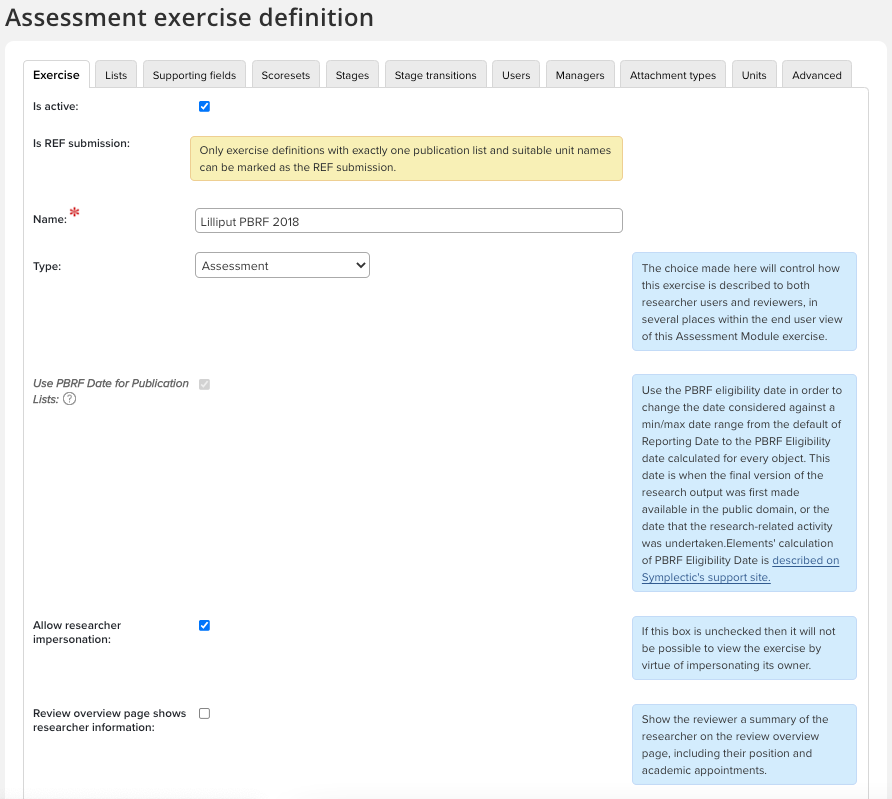
Name: The exercise must have a name. You can edit or update the name after the exercise is created.
Type: The template will be pre-populated with the appropriate type - selected from Assessment, Review Process or Document
Use PBRF Date for Publication: Only for PBRF exercises.
Allow researcher Impersonation: Allows Admins to impersonate users.
Review overview page shows researcher information: Shows a summary of the researcher, including position and academic appointments.
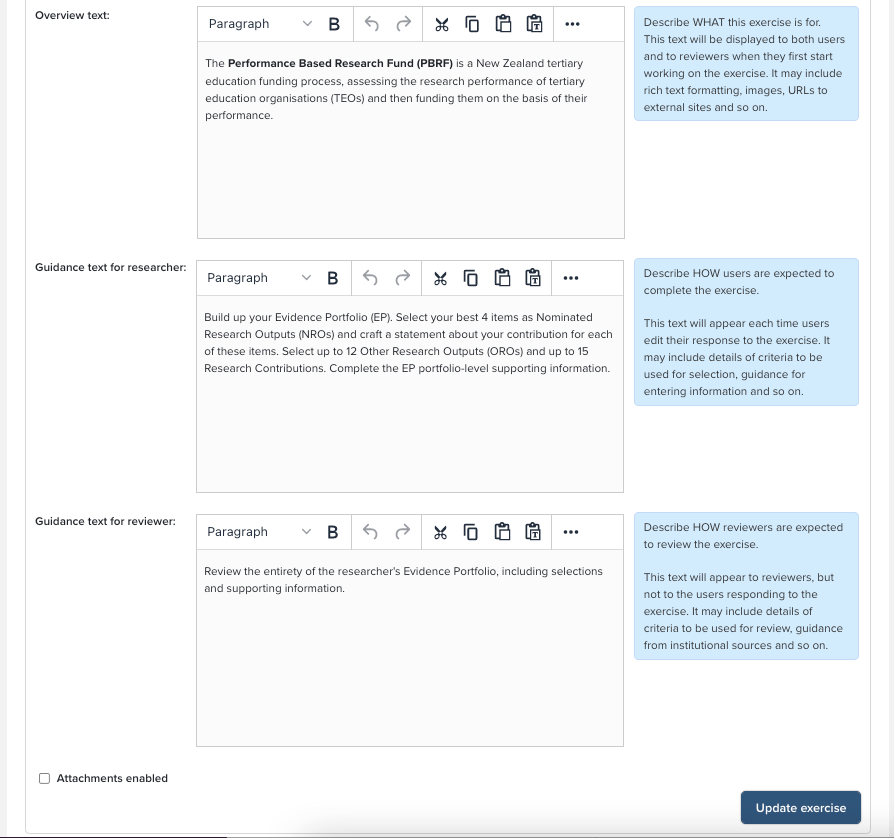
Overview Text: This provides an overview rather than instructional guidance.
Guidance Text for Researcher: Allows you to provide instructions for the Researcher about the whole exercise.
Guidance Text for Reviewer: Allows you to provide instructions for Reviews about the whole exercise.
Attachment check boxes: Permits the upload files and define the categorising of the file type and any guidance text for researchers.
See the 'Assessment module administration: Creating an exercise' support article for full details of all fields available to configure.
Be sure to click "Update exercise" to save your settings.
Lists
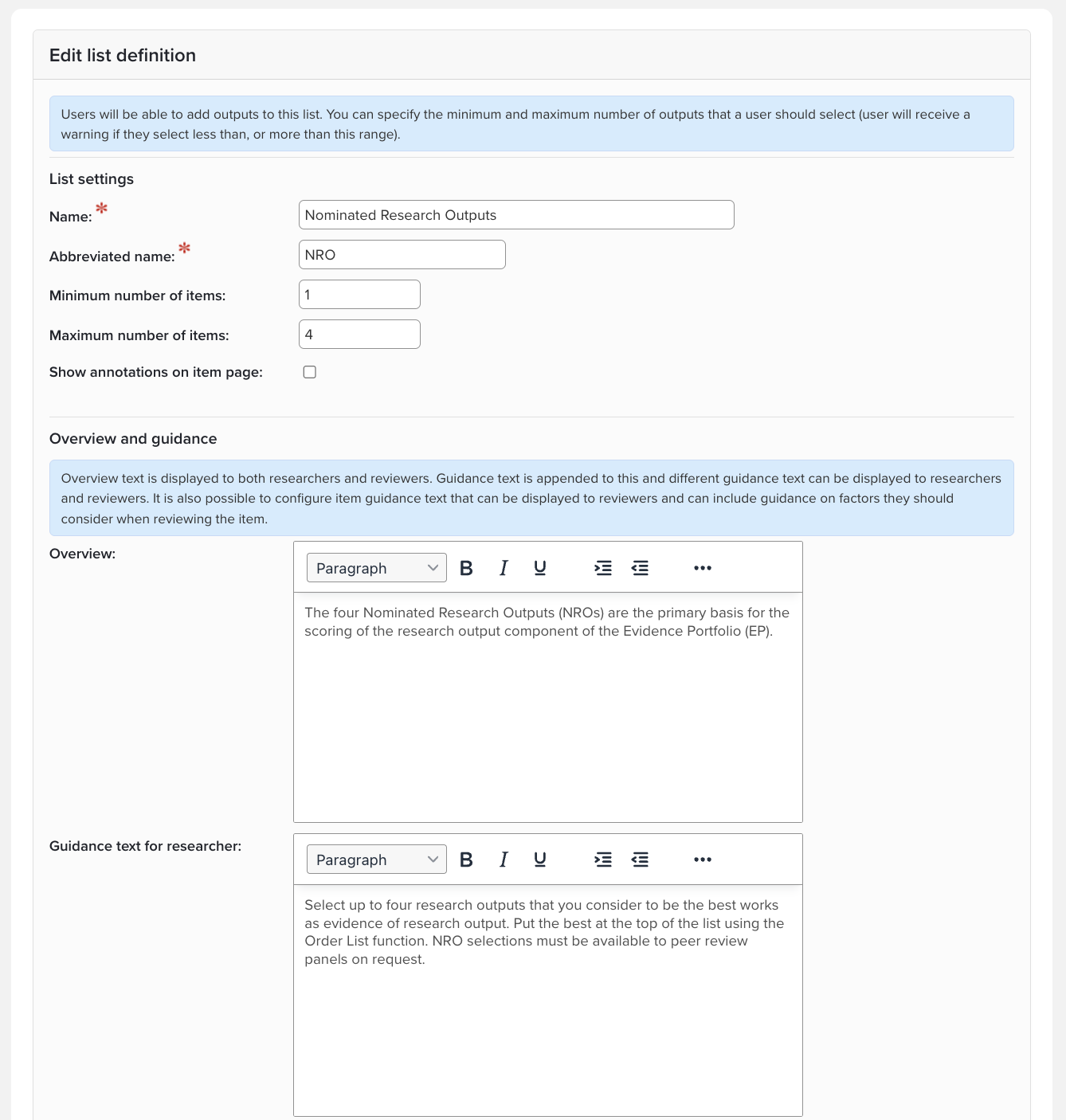
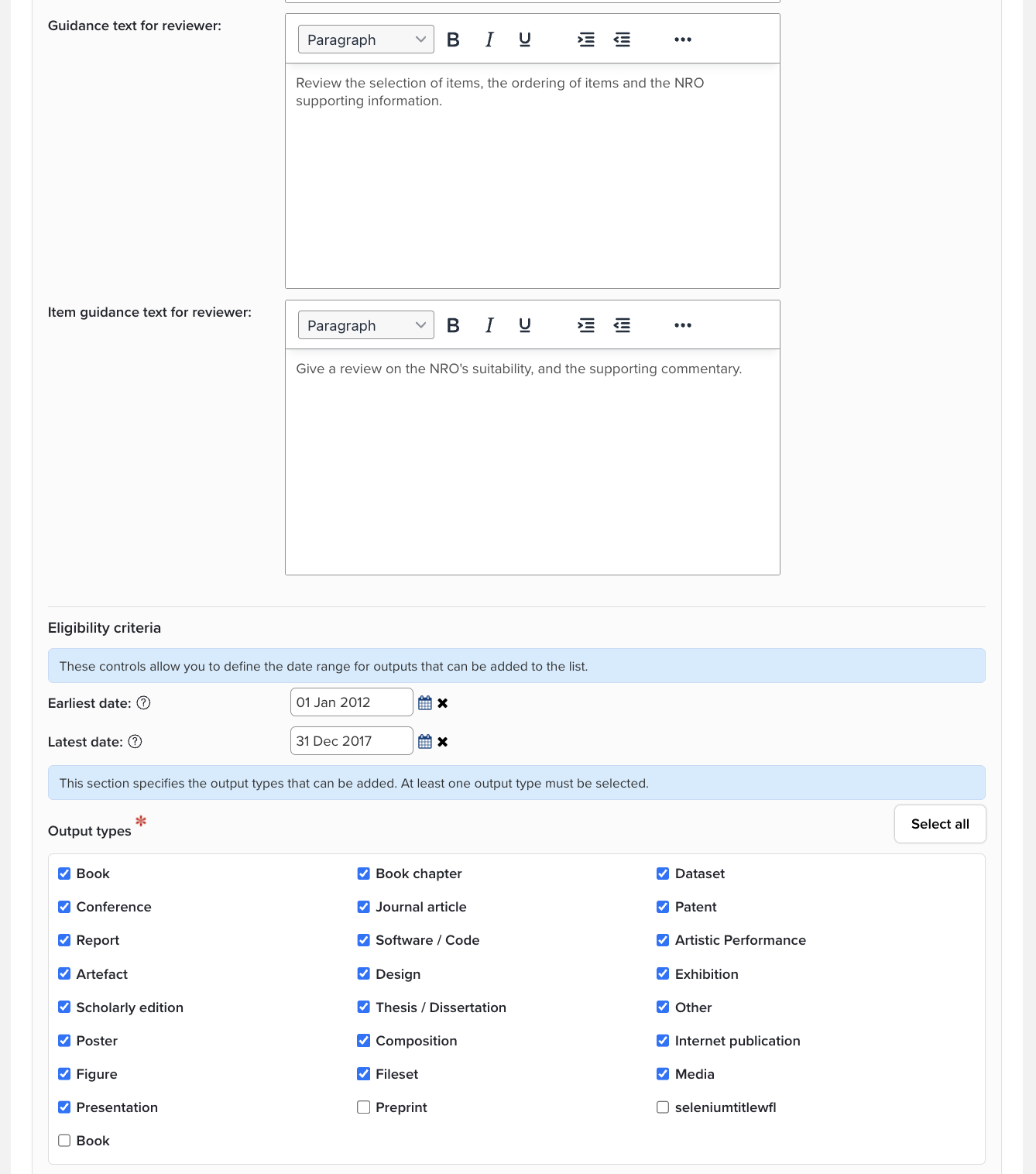
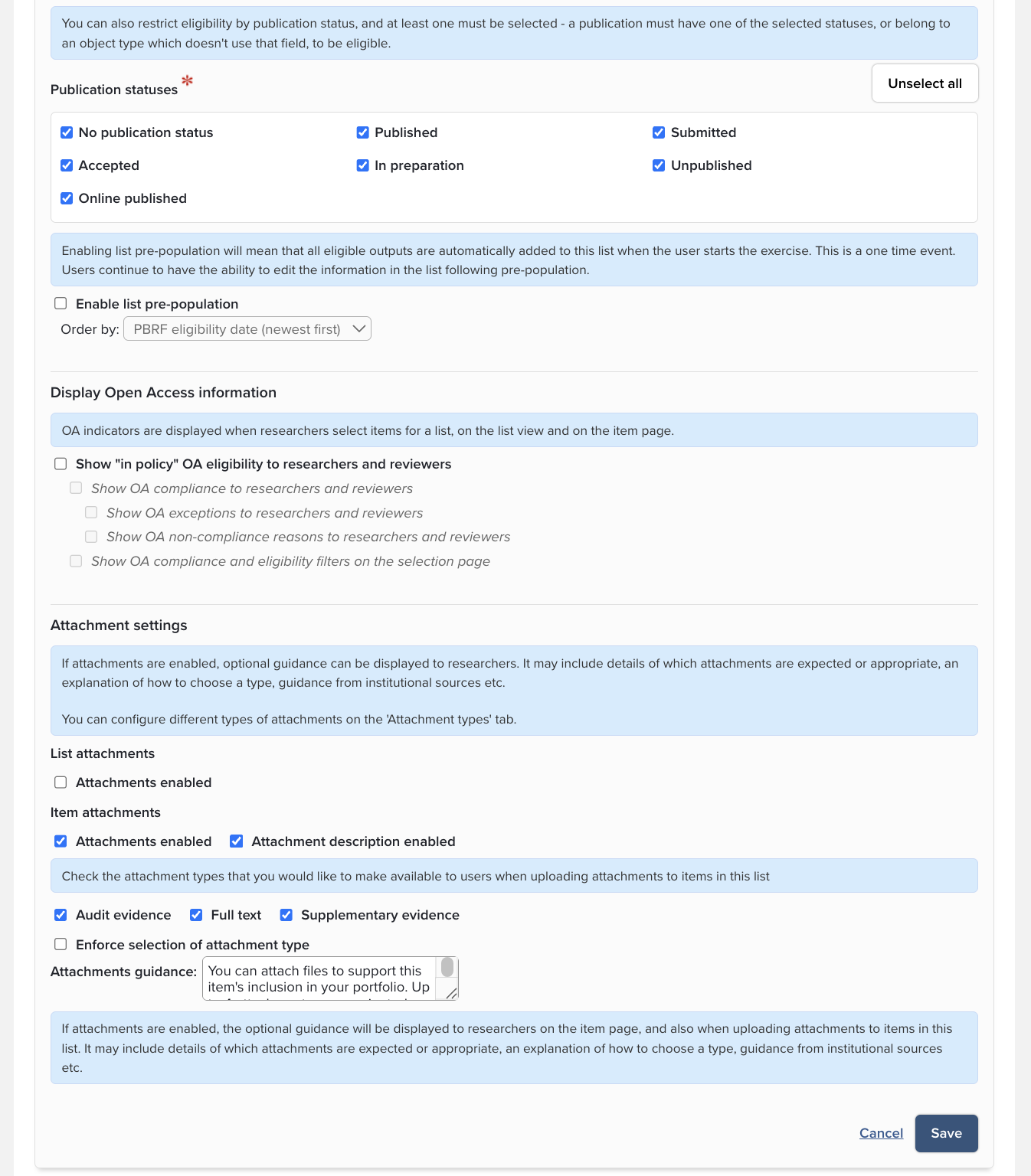
Lists of items have been pre-populated with permitted types and eligibility for each selection.
Edit the lists to suit your requirements.
Lists can consist of objects from Elements like Publications or be created manually in a Fields Only list.
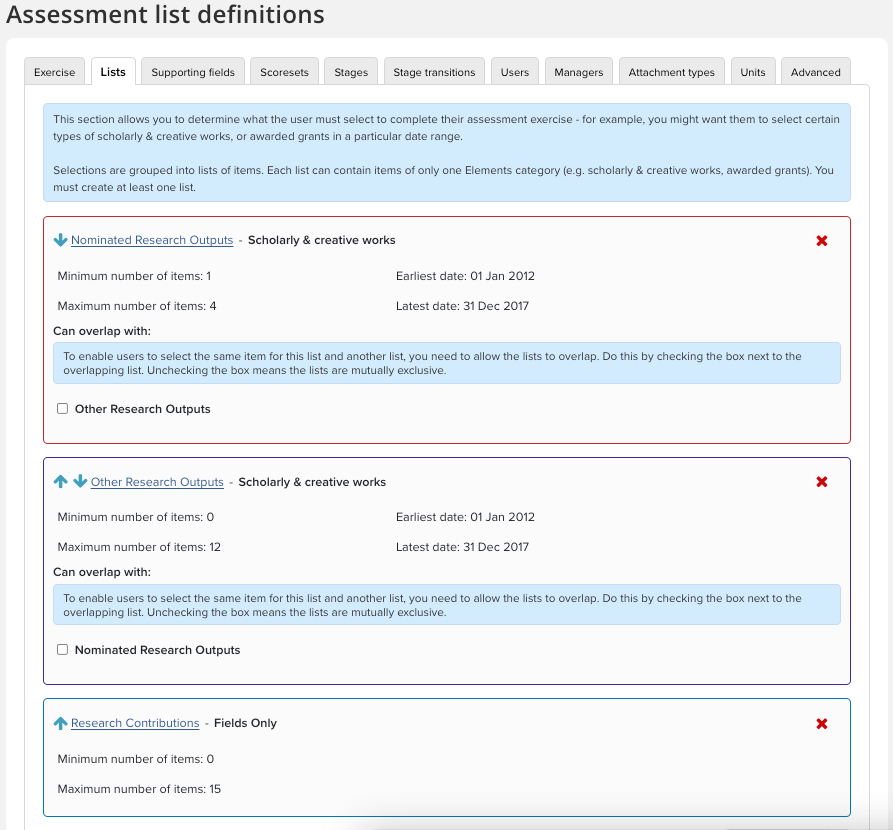
If you choose a template, default lists will pre-populate your exercise, but you can change some components to suit your institution. Customise the overview and guidance text as needed. If you have a list that is made up of objects from Elements, then you can add or delete types and alter the settings for review and visibility using the check boxes. The supporting lists for a list have also been pre-populated and can be deleted or re-ordered.
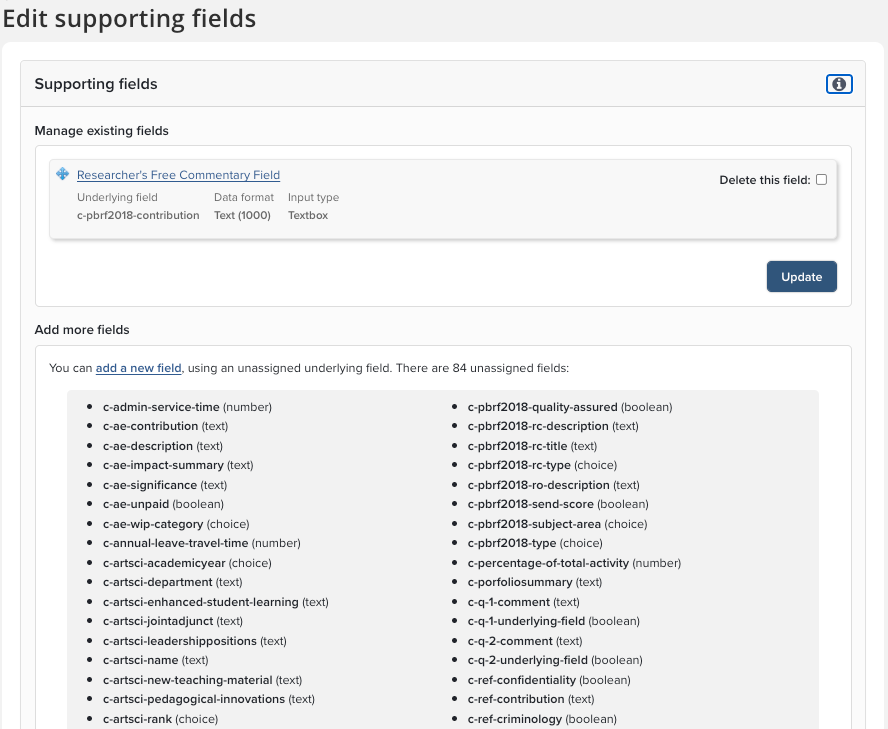
Supporting Fields - List and Item Level
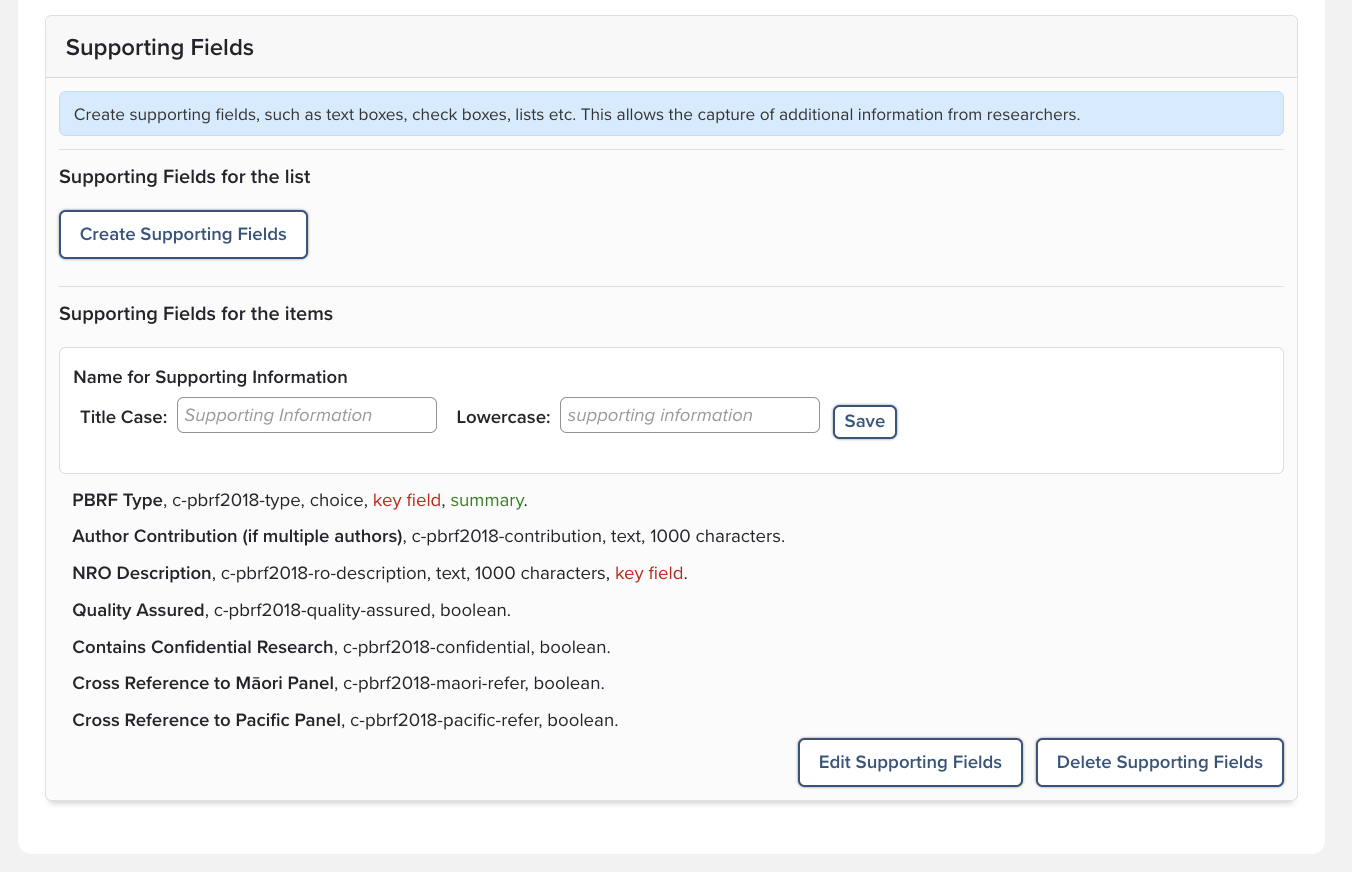
Within each list or item, default fields have been included in the template, but you can edit existing fields or add additional supporting fields.
The same structure is used for all supporting fields - Exercise, List, or Item level.
Supporting Field Definition Page
The Supporting Fields that have been pre-populated can be deleted or re-ordered to suit your institution at the properties page.
You can also add a new field from the default underlying fields.
Edit the Supporting Field Properties
Edit the field properties page to change the default name, add instructions, or change the field input type.
Note: this depends on the field format.
File Attachments
Attachments are evidence or supporting information that are not available through the Elements user interface. Examples include recommendations, references, or other information that may be too sensitive to be visible in an academic’s public profile.
The use of attachments is highly configurable, with a number of settings configured when the exercise is defined. These include:
Attachments can be enabled at whole exercise, list or item level, or any combination of those options for each exercise definition. In each case, once it has been configured users can upload a series of files, attached to the appropriate level(s).
Guidance text can be configured to explain the background, context, and suitable content for requested files and how to complete the description and categories for the file.
Once uploaded, the attachments can be downloaded by the researcher or by reviewer(s). The existence of attachments is noted in the reporting database and in PDF exports from the exercise, including the “Full Export PDF” report that is provided as standard with the Assessment module.
Roles
Users are the people being asked to complete the exercise. They are added on the Users tab of the Exercise definition.
Reviewers are the Elements Users who are being asked to review the submissions during one or more stages of the assessment. They are added on the Stages tab of the definition.
Assessment Managers can manage the submission and review processes for each exercise. They are added under the Managers tab of the Exercise definition. You may wish to also give them the ‘Research Manager’ (under System Roles), so they can also impersonate users within the relevant group.
Assessment Administrators can configure exercises and manage roles. They are added under Manage System Roles (System Admin menu).
Register Reports for Assessment
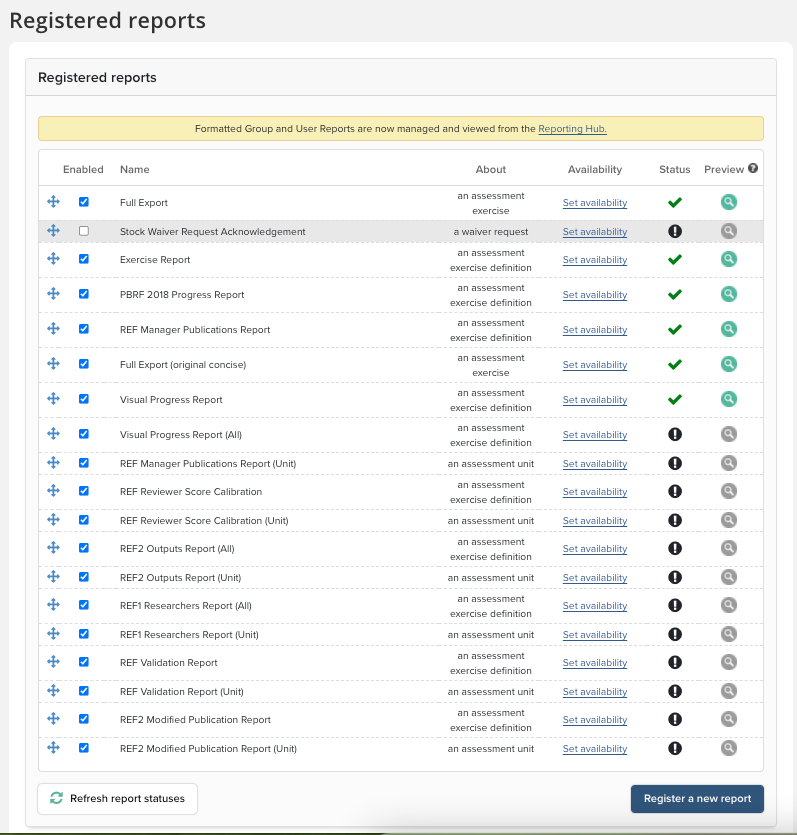
Enabling a report is available from Search & Reporting > Configure Reporting > Registered Reports (In 5.x: System Admin > Operations > Registered Reports). Select "Set availability" to enable the exercises that will use the report.
A default full report for users and reviewers is available by enabling "Full Export."
Glossary of Terms
An Assessment Exercise is made up of lists and supplementary information, like summaries or description fields. An Assessment Exercise will have a name; some examples are REF, PBRF, Research Quality Review, or any others defined by your institution
Lists are collections of items that you select, create, edit, order and manage. Lists will be named; some examples are Research Outputs, Creative Outputs, NROs, and/or Narratives.
Items can be selected from Elements objects like individual Publications, Professional Activities, Teaching Activities, Impact and Grants. Items can also be created within the Exercise. Items not in Elements might be private and confidential and only exist in an Assessment Exercise. Items can be ordered and supplemented with additional information
Supporting Fields are the objects not sourced from Elements but created within an Assessment.
Status indicates the stage of the Assessment Exercise.
Roles can include'Users' and 'Reviewers' and are added, respectively, via the "Users" and "Stages" tabs on the Exercise Definition.