
How to Merge or Split Records
This article explains how to merge or split records. You might also hear this referred to as joining or unjoining records. Occasionally records are duplicated and need to be manually joined and more rarely you might need to split two records that have been joined in error. Examples of these types of situations are: inpress and publication records, records with the same title but are different items.
Merge Records
Occasionally, the synchroniser will not unify items from different data sources, usually because of a problem with an identifier such as a DOI or ISSN. More commonly, manually entered articles do not automatically merge with harvested records. In those instances, you can merge the items. In many instances, it is more desirable for a Research Manager or Administrator to undertake the merging activities since they might have more experience with identifying variants of records as they appear in different data sources.
In this case, the Web of Science version of the article "On optimum Hamiltonians for state transformation" was not merged with the versions harvested from other sources due to a slight difference in the titles and DOIs:
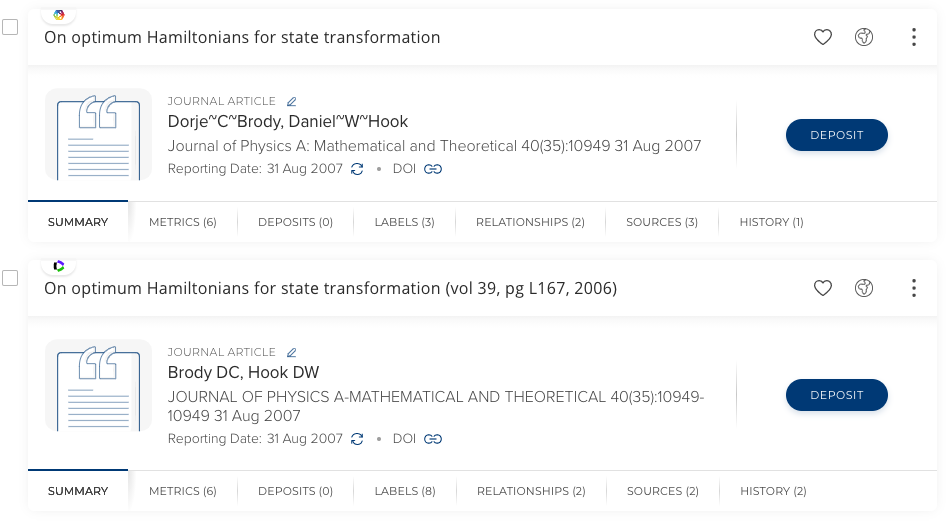
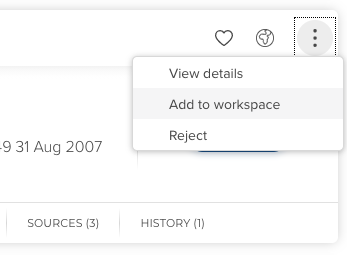
Add both items to the Workspace by clicking the "More" menu and selecting "Add to workspace."
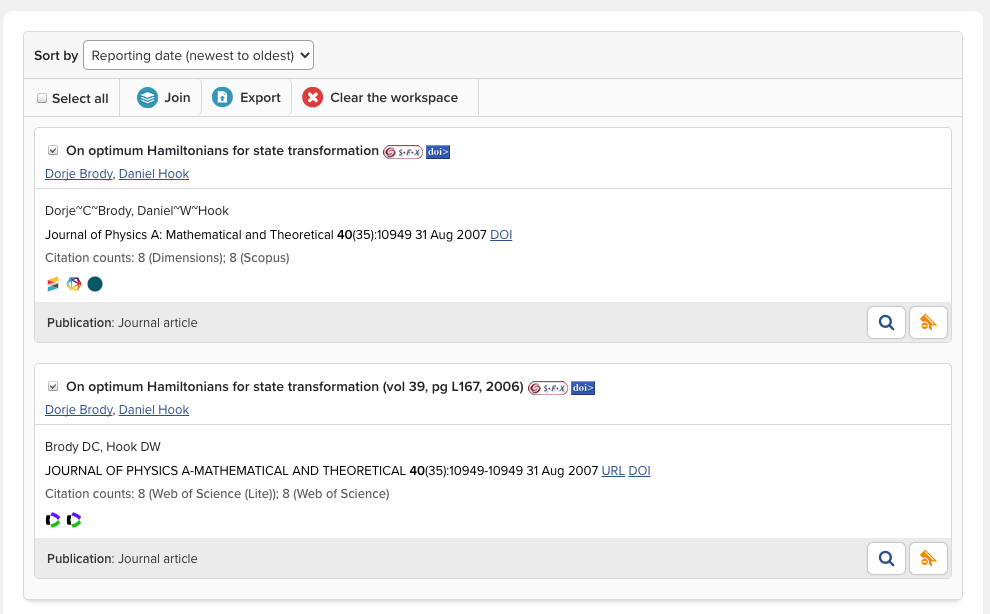
Then, go to Menu > Profile & Work > [TOOLS & SETTINGS] > Workspace (V6.n My Profile > Tools > Workspace. Click the checkbox beside the article titles and the click the "Join" button.
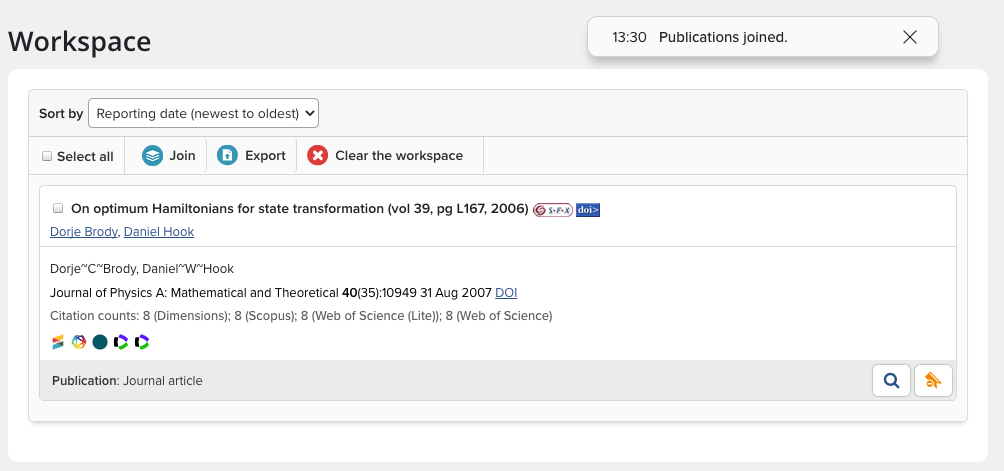
The resulting merged item will be displayed, along with the message "Publication joined."
Click on the History tab to see a complete history of the item, including the names of the people who acted on it.
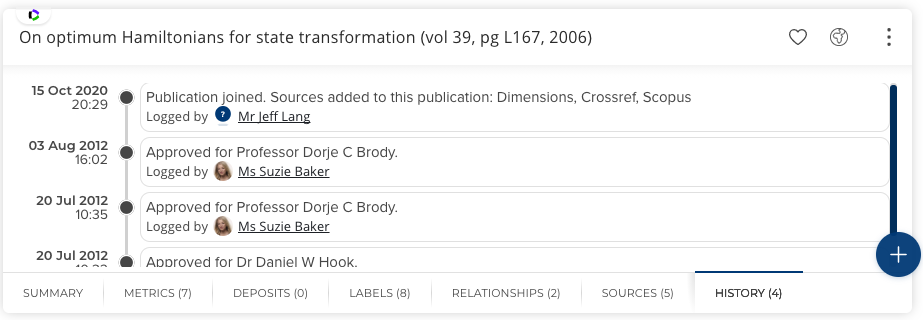
Please note: The 'target' record -- the one retained -- is the record with the oldest 'created-when' date, which is not necessarily the same as the reporting date, though frequently it is.
Merging records from the same data source
For some data sources Elements does not allow two records from the same source to be manually merged. However, it is possible to modify the system to allow these records to be manually merged.
This can be done by modifying the flag "allow-manual-merge-for-all-sources" in the web.config file. Once this change has been made users will be able manually merge publications that contain overlapping records.
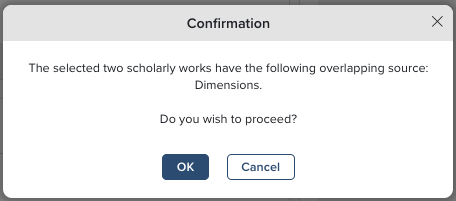
When a user tries to merge records with overlapping data sources they will see a confirmation pop-up which outlines they are about to merge records from the same source(s). They can then go ahead with the merge should they wish to. When merging records from a data source that contains metrics (citation counts) the highest value is displayed.
Split Records
In the rare instances where the synchroniser wrongly matches records or if a user incorrectly merges records, they can be easily split.
In the 'My Publications' page and locate the publication that you wish you split.
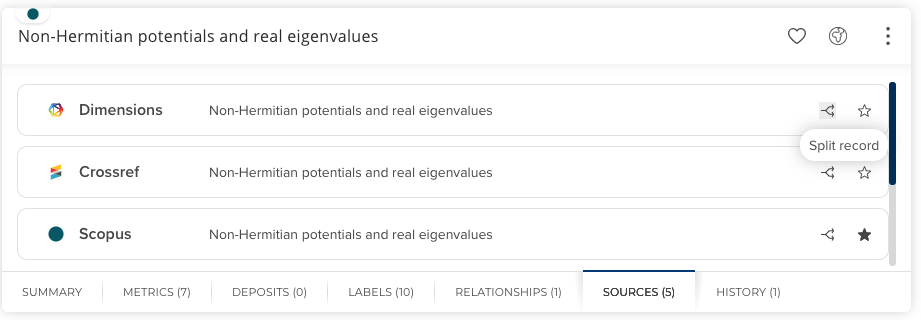
Click on the Sources tab.
Find the record you wish to split from the publication and click the double-arrow 'Split record' icon.
The split record will create a new publication in Elements. This new publication will have the same claimed, pending & rejected links as the original; you will need to edit these links if they are incorrect.
Merge items with repository connections
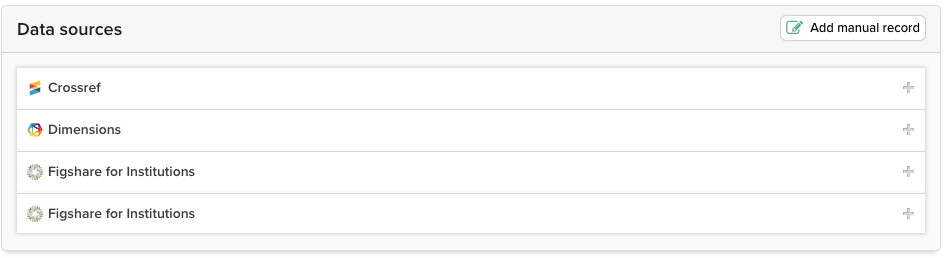
If you merge two publications which each have a repository record, both repository records are retained as separate records in the merged publication.
Repository Tools 1
This section applies only to clients with older, deposit-only repository connections using the Repository Tools 1 protocol.
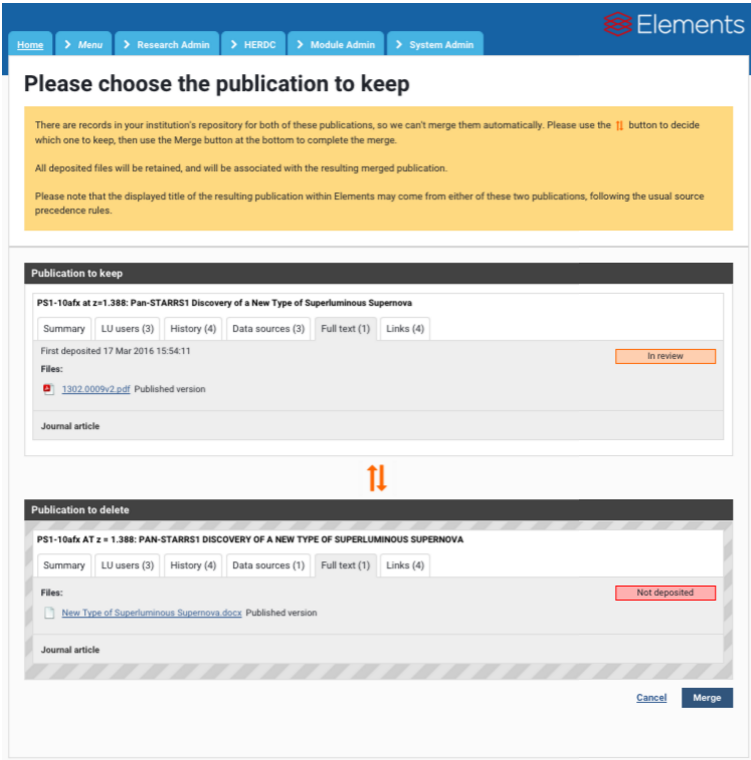
Under Repository Tools 1, a repository item can be associated with only one Elements publication. When merging two publications that each have a connection to a repository item, the interface allows the user to choose which connection is retained and which is deleted
Merge behaviour in the Assessment Module
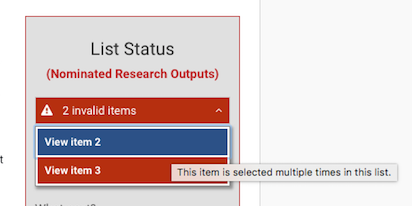
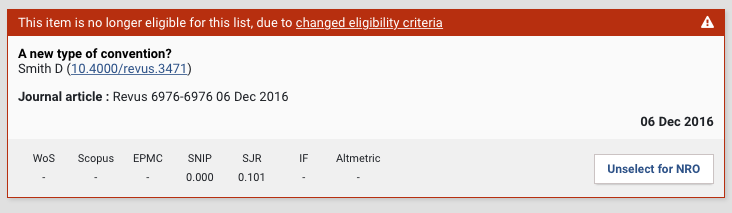
If you merge two items in Elements publications and each of the source records has been selected in an exercise an error message highlights the anomaly.
Merge behaviour in the Annual Collection Module
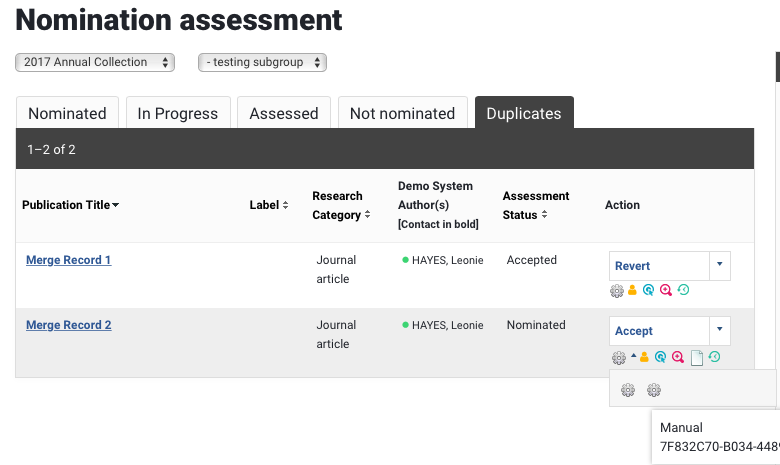
If you merge two items in Elements publications and each of the source records has been assessed, these will be highlighted in the 'Duplicates' tab on the Nomination Asessment page. Identify the target (the one that now contains the joined items) and delete the duplicate item.
Split Records behaviour in the Annual Collection Module
If you split an object into two separate items with the same title and each meets the criteria for the Annual Collection return they will both be nominated and appear as two entirely separate records, they do not show in the duplicates tab. If you do not wish one of the items to be in the Annual Collection you will need to delete it from the return.