
HowTo: Extract publication-grant linkages from ‘funding-acknowledgements’
The Elements Reporting Database is a ‘relational database‘. Relational databases organise information into different tables that are related to one another. For example, information on 'publications' is held in one table and information on 'users' is held in another. In order to extract information from a relational database it is often necessary to link, or join, these tables together. Continuing the example above, if I wanted to find information about which user published which publications I would need to join the user table to the publication table. This join is achieved using a field in each of the tables that has a common meaning (e.g. user ID).
This document outlines how to build a complex SQL script in a step-by-step process. The purpose of this script is to return information on funding acknowledgements from publications in Elements. This information can then be used to programmatically create links between publications and grants.
Prior knowledge and requirements: Some basic knowledge of SQL would be beneficial but is not essential. You will need read access to the Elements Reporting Database and a software application such as SSMS to run the queries. The Reporting Database guide provides a comprehensive overview of all tables referred to in this walkthrough.
Step 1
By querying the [Publication] table we can return specific fields of interest from this table. The use of the WHERE clause enables us to exclude publications that do not have any information in the [funding-acknowledgements] field.
SQL Script
SELECT  p.[ID]                  AS [Publication ID]
        ,p.[Computed Title]     AS [Publication Title]
        ,p.[funding-acknowledgements]
FROM    [Publication] AS p
WHERE   p.[funding-acknowledgements] IS NOT NULL
ORDER BY p.[ID]
Output

Step 2
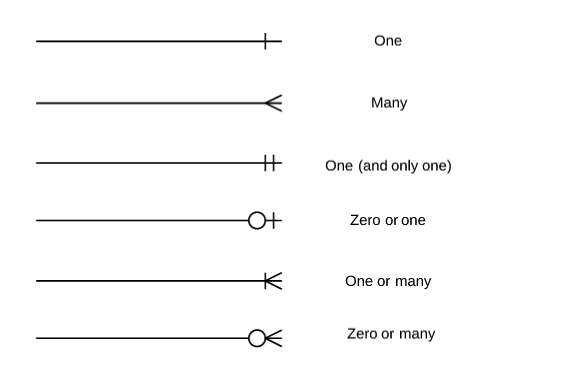
We can extend the script above by joining the [Publication] table to the [Publication Record] table. Elements can retrieve information about the same publication from multiple data sources. These data sources may have different metadata for a given publication. (NB: The record with the highest precedence forms the record in the [publication] table). Looking at all records for a publication gives a more complete picture of the information held in the Reporting Database.
The output now contains one row for every publication record that has information in the [funding-acknowledgements] field.
SQL Script
SELECT  p.[ID]                  AS [Publication ID]
        ,p.[Computed Title]     AS [Publication Title]
        ,pr.[funding-acknowledgements]
        ,pr.[Data Source]
FROM    [Publication] AS p
        JOIN [Publication Record] AS pr
            ON  p.[ID] = pr.[Publication ID]
WHERE   pr.[funding-acknowledgements] IS NOT NULL
ORDER BY p.[ID]
        ,pr.[Data Source]
Output
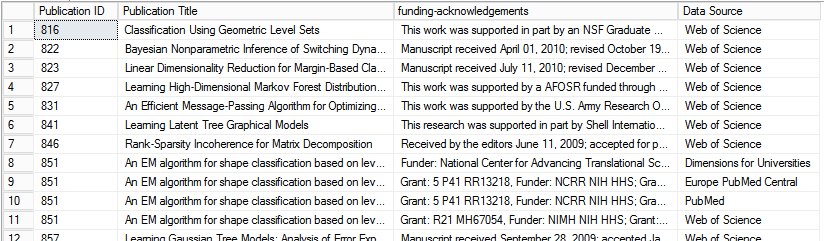
Table relationships
Each object has an ID assigned by the Elements System. This is referred to simply as the object's ID and is always an integer.
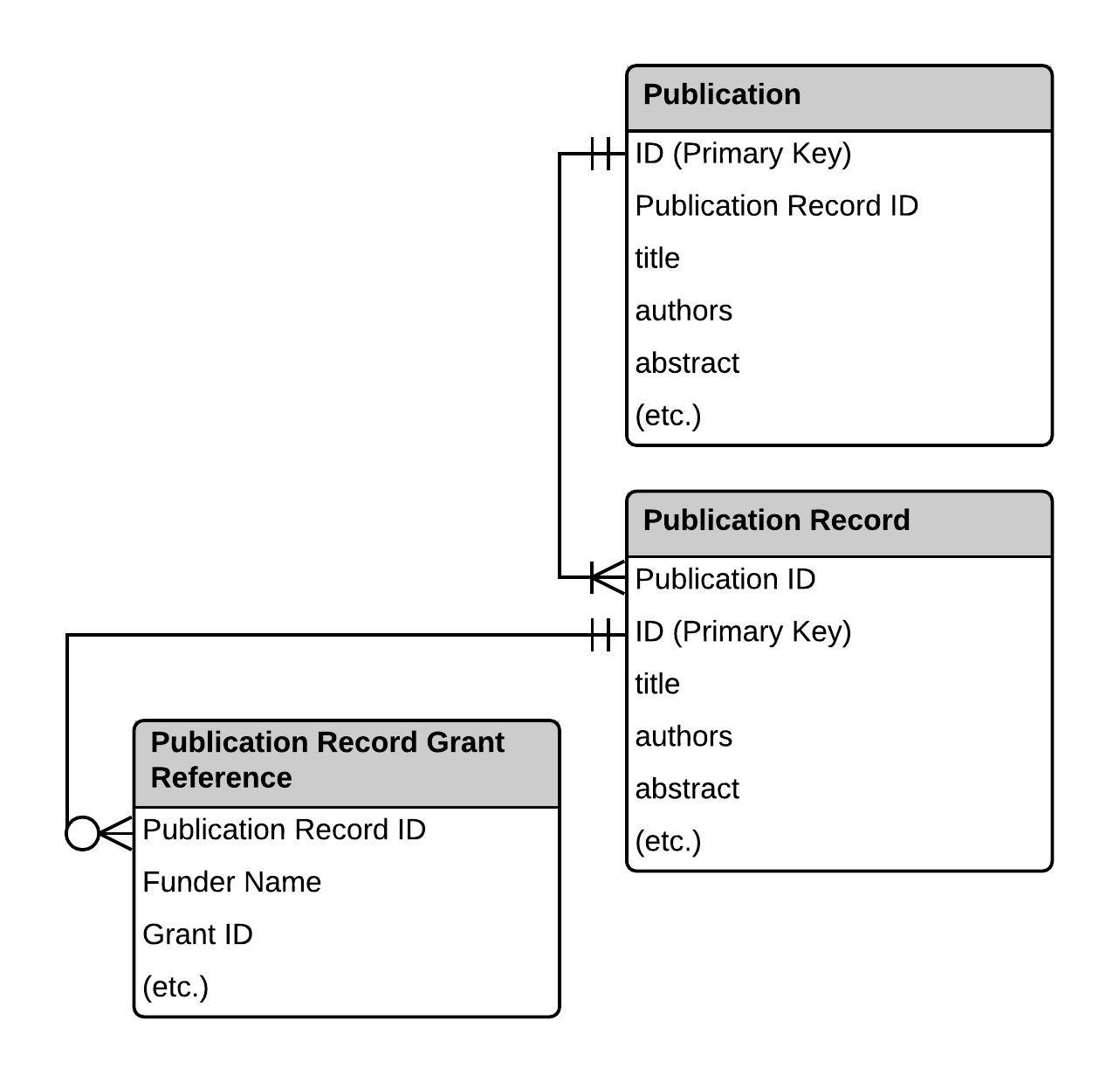
The [Publication] table contains a unique ID that acts as the primary key for each publication object. We use this ID to join with the [Publication Record] table, forming a one-to-many relationship between the two tables.
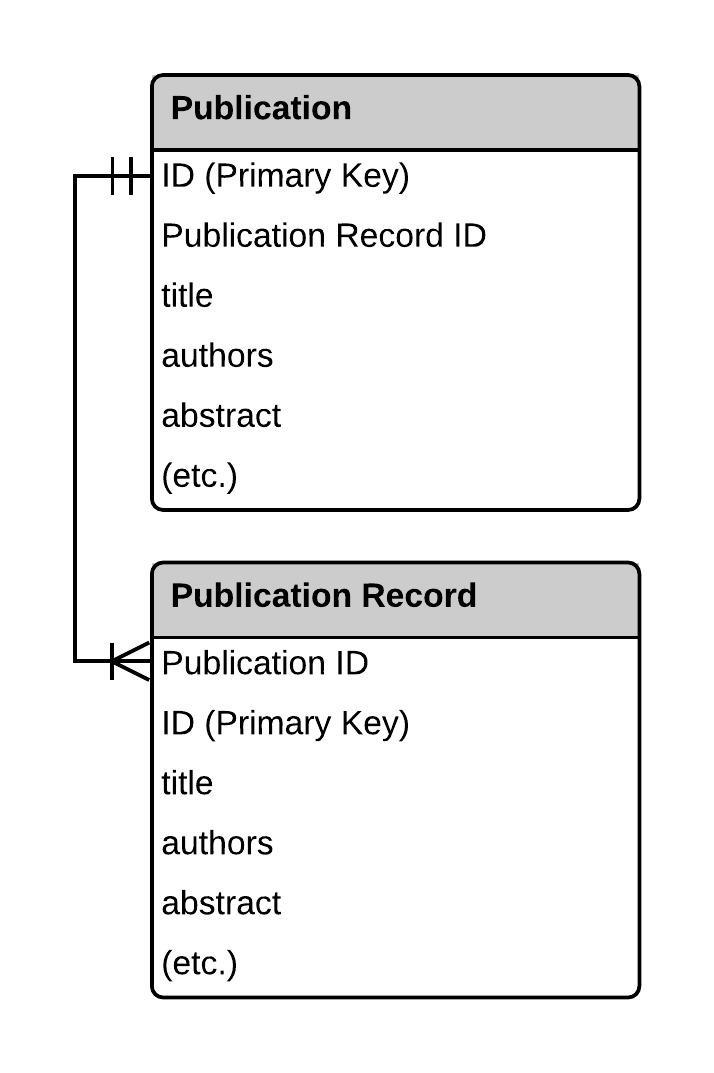
Key to relationship diagrams
Step 3
The query in step 2 returns the [funding-acknowledgements] field from the [Publication Record] table. While this information is useful, it is in textual form and it would therefore be difficult to process the specific pieces of information that we need to uniquely identify grants. We can extend the script used in step 2 by joining to the [Publication Record Grant Reference] table to return information from the [Funder Name] and [Grant ID] fields.
By using the DISTINCT clause we ensure any rows that contain duplicate information are not returned, thus reducing the size of the output table.
SQL Script
SELECT DISTINCT
        p.[ID]                  AS [Publication ID]
        ,p.[Computed Title]     AS [Publication Title]
        ,prgr.[Funder Name]
        ,prgr.[Grant ID]
FROM    [Publication] AS p
        JOIN [Publication Record] AS pr
            ON  p.[ID] = pr.[Publication ID]
        JOIN [Publication Record Grant Reference] AS prgr
            ON  prgr.[Publication Record ID] = pr.[ID]
ORDER BY p.[ID]
        ,prgr.[Grant ID]
Output
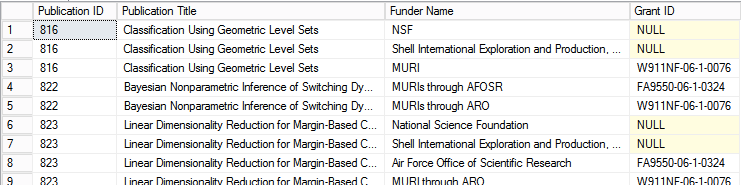
Table relationships
Step 4
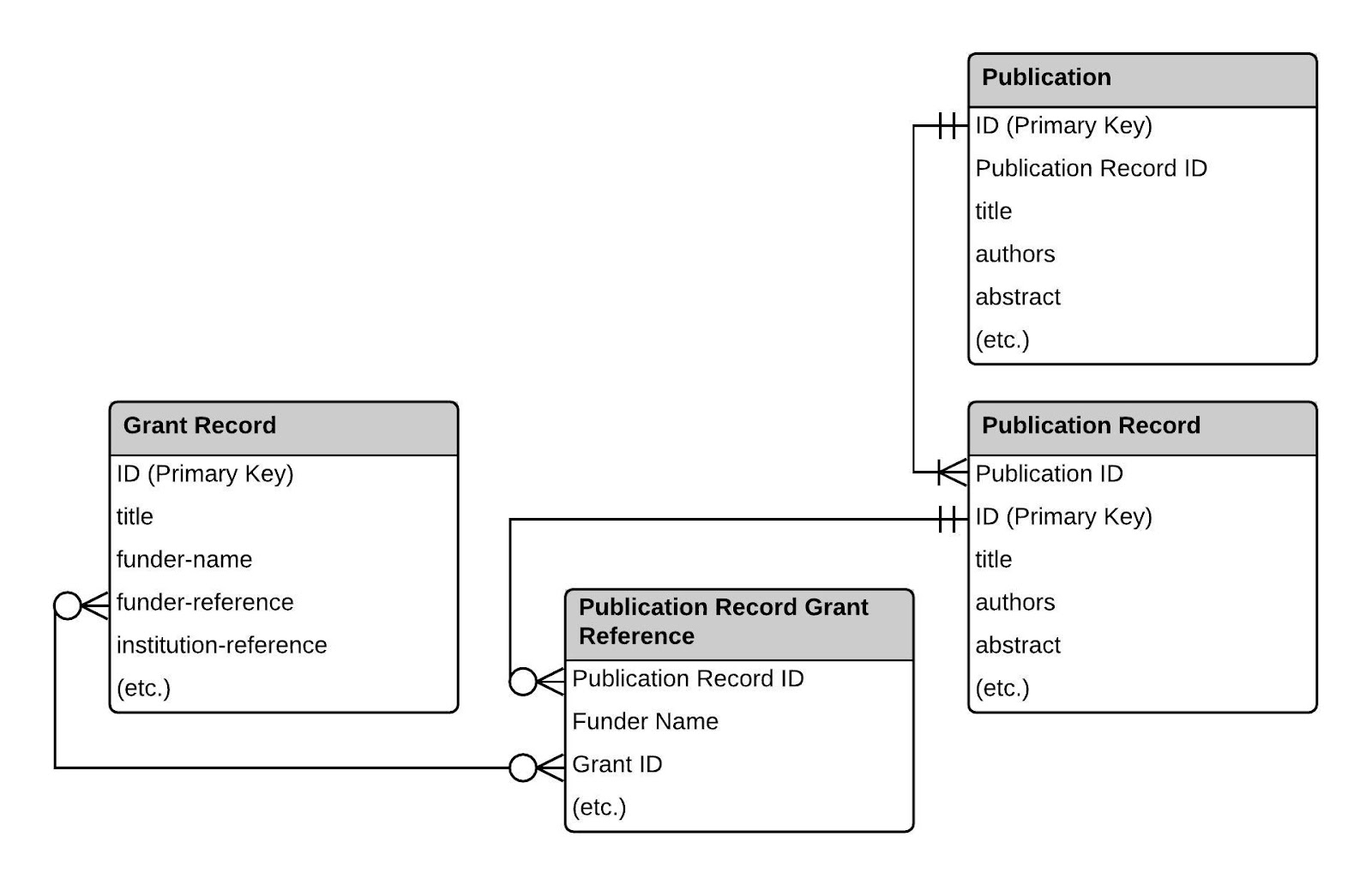
The script in step 3 returns a grant reference number in the [Grant ID] field that can be used to uniquely identify a grant. This information comes from publication metadata imported into Elements from different data sources. We can use this information to see if there are any matching grants already present in Elements. This is done by joining with the [Grant Record] table that contains information on grants in Elements.
SQL Script
SELECT DISTINCT
        p.[ID]                  AS [Publication ID]
        ,p.[Computed Title]     AS [Publication Title]
        ,prgr.[Funder Name]     AS [Funder Name (Publication Record)]
        ,prgr.[Grant ID]        AS [Grant ID / Funder Reference]
        ,gr.[funder-name]       AS [Funder Name (Grant Record)]
        ,gr.[Grant ID]
FROM    [Publication] AS p
        JOIN [Publication Record] AS pr
            ON  p.[ID] = pr.[Publication ID]
        JOIN [Publication Record Grant Reference] AS prgr
            ON  prgr.[Publication Record ID] = pr.[ID]
        JOIN [Grant Record] AS gr
            ON  gr.[funder-reference] = prgr.[Grant ID]
ORDER BY p.[ID]
        ,prgr.[Grant ID]
Output
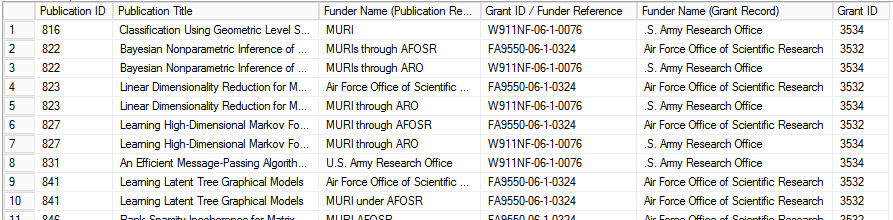
Table relationships
Step 5
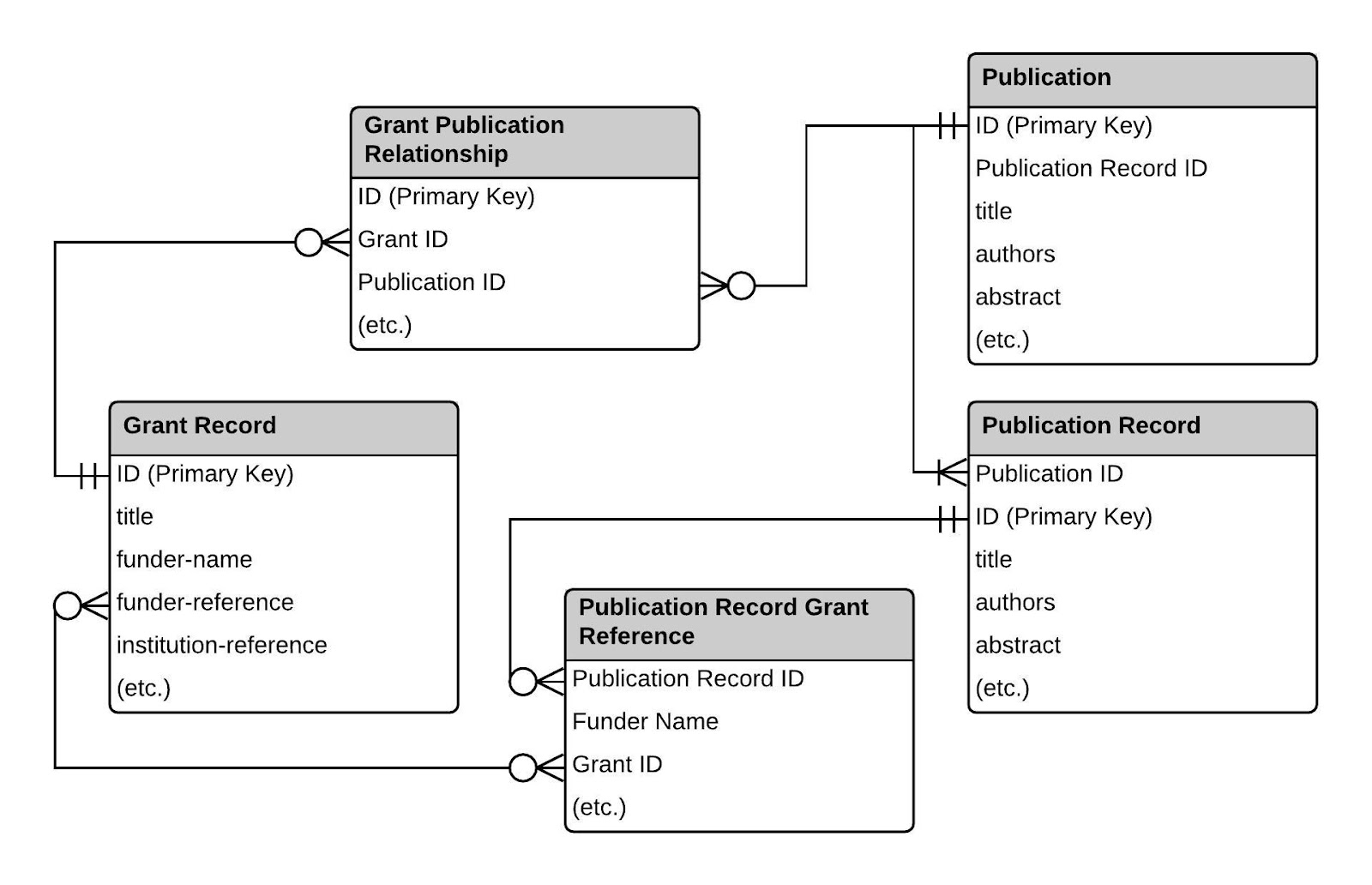
The purpose of returning funding acknowledgement information from publication records is to enable us to programmatically create links between publications and grants. However, it is possible that these links have already been created by users in Elements. Information about these existing links are contained in the [Grant Publication Relationship] table. By joining to this table using the [Grant ID] and the [Publication ID] we return rows that correspond to unique grant-publication pairs.
The use of the LEFT JOIN means the table output contains rows where there is a link in the [Grant Publication Relationship] table, as well as rows where there is not a link in the table. The subsequent WHERE clause then excludes rows that correspond to links that already exist.
Note: While the [Grant ID] provides a reference that is nearly unique for each grant, it would be possible for two different funding organisations to coincidentally use the same grant reference for two different grants. Therefore, the output should be sense checked by comparing the [Funder Name (Publication Record)] field with the [Funder Name (Grant Record)] field.
SQL Script
SELECT DISTINCT
        p.[ID]                  AS [Publication ID]
        ,p.[Computed Title]     AS [Publication Title]
        ,prgr.[Funder Name]     AS [Funder Name (Publication Record)]
        ,prgr.[Grant ID]        AS [Grant ID / Funder Reference]
        ,gr.[funder-name]       AS [Funder Name (Grant Record)]
        ,gr.[Grant ID]
FROM    [Publication] AS p
        JOIN [Publication Record] AS pr
            ON  p.[ID] = pr.[Publication ID]
        JOIN [Publication Record Grant Reference] AS prgr
            ON  prgr.[Publication Record ID] = pr.[ID]
        JOIN [Grant Record] AS gr
            ON  gr.[funder-reference] = prgr.[Grant ID]
        LEFT JOIN [Grant Publication Relationship] AS gpr
            ON  gpr.[Grant ID] = gr.[Grant ID]
                AND gpr.[Publication ID] = p.[ID]
WHERE   gpr.[Type] IS NULL
ORDER BY p.[ID]
        ,prgr.[Grant ID]
Output
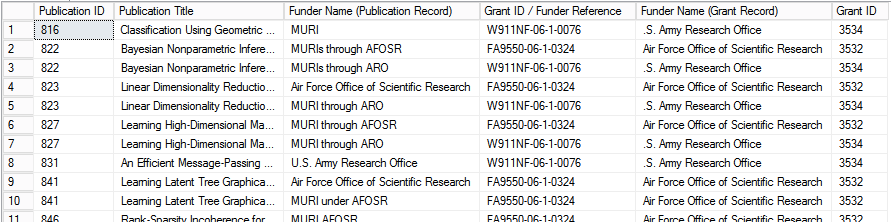
Table relationships
Step 6
The final step is to extract the information we require in the correct format for importing into Elements using the API. This can be done in a number of ways but a simple approach is wrapping the script from step 5 in a Common Table Expression.
The output can be exported as a .csv file and used to programmatically add these links using the Elements API.
SQL Script
WITH matches AS (
    SELECT DISTINCT
            p.[ID]                  AS [Publication ID]
            ,p.[Computed Title]     AS [Publication Title]
            ,prgr.[Funder Name]     AS [Funder Name (Publication Record)]
            ,prgr.[Grant ID]        AS [Grant ID / Funder Reference]
            ,gr.[funder-name]       AS [Funder Name (Grant Record)]
            ,gr.[Grant ID]
    FROM    [Publication] p
            JOIN [Publication Record] AS pr
                ON  p.[ID] = pr.[Publication ID]
            JOIN [Publication Record Grant Reference] AS prgr
                ON  prgr.[Publication Record ID] = pr.[ID]
            JOIN [Grant Record] AS gr
                ON  gr.[funder-reference] = prgr.[Grant ID]
            LEFT JOIN [Grant Publication Relationship] AS gpr
                ON  gpr.[Grant ID] = gr.[Grant ID]
                    AND gpr.[Publication ID] = p.[ID]
    WHERE   gpr.[ID] IS NULL
)
SELECT   'publication'              AS [Object1Category]
        ,matches.[Publication ID]   AS [Object1Id]
        ,'grant'                    AS [Object2Category]
        ,matches.[Grant ID]         AS [Object2Id]
        ,'publication-grant-funded' AS [LinkType]
FROM    matches
ORDER BY matches.[Publication ID]