
REF Manager Publications Report

Released : 5.15
Updated : 5.20
REF Manager Publications Report
The REF Manager Publications Report is designed to give managers of a unit or an exercise definition ready access in Microsoft Excel to a summary of the output selections in an exercise. It is (mainly) intended for use in your "Is REF Submission" exercise definition, but it will also be useful across any pre-"Is REF Submission" exercises you have defined.
The report is scoped to consider selections on all publications list(s), handling non "Is REF Submission" exercises which may have more than publication list.
In 5.20, we updated the report to INCLUDE all users, whether or not they are allocated to the exercise (previously, the report only included selections by users currently allocated to the exercise - selections by users who had been unallocated from the exercise were not counted)
The report is available in Excel format and has two tabs/sheets: a Summary, and Outputs, showing publications selected in an exercise, key metadata, and reviewer names, comments and scores for the first four reviews. Both tabs include visibility of the REF2 Status for each selected output in a given unit of assessment.
Summary
The Summary tab/sheet gives an overview of the Exercise Definition in the form of a list of the configured / applicable unit(s). It shows counts of the number of assigned users, publication selections made, and distinct outputs in play for each unit, and the 'Number of required REF2 outputs' for each Unit. There's one row on the summary for each Unit of Assessment.
The Summary tab also gives visibility of the number of REF2 records in each unit, broken down by Submission status (Selected, Accepted, Attributed, Not attributable, and Not accepted). Within a given a unit of assessment, for any given output - identified by Publication ID - only one REF2 is permitted, so the total number of REF2 Submission statuses will be equal to the distinct number of outputs in a unit.
In contrast to other REF stock reports, each output is counted once in this tab. No account is made for double-weighting or double-attribution.
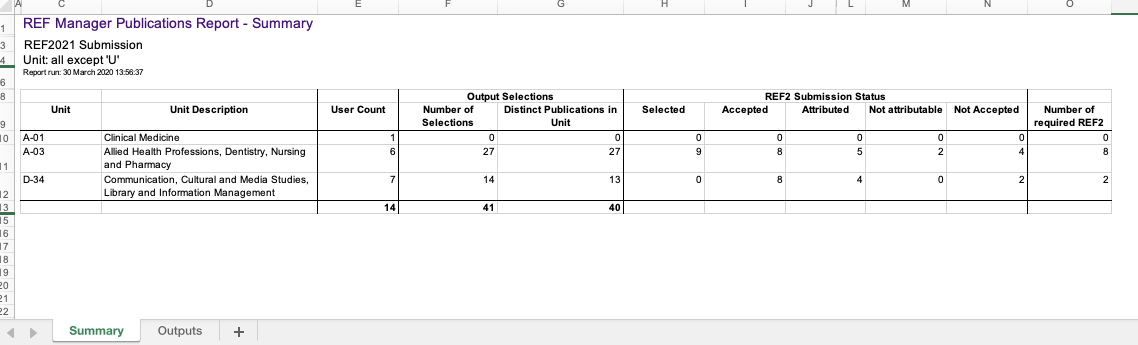
Image: REF Manager Publication Report Summary cover sheet
Outputs
The Outputs tab/sheet contains one row per user selection. Each row shows:
the Unit, List Name, user details, Publication ID
details of the selected output including title, and type
reviewer scores and comments from up to the first four reviewers
the REF2 Submission status for each selection
Web of Science citation counts (because of the contract to supply data to the Research Councils)
the output's DOI, journal title (blank if not relevant), and a list of other authors

Image: REF Manager Publications Report Outputs sheet
Any review comments and scores are shown, up to the fourth reviewer for a given output, in the order they were added, irrespective of review stage in which the review was created, and irrespective of whether the reviewer is still assigned as a reviewer of the selecting user's outputs in the current stage, or the stage at which that review was originally added.
Identifying Publications Selected Multiple Times
We have included visibility of the number of times each output has been selected in the unit, as well as a filterable column to enable highlighting of selections with an “Invalid Multiple Selection Flag”. Objects can only be invalid selections in this way if they are currently selected by the same user more than once in the same list, as a consequence of joining / merging two objects which had both been selected, and this report provides administrators/managers a quick way of finding occurences of this.
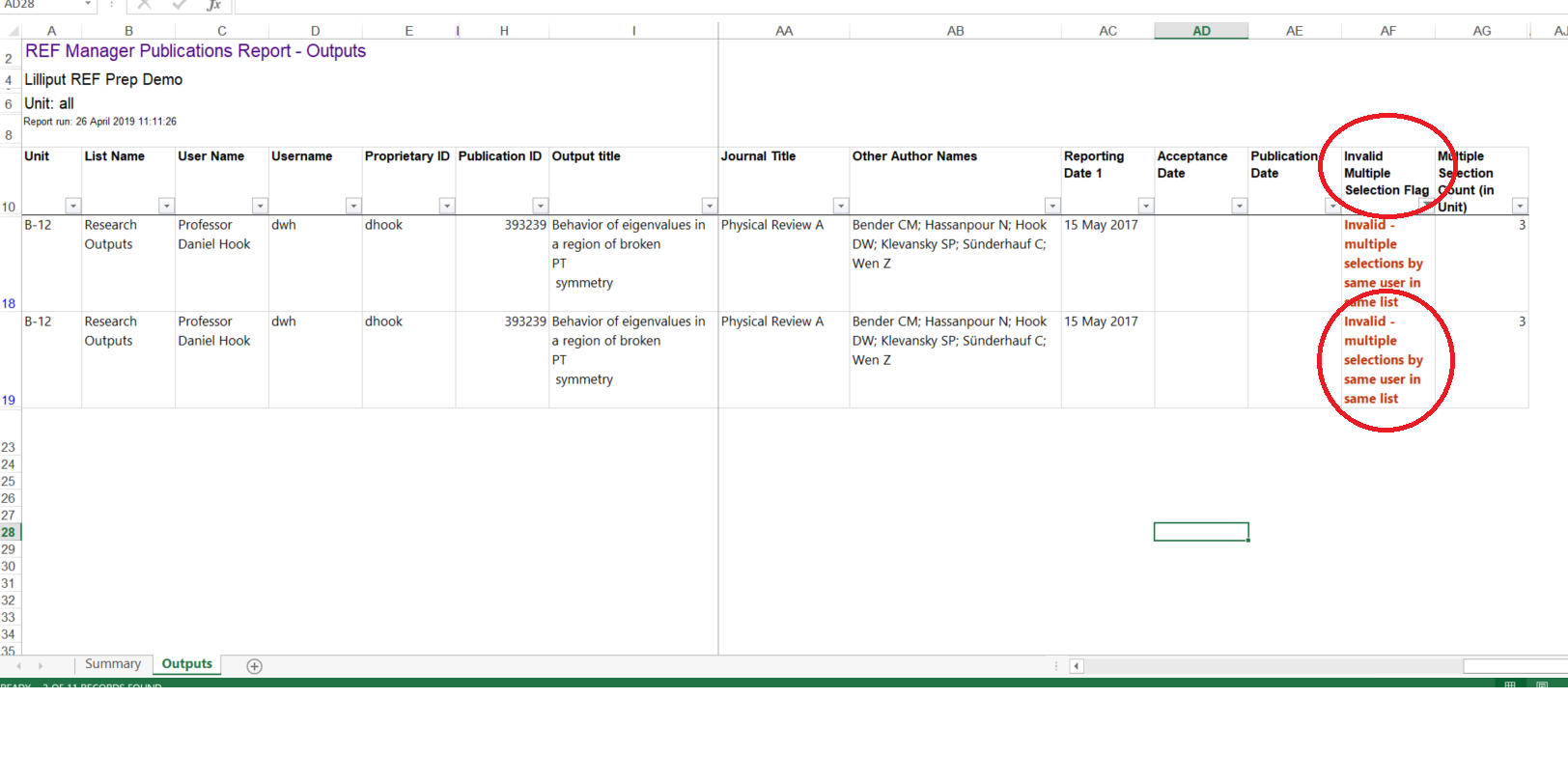
Image: Filtering to identify outputs with the “Invalid Multiple Selection Flag” set
If you have any queries regarding the REF Manager Publications Report, please raise a support ticket or start a post in the REF2021 Support Forum.