Assessment - Uploading item selections in bulk via CSV import
Uploading item selections in bulk via CSV import
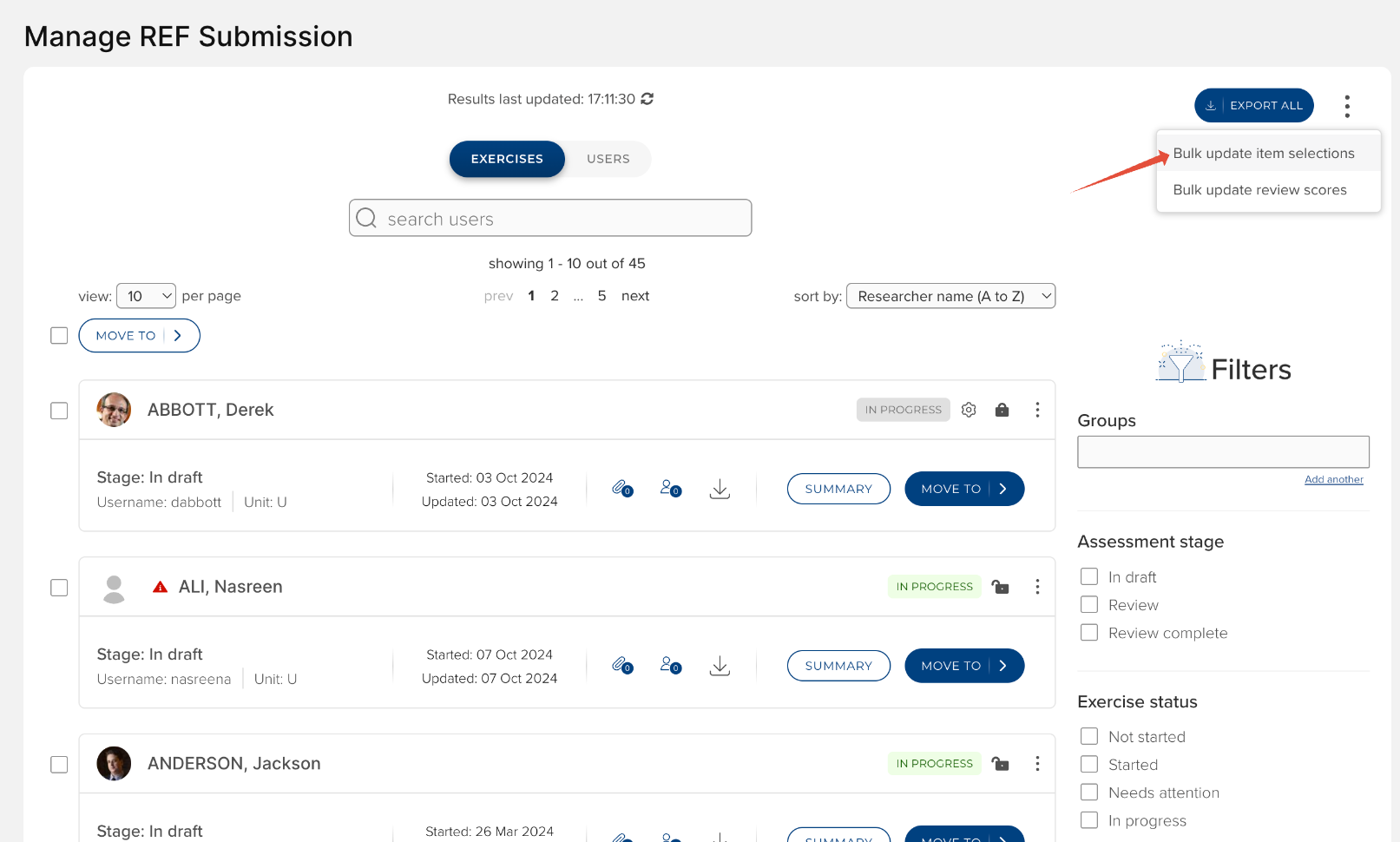
It is possible to create new selections and edit existing selections for an Assessment exercise using a CSV bulk update function, accessed from the Manage Exercise screen.
Item Selections
The Item Selections bulk operation enables you to upload item selections per user per list in bulk.
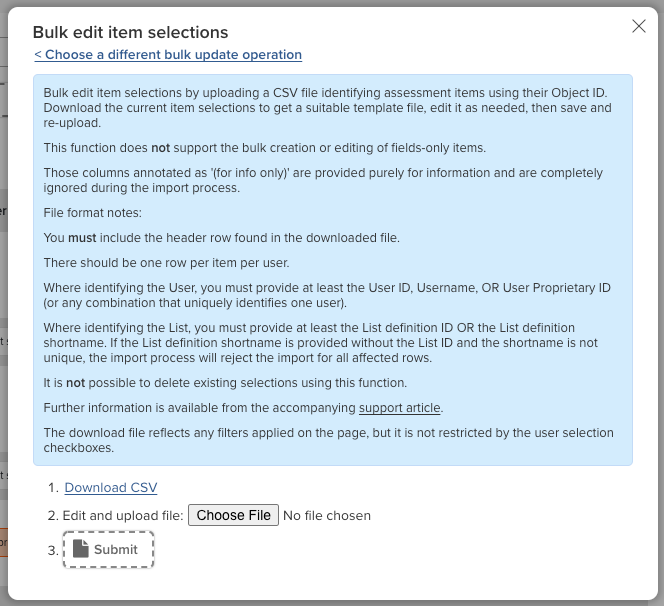
You can 'Download current item selections' for a list of all existing items in the exercise. The downloaded file will reflect any filters you have applied on the Manage Exercise screen.
Notes:
You must include the header row found in the downloaded file. It is recommended you download the current values to get a suitable template file, edit it as needed (as described below), then save and re-upload.
There should be one row per item per user. This function does not support duplicates (a single object selected multiple times by the same User); any duplicates encountered will generate an error in the job and affected item(s) will not be created.
To create a new selection:
Complete the columns as described below for each item you wish to select for the exercise
To update Supporting information for an existing selection:
Where the following all match an existing selection, you can overwrite the existing Supporting information fields by simply replacing the existing value(s) in the file:
Object ID, AND
List defintion ID / List definition shortname, AND
User ID / Proprietary ID / Username
To clear any existing Supporting information, populate the cell with the text CLEAR (case sensitive) (not applicable to boolean fields)
This function does not support the bulk creation or editing of fields-only items
It is not possible to delete existing selections using this function
There is the possibility of job timeouts if the import file is quite large - it is recommended that each upload file is restricted to ~2k records
Template file (does not include Supporting Information fields)
Field | Description | Accepted values |
Object ID | The Elements Object ID for the item to be reviewed (e.g. Publication ID, Grant ID, Impact ID) | e.g. 15241 |
Object name (for info only) | Name of associated item (e.g. Publication title, Grant name) | Is provided for information only. The import process completely ignores any values in this column. |
List definition ID | ID for the desired list in the exercise | e.g. 49 |
List definition shortname | Shortname for the desired list in the exercise (aka Abbreviated name) | Text string (e.g. Publications, Grants) |
User ID | ID of the User against whom you wish to record the selection | e.g. 831 |
Username | Username of the User against whom you wish to record the selection | e.g. mbuchan |
User proprietary ID | Proprietary ID of the User against whom you wish to record the selection | e.g. 106066, buchan106 |
User name (for info only) | Name of the User against whom you wish to record the selection | Is provided for information only. The import process completely ignores any values in this column. |
Supporting Information fields (one column per supported field) | One column per supported Supporting Information field.
Supporting information field types NOT supported:
| Will vary depending on the Supporting Information field type |
Job logging
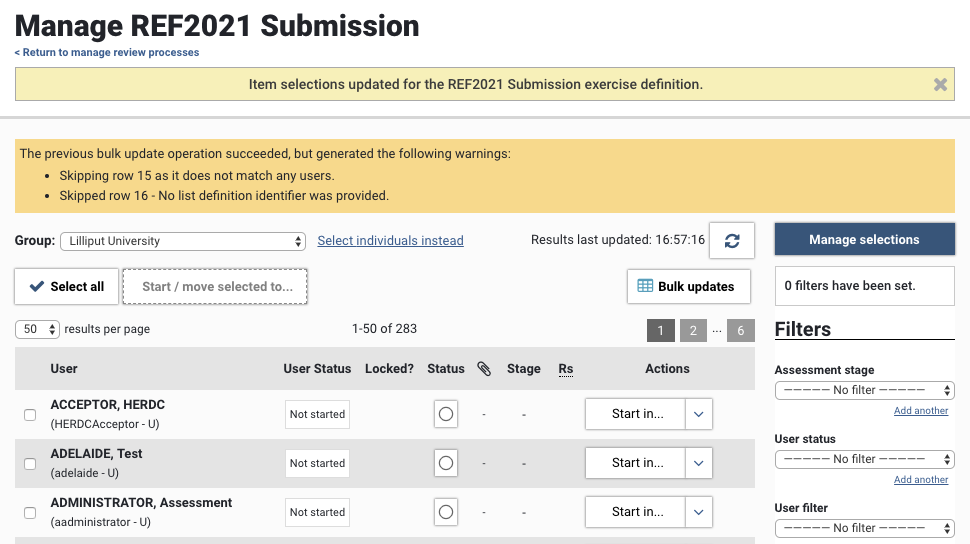
Any errors encountered during the bulk selection operation will be listed in the yellow information box at the top of the screen following the import being actioned. Note that a record will be skipped upon first encountering an error - so if there are multiple errors in a row, the log will only cite the first encountered.