
Reporting dates in Elements
What is a Reporting Date?
A reporting date is a master date for an object (e.g. a publication, grant, teaching activity or professional activity). It is inferred from, but separate to, dates in the harvested data for that object.
Why is a Reporting Date useful?
Reporting dates are used in Elements to answer questions such as 'How many grants was a certain user involved with from 1st January 2001 to 31st December 2001?' To answer this, Elements needs to define the set of grants that are relevant to the dates provided. This is determined using the reporting date. The reporting date is used in the same way for reports and for determining eligibility of items within Assessment Exercises.
How is a Reporting Date set?
If you are using Elements version 5.20 or older, please see Reporting dates in Elements - before v5.21.
From Elements version 5.21 onwards, reporting dates are automatically calculated by the system based on underlying date fields. The automatic calculation can be overridden and reporting dates can be set manually if required.
Setting the underlying date fields to be used for the automatic calculation of reporting dates
Administrators can set how many reporting dates an object should have and which date fields should be used to determine the reporting date/s for each object type. This is done on the module admin pages via System admin > Data category > Publications > Publication types.
An object can have zero, one or two reporting dates. Two reporting dates are used for objects that have a start and end (e.g. grants).
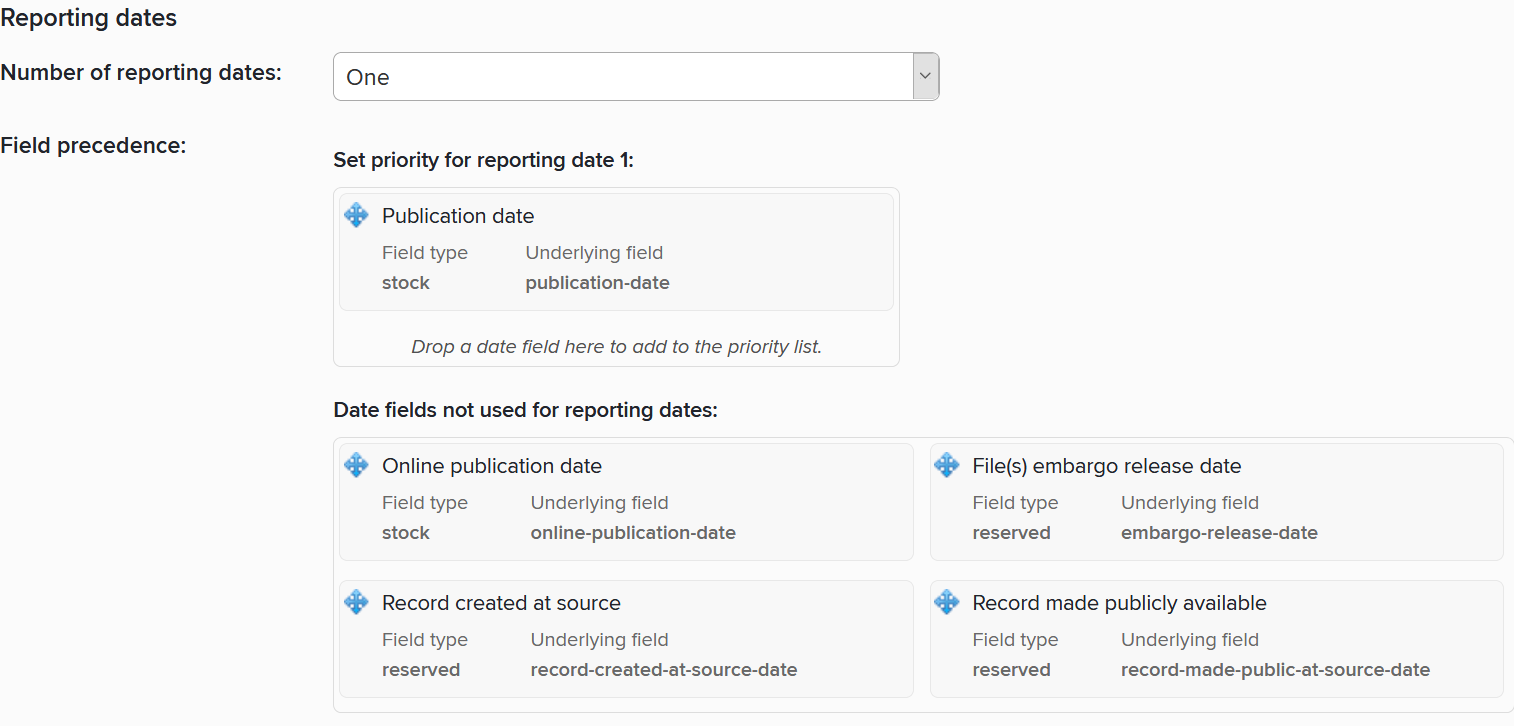
Administrators can set the number of reporting dates and the priority order for underlying date fields for the reporting date algorithm.
When the number of reporting dates has been selected, the available underlying date fields can be dragged and dropped into an ordered list. The priority order determines a hierarchical structure for reporting dates so that (for example) if an article does not have a ‘publication date’, but does have an ‘acceptance date’, then the system will use this. Any changes to reporting date settings may take some time to propagate throughout the system.
The process of automatically calculating the reporting dates is continuous. Any changes to relevant underlying date fields will result in an updated reporting date being calculated.
Important: Changes to data source precedence require a full-reindex before reporting dates are recalculated for publications or grants.
NB: It is possible to add a reporting date that has no underlying date fields associated with it. This is not recommended and means that the system won’t set the reporting date automatically. However, it will still be possible to manually set the reporting date.
Automatic calculation of reporting dates
The settings that are used to for the automatic calculation of reporting dates are;
Date field priority order
Date granularity (e.g. 12 March 2012 > March 2012)
Data source precedence
The system will take the most precise date from the highest precedence record, for the highest priority date field available.
Example 1
1. Publication date | 2. Online publication date | 3. Date of acceptance | |
1. Crossref | May 2019 | ||
2. Dimensions | 12 May 2019 | 7 April 2019 | |
3. PubMed | 12 May 2019 | April 2019 |
The ‘Online publication date’ from Dimensions is used as the reporting date. This is because there are no dates for the first choice date fields (Publication date). The system then looks at the second choice date field. While the highest precedent data source (Crossref) has a date, it is not as granular as the date from Dimensions.
Example 2
1. Publication date | 2. Online publication date | 3. Date of acceptance | |
1. Crossref | May 2019 | ||
2. Dimensions | 12 May 2019 | 7 April 2019 | |
3. PubMed | July 2019 | 12 May 2019 | 7 April 2019 |
The Publication date from PubMed is used as the reporting date. As there was a date found in the first choice date field this is used as the reporting date. The reporting date will be recorded as 1 July 2019 (see below).
Manually overriding automatic reporting dates in v5.x
It is possible to override the automatic management of a reporting date by switching it to manually managed mode. This allows users to manually set the reporting date. When a reporting date is manually managed it will not be changed by the system. If required, a reporting date can be switched back to being automatically managed.
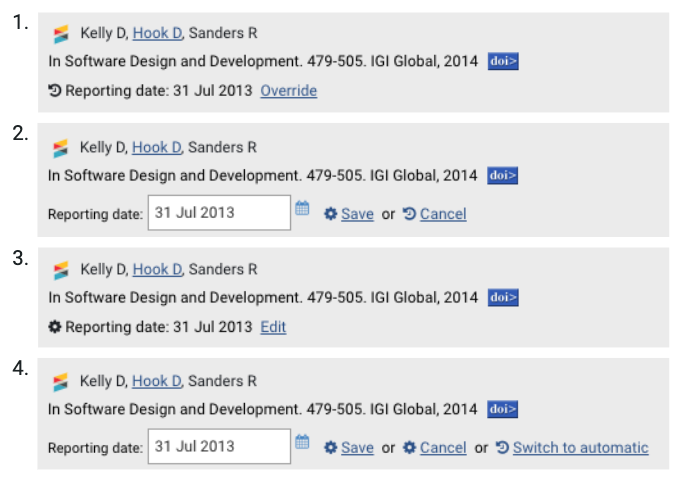
The reporting date is in automatically managed mode. Selecting ‘Override’ allows the reporting date to be switched to manually managed mode.
The reporting date can be edited and then saved to switch to manually managed mode.
When in manually managed mode the reporting date will not be changed by the system.
A manually managed reporting date can be edited, or switch back to automatically managed mode
Manually overriding automatic reporting dates in v6.x
It is possible to override the automatic management of a reporting date by switching it to manually managed mode. This allows users to manually set the reporting date. When a reporting date is manually managed it will not be changed by the system. If required, a reporting date can be switched back to being automatically managed.
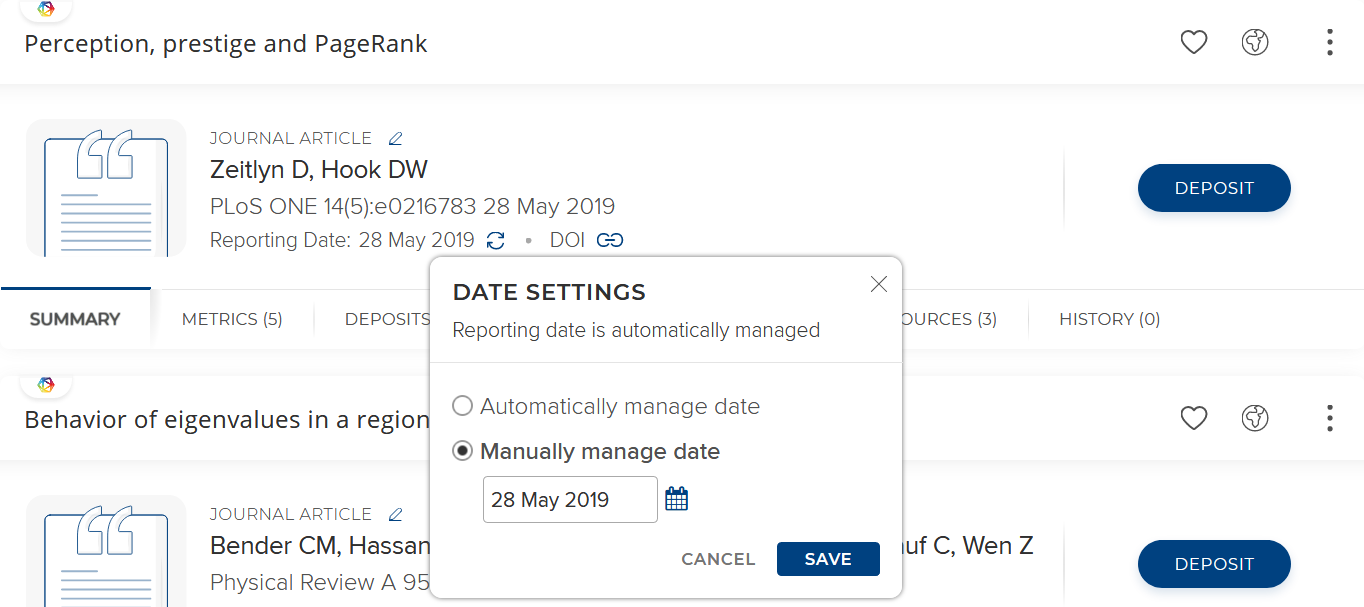
The reporting Date is in automatically managed mode. Clicking on the cycle icon opens a popup window where you can switch it to manually managed mode
The reporting date can be edited and then saved
When in manually managed mode the reporting date will not be changed by the system.
A manually managed reporting date can be edited, or switch back to automatically managed mode
What happens to old reporting date settings on upgrade?
When upgrading from pre-5.21 to 5.21+ the system will attempt to apply new settings for reporting dates across the system (see attached file). However, any previous changes you have made to the default settings will be respected.
Rules followed on upgrade;
Custom object types (this includes clones of any stock object types) will not have their settings modified on upgrade. Whatever underlying date field is used to set the reporting date will remain unchanged.
The underlying date field you have set for a reporting date will be the highest priority date field following the upgrade.
Reporting dates that have previously been set manually (or via the API) will be switched to manually managed mode and will not be recalculated by the system.
Important: Following the upgrade you should check the date field priority order for all object types to ensure that you are happy with any changes made to the settings. It is possible to set reporting dates to be automatically managed using the API. Prior to upgrade you should consider whether or not you would would like to reset manually managed reporting dates to be automatically managed.
Please note: You may notice that some reporting dates are set to use 'Record created at source' following upgrade. This is a side effect from previous reporting date previous and can be modified following upgrade.
Why do some of my reporting dates differ from the date shown on a record?
Since the type of reporting question described above can be asked in reference to a specific day, Elements needs to be able to provide an answer to that granularity. To do so in the case where online sources have only provided year or month-year granularity, reporting dates work on the basis that if a day was not specified in the record's data, we assume the day component of the date to be the 1st. This logic is repeated again for the month component - if it was un-specified we use January. This creates the following translation:
