
How to configure Microsoft Entra ID (Azure AD) authentication in Symplectic Elements
This article describes how to configure Azure AD authentication in Symplectic Elements.
Note: Symplectic Elements’ Azure AD integration uses the OpenID protocol, and not SAML.
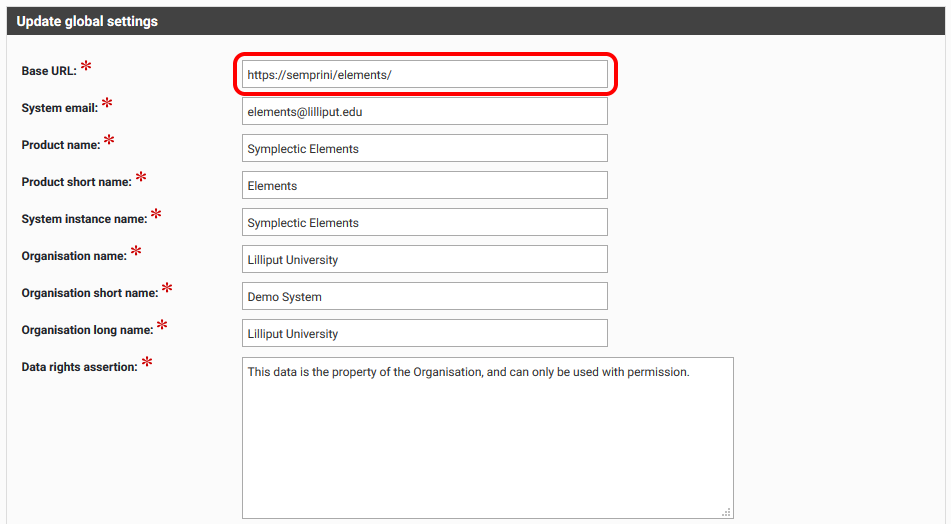
Review Symplectic Elements Base URL
Before proceeding with adding Azure AD, we need to make sure that Base URL on the Global settings page is configured correctly, i.e. set to the Symplectic Elements instance URL.
Note: HTTPS should be used. Using HTTP will introduce problems with redirecting pages.
Register Symplectic Elements applications in Entra ID (Azure AD)
Note: the screenshots on your edition of Azure AD may not be exactly like the ones included below
You have to create one Symplectic Elements application in Azure AD for each instance of Symplectic Elements.
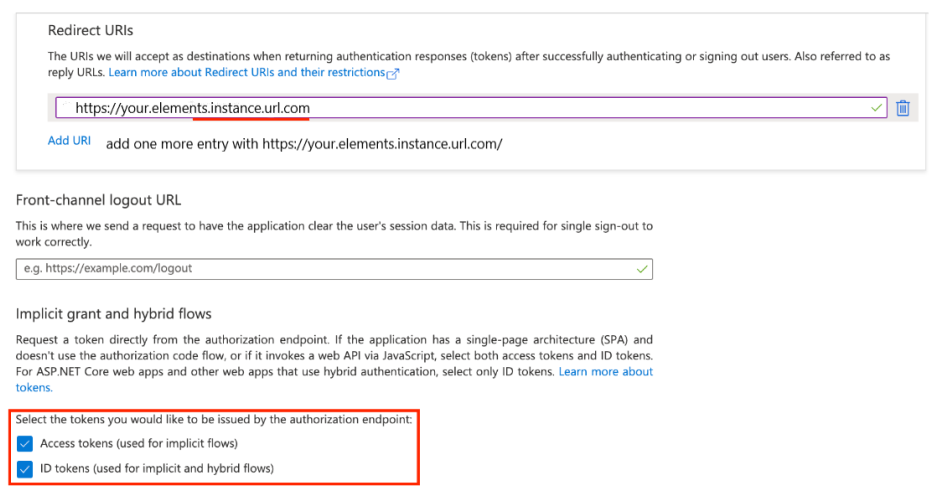
When registering the applications, please make sure to add two Redirect URIs. Since Azure AD is sensitive to trailing slashes in reply URLs, we recommend adding two reply URLs matching the Symplectic Elements base URL - one with and one without the trailing forward slash (/):
https://your.elements.instance.url.com
https://your.elements.instance.url.com/
On the same page, you have enable Implicit grant and hybrid flows, by checking both
Access tokens
ID tokents
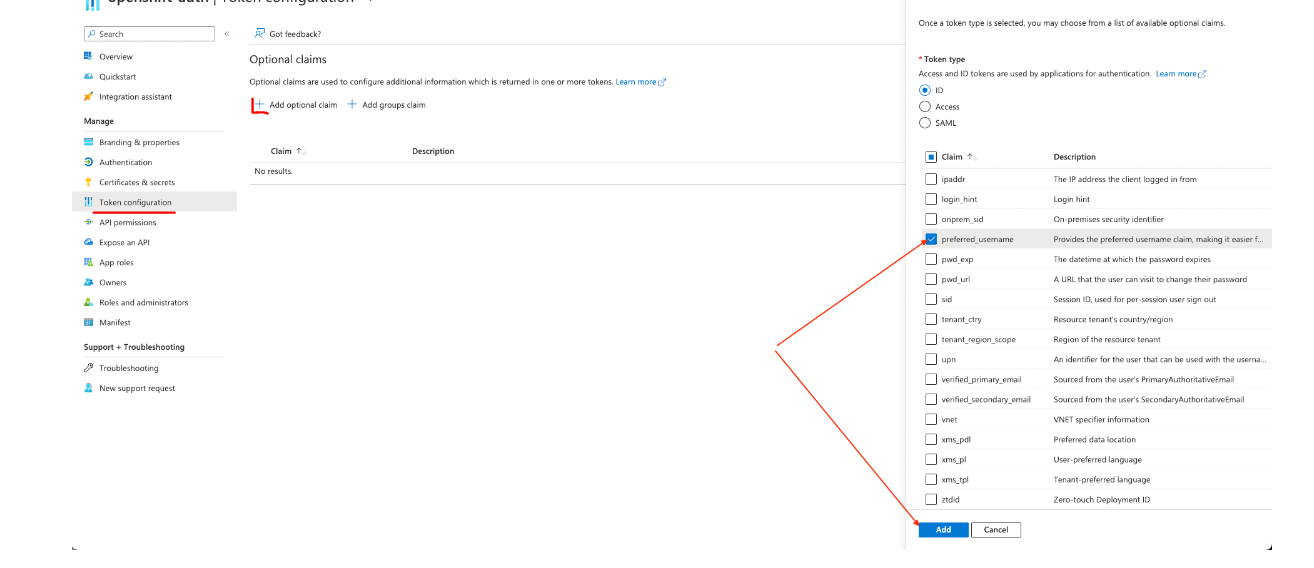
Once that is done, go to Token configuration, and add an Optional claim where Token type is 'ID' and Claim is
'name for Azure AD v1 API
'preferred_username' for v2 API
Add Azure AD authenticating authority
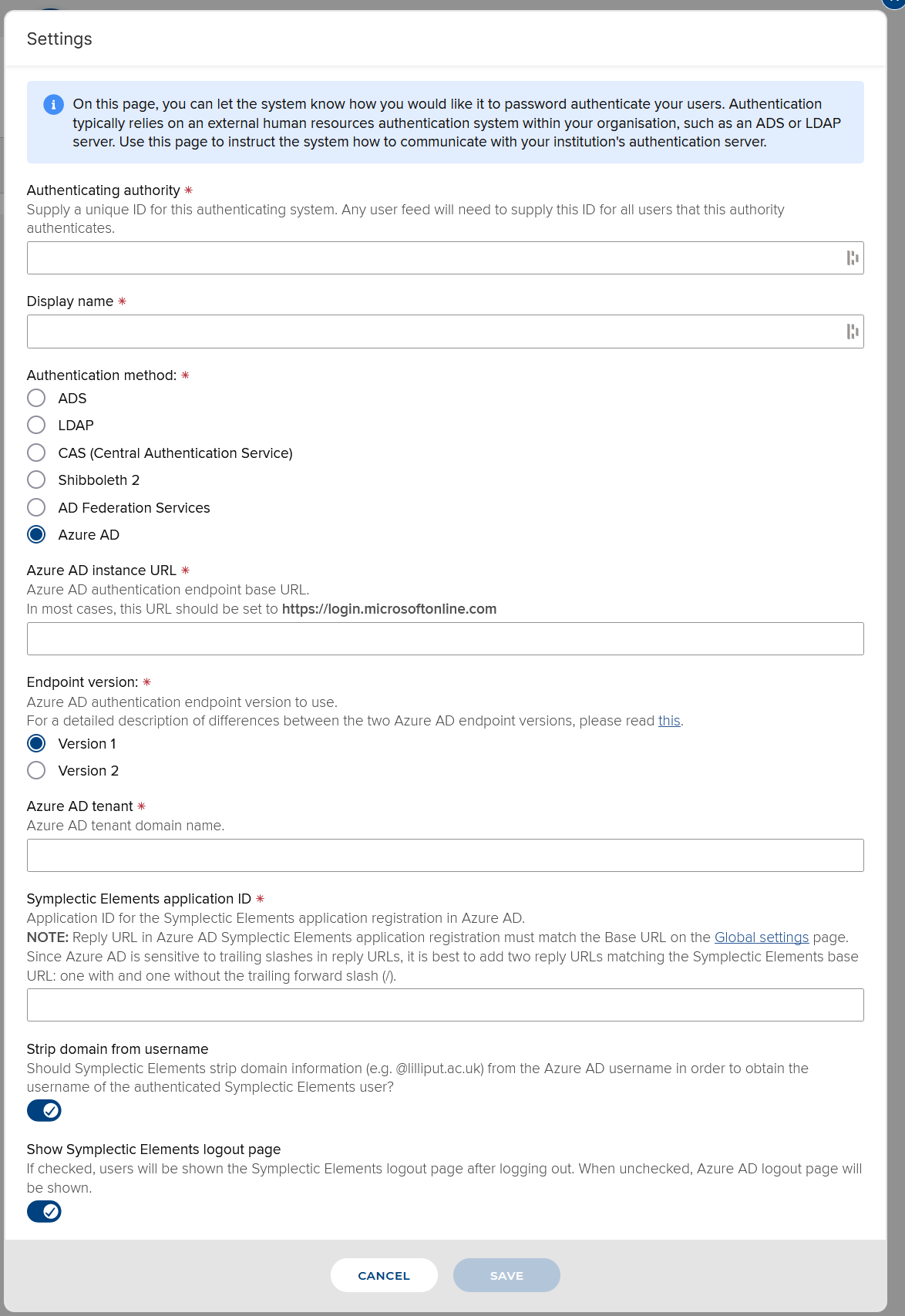
Go to System Admin > Authenticating authorities and add a new authenticating authority
Authenticating authority: Supply a unique ID for this authenticating system. Any users data feed will need to supply this ID for all users that this authority authenticates.
Display name: The name of your institution's SSO - something users who login will recognise
Authentication method: Azure AD
Azure AD instance URL: This is the Azure AD authentication endpoint base URL. In most cases, this URL should be set to https://login.microsoftonline.com
Endpoint version: Azure AD authentication endpoint version to use. For a detailed description of differences between the two Azure AD endpoint versions, please read this.
Azure AD tenant: Azure AD tenant domain name, as created in the previous section
Symplectic Elements application ID: Application ID for the Symplectic Elements application registration in Azure AD, as created in the previous section.
Strip domain from username: Y/N
Show Symplectic Elements logout page: Y/N
Configuring Symplectic Elements to use the new authentication method
Now that the new authentication method exists, we need to configure Symplectic Elements to use it.
If you are hosted by Digital Science, please request this via a new tickets on our support site (here).
If you are not hosted by Digital Science, you need to update the Symplectic Elements web.config configuration file. This can be found in the Symplectic Elements application folder on the server ('Elements/Website/web.config').
Set the 'bypass-azuread-login' value to FALSE.
<!-- if Azure AD authentication is configured, set to true to bypass and login using the Elements login page -->
<add key="bypass-azuread-login" value="false" />
Notes
To test the new authentication method, you need to make sure that the new authentication method is named on the users
If an Azure AD authentication authority is configured for use in Symplectic Elements, the login page cannot be bypassed unless you revert the 'bypass-azuread-login' that was set above.
When using Azure AD authentication, users should close all browser windows after logging out. Otherwise, they will not be asked for username and password if they navigate back to a Symplectic Elements page. Browsers cache authentication credentials and reuse them until they are closed.