Proposal and eligibility forms
Form templates are individual forms that define the information requested of Researchers when completing a Proposal for a particular Funding Opportunity. You can have multiple form templates for different types of Funding Opportunities, depending on the nature of information required.
There are a few stock templates available to you by default, but you may wish to modify these to meet the specific information requirements for a particular Funding Opportunity and/or your institutional policies.
The Proposal form stock templates available are:
Basic Proposal
Existing Funding
Contract Research
Internal Funding
The Eligibility form stock template available is:
Basic Eligibility
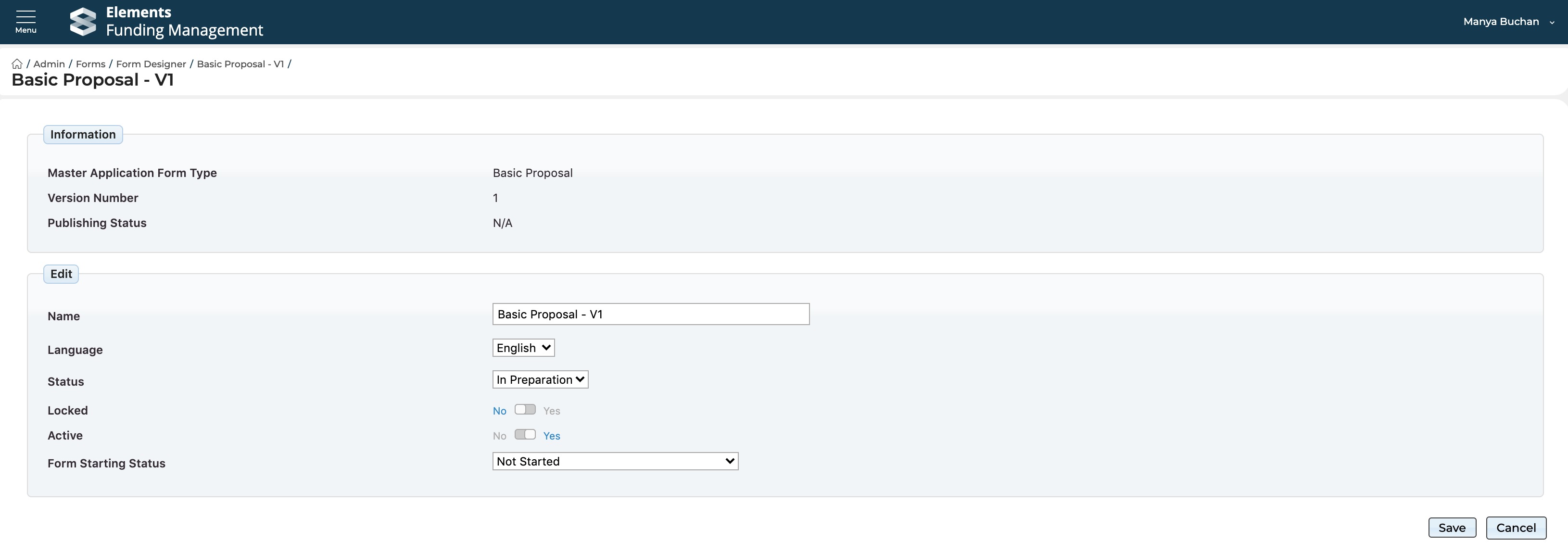
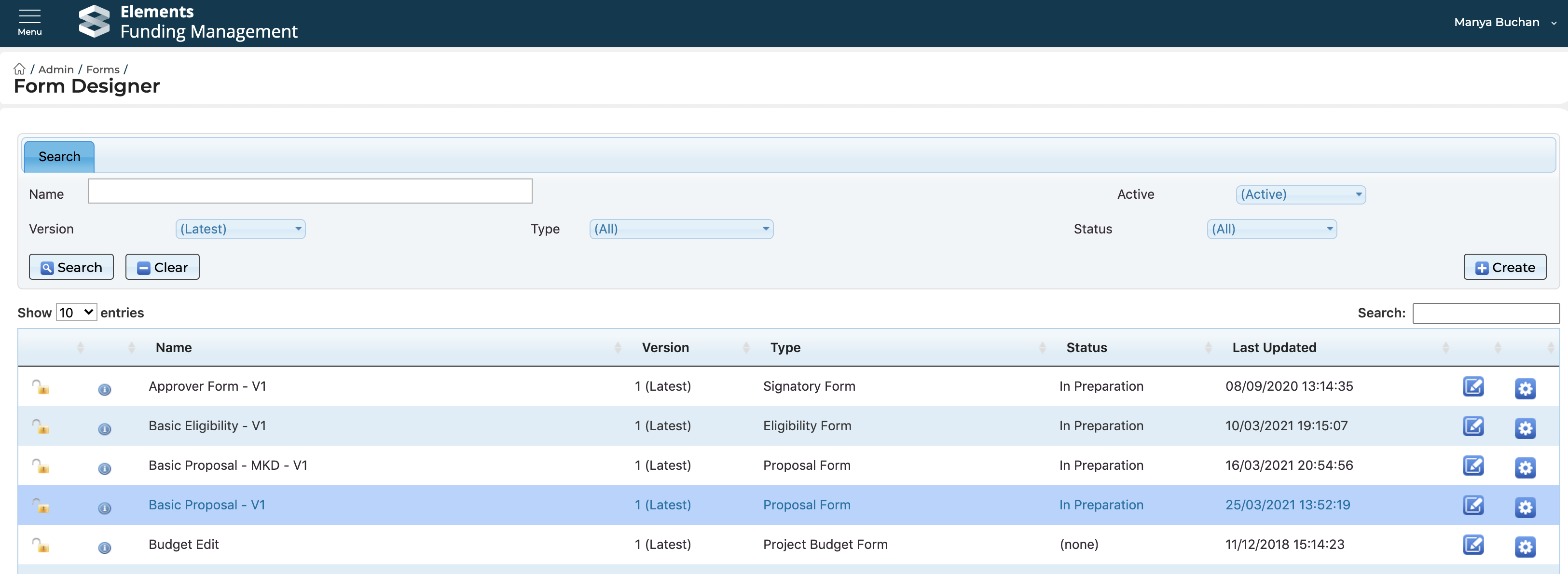
Available templates can be viewed from the Forms Designer screen in the Admin menu of the Funding Management Console (which is pre-filtered to only list those that are active) (System Administrator and Research Funding Administrator roles only). Proposal form templates have the type ‘Proposal Form’; Eligibility form templates have the type ‘Eligibility form’.
Note that using an Eligibility form for a Funding Opportunity is optional. If applied, a user cannot proceed to the Proposal form until all questions have been answered in the Eligibility form.
Creating a new Proposal or Eligibility form template
When creating a new form template, we recommend that this is done by copying an existing template, rather than starting from scratch. We also recommend that you only make changes to forms in your Non-Production instance of Awards Management, and when you are satisfied with the changes, raise a ticket on our support site for the form to be pushed to Production.
When copying from an existing template, you can either:
create a new form template, or
create a new version of an existing template, which will make the previous version inactive and unavailable for future selection (this may be useful for annual rounds of the same funding programme where you want to make modifications in the new version)
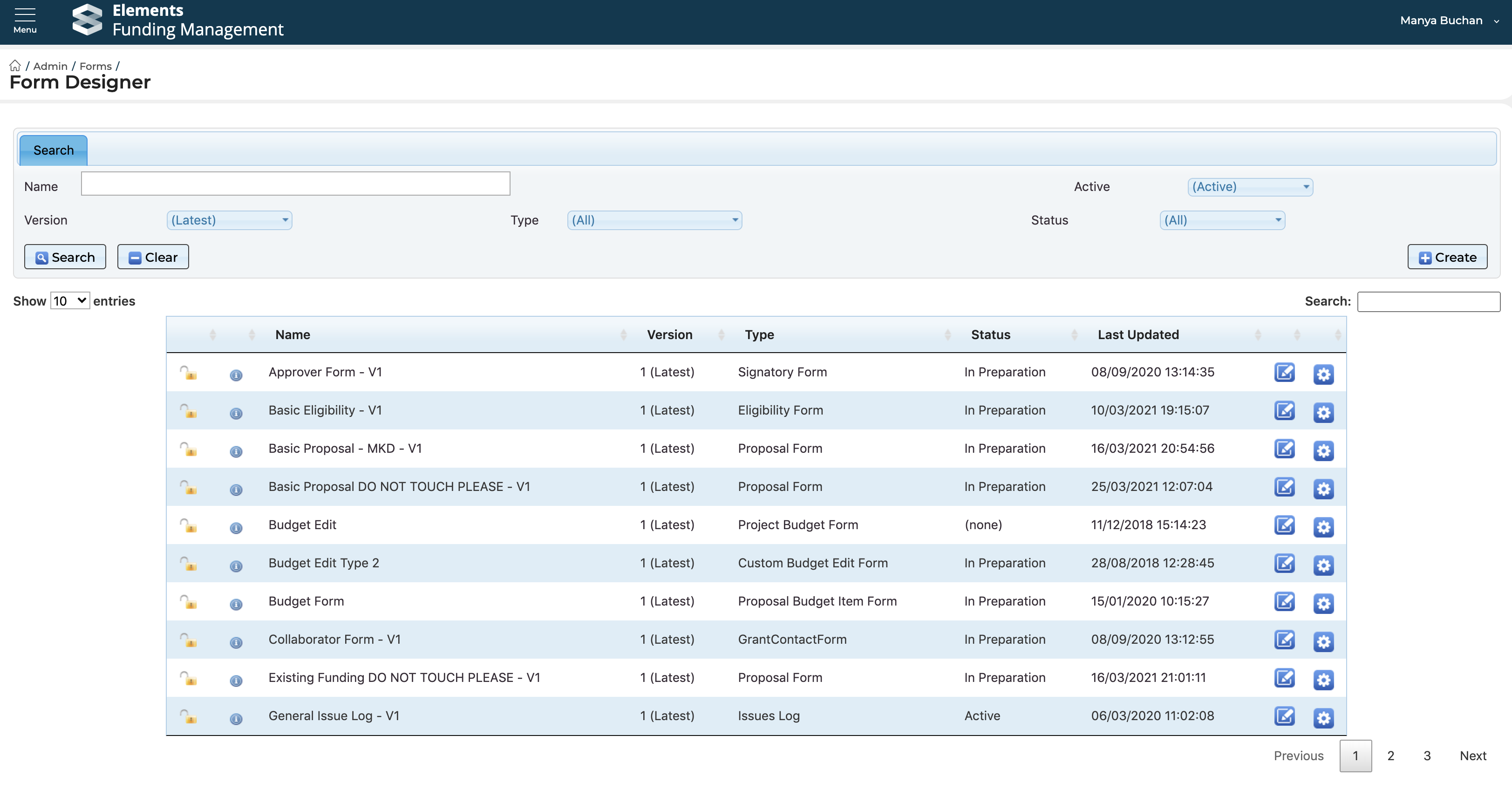
To copy an existing template, go to Admin > Forms > Forms Designer, then select ‘Create’ in the top right hand corner.
Create new form template
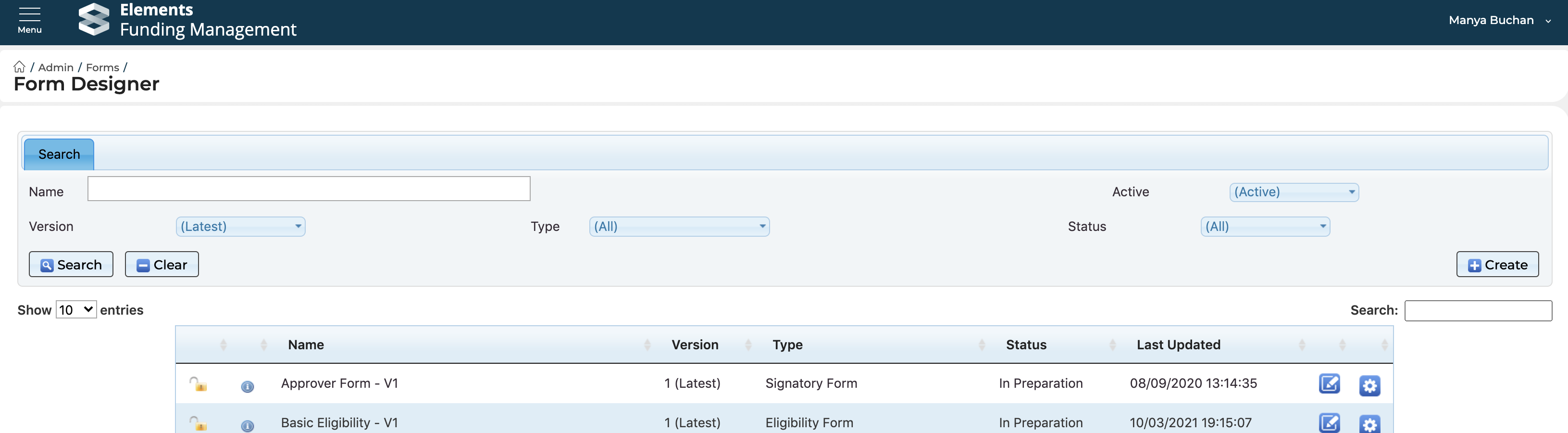
Select the following:
Create New
Copy Existing Form
Select the form to copy from
Then provide a name for the new form template and select ‘Next’, then Finish.
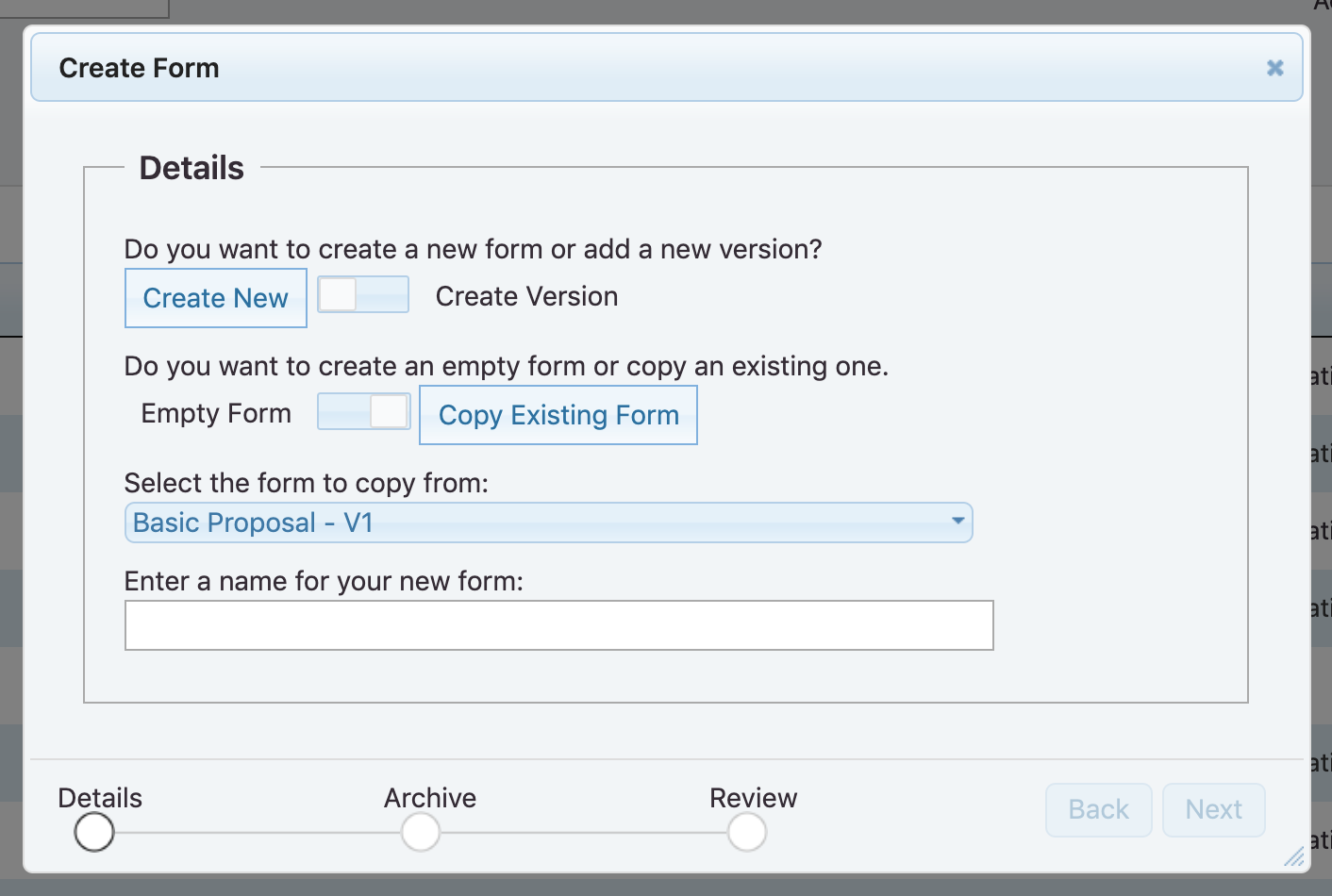
The new form template will then appear in the list of Forms where you can modify it as required.
Create new version of existing template
Select the following:
Create Version
Copy Previous Version
Select the form version to copy.
Select ‘Next’, then Finish.
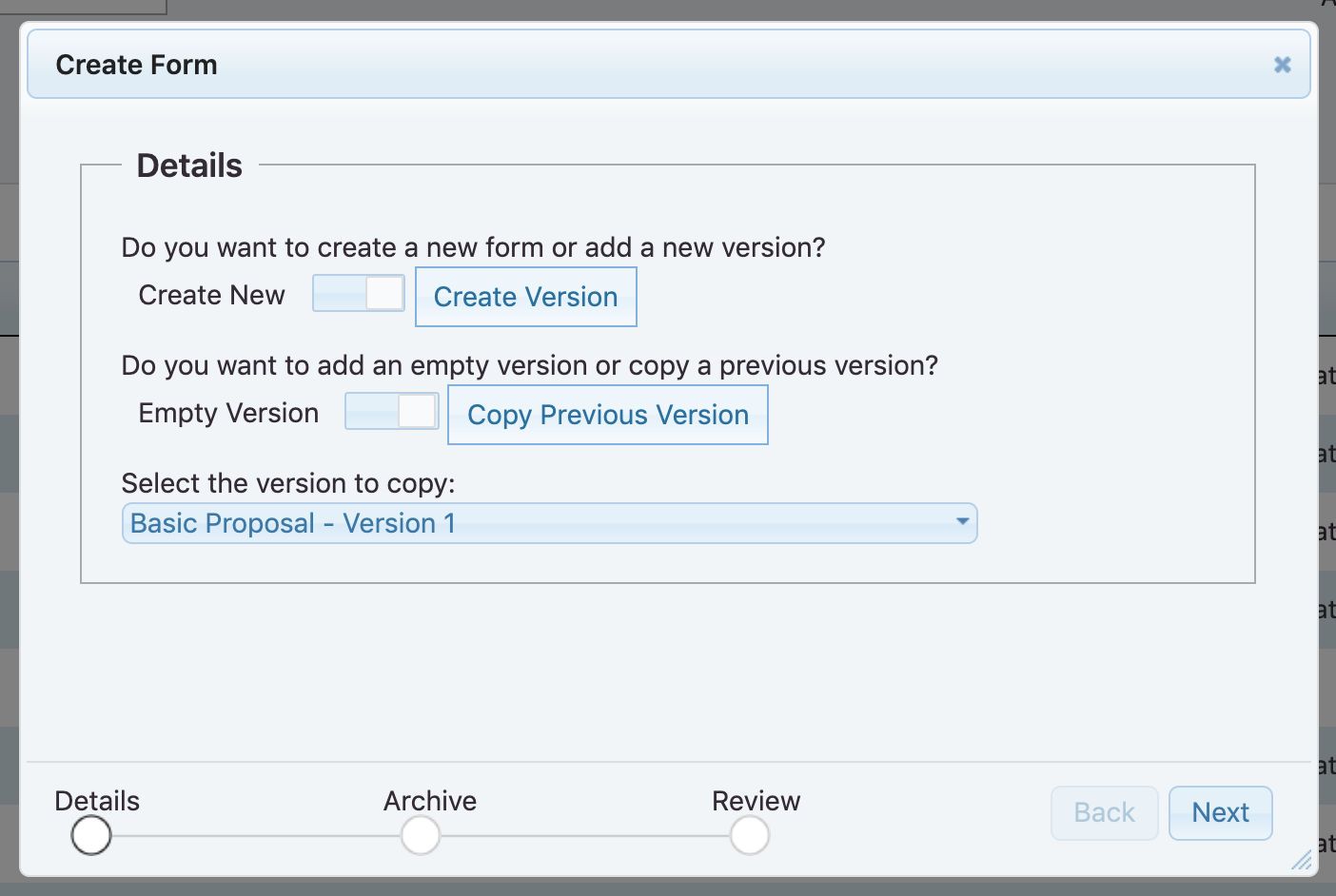
The new form template will then appear in the list of Forms where you can modify it as required. The previous version of the template will no longer be listed as an ‘active’ form template.
Modifying an existing form
Go to Admin > Forms > Forms designer and select the Edit icon (pencil) for the Proposal form you wish to modify.
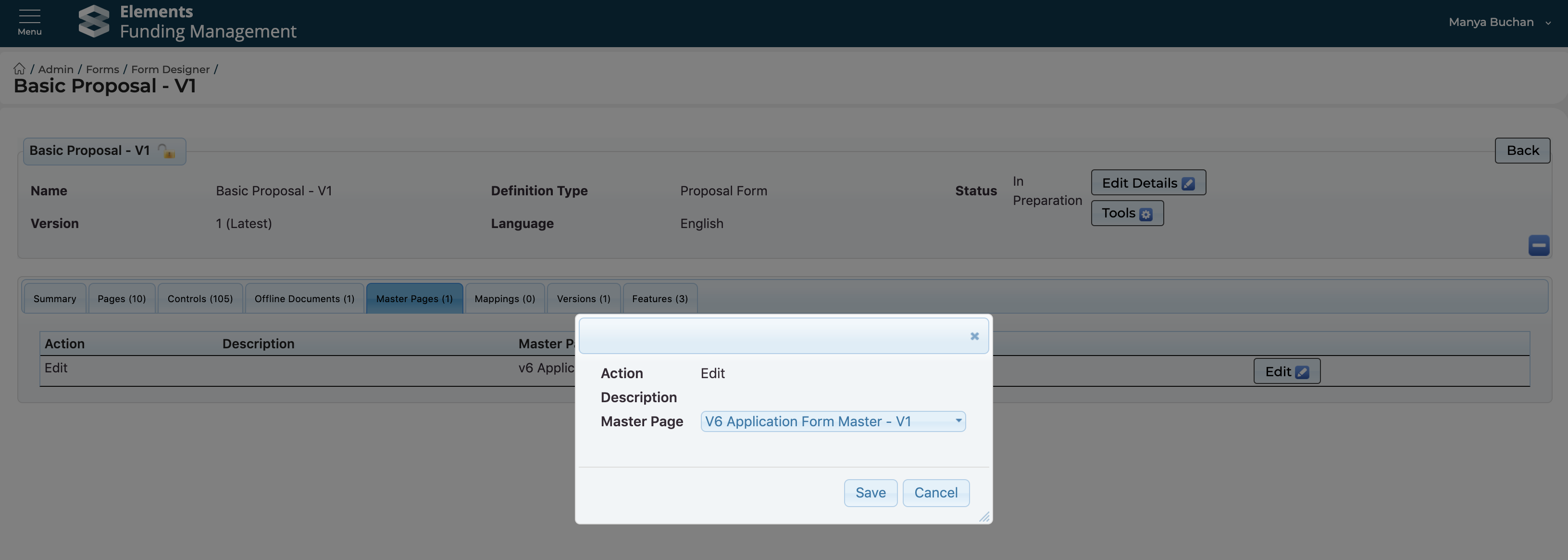
If it is a new form that you are modifying for the first time, you first need to select the Master page to apply to the form (from v6.20 this copies across when you copy an existing Proposal form template; prior to v6.20 this does not copy across), which sets the visual format of the form for users. Go to the ‘Master Pages’ tab, select ‘Edit’, and then in the pop-up, select the appropriate Master Page:
For Proposal forms: ‘Proposal Form Master STOCK - V1’
For Eligibility forms: ‘Eligibility Form Master STOCK - V1’
Add / remove / rename / move a page
In the ‘Pages’ tab, select the ‘Add/Edit/Remove Pages’ button (top-right).
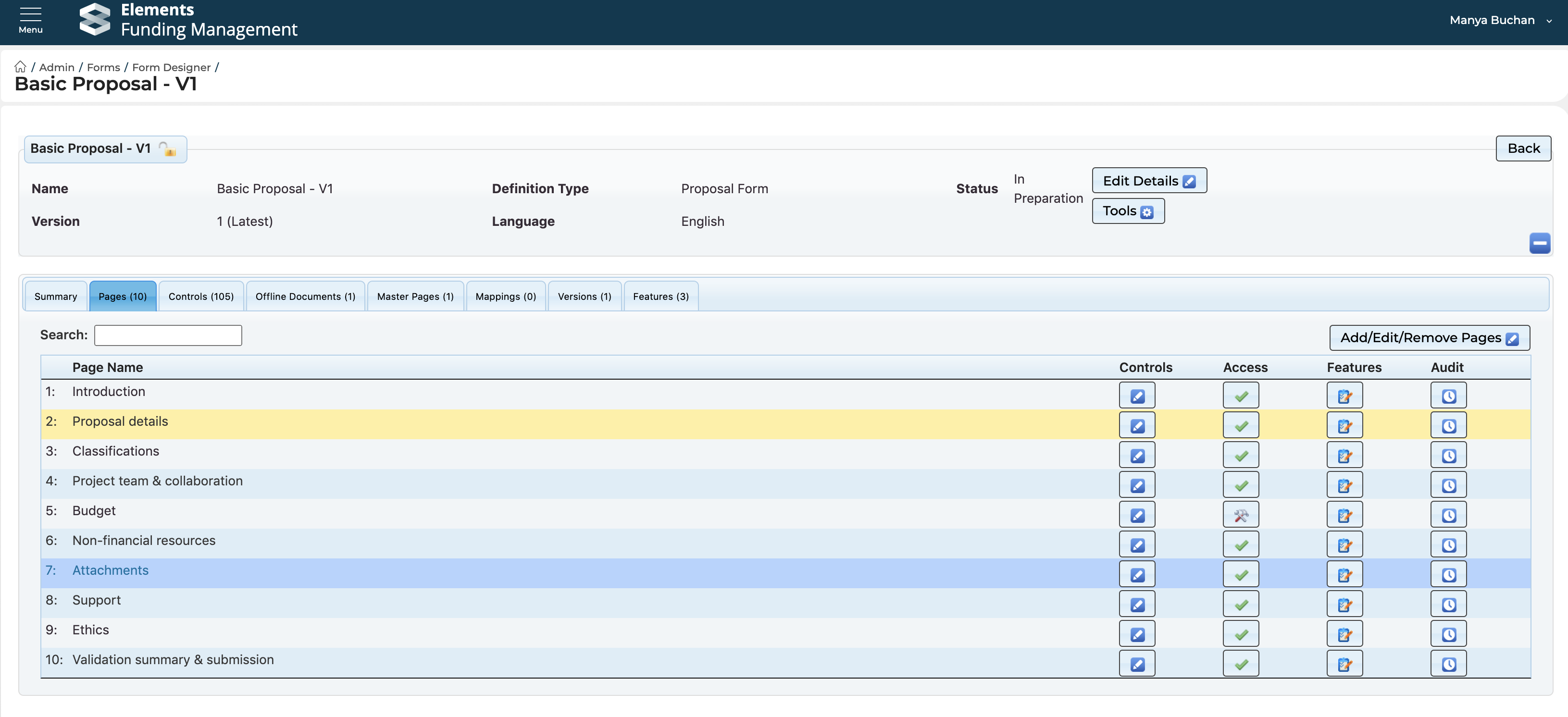
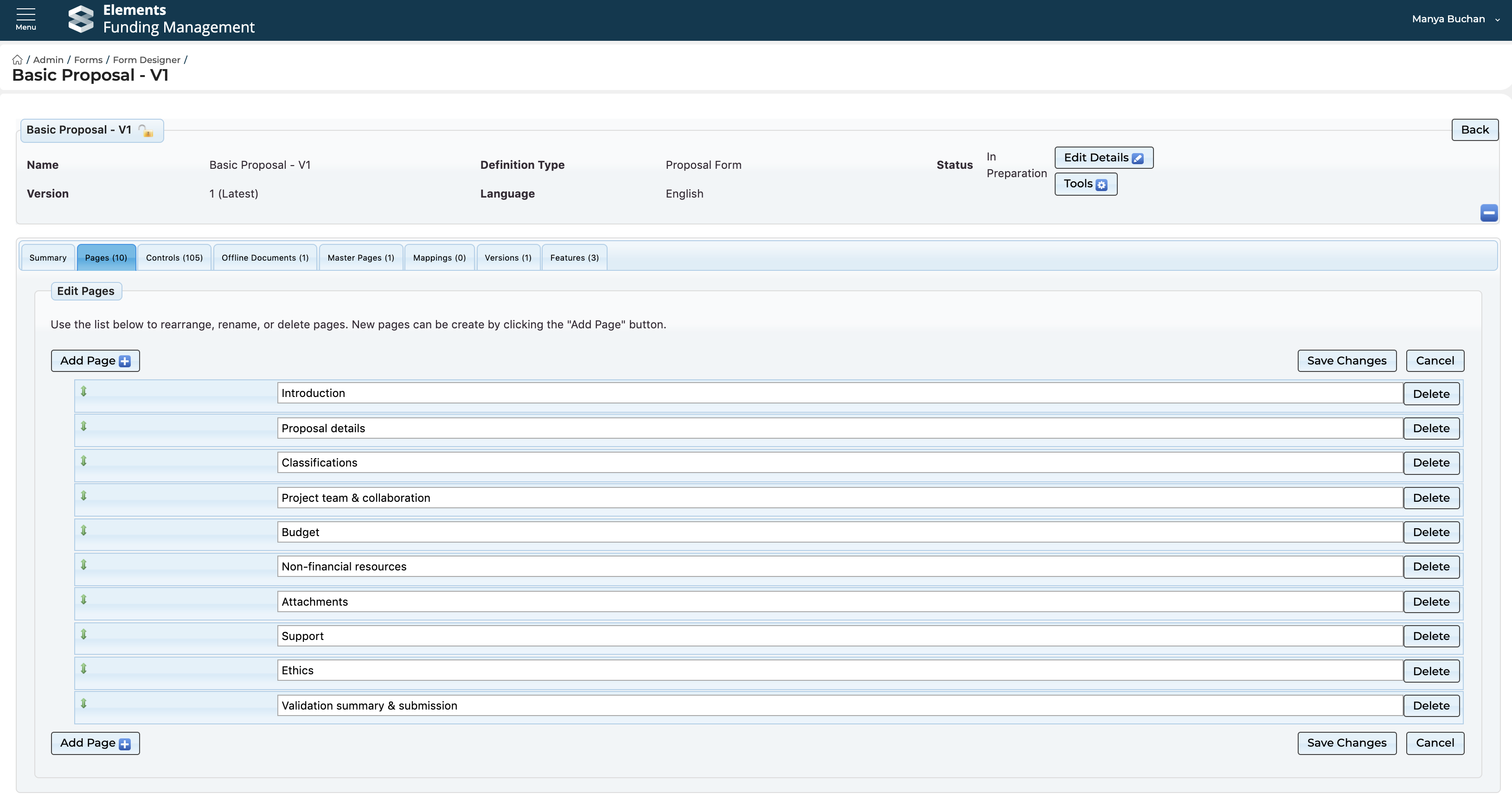
To rename a page, just edit the page name.
To move a page, drag and drop the page to the desired location (the ‘Validation summary & submission’ page should always be the final page)
Note that a page can be indented when dropping to the new location, making it a subsection of the page above
To add a page, select the ‘Add Page’ button
To delete a page, select the relevant ‘Delete’ button
Remember to save your changes using the ‘Save Changes’ button.
Modifying an existing page
In the ‘Pages’ tab, select the page in the form you wish to modify (using the pencil icon in the ‘Controls’ column).
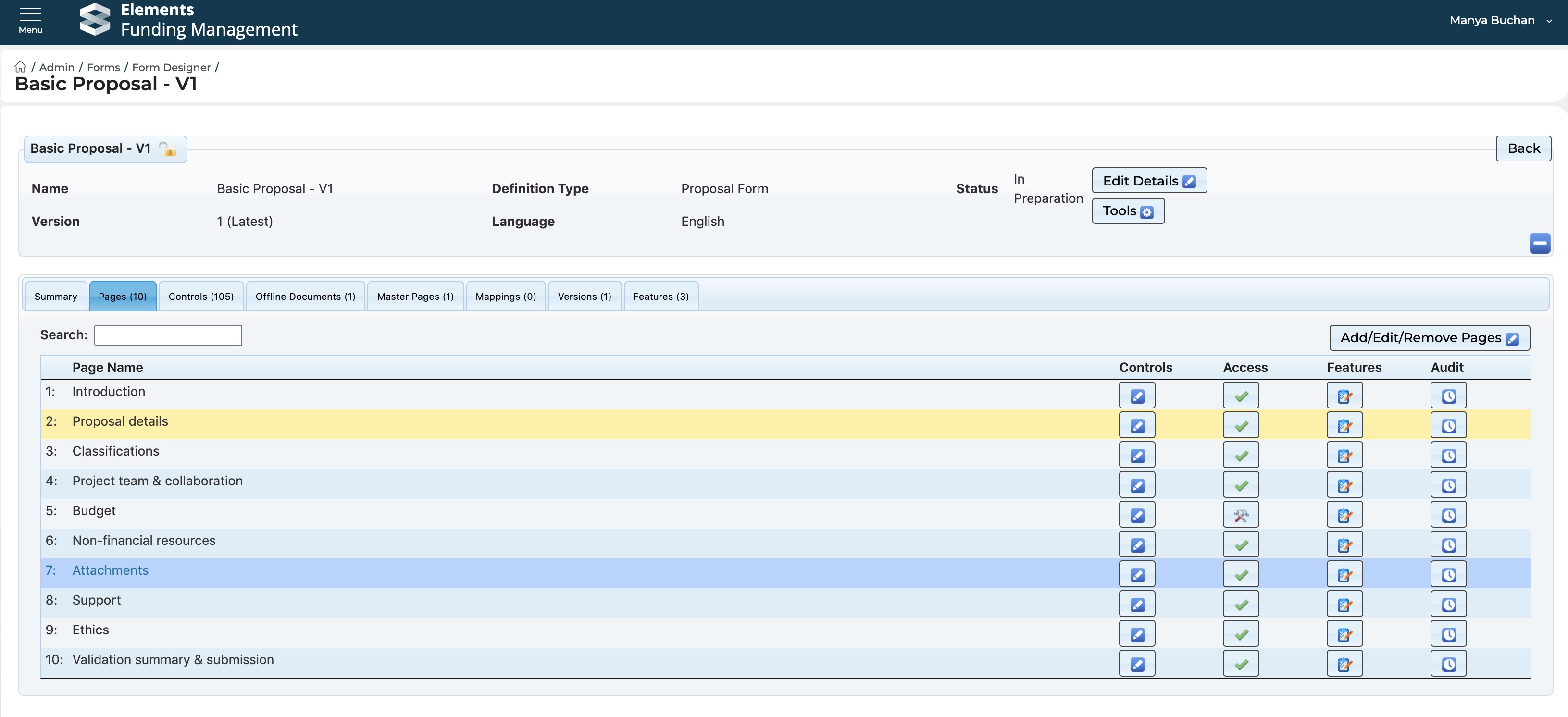
If it is a new page, the screen will be empty. Use the controls search box at the top of the screen to find the desired control to add to the page (by dragging into the yellow space).
If it is an existing page, the page’s controls will all be listed.
You can directly modify an existing control (e.g. change its name, update the help text, modify the configuration).
To add a new control, use the controls search box at the top of the screen to find the desired control to add to the page (by dragging to the desired location).
To delete an existing control, select the red X in the top right hand corner of the control
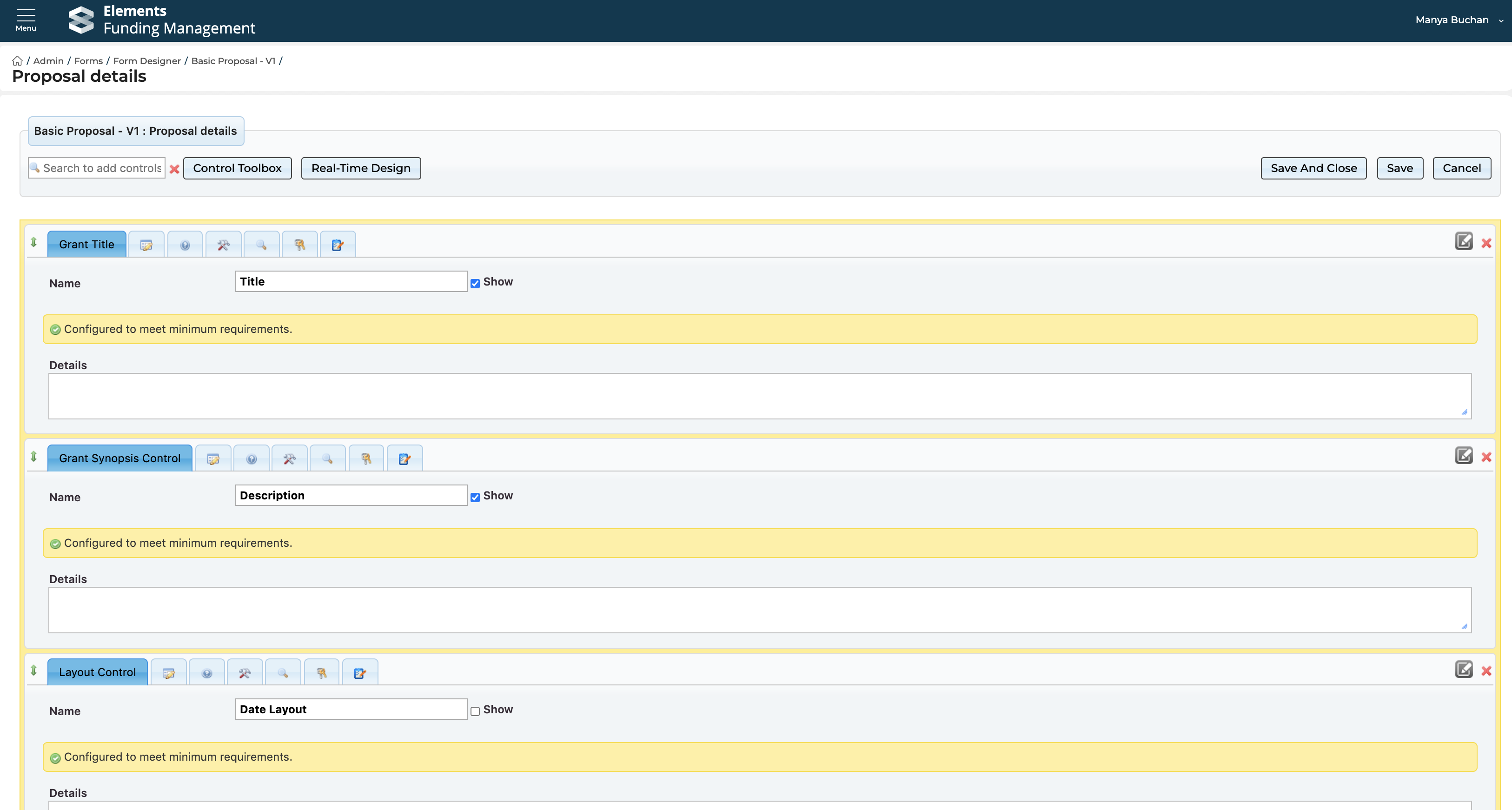
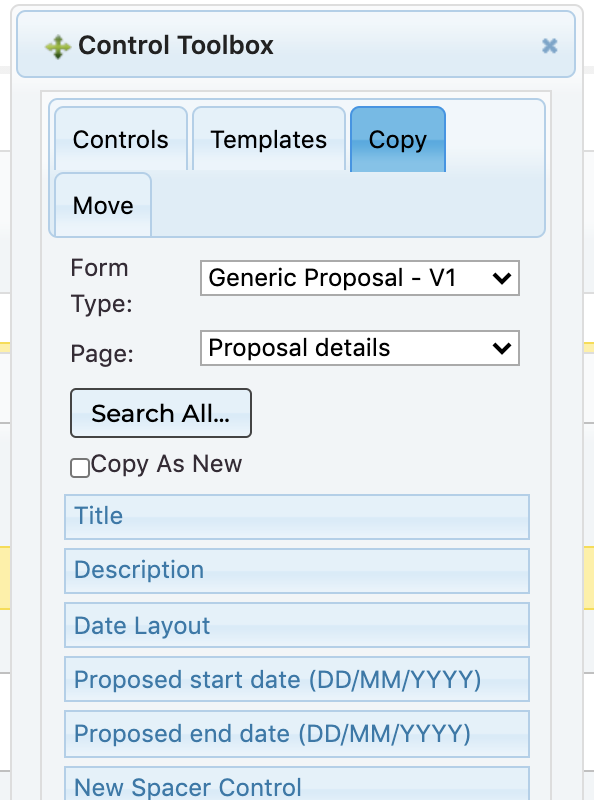
To paste in a control (including its configuration) from another page or form, select ‘Control Toolbox’, then select ‘Copy’.
Select the Form and Page of that form you would like to copy a control from, then drag and drop the desired control from the toolbox to your form. Copied controls are not linked to the original form; you can modify the control in your new form without altering the control in the original form. Note that if the copied control is linked to other controls in the original form, these other controls will also be copied over.
Remember to save your changes. To leave the page without saving your changes, select the ‘Cancel’ button.
Reporting ID
Each control in a form has a Reporting ID which is used to identify the field in the Elements Reporting Database. Existing Reporting IDs should not be modified as doing so risks breaking registered reports, data extracts, and dashboards in the Reporting Hub.
When you add a new control to a form, if you want the field to be available for reporting, you will need to assign this ID (it is not assigned automatically). You should ensure that if the control is a unique one, you should assign it a unique Reporting ID to ensure the field can be appropriately identified. If the control is not a unique one (i.e. you expect the field’s values to be in the same reporting field as another), you should assign the same Reporting ID as the other control(s).
When you copy a control from an existing form, the Reporting ID will also be copied. If the nature of the copied control is to remain the same (i.e. you expect the field’s values to be in the same reporting field as the copied from control) you should keep the Reporting ID as copied.
To view / modify the Reporting ID, go to the control in question and select the ‘Question Tagging/Reporting Configuration’ tab (the magnifying glass icon), and select ‘Reporting ID’ for Type. The Reporting ID is captured in the ‘Key’ field.

Remember to save your changes.
Form template statuses
You can use the Status field of the form template to manage the preparation and availability of form templates for application against Funding Opportunities.
Go to Admin > Forms > Forms designer and open the desired form template (pencil icon). Select ‘Edit details’.
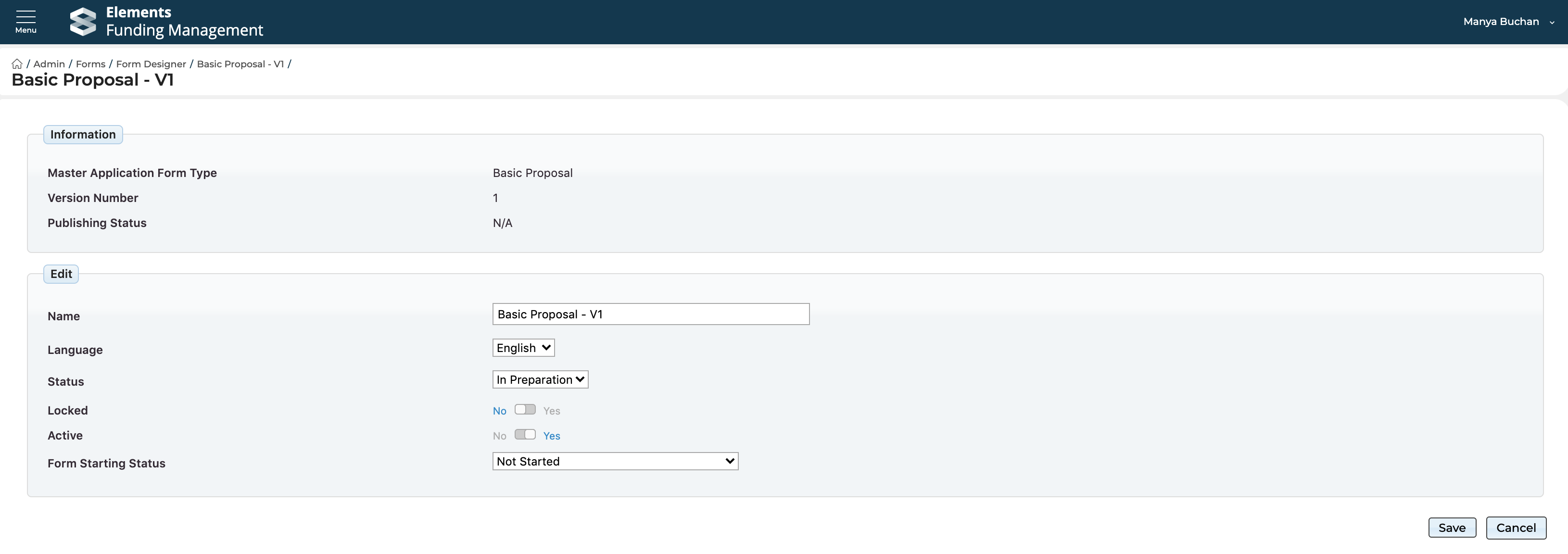
To make a form template available, toggle the Active field to ‘Yes’ (and to make it not available, toggle to ‘No’).
The Status field has no impact on the availability of the form template. But you can use this field to help you manage the preparation and availability of form templates for application against Funding Opportunities. For example, you may want to keep a template in the ‘In preparation’ state while you are still configuring it, moving it to ‘Active’ once you have finalised the configuration.
Locking a form template
Locking a Proposal form template will lock it for editing. It is recommended that once you have finalised the form configuration, you should lock it to ensure that it is not unintentionally altered.
Go to Admin > Forms > Forms designer and open the Proposal form template you wish to lock / unlock (pencil icon). Select ‘Edit details’.
To lock a Proposal form template, toggle the Locked field to ‘Yes’ (and to unlock it, toggle to ‘No’).
Decommissioning an existing form template
Decommissioning a form template will make it unavailable for selection against any new Funding Opportunities. This does not impact on any existing Funding Opps where the form is used.
Go to Admin > Forms > Forms designer and open the template you would like to decommission. Go to ‘Tools’ and select ‘Delete’.
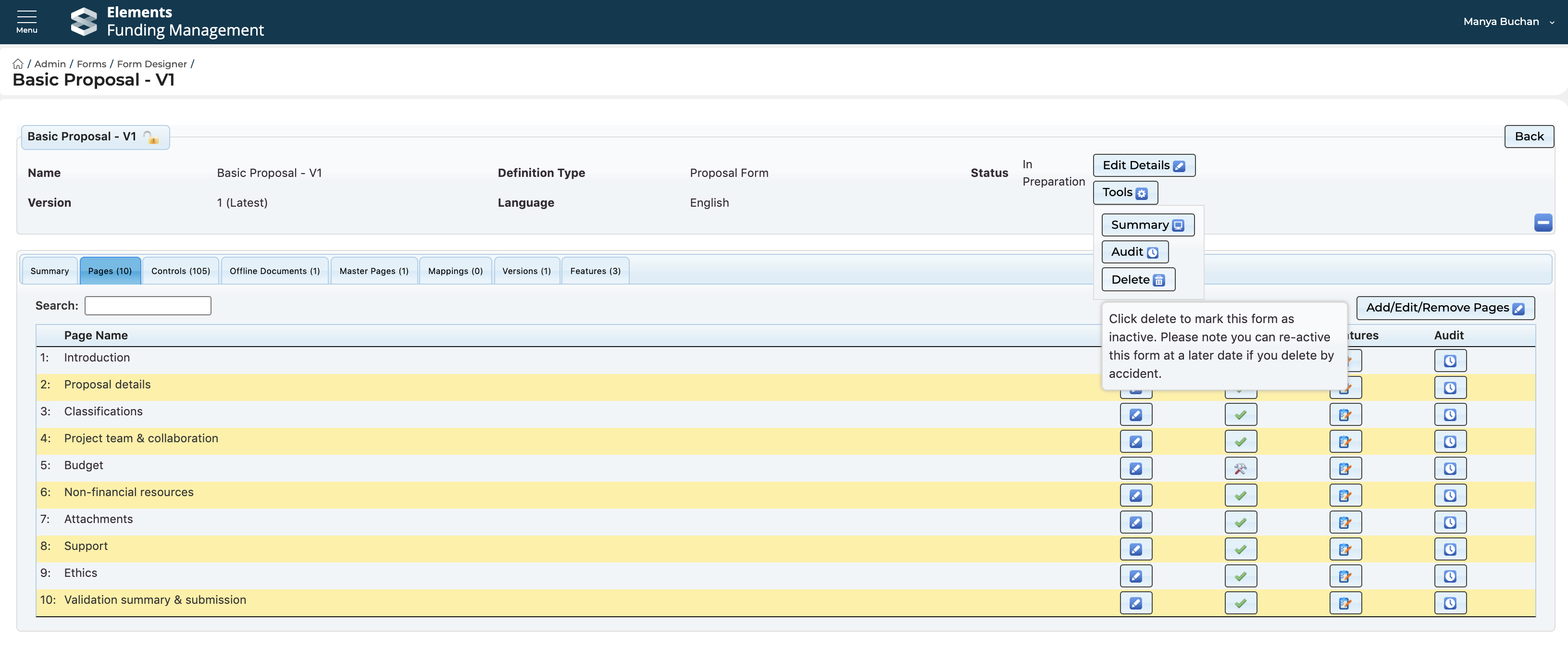
This will mark the form template as ‘Inactive’.
Find ‘inactive’ form templates
To find an ‘inactive’ form template, go to Admin > Forms > Forms designer and change the ‘Active’ filter selection to ‘(Deleted)’ (to just list those that are inactive) or ‘(All)’ (to list all form templates).
Re-enable an ‘inactive’ template
Go to Admin > Forms > Forms designer and open the form template you wish to re-enable (pencil icon). Select ‘Edit details’.
Change the Status to ‘Active’ and toggle the Active field to ‘Yes’. Remember to save.