How to curate search settings
The purpose of this article is to outline the basic steps for curating search settings in Elements to maximize publication and grant retrieval from data sources.
There are two common approaches for configuring initial search settings. Accounts can either have
1.) only name variants (usually Last Name, First Name and Last Name, Initials), or
2.) name variants and affiliation variants. For users with common names, the latter approach is recommended.
The synchronizer will create a Boolean search string based on the information entered in these fields.
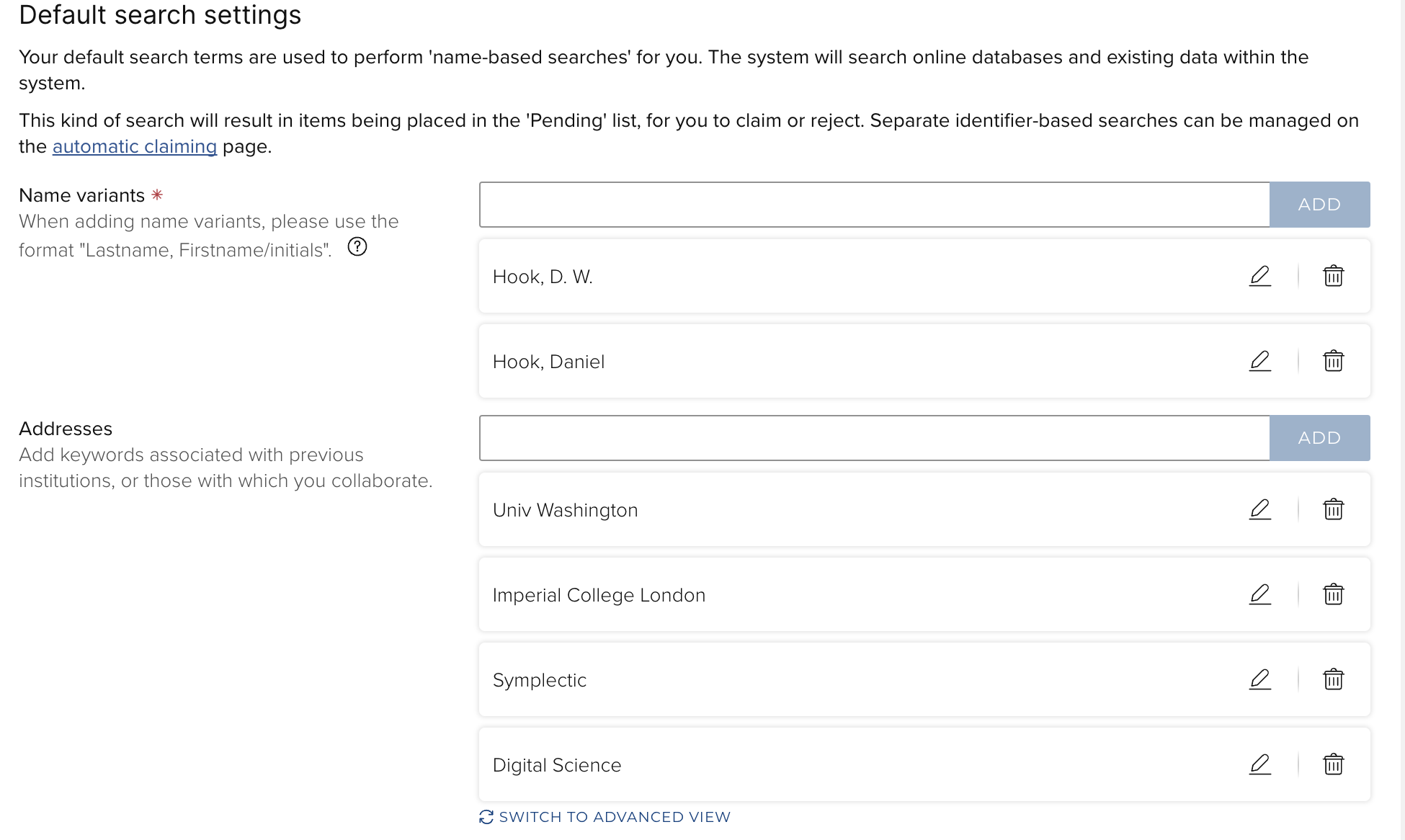
For example, these search settings --

-- would be interpreted as AU=(Hook, D.W. OR Hook, Daniel)
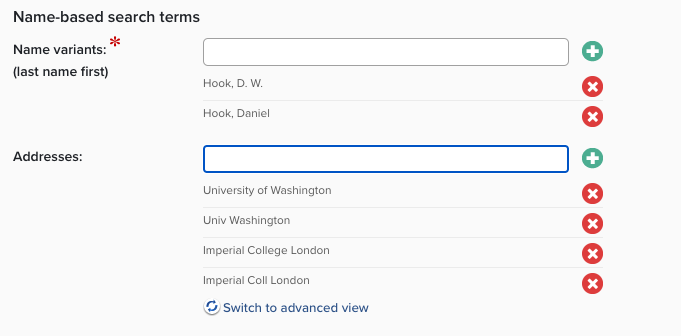
Adding affiliation or address information will narrow the search. For example, these search settings --
-- would be interpreted as AU=(Hook, D.W. OR Hook, Daniel) AND AD=(Univ Washington OR Imperial College London OR Symplectic OR Digital Science).
Note that within a field the Boolean OR is employed, but between fields the Boolean AND is used.
A note about affiliation abbreviations: Different data sources use different conventions. Though most of the data sources Elements searches have attempted to standardize addresses to some degree, the farther back in time one searches, the less unified the databases tend to be. Therefore, when adding affiliations, we recommend the use of the full name (especially if one of the data sources is Dimensions) and the abbreviated version (especially if one of the data sources is Web of Science).
Adding address terms will restrict retrieval to publications the author produced while at the institution, so sometimes adding multiple addresses is useful, as in --
The search will retrieve any publications with matching author and affiliation data. It will also retrieve author identifiers that match the settings. Currently, Elements can retrieve author identifiers from arXiv, Dimensions, ORCID, Scopus, SSRN, and Web of Science (though the identifier is called a ResearcherID).
In addition to the database name and the author identifier, Elements will also list the number of publications (and grants in the case of Dimensions) with which the identifier is associated.

Clicking on the identifier will open a new window and show the author's profile in the database. For example:
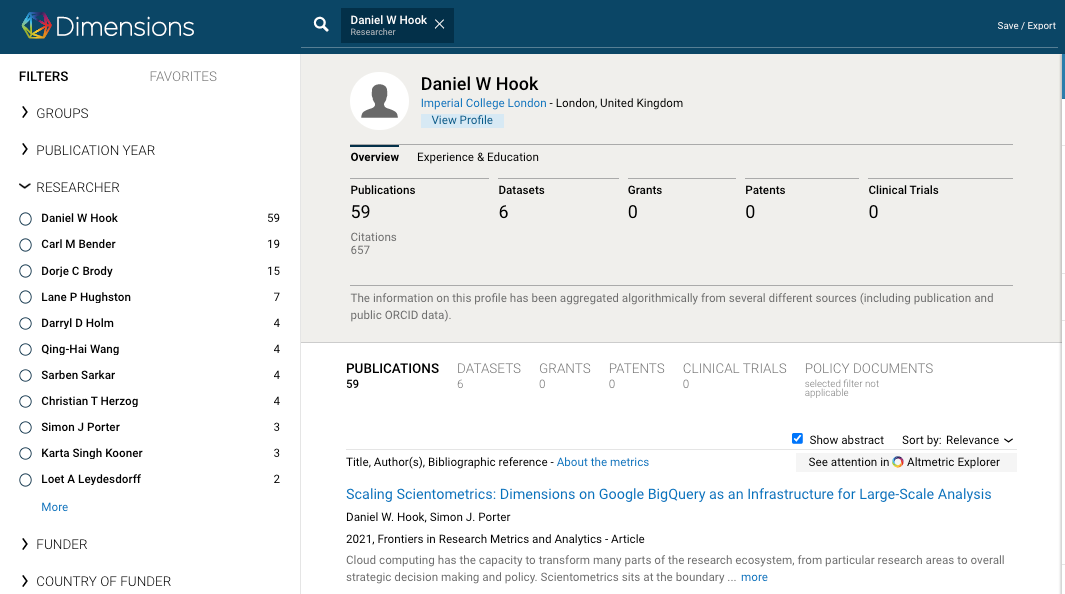
Please note: the number of publications shown to be associated with the identifier in Elements is the number that matches the search settings. If you claim the identifier, usually -- but not always -- the harvesting software will claim all of the publications.
Claiming an identifier might not harvest all publications if the harvesting software finds either a name variant it does not recognize or if there are a large number of publications associated with an affiliation that is not in the user's search settings. Adding the name variant or the affiliation to the search settings will claim the publications.
Frequently Asked Questions
I need to add some additional search terms and clear my Pending Publications. What are the steps to do this?
- First, go to Menu > Profile & work > [TOOLS & SETTINGS] > Search settings (V6 Menu > My Profile > Settings > Name-based Search) and add the additional search terms.
- Second, go to the Home page and click on the three dots to open the menu. Click 'Clear pending.'
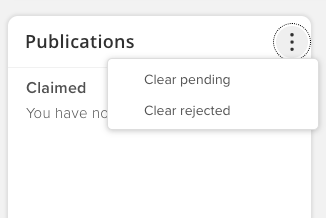
- Third, return to the Name-based search settings page and click the 'Run my searches' button.
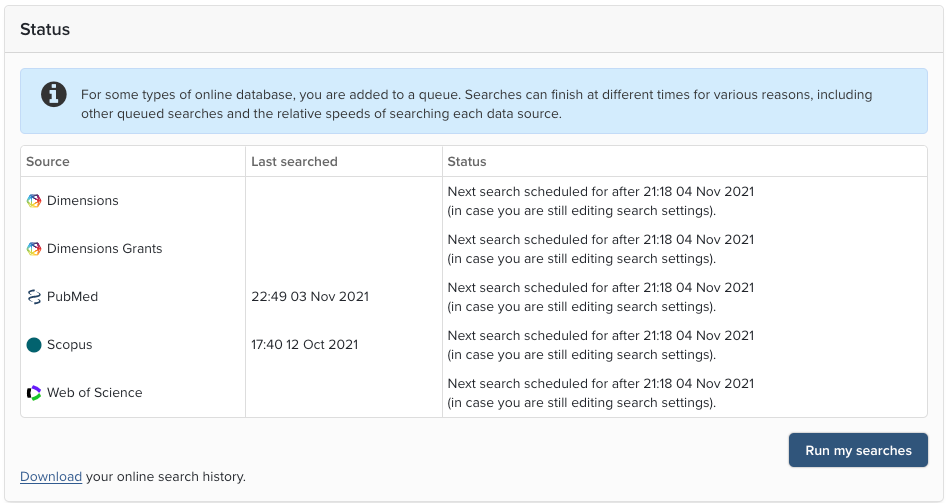
Even after I clear my pending and update my search settings, I have hundreds of Pending publications. What's wrong?
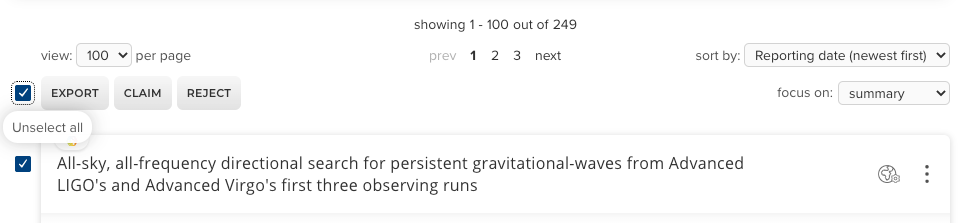
Check the publications to see how many authors they have. If you are seeing lots of articles with dozens or even hundreds of articles, the likely cause is that your name and affiliation data match those of someone who does research in High Energy Physics (HEP), where papers routinely have dozens, even hundreds of co-authors. An easy way to check if this is the case is to look at the titles of the journals. If you see a lot published in The Astrophysical Journal or Physical Review, then you share a name with a HEP researcher. Your only option is to reject them; fortunately, Elements makes this fairly painless.
- First, increase the number of items per page up to 100:
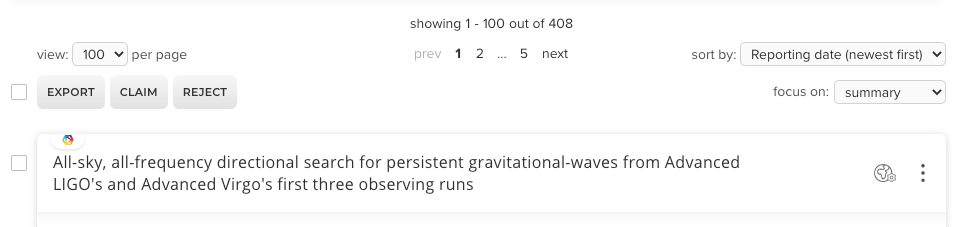
- Then, set the "Author count" filter (in the toolbar on the right side of the page) to '50 or more.'

- And, finally, tick the 'Select all' check box and reject in batches of 10.