Restricting a Funding Opportunity's visibility
By default, when a Funding Opportunity is created, its access is set to 'Public' (meaning that any user with access to Awards Management will be able to see the Funding Opportunity and initiate a proposal). But it is possible to restrict the visibility of a Funding Opportunity to selected users and/or groups.
In the 'Visibility to users' section, select 'Hidden' in the Access field. This will hide the Funding Opportunity from all users.

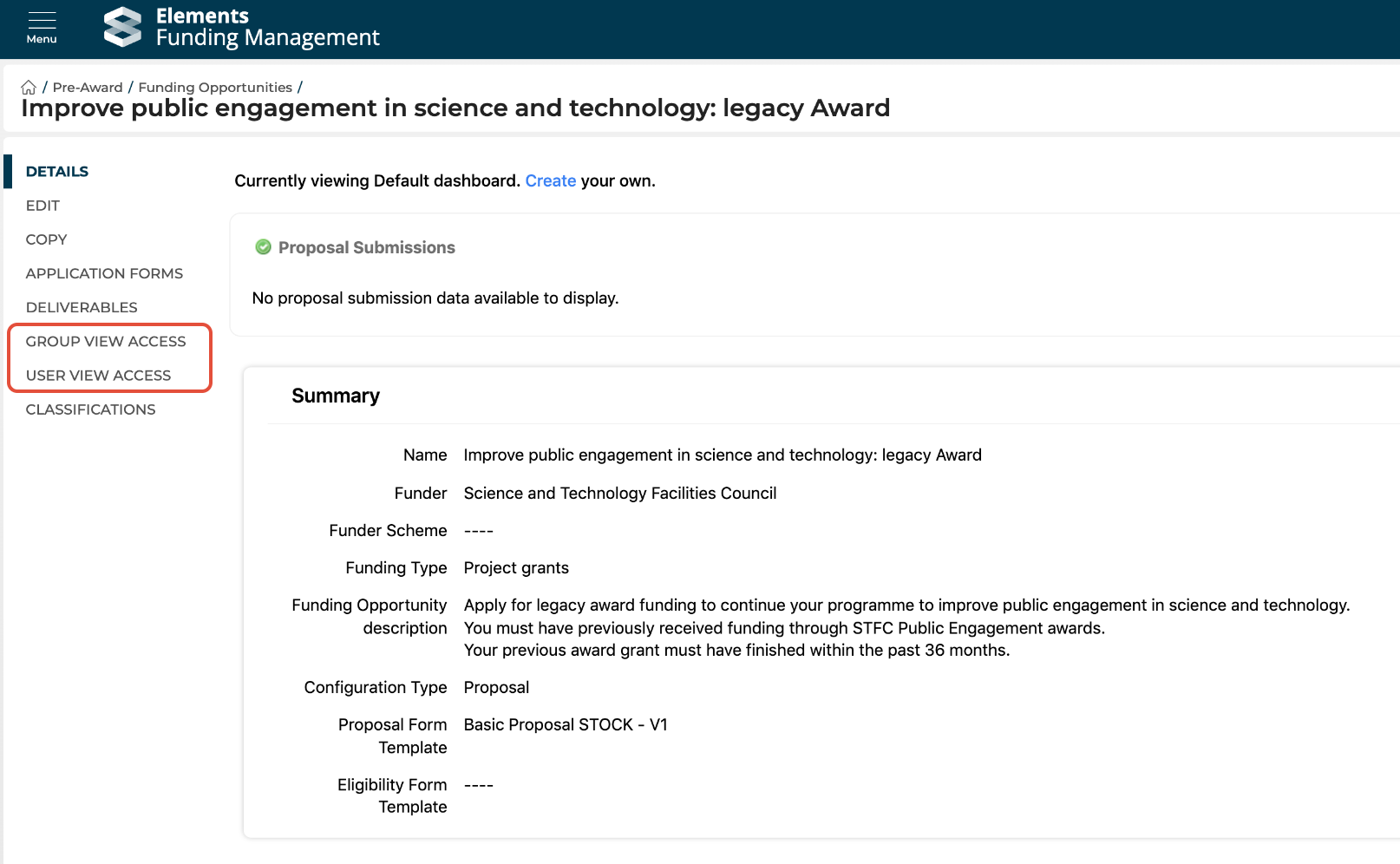
After saving your Funding Opportunity details, go to either (or both, depending on the access you want to provide):
Group view access
User view access
Group view access
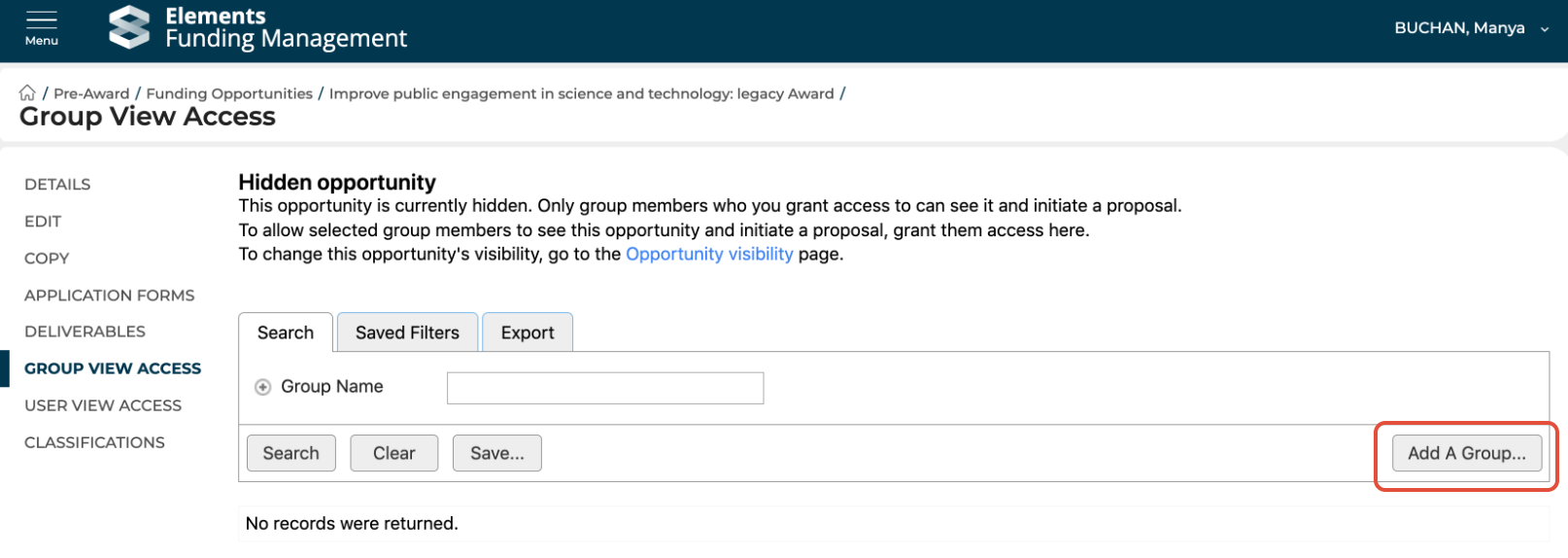
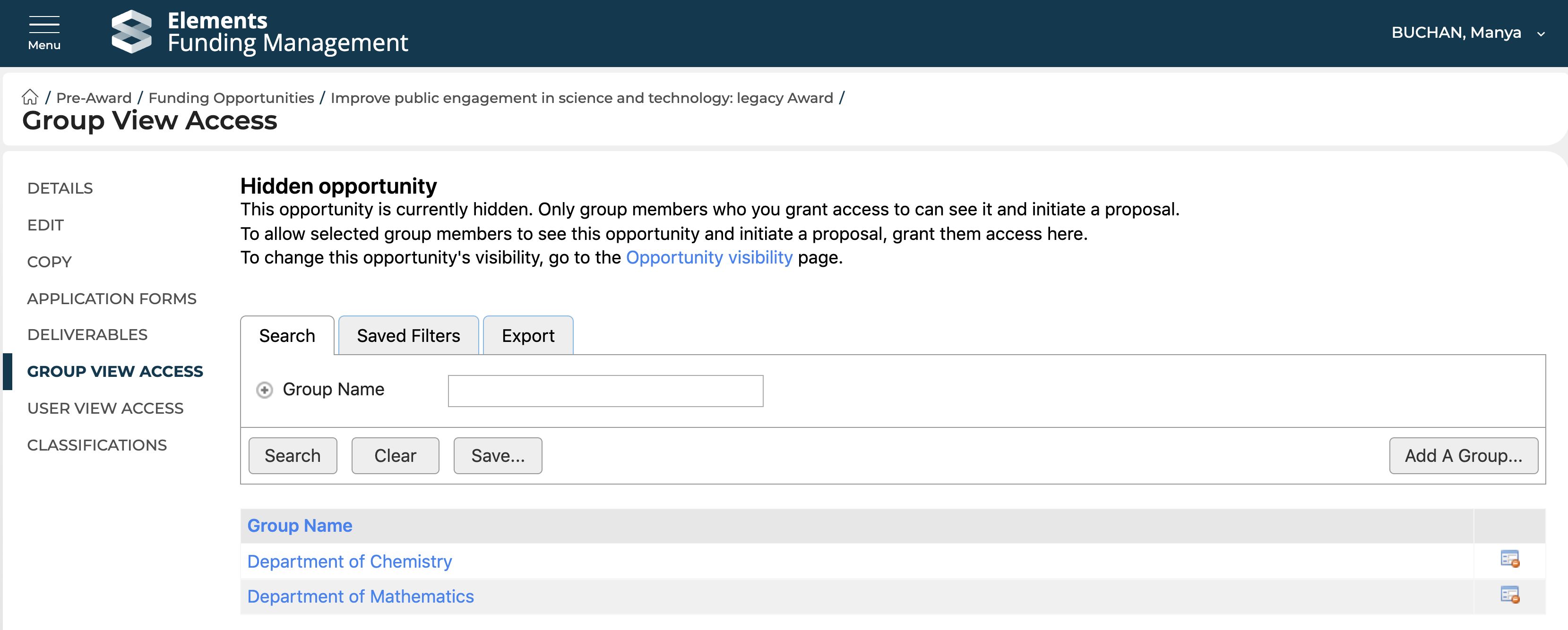
In the Group view access page, select the Group(s) you would like to give access to the Funding Opportunity by selecting 'Add a Group'. Making a Funding Opportunity visible to a Group makes that Opportunity visible to all members of that Group.
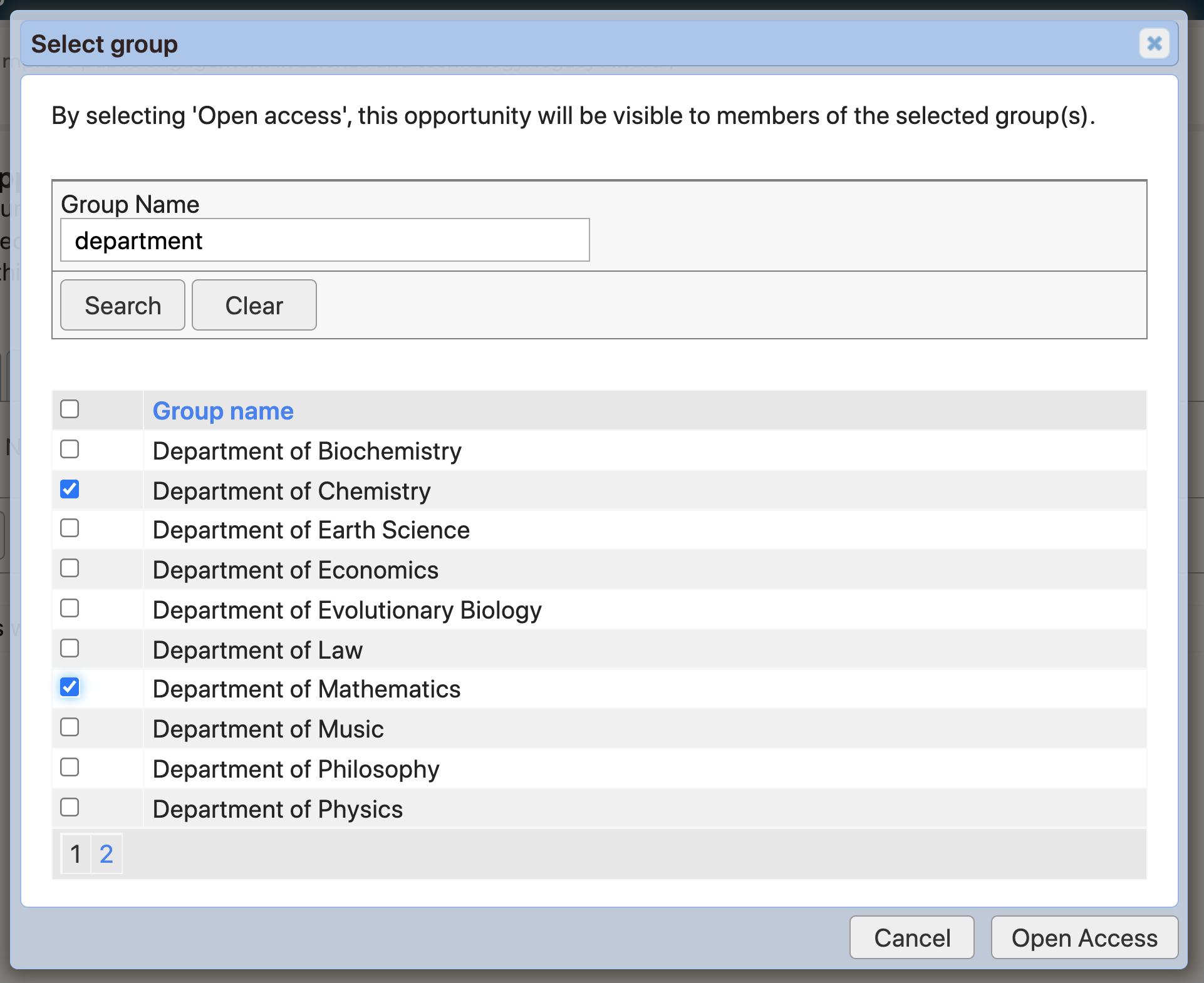
Then search for and select the Group(s) you would like to give access to, and then click 'Open access' to save your selection(s).
User view access
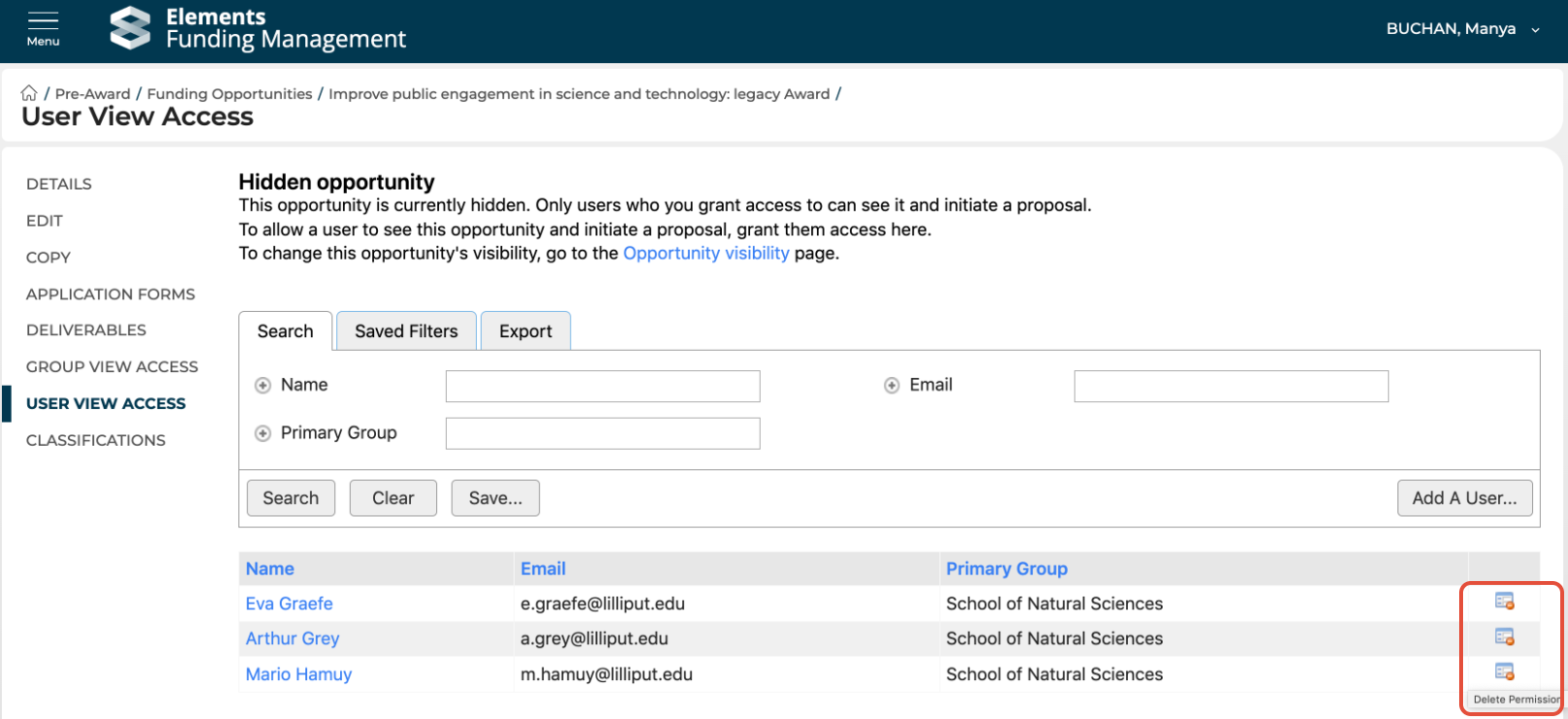
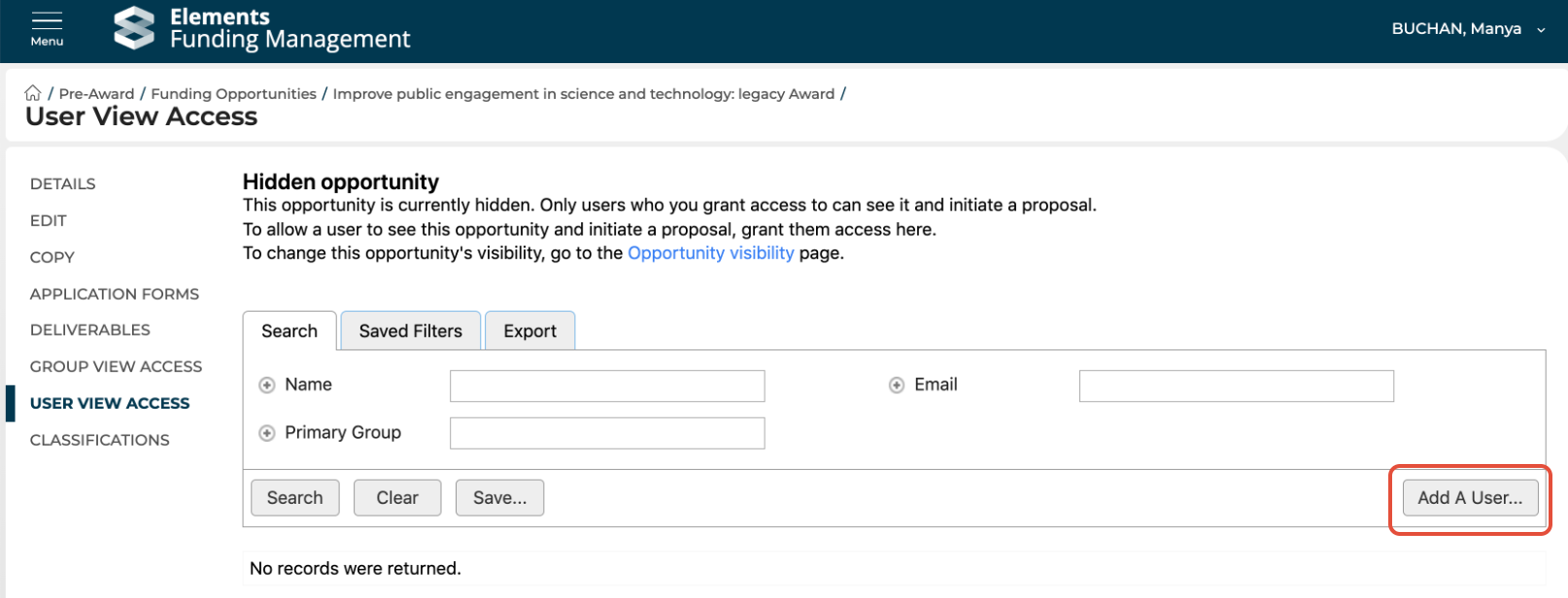
In the User view access page, select the user(s) you would like to give access to the Funding Opportunity by selecting 'Add a User'.
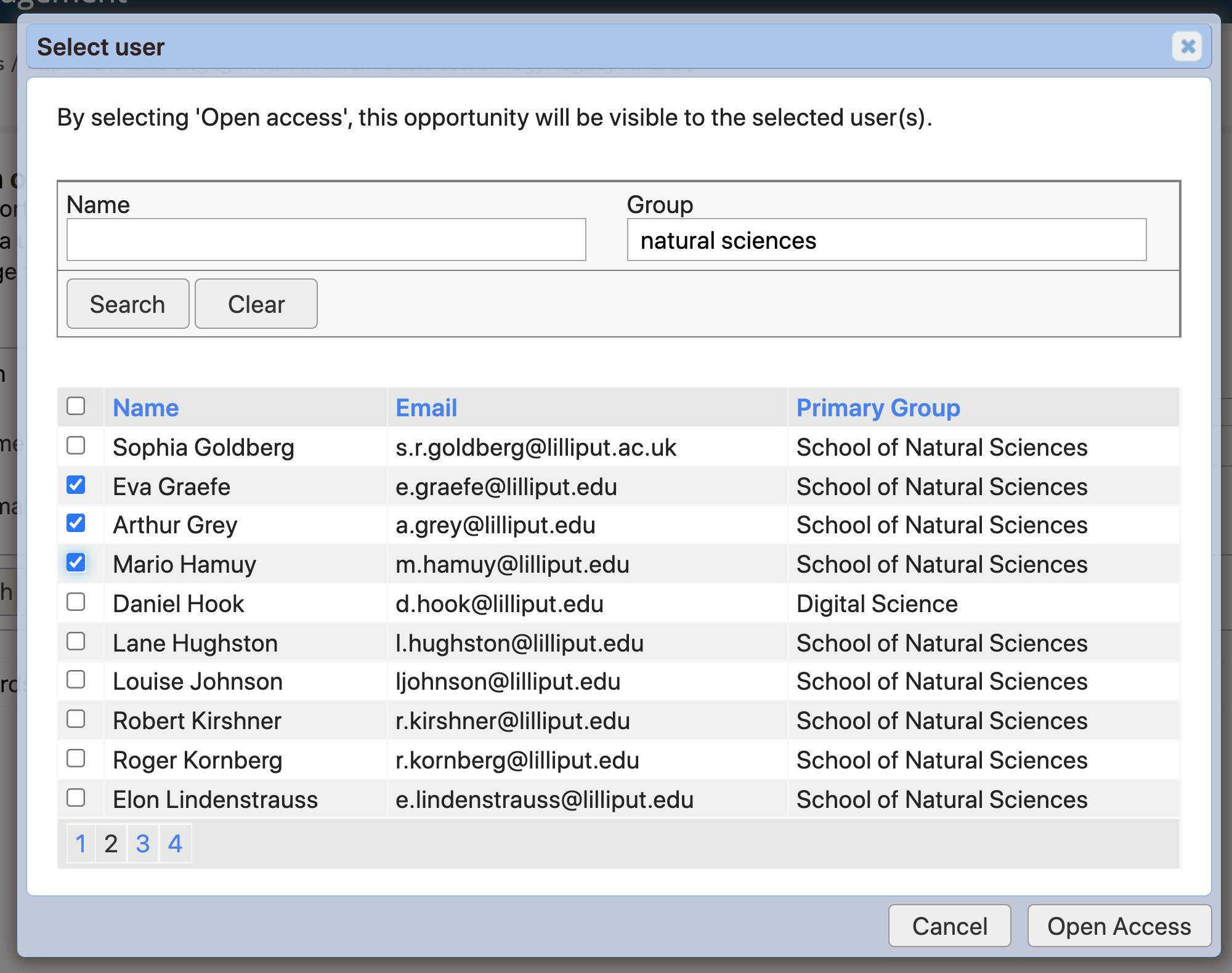
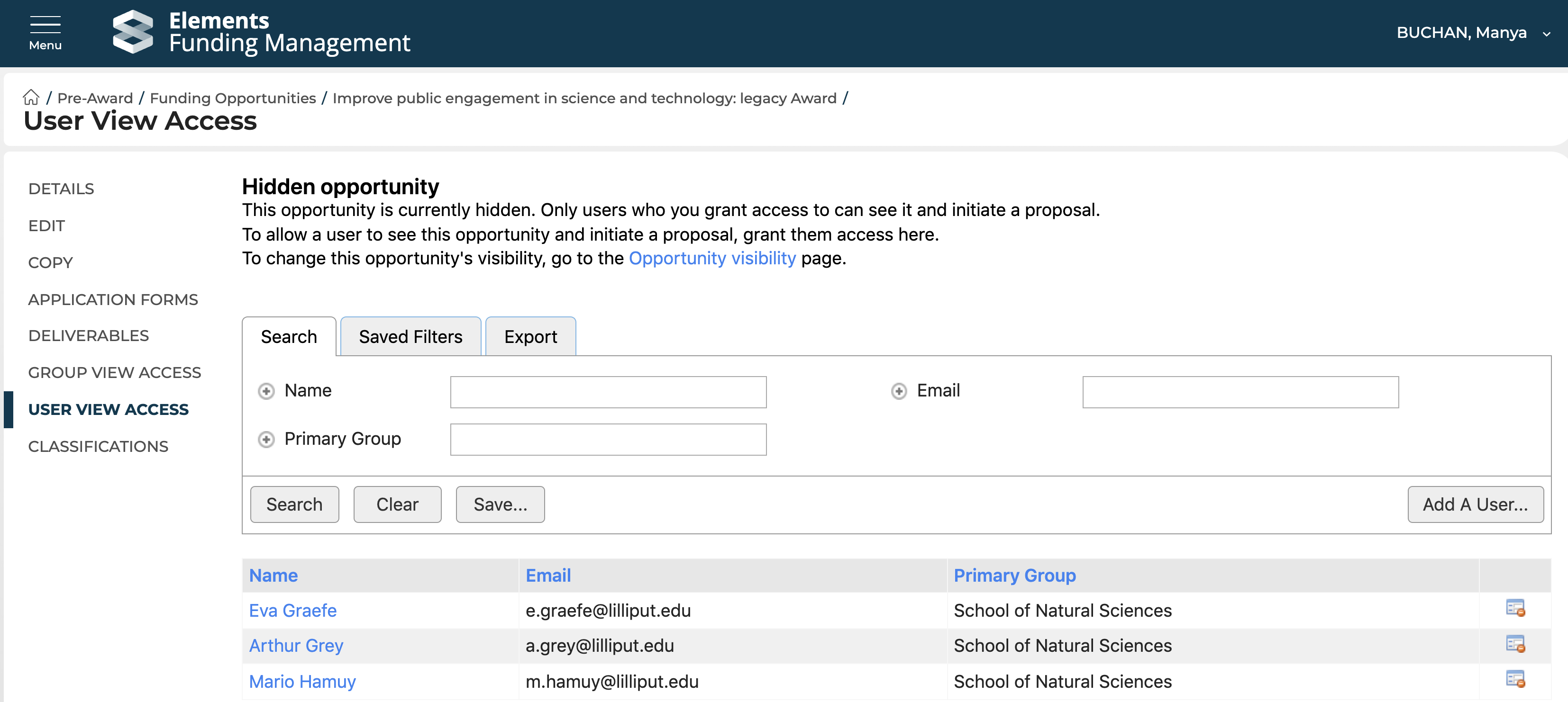
Then search for and select the user(s) you would like to give access to (you can search by user name or by group membership). Then click 'Open access' to save your selection(s).
Making changes
Changing the Access of a Funding Opportunity from 'Hidden' to 'Public' will clear out all Group / User view access selections (but if the access is changed back to 'Hidden', the previous selections will be re-applied).
To remove an individual Group or User from having access to a Funding Opportunity, you can delete their permission from the Group / User view access screen.