
Implementation: Using Google Analytics 4 on your Discovery site
Introduction
Many of our Discovery clients use Google’s Universal Analytics (UA, sometimes known simply as ‘Google Analytics’) to surface visitor insights and measure user journeys on their public expert portals. Early 2022 Google announced that this platform will be replaced by the new Google Analytics 4 (GA4) from 1st July 2023, and all users should migrate to the new platform. As part of our continuous effort to help clients using Google’s powerful analytics, we have updated our framework to support Google Analytics 4 on Discovery sites from Elements v6.9.
This support article offers a brief guide on
how the new platform changes analytics for Discovery
how to set up GA4 for Discovery
Using Google Tag Manager
What difference does it make?
On a traditional website, when a user clicks on a link for a URL, the browser sends a request for the new page from the server. Google’s previous generation UA loads a script to detect such server requests and thus measures the so-called ‘page view’ events.
Discovery, on the other hand, is built in a more modern way, a Single Page Application (SPA). This means that, when a user navigates pages in Discovery, the user’s browser does not request a new page with every click. It stays on the same page and only redraws parts of the contents of the page. Measuring such SPA ‘page view’ events was not handled natively by UA and we have developed Discovery to submit page view events manually like when a user navigates a traditional site.
Being a more modern platform, GA4 can track the events when navigating an SPA site with the 'Enhanced measurement' setting. However, when integrated with Discovery, this could result to double-counting page view events. To optimise the analytics results, we have retained the design of manual submission of page view events to Google. You can use GA4 to measure page view events, just with a few more steps in the set-up process.
How to set up GA4 for your Discovery
Please consult Google’s support articles on how to get started with Google Analytics 4. From Elements v6.9, Discovery will support GA4. You can turn on GA4 page view measurement in Discovery with the following steps.
Step 1: add a new stream
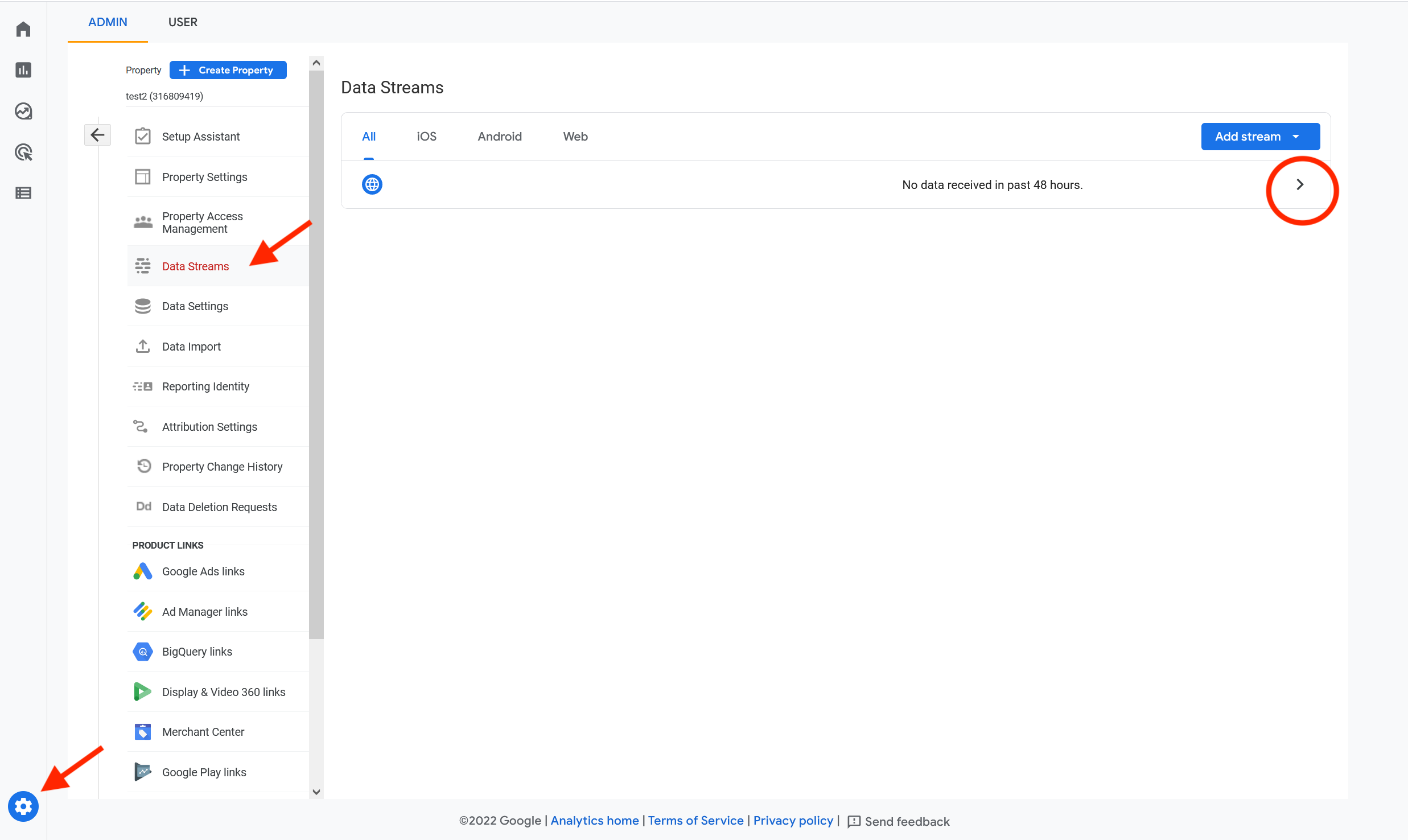
In the admin interface for the Google Analytics account, click on the cog in the lower left corner and find theData Streams page. Once a stream is added, select more details by clicking the right-pointing arrow:
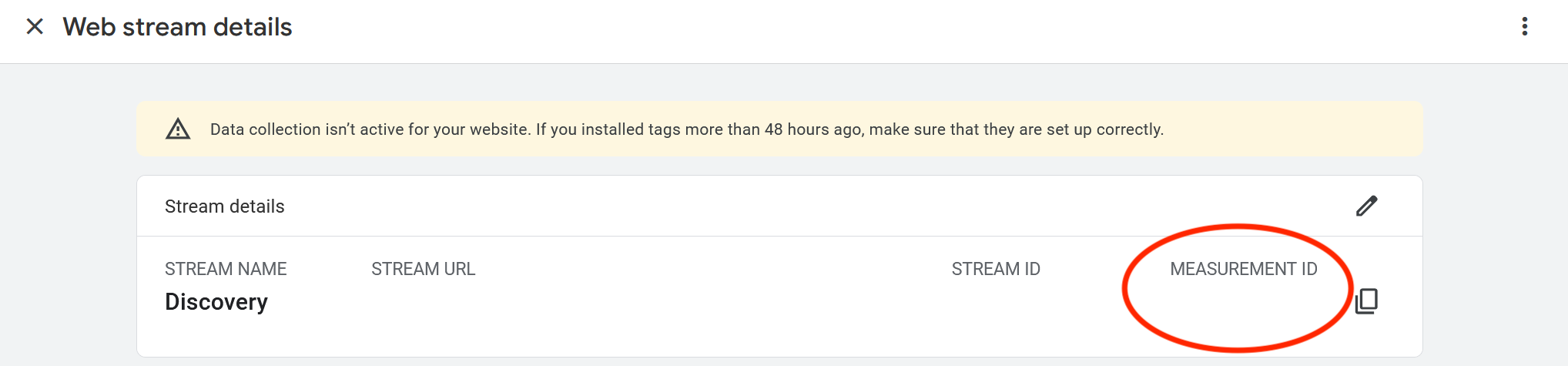
You should be able to find the Measurement ID on the details page. This ID looks like 'G-XXXXXXXXXX' (as opposed to the older Universal Analytics ID, which was of the form 'UA-XXXXXXXXX-1' ). Please raise a support ticket and share this with us.
Step 2: Configure for manual submission
The analytics account holders should configure their GA4 streams in either of the following ways:
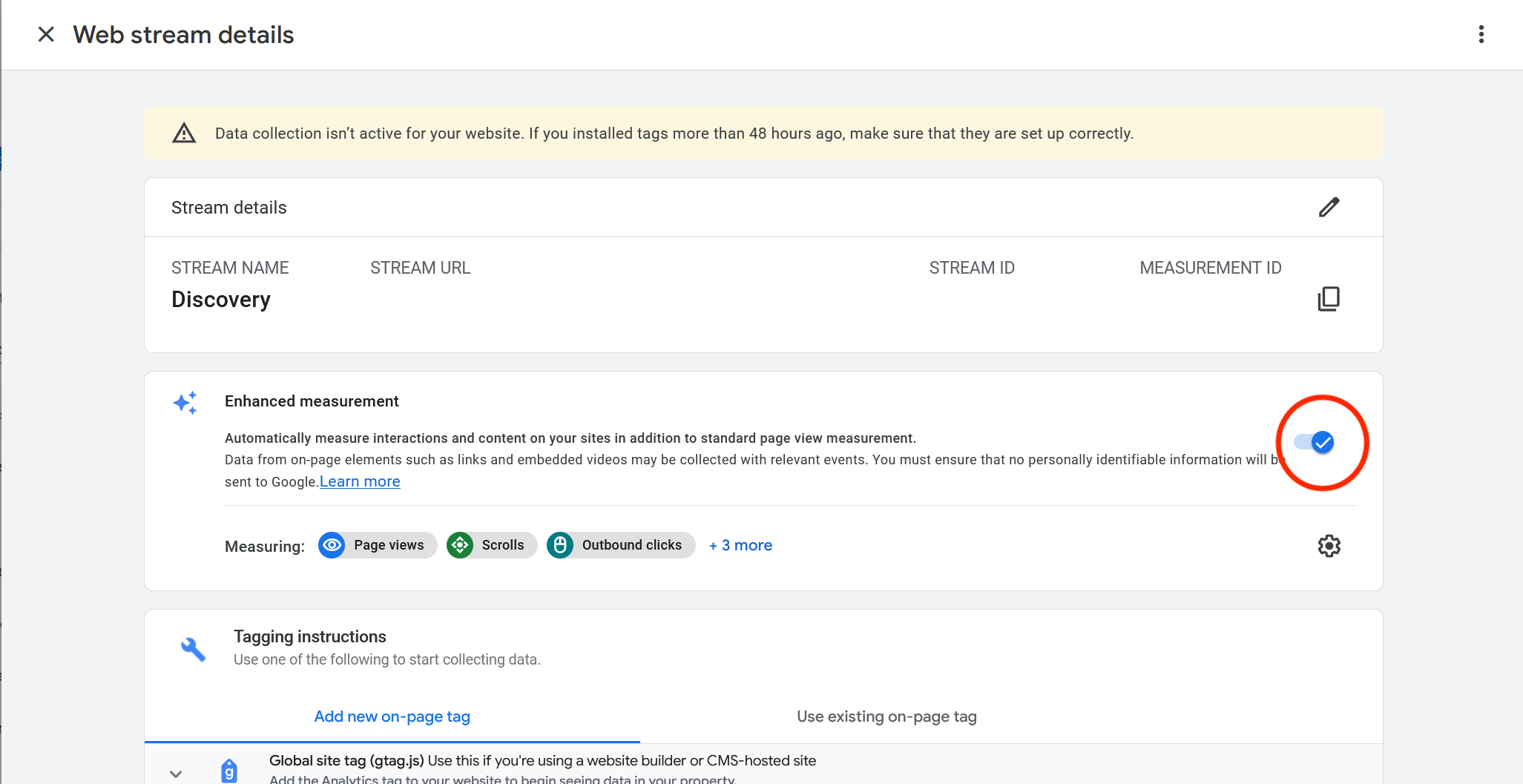
Switch off ‘Enhanced measurement’.
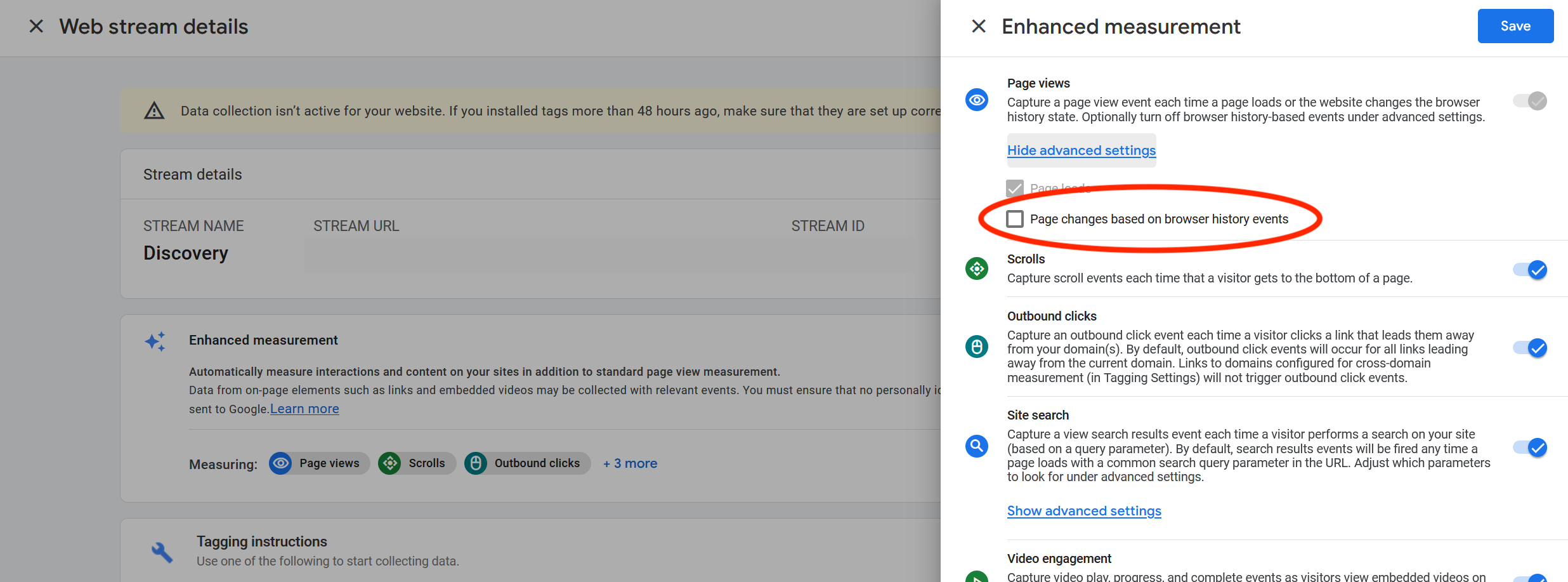
Should you choose to enable ‘Enhanced measurement’, disable detecting 'page changes based on browser history events'.
You can switch off ‘Enhanced measurement’ completely:
Or, click on the cog below to see more details, and uncheck the box for ‘Page changes based on browser history events’:
Notes on using Google Tag Manager
Google Tag Manager is often used for various advanced analyses of how users interact with a website (including registering tools like HotJar). Google has allowed users of Google Analytics to link their UA or GA4 accounts to a Google Tag Manager account. By registering a Google Tag Manager account with Discovery, it would automatically collect page views via the Google Tag Manager code (of the format 'GTM-XXXXXX').
Discovery already supports the use of Google Tag Manager. However, if you already measure page views with UA or GA4 or wish to do so in the future, we would like to ask you to share the relevant identifiers with us so we can register them in the Discovery application directly. When using Google Analytics via Google Tag Manager, manual submissions of page views do not work in Discovery, and this will lead to inaccurate collection of page view events for clients.
If you use Google Tag Manager for purposes other than Google Analytics (e.g. HotJar), you can continue using Google Tag Manager at the same time as using UA or GA4. Please unlink any UA or GA4 codes from the Google Tag Manager account to avoid the above-mentioned issue.