
Configuring stage transitions v6.10+
Working in conjunction with stages, ‘Stage transitions’ allow the configuration of workflows that can be used to control the movement of Exercise forms through different stages. Exercise stages can be used to manage user access to the Exercise form and control the configuration for review and sign-off phases.
In Elements version 6.10, we have consolidated the approach to capturing information about the ‘completeness’ of an Exercise form by removing the ability for researchers to mark an Exercise form as ‘done’. From this point on, the ‘state’ of an Exercise form is captured solely by the stage that it is in (e.g. ‘In draft’, ‘In review’, ‘Completed’).
Note: It is still possible for reviewers to ‘Mark as done’. This action indicates to administrators that a reviewer has completed their reviews.
Stage transitions can be carried out by the researchers completing the Exercise form, reviewers and Managers. Stage transitions are a key way in which users can indicate that they have completed a particular stage, automatically transitioning an Exercise form into a subsequent stage.
Setting stage transitions
The ‘Stage transitions’ tab of the Exercise Definition can be used to configure the ability for a researcher (the user completing the Exercise), or a reviewer to move the Exercise form from one stage to another. The page contains one row for each stage created on the ‘Stages’ tab and two columns that can be used to control the stage transitions for researchers and reviewers. When adding a transition you can allow users to move the Exercise form from the stage in question to any other stage. The decisions made will depend on your organisation's specific workflow.
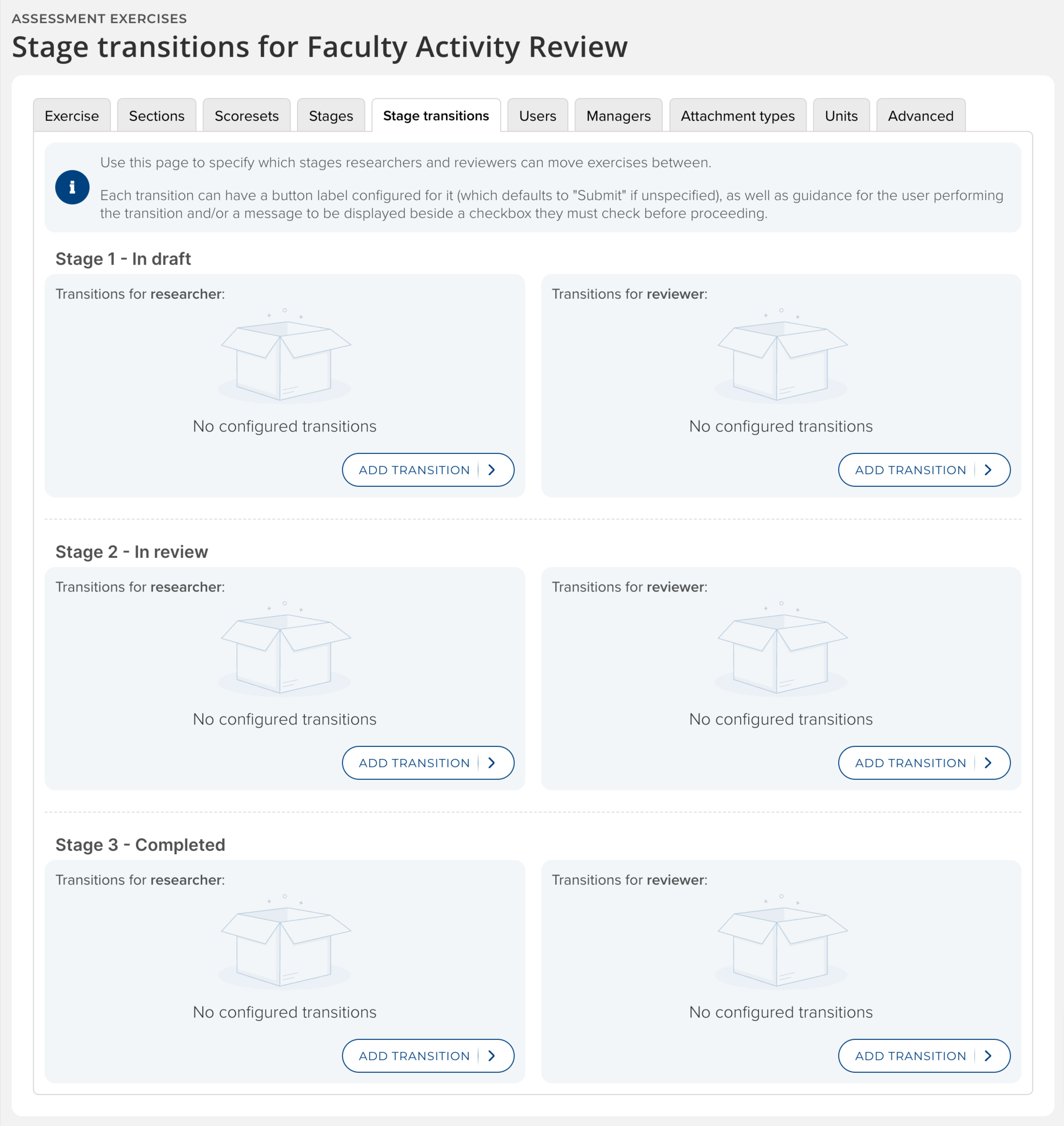
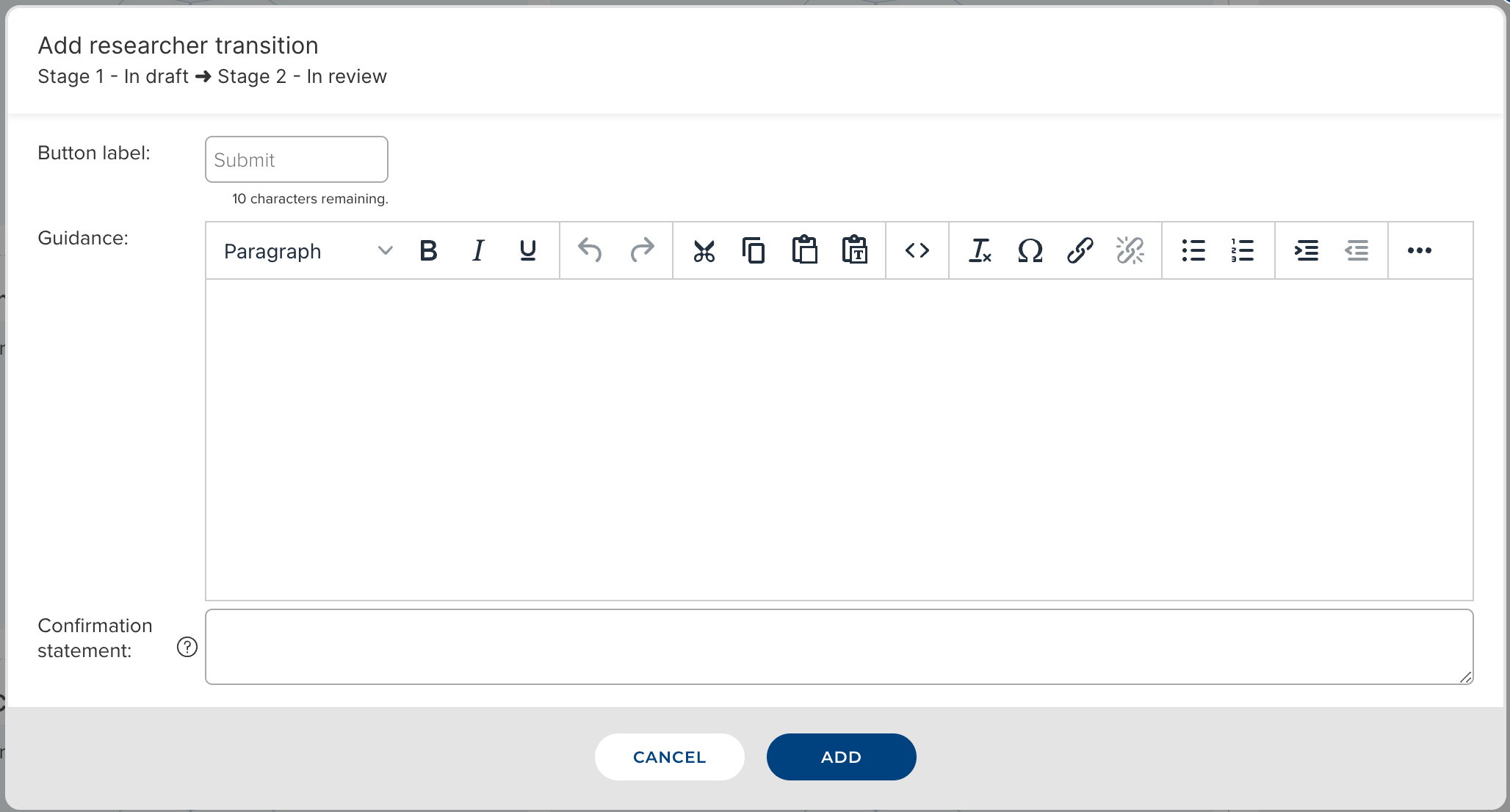
A stage transitions consists of;
Button label - This is the name of the action button which is shown to users on the Exercise form. By default the label is ‘Submit’ but this can be changed to any 10 character word (e.g. ‘Withdraw’, ‘Retract’, ‘Passed’, ‘Return’ etc.)
Guidance - Configurable guidance text can optionally be displayed to users on the ‘summary’ modal that the user sees as they carry out the transition. This text can be used to explain to the researcher, or the reviewer, what the outcome of their action will be.
Confirmation statement - A configurable confirmation statement can optionally be added to the stage transition workflow. The confirmation statement includes a checkbox that the user must check before they are able to carry out the stage transition.
Display to users
The stage transition ‘call to action’ is displayed to researchers and reviewers as a button on the top right of the user’s Exercise form.

When users carry out the stage transition - by clicking the ‘Submit’ button - they view the Exercise summary modal, including the guidance and confirmation statement if this is configured. 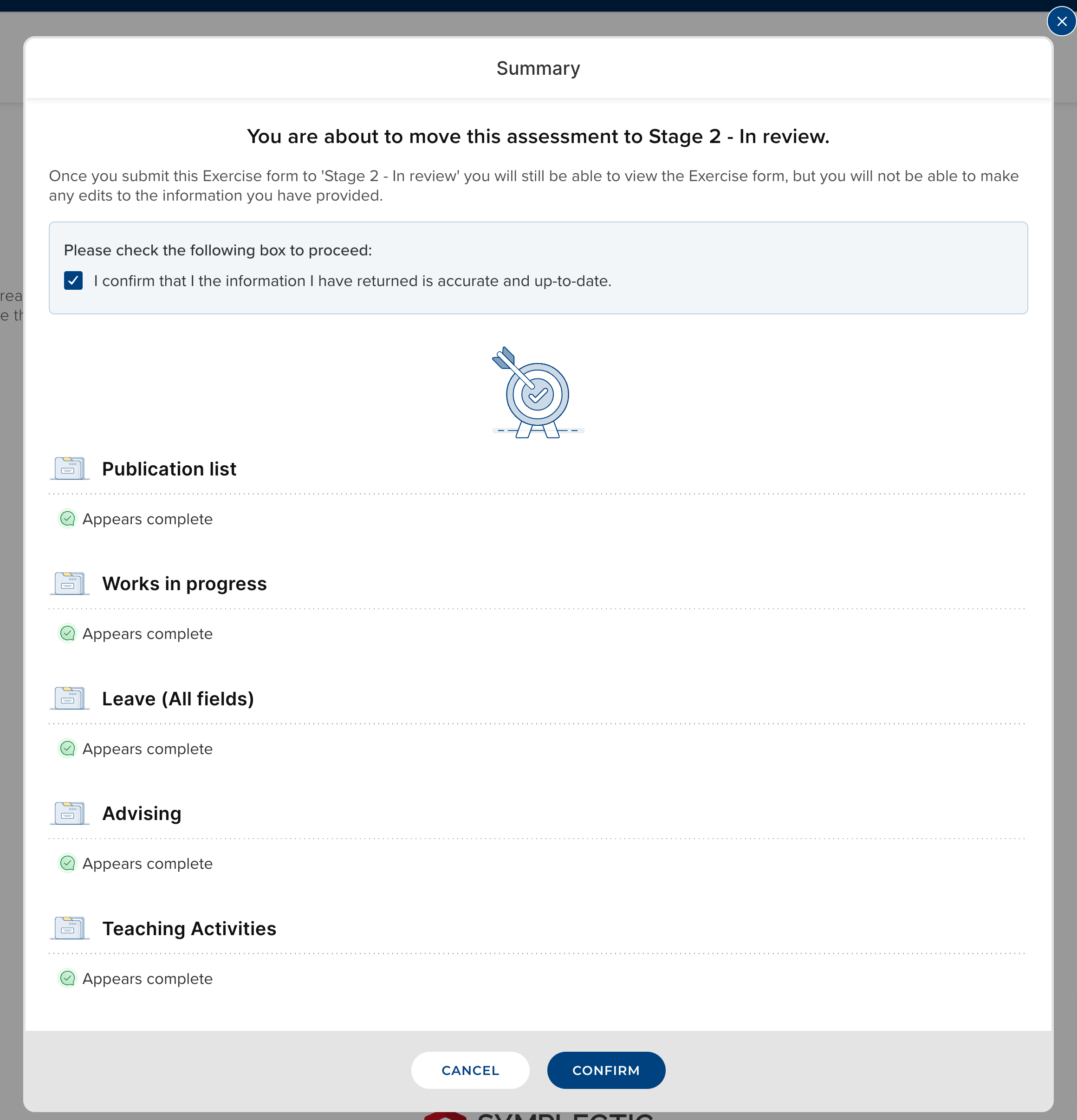
Example configurations
Due to the flexibility of the Assessment Module, there are countless ways to configure stages and stage transitions. How exactly you configure stages and stage transitions will depend on your organisation’s specific workflow. Depending on the processes being supported by the Assessment Module, different configurations can be set up to support the flow of the Exercise form through different stages.
Below we outline a couple of example configurations to highlight the functionality around stage transitions.
Example 1
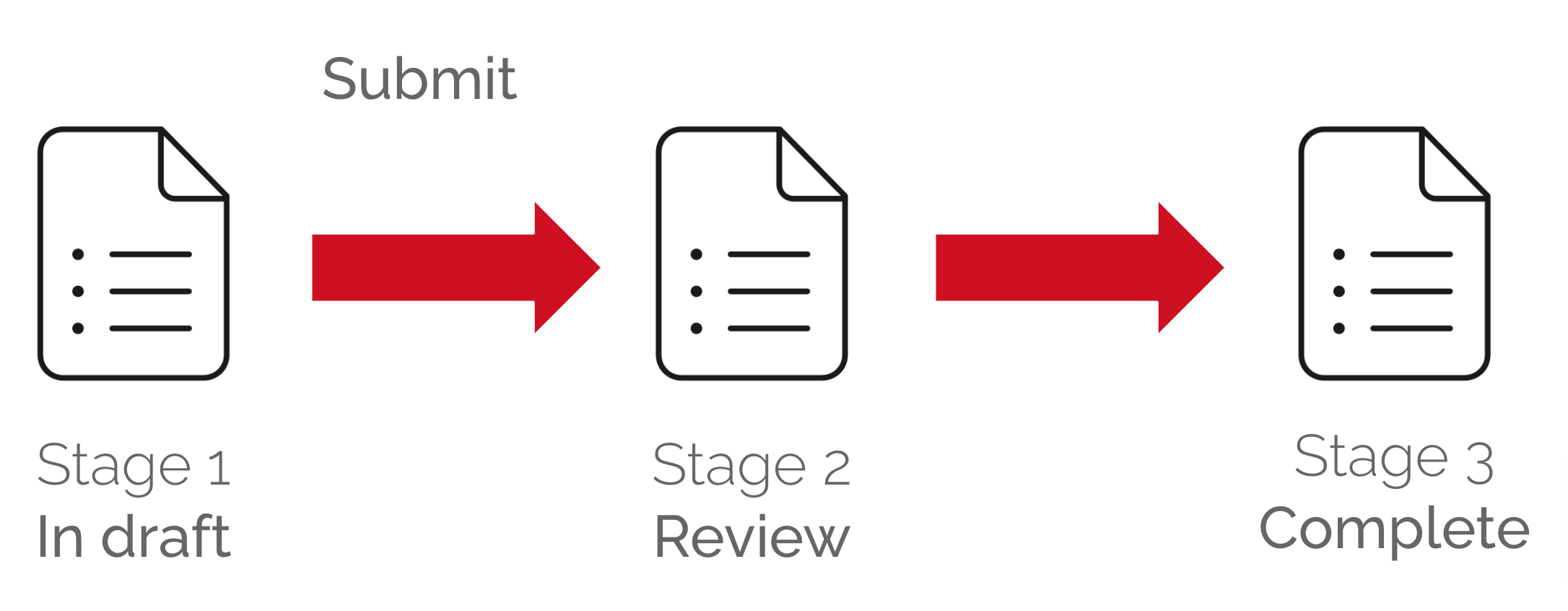
This simple example shows an Exercise with three stages. Researchers have the ability to ‘Submit’ the Exercise form, which will automatically move the Exercise form into the ‘Review’ stage, making it instantly available for any reviewers in that stage to start adding reviews. In this example, reviewers cannot carry out a stage transition. Instead, the Assessment Manager would be responsible for moving the Exercise form to the ‘Complete’ stage.
Example 2
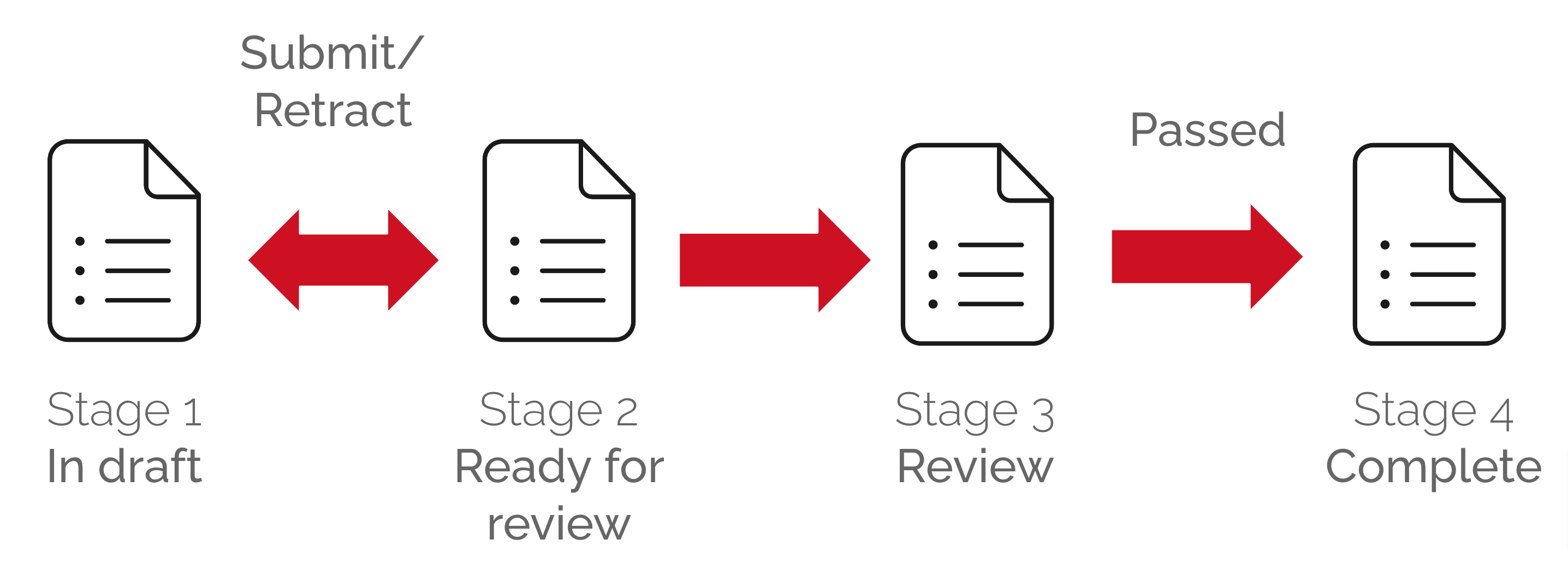
This more complex example shows an Exercise with four stages. Researchers have the ability to ‘Submit’ the Exercise form - moving the form from ‘In draft’ to ‘Ready for review’. They can also ‘Retract’ the Exercise - moving the form back from ‘Ready for review’ to ‘In draft’.
The Assessment Manager is able to transition the Exercise form from the ‘Ready for review’ stage to the ‘Review’ stage. This would mean that the reviewers in this stage would gain access to the Exercise forms at the same time. Reviewers are then able to confirm that an Exercise form has ‘Passed’ by transitioning the form to the ‘Complete’ stage.
The additional ‘Ready for review’ stage can be thought of as a ‘holding’ stage that is able to capture the state of the Exercise and acts as an equivalent of the ‘Marked as done’ flag. Following your upgrade to v6.10 you may wish to add additional stages to your existing Exercises to capture this information. This will depend on your specific use case.
For more information on how stages are configured, please see the ‘Stages’ tab section of the support article - Assessment Module Administration - Creating an Exercise v6.9+
Modifications to the Reporting Database
In order to continue to develop the system, it is sometimes necessary for us to make breaking changes to the Reporting Database. In Elements version 6.10 we removed [Last Marked As Ready By User When] from the [Assessment Exercise] table. This column was used to capture information on when the Exercise was ‘Marked as done’ by the user. Any custom report using this column will need to be adjusted. As the state of the Exercise form is now captured by its stage, it may be desirable to return this information in place of [Last Marked As Ready By User When]. The exact changes needed will depend on the requirements of the report itself.
[Current Stage User Status] has been replaced with [User Has Engaged Since Stage Change] on the [Exercise] table. This allows reporting on whether or not users have edited the Exercise following a stage transition.
In addition, we have added [Button Label] to the [Assessment Exercise Definition Stage Transition] table so that it is available for reporting purposes.