
Uploading funder outcome data in bulk
Where funders have provided their application outcomes in bulk, you may wish to bulk upload this data, rather than manually keying in for each Proposal individually.
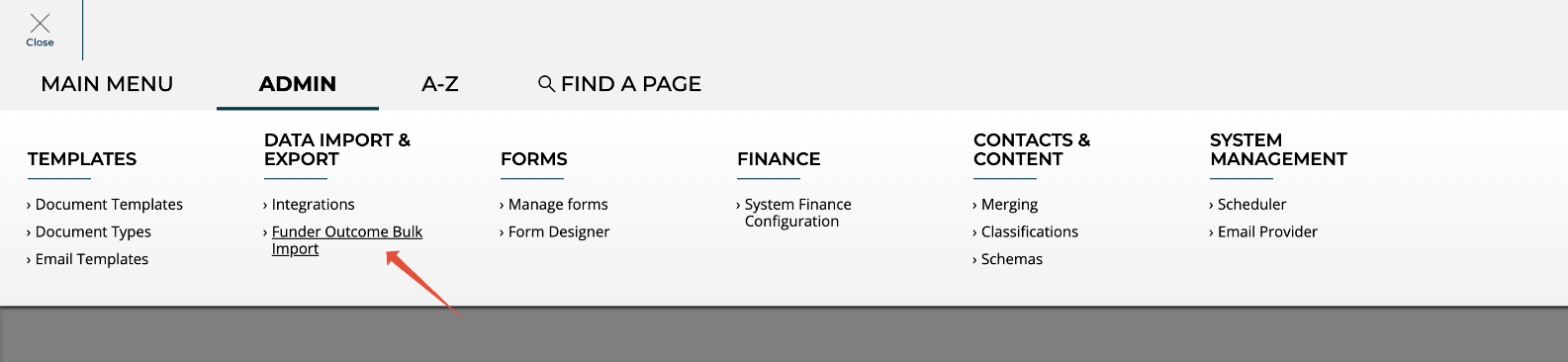
This function is available to System Administrators and Research Funding Administrators in the Management Console via Admin > Data import & export > Funder outcome bulk import.
Notes on the import functionality
The import of funder outcome data in bulk is available for final stage proposals, i.e. where the associated Funding Opportunity configuration is as follows:
Configuration type = Proposal
Proposal outcome workflow = Proposal funder submission
The import is available for Proposals in the ‘Submitted to funder’ state
Upon successful import, the status of affected Proposals will update as follows:
If funder outcome = Unsuccessful, status will automatically update to Closed (Unsuccessful)
If funder outcome = Awarded, status will automatically update to Approved
If Decline = TRUE, status will automatically update to Closed (Offer declined)
If funder outcome = Reserve, status will remain ‘Submitted to funder’
As the status of the Proposal changes upon successful import, it is not possible to overwrite any values once imported (they can be manually adjusted via the Proposal's 'Funder submission and outcome' page)
This bulk upload function is not accompanied by automatic notifications - these will need to be sent manually
Template file description
Copy of template file is available here.
All column headers must be included in the import, in the specific order provided in the template (even if no values are to be imported for that field)
Column header | Description | Field type | Validation |
RFS Proposal ID | Proposal reference (e.g. RFS-10126) | ID |
|
GUID | e.g. 950aef52-3837-4332-88cd-ae8a0159ef1b | GUID |
|
Funder outcome | Provide the funder outcome | Choice |
|
Notification from funder received | Indicate whether the unsuccessful outcome was received from the funder, or is assumed | Boolean (TRUE / FALSE) |
|
Funder outcome received date | Date the funder outcome was received | Date (DD/MM/YYYY) | |
Awarded as applied | Indicate whether the award was made as applied, or with variances | Boolean (TRUE / FALSE) |
|
Funder acceptance deadline | Date by which the funder expects a response | Date (DD/MM/YYYY) |
|
Award amount | Total award in base currency | Numerical |
|
Award amount in funder currency | Total award amount in the funder's currency | Numerical |
|
Exchange rate applied at funder outcome | The exchange rate applied at the point of funder outcome | Numerical |
|
Non-financial variance | If the award is not as applied, indicate the non-financial variances (if any) | Multi-select |
|
Non-financial variance description | Provide additional description (if required) of any non-financial variances | Text |
|
Funder reference | The funder's grant reference | Text |
|
PI intended response | Provide the PI's intended response | Choice |
|
PI intended response notes | Provide additional notes (if required) on the PI's intended response | Text |
|
Decline | Indicate whether you wish to decline the award | Boolean (TRUE / FALSE) |
|
Outcome Reasons | Indicate the Unsuccessful or Decline reasons | Multi-select |
|
Outcome Notes | Provide additional Unsuccessful or Decline notes | Text |
|
Upload a file
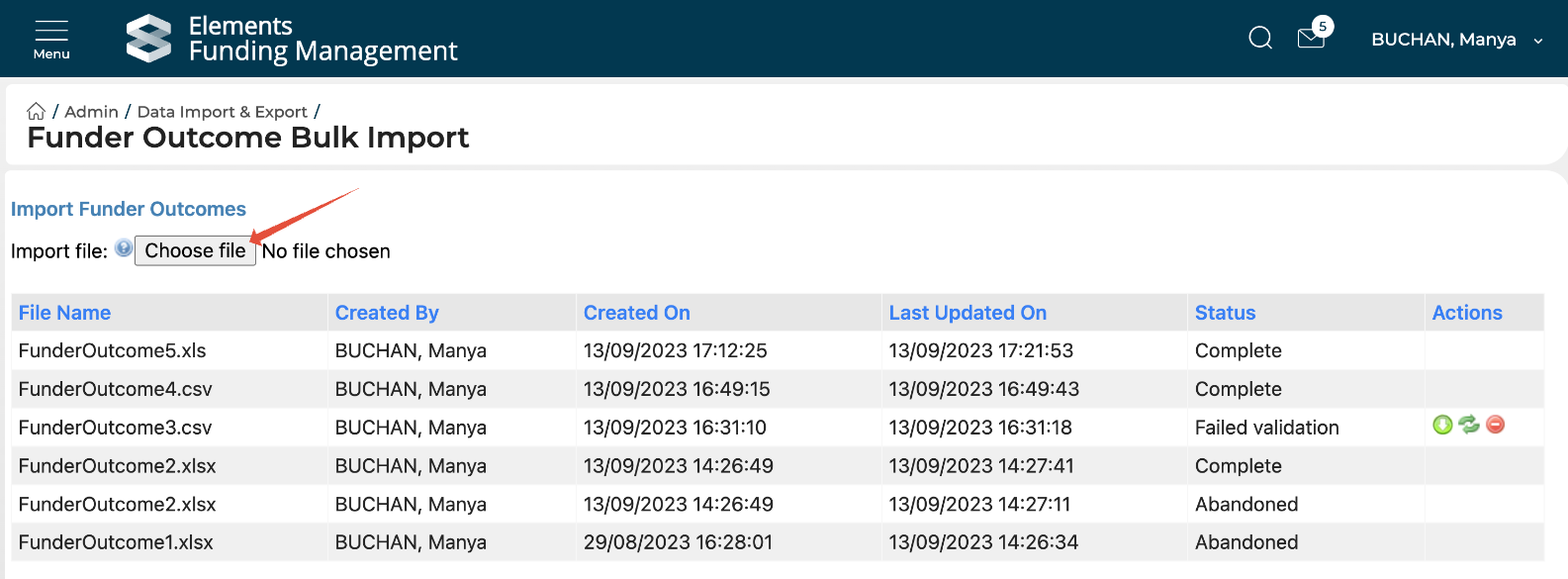
In the Management Console, navigate to Admin > Data import & export > Funder outcome bulk import. All previous imports and their status will be listed. Select 'Choose file' and upload the desired import file.
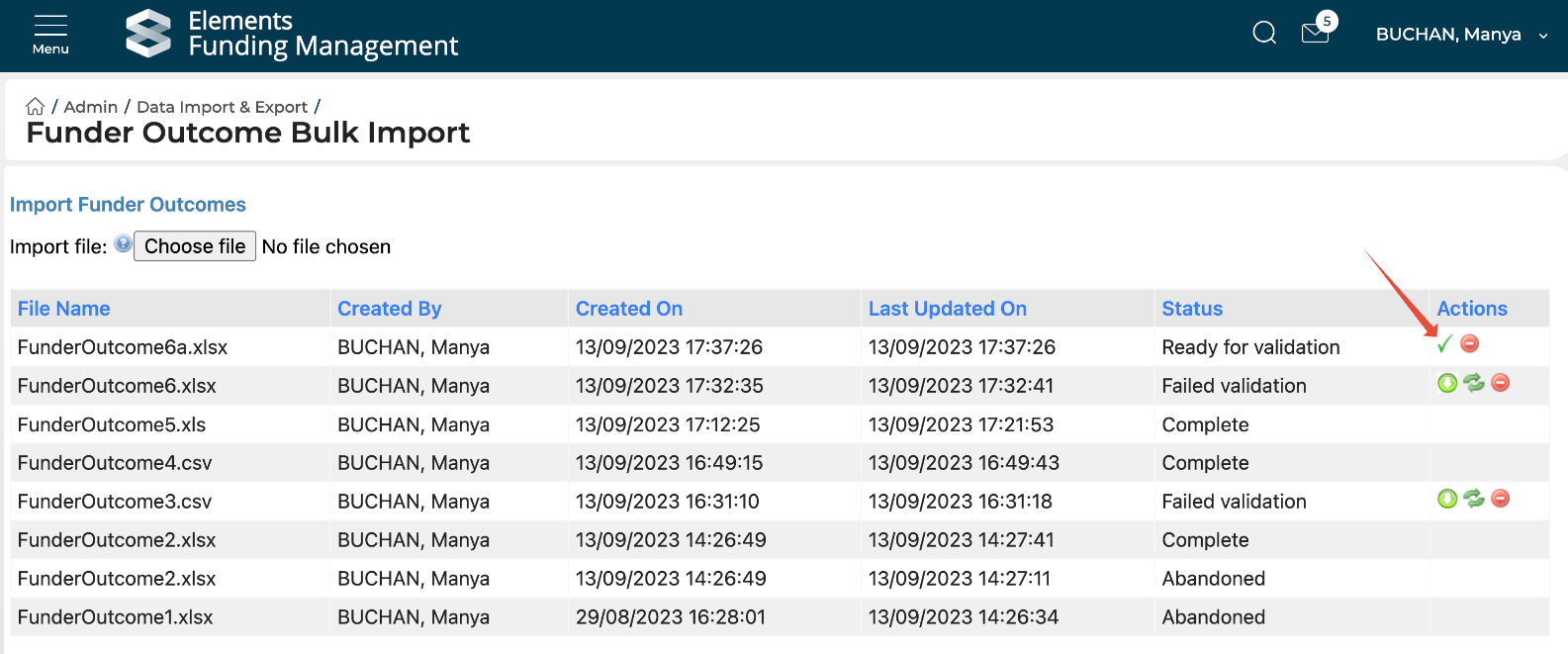
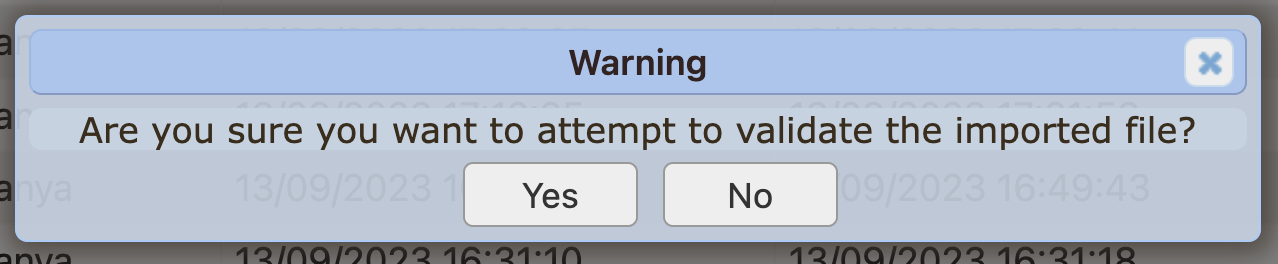
Once successfully uploaded, the file will be listed in the table, with a status of 'Ready for validation'. To process the file through the validation rules, select the green ✅ then 'yes' to the prompt.
Successful validation
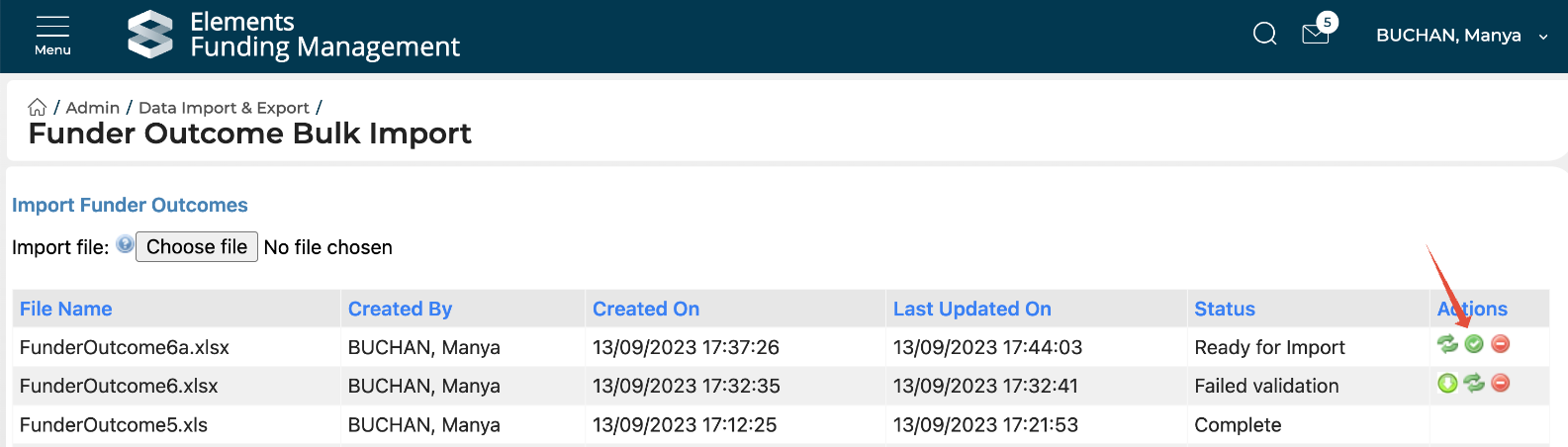
If the file successfully validates, the status will change to 'Ready for import'. Select the green ✅ then 'yes' to the prompt.

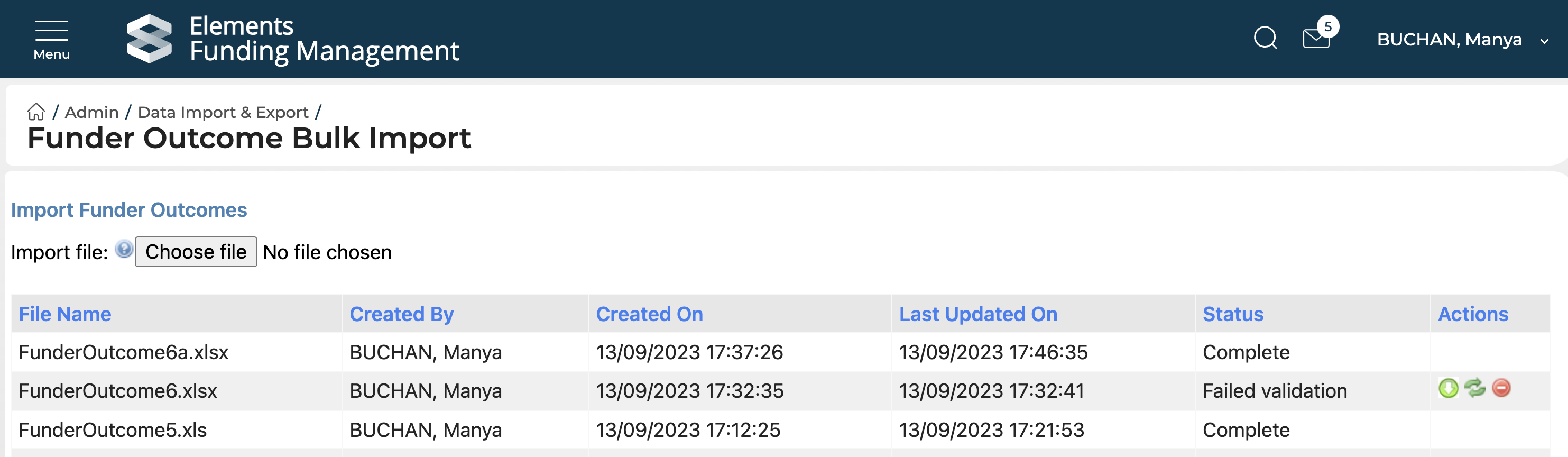
Upon successful import, the status will change to 'Complete', and you can see the uploaded values on each individual Proposal record in the Console.
Unsuccessful validation
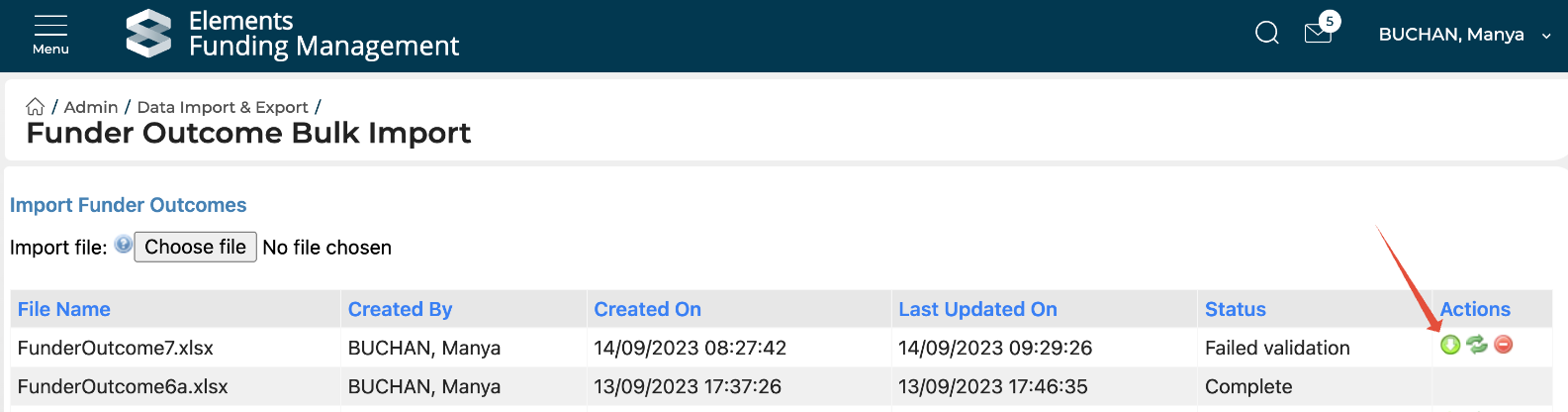
If the file does not successfully validate, the status will change to 'Failed validation'. Select the green ⬇️ then 'yes' to the prompt, to download the validation error log.

Validation errors will be listed in the final column of the table, providing information on why a proposal failed to be updated:

If any proposal failed validation, the full file must be re-imported - even those flagged as Valid.
Upon resolving the validation issues, you now have two options for re-importing the file.
Keep validation error log accessible
If you would like to keep the original error log accessible, simply start a new import with your updated file, as per the steps described above under 'Upload a file'.
Overwrite original import
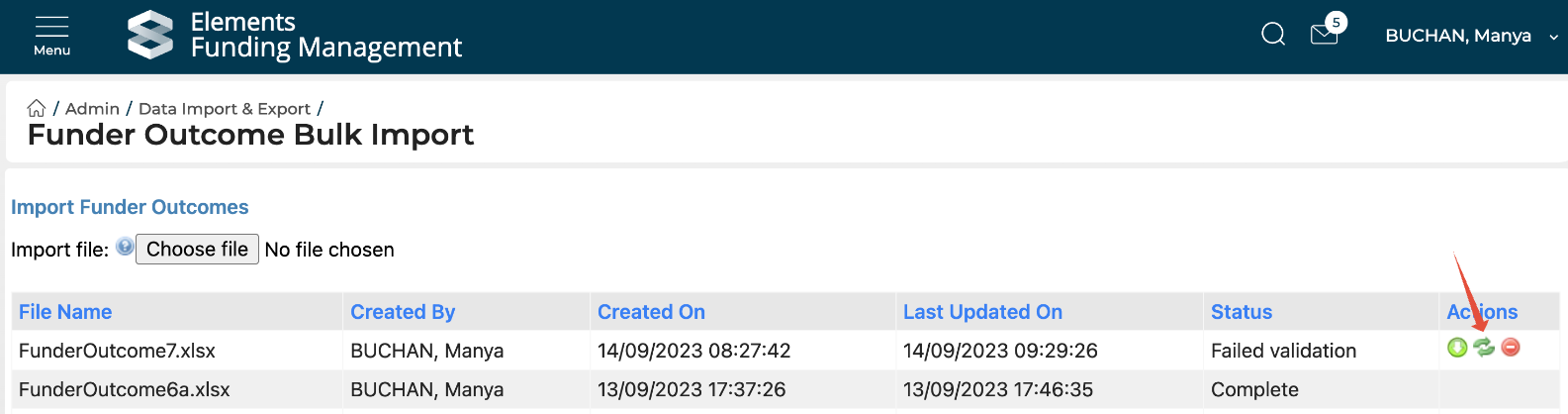
If you don't need / want future access to that error log, you can update the original import file by selecting the green 'reload' icon, then 'Yes' to the prompt. Then upload your updated import file.
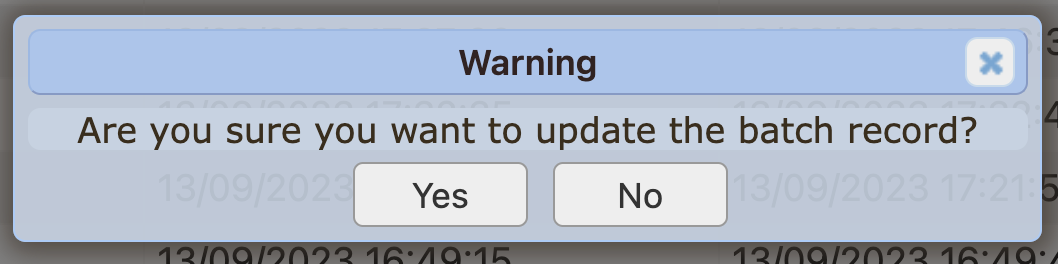
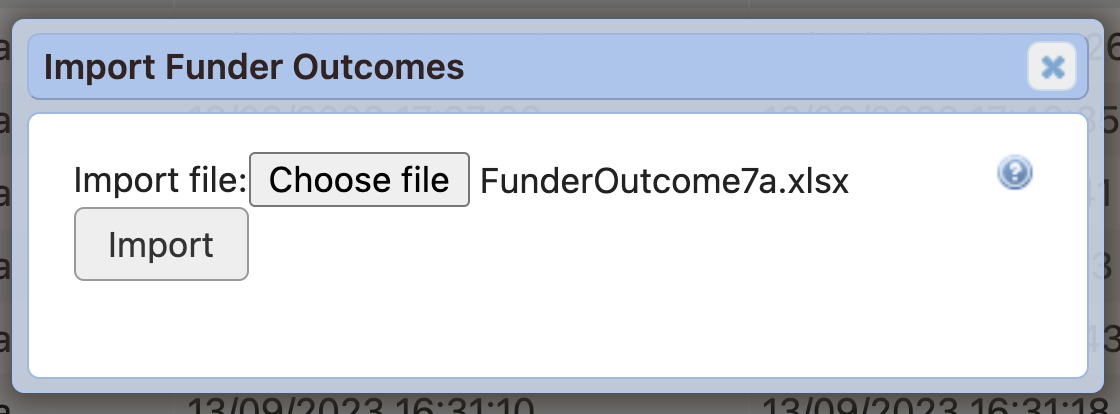
Upon successful import, the status will change to 'Ready for validation'. To process the file through the validation rules again, select the green ✅ then 'yes' to the prompt.
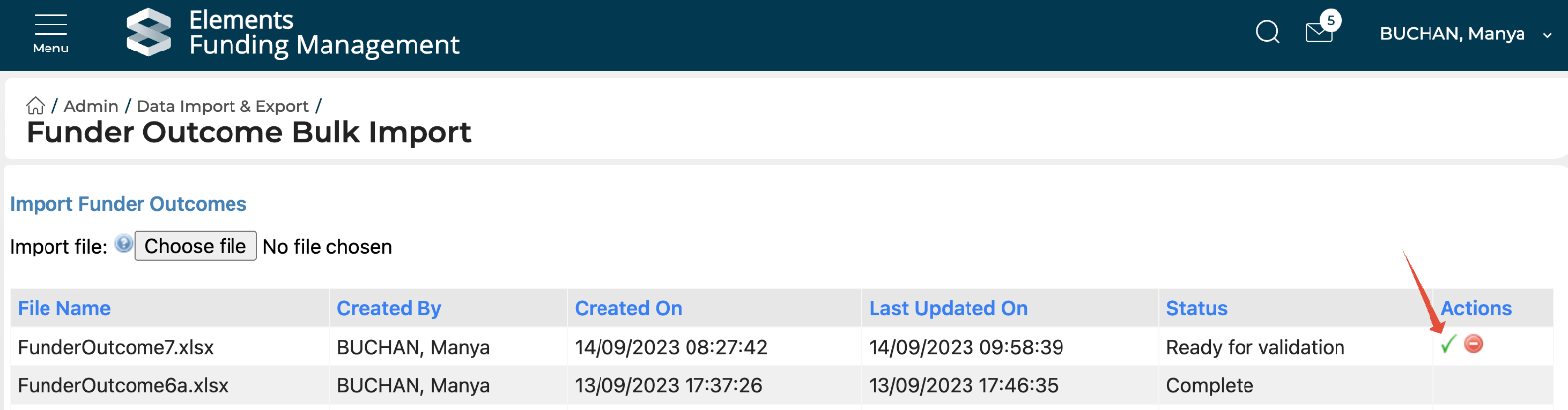
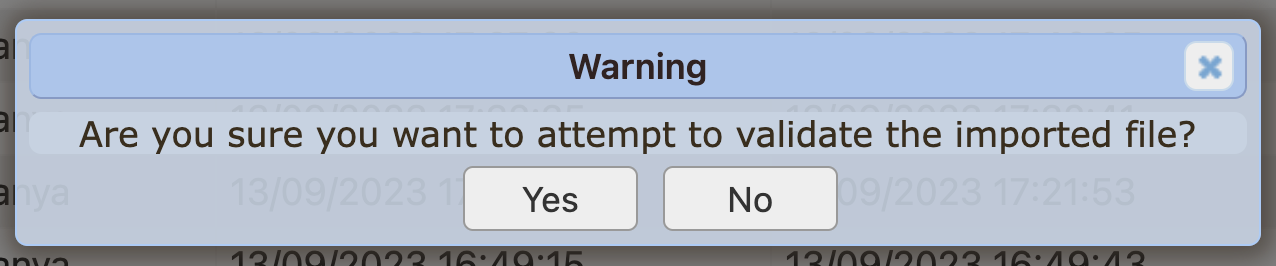
If the file successfully validates, the status will change to 'Ready for import', and you can follow the steps described above for 'Successful validation'.
If the file does not successfully validate, the status will change to 'Failed validation', and you can follow the steps described above for 'Unsuccessful validation'.
No values are updated on any of the Proposals until the status of the import says 'Complete'.
To abandon any import process prior to completion, select the ⛔ action.