Configuring Participant Organisations in a proposal form
This article describes all of the steps required to configure the capture of participant organisations and associated metadata in a proposal form.
Overview
Prior to v6.20, the solution for capturing external collaborator data was to configure a Grid control in the proposal form with an Institution External Source Control configured to save as either partner or sub-contracted organisation, and additional fields to capture the associated metadata
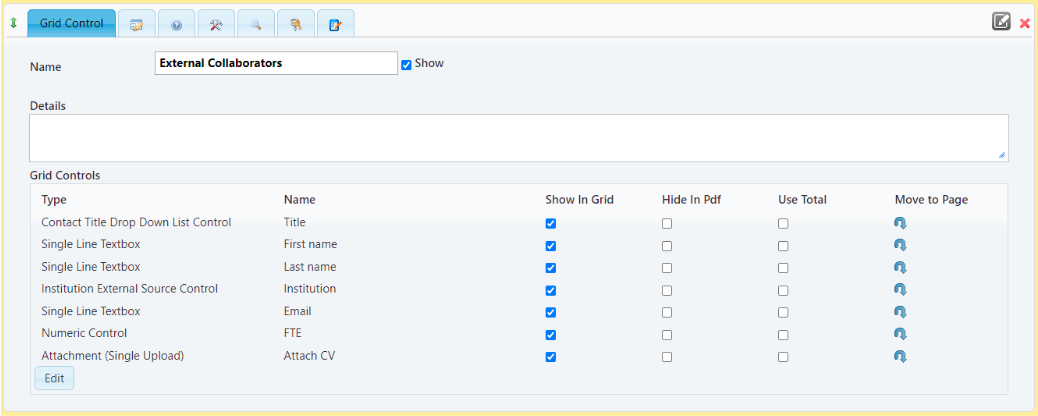
Due to weaknesses with that solution described here, a new Participant Organisations feature has been introduced which includes:
a new form control for capturing participant organisations, and
a new form type for capturing metadata associated with participant organisations.
Existing form definitions with one or more external collaborator grids should be updated to add a new participant organisation control, configured to use a new participant organisation sub-form. The previous grid based configuration should be deleted from the form.
Create Participant Organisation form definition
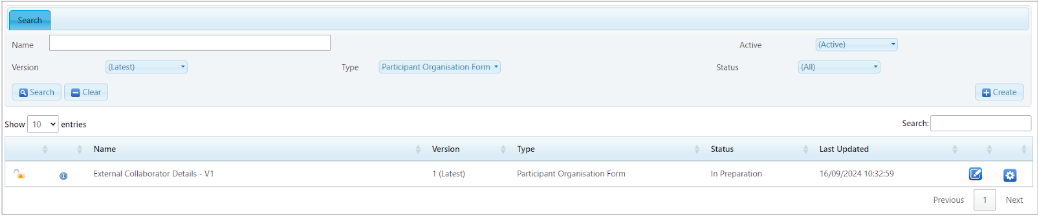
The first step is to create a new Participant Organisation form.
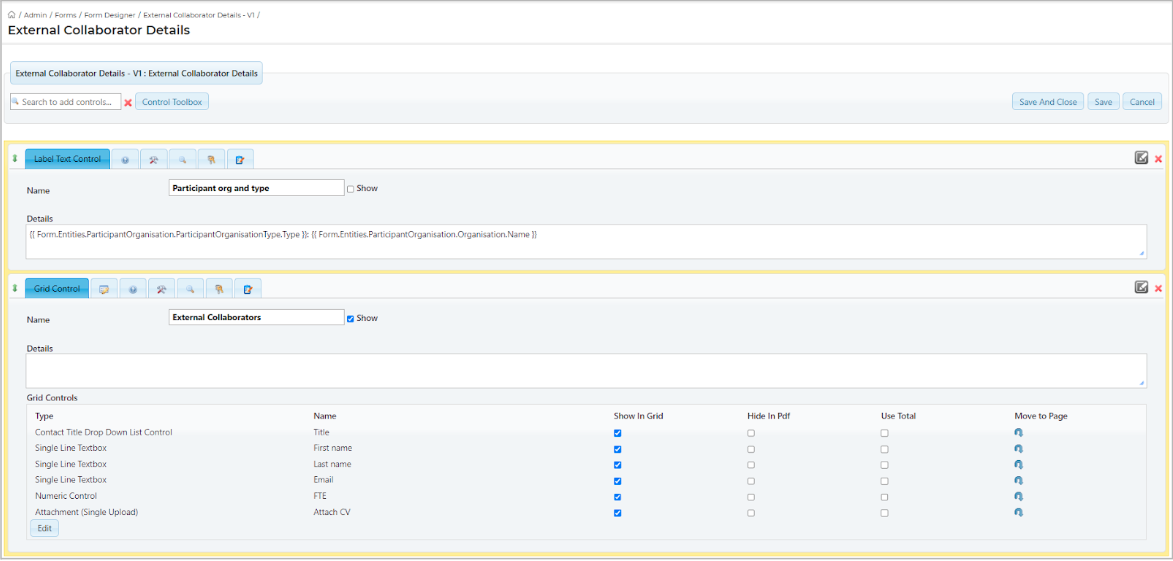
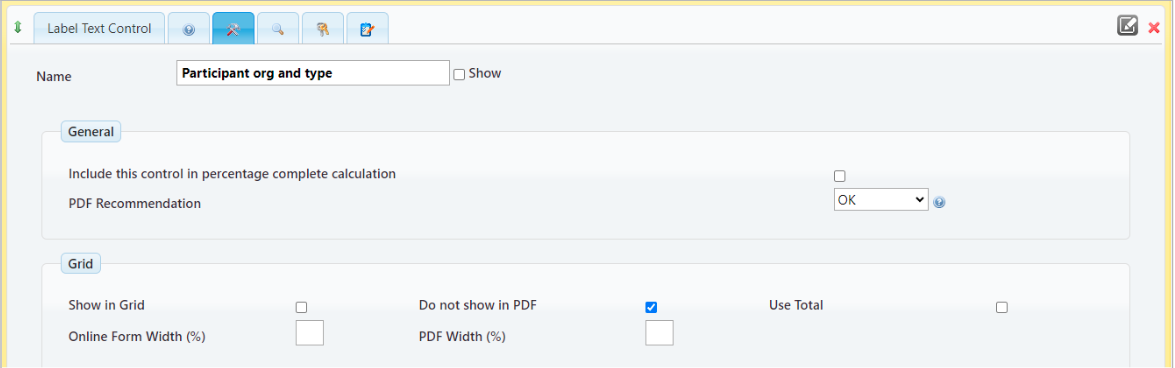
The form should be configured with the same fields as the old grid control, with the exception of the Institution External Source control. A label text control should also be added, with string templates to display the name and type of the specific participant organisation.
{{ Form.Entities.ParticipantOrganisation.ParticipantOrganisationType.Type }} displays the participant organisation type, and
{{ Form.Entities.ParticipantOrganisation.Organisation.Name }} displays the organisation name.
If you have more than one external collaborators grid in a proposal form definition, the variation between the grids can be configured in the sub form, by having:
more than 1 grid in the participant organisation subform, always showing;
more than 1 grid in the participant organisation subform, with a preceding question to determine which grid to show and hide; or
dependent control(s) configured within the grid.
To manage which controls from a subform appear in the participant organisations grid on the main proposal form page, use the ‘Show in Grid’ checkbox. Note that this cannot be used on a Grid control, as the participant organisations control is also a grid, and the online form cannot display a grid within a grid.
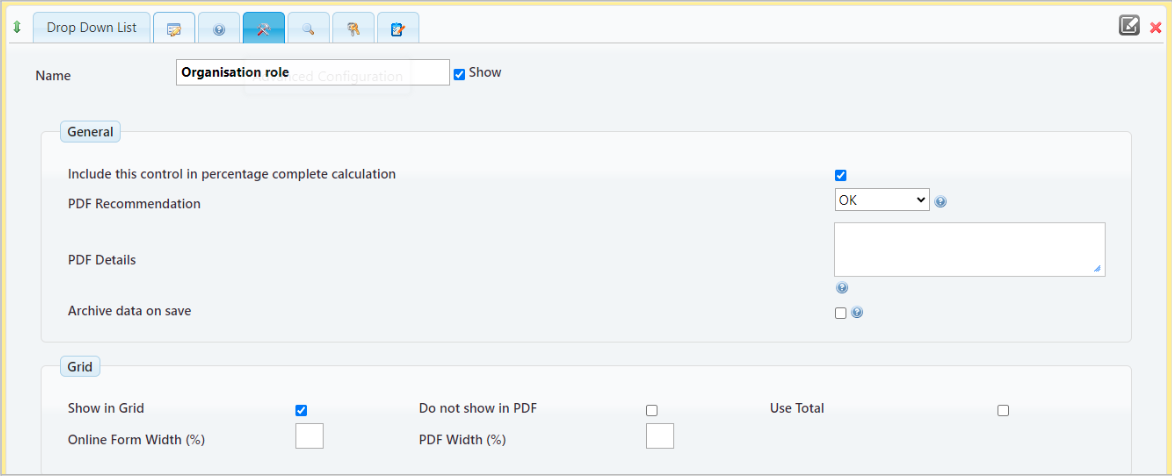
To manage which controls from a subform appear in the proposal form pdf, use the ‘Do not show in PDF’ checkbox on the advanced configuration tab.
Add Participant Organisation control to proposal form definitions
For each proposal form definition which is configured to capture external collaborator details, add the Participant Organisation Control and specify which participant organisation form definition to call.
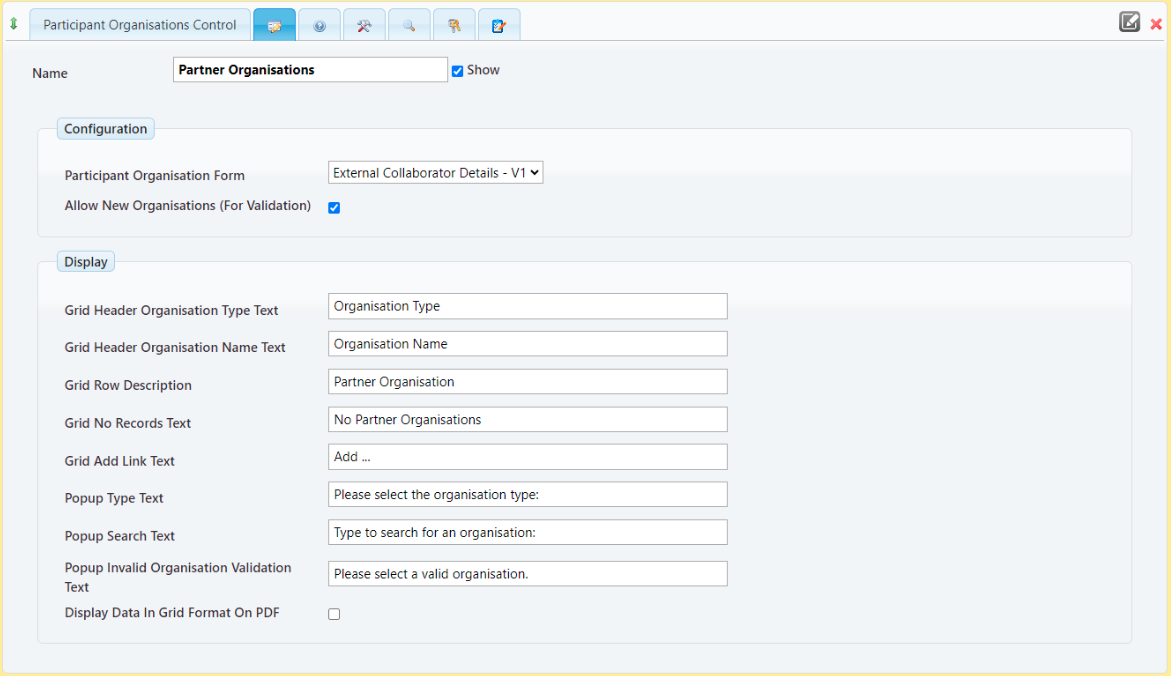
Checking the option to ‘Allow New Organisations (For Validation)’, allows the Portal user to enter a text value for the organisation name, for validation after proposal submission.
Do not check the option to ‘Display Data In Grid Format On PDF’ if the Participant Organisation form includes a Grid control.
Delete the old External Collaborators configuration
The old grid control(s) for capturing external collaborator organisations and associated metadata should be deleted.
If the old grid control was referenced in a page layout, remember to update the page layout to reference the new participant organisations control instead.
Proposal Form view of the changes
Instead of the current External Collaborators grid, the user will see the new participant organisations section:

Clicking Add… opens an institution search window. The available types are ‘Partner organisation’ and ‘Sub-contracted organisation’, and the organisation search works in exactly the same way as the Institution External Source Control.
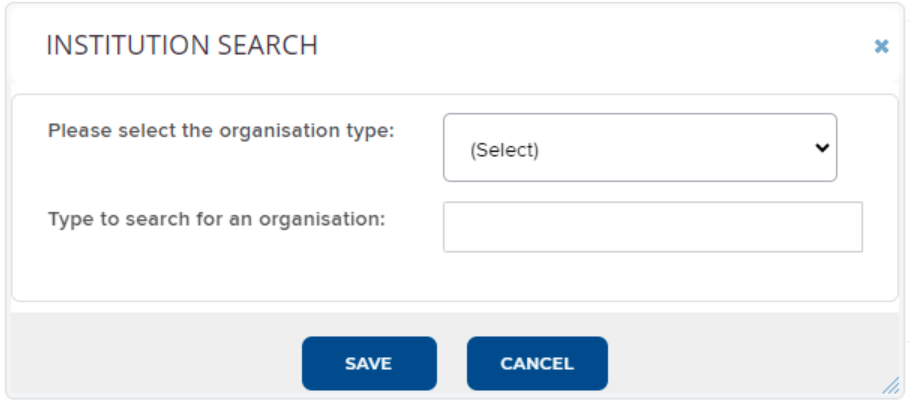
Clicking save returns the user to the main page with the new row displayed:

Clicking Edit/View Details opens the participant organisation subform where External Collaborator details can be added, along with any other controls configured in the subform:
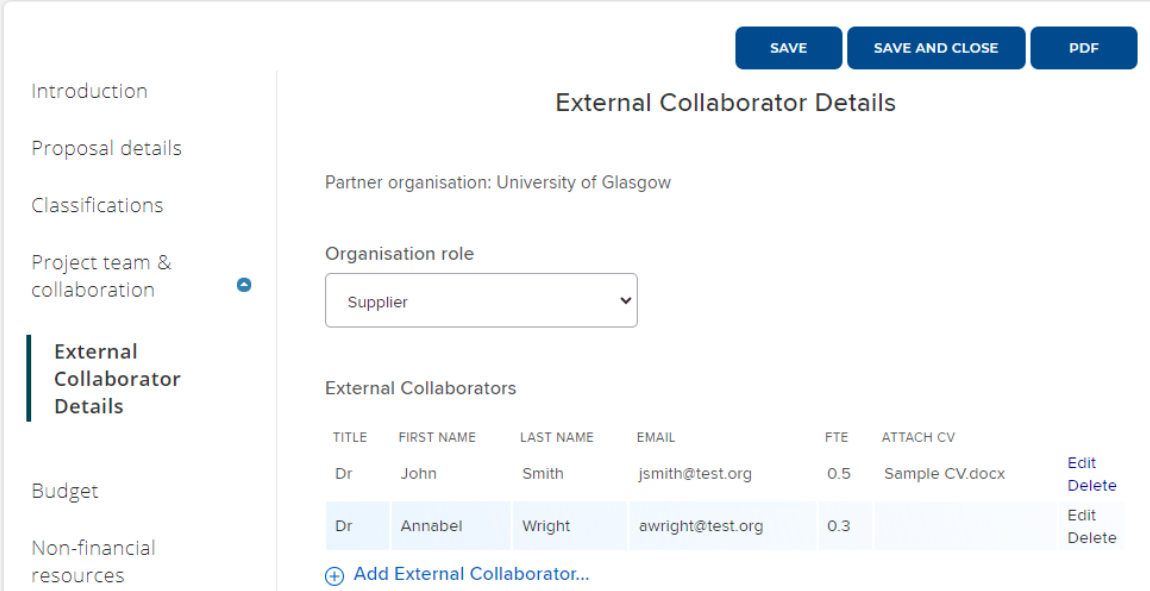
Clicking Save and Close returns the user to the Project team & collaboration page.
Data captured in a grid in the subform cannot be listed on the main page, but any individual controls configured to ‘Show in Grid’ will display.

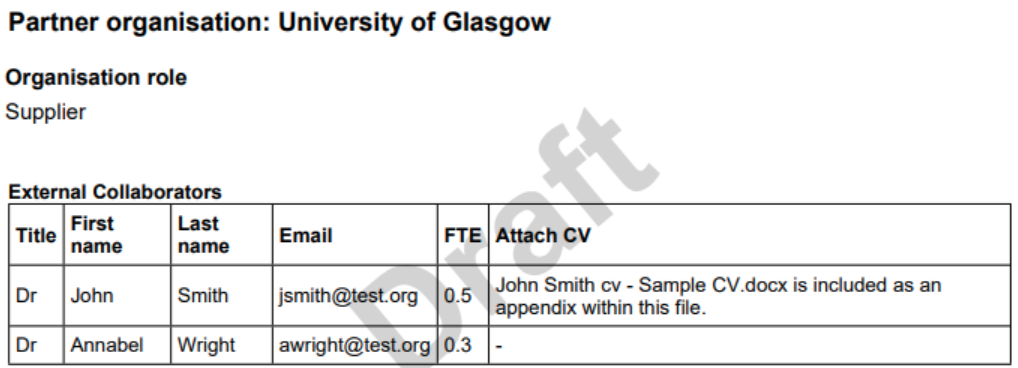
All data entered is rendered in the proposal form pdf: