
Elements Website hosting changes in v7.1
This document provides important server configuration instructions for server administrators upgrading an on-premise instance of Elements from v7.0 or earlier, to v7.1 or later.
Background
In Elements v7.1, the Elements website will exist across two web applications in IIS, instead of one. This is to facilitate the move of Elements from ASP.NET Framework to the more current web application framework of ASP.NET Core. This will help keep Elements technologically up-to-date, and will enable future performance improvements to the web application.
The current setup of an Elements website application is a single web application, as follows:


For end users, the existence of two web applications will be invisible; all of the Elements website will remain accessible at the same URLs as prior to the change. User website authentication and session state is shared between the two web applications, making the user experience consistent across the two applications.
Changes you should make in IIS after upgrading to v7.1
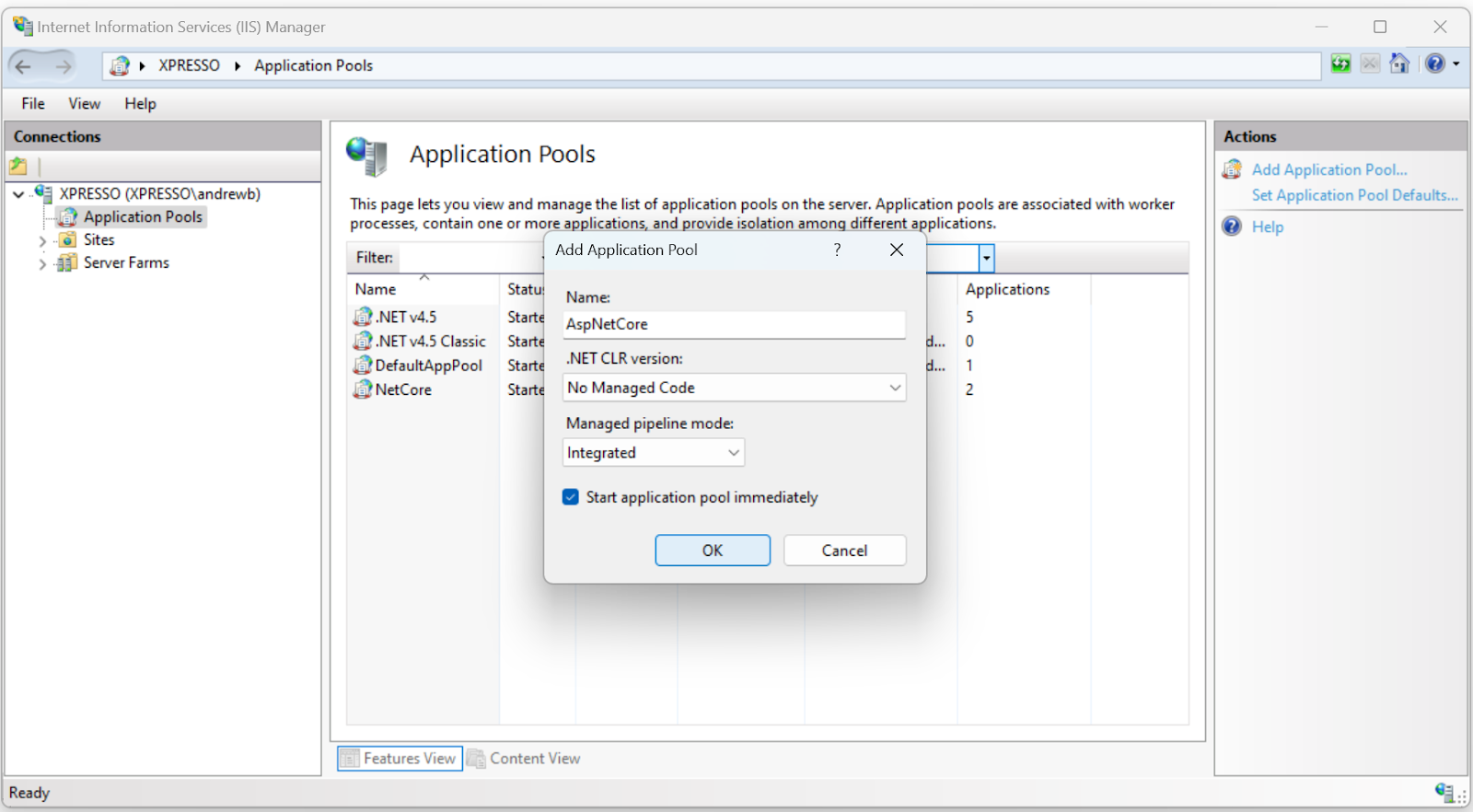
In IIS, create a new Application Pool, setting the .NET CLR version to “No Managed Code” and the Managed pipeline mode to “Integrated”.
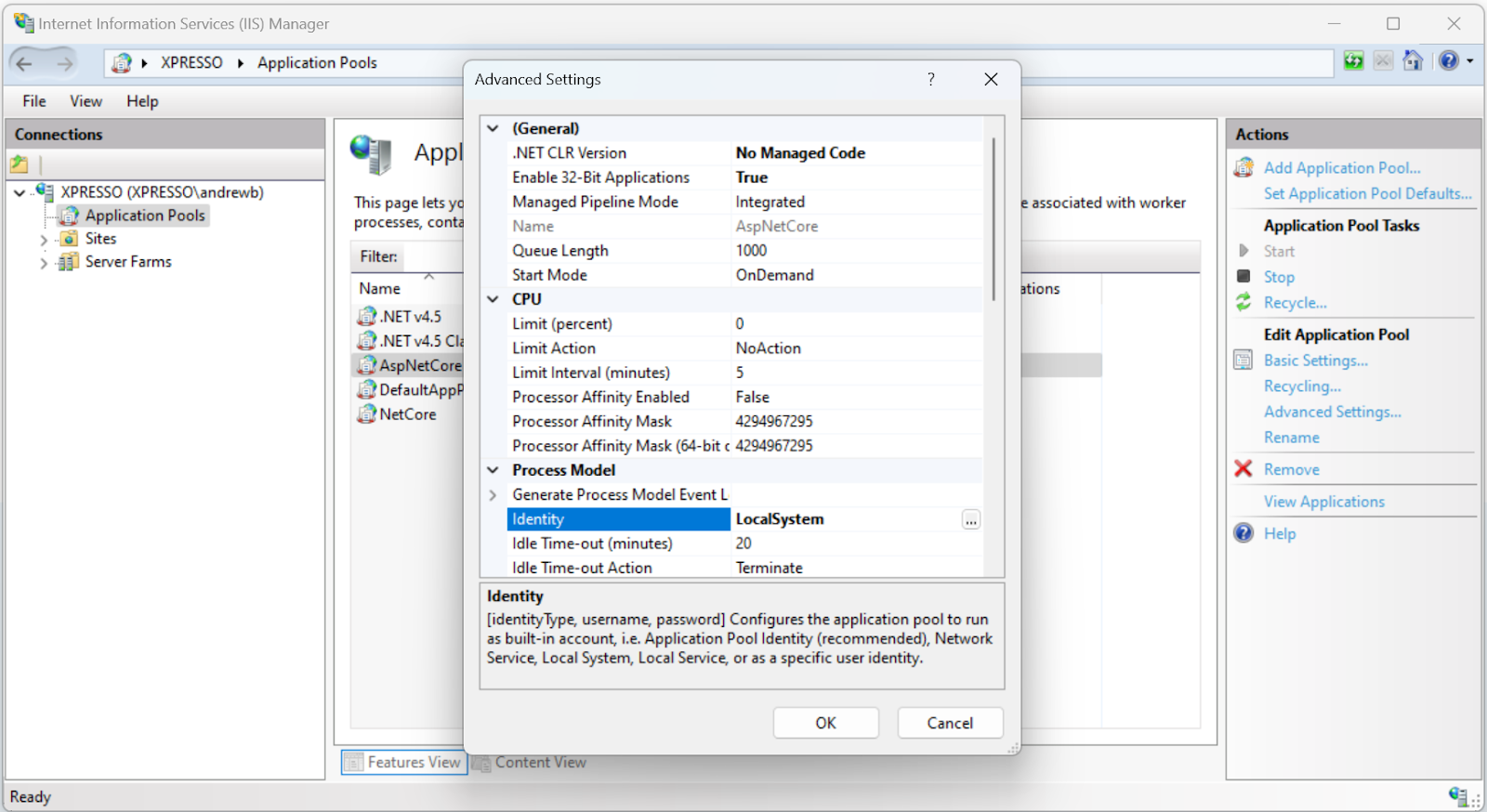
Edit the Advanced Settings of this application pool, setting Enable 32-bit applications to True, and Identity to the Windows account under which Elements is to be run (the same account can be used as is used for the App Pool that runs the existing Elements website), and set Load User Profile to True.
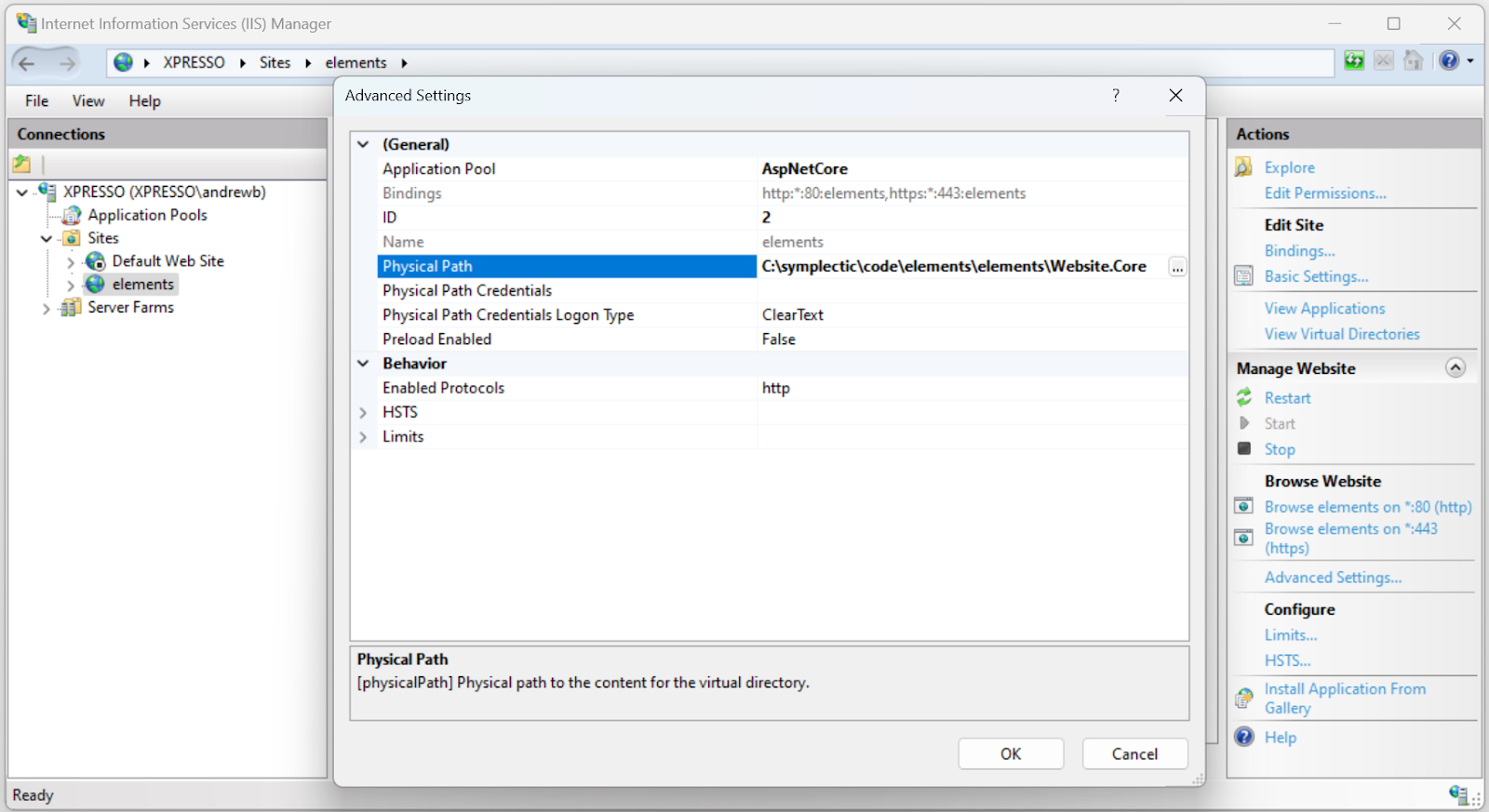
Open the Advanced Settings for the existing Elements website and change its Application Pool to the new App Pool (e.g. AspNetCore), and change the Physical Path from <install-dir>\Website to <install-dir>\Website.Core:
Create a new Site, naming it to be identifiable as the .NET Framework variant of the web app. For instance, suffix the Elements site name with “_framework”. Set the Application Pool to be the existing App Pool that the old site ran under (e.g. .NET v4.5). Set the Physical Path to be <install-dir>\Website. Under Binding, specify only an http binding on a host and port of your choosing that is not publicly exposed. In the example below, port 9081 is used.
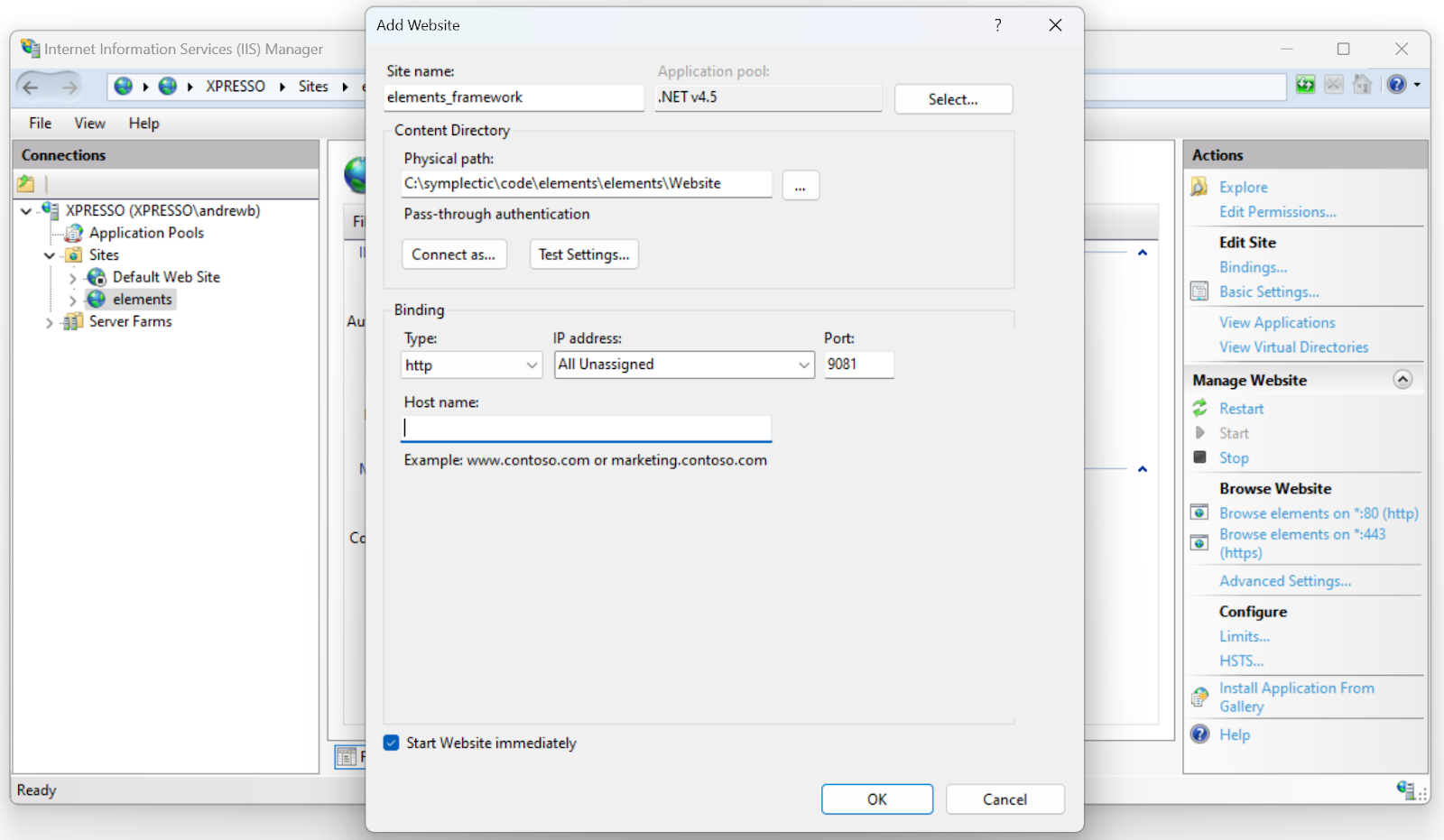
Ensure that this address is not publicly exposed by the web server. By default, Elements is configured to expect the old website to be hosted at http://localhost:8000/. If a different address is used, update the <install-dir>\Website.Core\Symplectic.Elements.Website.Core.dll.config file, adjusting the “net-framework-website-base-url” to include the specified port.
The above changes will need to be made for each Elements instance once it is upgraded from v7.0 or earlier, to v7.1 or later. These changes will only need to be made once, during that upgrade; subsequent upgrades to later versions will not require the changes to be repeated.
Note that if multiple Elements instances are hosted on the same server, the ASP.NET Core applications cannot chare an App Pool: each website instance will need its own App Pool.
Testing the Elements website after upgrading to v7.1
Once the IIS configuration has been changed as per the above, take some time to verify that the Elements website is functioning correctly. Ensure that you can log in to the site via all configured authenticating authorities, and ensure that pages load when viewed in a browser. The information.html page is served by the new application, so visit that page to ensure that a page served by the new application is visible.