Manage your Symplectic Elements licence
Elements will notify you when modules and environments need to have their licences renewed with a message:
Your licence will expire on dd/mm/yyyy, please contact Symplectic to arrange renewal.
In this case, a System Administrator should notify the Elements Business Owner and ask them to get in touch with the Symplectic Sales team. We will then verify and provide you with new licence files for your Elements instances.
If you are an Elements Hosted client the Symplectic team will manage your licence renewal.
When you need to generate a Licence Request (LRQ) file
If your Elements system is installed locally, you may need to generate a licence request file to update your licence in the following scenarios:
you have a new server - either an entirely new instance, or are migrating an instance from an existing machine to a new one;
some change to an existing server environment means that your existing licence has become invalid.
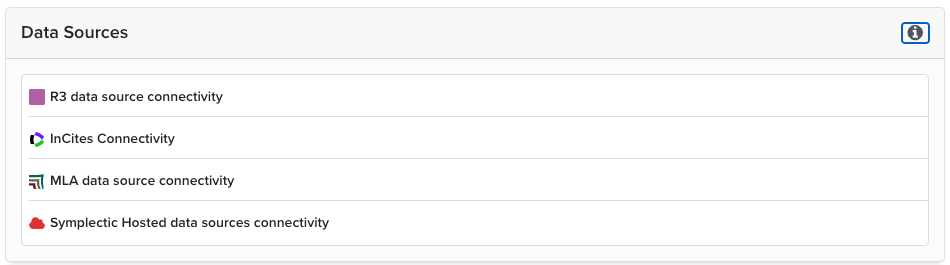
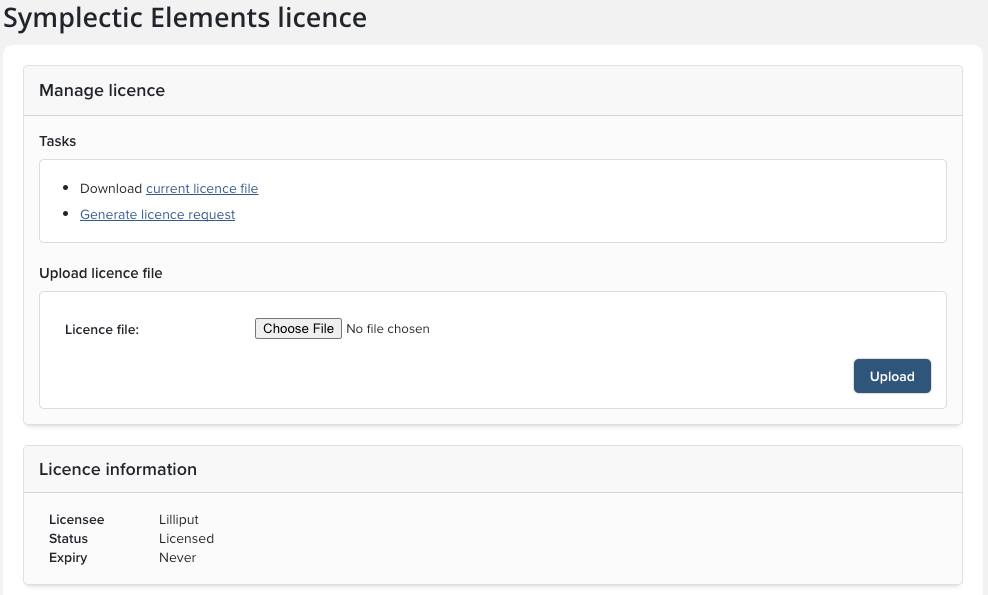
Details on how to generate a request file, upload a file and how to check the modules and data sources are available from System admin > General settings > Licence.
If you are adding modules or data sources, send a support request and they will be added to the existing licence, there is no need for a licence request file.
Manage licence and Licence information
Generate a licence request: Navigate to to the section "Manage licence" (top of the page) and click on the link for "Generate licence request." This will create a file that you should attach to a support ticket.
Upload licence file: When the Symplectic team responds with your new licence, save it to your desktop. Then select the Choose File button, navigate to the file, and select Upload. Licence keys are valid for particular servers, so be sure to apply the licence appropriate to the instance you're logged in to.
Licence information: this section shows the name of the Licensee, the License Status (Licensed or Unlicensed) and the Expiry date.
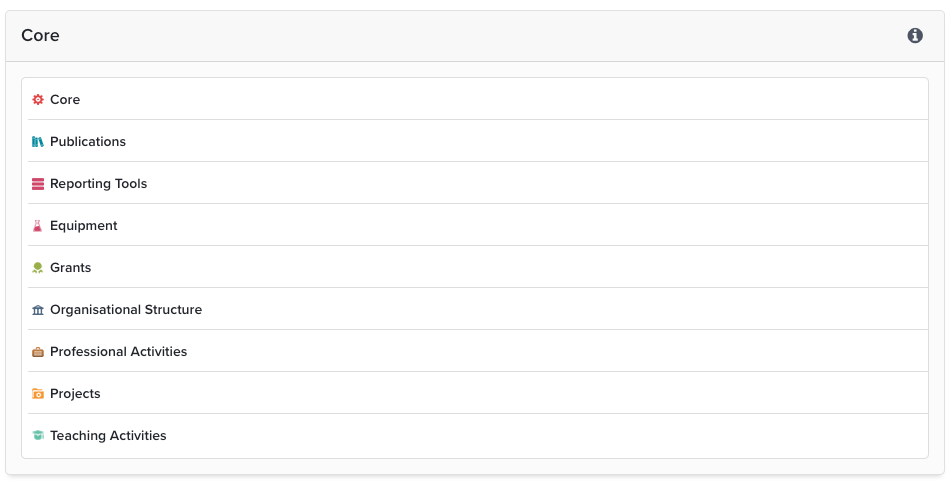
Below the Licence information will be a list of all the modules your institution currently licences. If you are not licenced for a package or module it will appear greyed out with the words (not licenced).
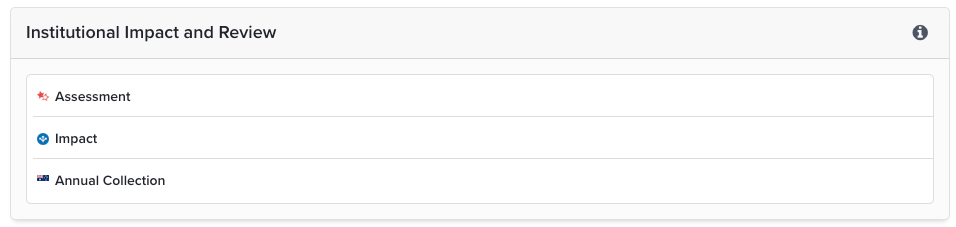
Here is a complete list of all possible options, including descriptions, as they would appear in your installation.
Core
Open Access

Institutional Impact and Review
Advanced Reporting

Public Profiles

Data Sources