
Annual Collection Nomination Assessment Guide
This guide is intended to provide instruction for administrators to use the Annual Collection module to manage and update the status of eligible publications. The Nomination Assessment page requires a role of Collection Administrator or Acceptor assigned in collection configuration.
Collection Summary Screen
The Annual Collection > Manage Collections > Summary displays the default return, change collection at the top right of the page.
On this page you can view:
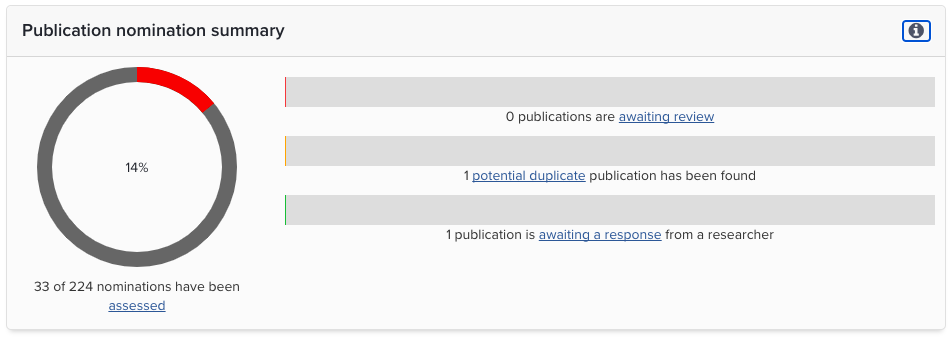
Publication nomination summary: The assessment 'donut' indicates how many nominated outputs have been assessed as either "Accepted" or "Declined". The nominations identified as "awaiting review" have had extra information provided by a researcher, or have been put under review. The "potential duplicates" bar highlights publications which refer to two separately nominated records.
Report - weighted points: Details the points that would be awarded within this return in its current state. The bracketed figures indicate the potential number of weighted points that would be given if all outputs were accepted.
Report - unweighted points: Details the points without weighting applied, i.e. all returned figures are for author apportionment only. The bracketed figures indicate the potential number of unweighted points that would be calculated for authors' contribution if all outputs were accepted.
Report - counts: These numbers represent a total count of the nominated publications that have been assessed as either "Accepted" or "Declined" within the return. In brackets are the number of total nominated publications
Collection Assessment Screen
Select Nomination Assessment (Annual Collection) The default year will be selected, and the group selector will display according to your permissions. You can filter results by author, labels, research category, assessment status, file attachment, title, and date.
Assessment screen tabbed filtering
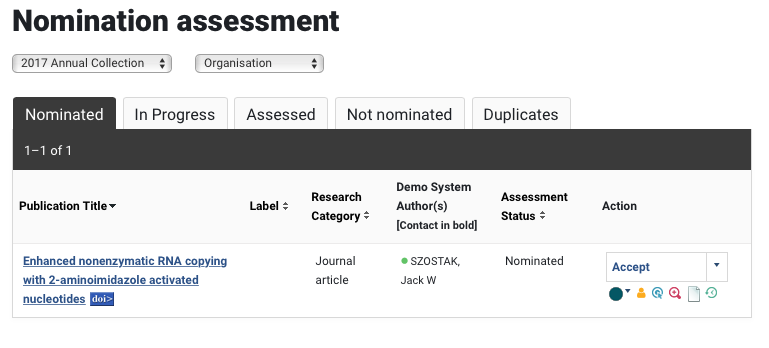
The assessment screen contains 5 tabs which group publication nominations according to their status or other special qualities (such as duplicates).
Tab | Description and Statuses |
Nominated | Includes nominated publications that have yet to be assessed. Valid statuses: Nominated |
In Progress | Publications which are awaiting feedback from a user on the system. Valid statuses: Under review, Pending Response, Under appeal |
Assessed | Publications which have been assessed. Valid statuses: Accepted, Declined |
Not nominated | Lists publications which have not been nominated but have author associations (either pending or claimed) and may be valid for HERDC. |
Duplicates | Displays potential duplicate publication nominations |
Assessment Actions
Publication nominations have various contextual actions available to transition the nomination record into a new status. A description of each action including the effects it has on a nomination is detailed below.
Action | Description | Effect |
|---|---|---|
Nominate | Available to be performed on the Not Nominated tab, creates a nomination record for the designated publication. Often the task of Nominating is completed by the Researcher. | Creates nomination for publication |
Withdraw | Will retract a nomination so that it may not be assessed for HERDC. Publication may be nominated again from the Nominated screen | Status > Withdrawn |
Accept | Accepts the publication for inclusion in the HERDC return it is valid for. | Status > Accepted Comment may be added in association with the update. |
Accept (internal only) | Accepts the publication for internal review purposes. | Status > Accepted (internal) |
Decline | Declines the publication for inclusion in the HERDC return it is valid for. | Status > Declined Comment may be added in association with the update. |
Review | May be used to flag publications which require attention at a later date. | Status > Under review Comment may be added in association with the update. |
Request Information | Opens a dialog which allows you to request information of an author, all authors or an acceptor. | Status > Pending Recipient/s will receive message notification and opportunity to respond |
Add comment | Adds a comment to the nomination. This is a comment that is visible to other assessment staff and not available for viewing by researchers. | Comment may be added to a nomination, no update in status is made. |
Delete | Deletes the nomination from the system, removing all history. Useful to resolve duplicate nominations. | This will delete the nomination entirely. |
Revert | Available to perform on an assessed nomination. Will return the status to Under Review allowing the assessor to add a comment in the process. | Status > Under review Comment may be added in association with the update. |
Nomination History
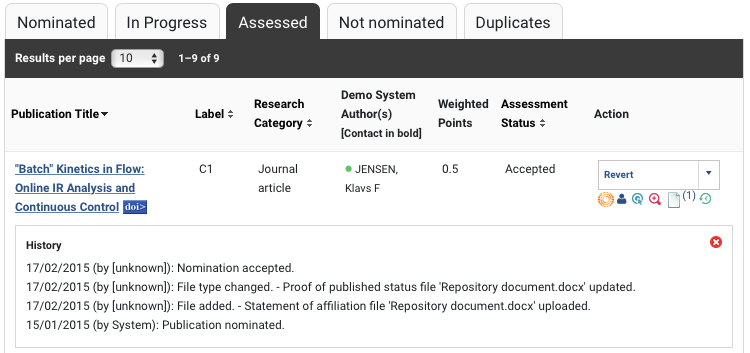
Whenever an action is made on a publication then a record of that process is retained along with the user who made the change, the time/date and any comments which were associated with the action.
This history may be called for any publication nomination by clicking the icon beneath the assessment status:
Source Record
The Annual Collection contains a drop down list of each of the data sources available for an item, the first record of choice is displayed based on the first record in Elements at the time of the nomination. If the auto-nomination scheduled job is active, the timing of this will determine which record is top. When there are multiple data sources the precedence is determined by Annual Collection data source precedence. System Admin (Data Source Management)
Updating author affiliation information
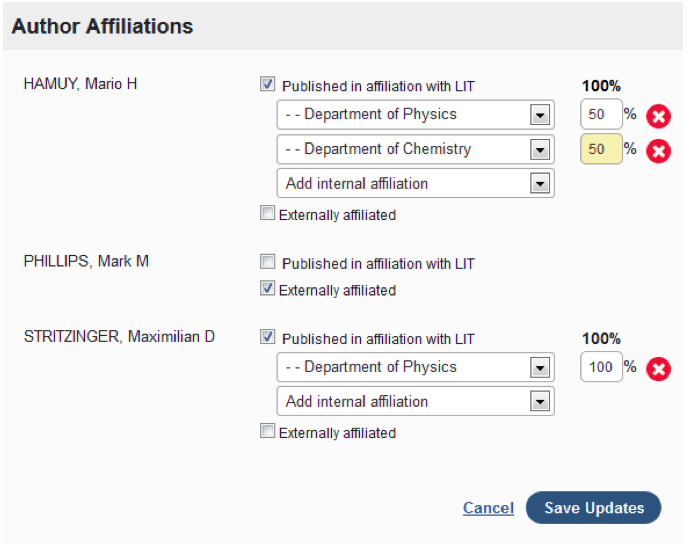
For each nomination a record of which internal group an author published the research with is retained. By clicking the person icon in the "Action column", the acceptor can identify multiple internal affiliations and designate a percentage for each unit or specify an external institution with which the publication was published. This affiliation information may be updated by the researcher If enabled.
Below is an example of the affiliation assignment screen for a publication with several internal authors with varying levels of affiliation with internal and external groups.
Quick view
A panel is available to display which shows further detail on a publication.
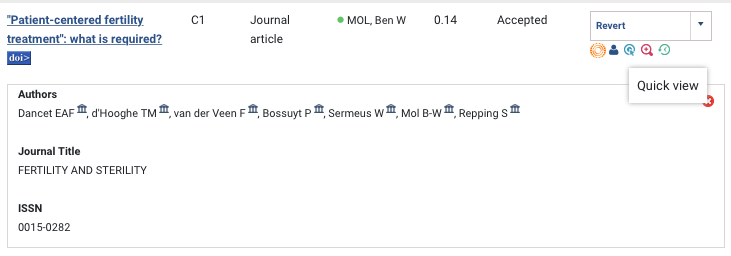
Details View shown per research category is:
Research Category | Details |
|---|---|
Journal Article | All authors (including address information if available from Web of Science and Scopus) |
Conference | All authors (including address information if available from Web of Science and Scopus) |
Book | All authors |
Book Chapter | All authors |
Exactly which information which appears here will depend on your setup. For example, "ISBN" may display ISBN-10 or ISBN-13, depending on your category configuration.
Updating publication details
For each nomination there is a dialog available which allows assessors to modify variables and details which affect the calculation of points for a publication, this is accessible via the “Publication details” icon.
Details View
The details available to update vary according to publication type.
Publication Type | Detail | Effect |
|---|---|---|
All | Contact user | Assigns a contact user to the publication and formats the text in Bold. This is generally the user referred to if there is anything clarification or information required when assessing the research. |
All | Total number of authors | Occasionally the number of authors on a bibliographic record requires updating for a number of reasons. An example of which is when a group contributes as an author and all members aren’t listed in the bibliographic data. |
Book chapter | Number of chapters in book | Usually the number of chapters field value is used but the ability is available to override this available in the publication details dialog. |
Book chapter | Main chapter | When calculating points for book chapters we need to determine which chapter an author has contributed to with as few other authors and identify it as the 'main chapter'. This main chapter is then used in combination with other book chapters identified as part of the book when calculating Note: There is a scheduled job available to determine this by polling the chapters in the system; if this is active then manual setting of this value may be overridden/lost. |
Checklist | All | This functionality allows administrators and/or assessors to record that the metadata for that nominated publication had been verified in a number of specific ways, aligning with the core ERA metadata requirements. |
Requesting Information
By clicking the request information action on a publication the following dialog is presented, a message may be entered.
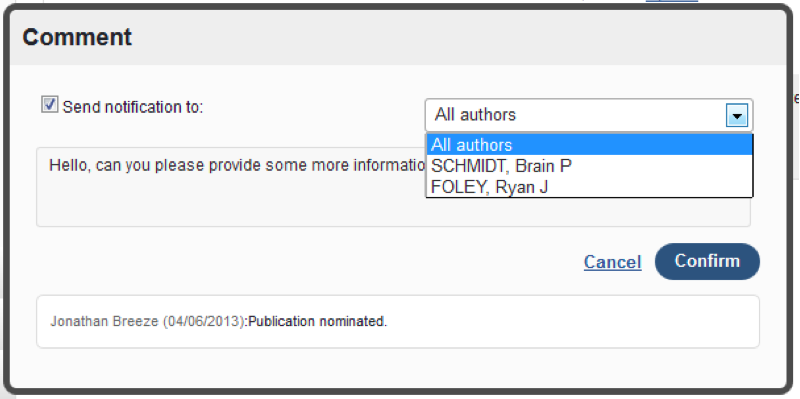
Once a request for information has been made the status of the nomination will become “Pending response” until a researcher responds to it. All authors will see this in My Nominations (Publications requiring attention) tab.
Note that once a request for information is made, any author that has claimed the publication will be able to respond to it.
Reporting
Return Report
Numbers on accepted nominations for a chosen return available as a count, fractions and unweighted points. Once the report has been generated each group reportable for the user may be expanded to display numbers per category. The report may also be run to report on selected users.
This report may be run in either group or affiliation mode. If run 'by group' the report will produce points according to the default affiliation of users, when run 'by affiliation' the points are calculated based on assigned affiliations for users.
Return Comparison Report
Produces a report with counts of publications of various statuses for a selected return and compares them to the return of the previous year. These counts are produced by group and may be expanded to reveal counts broken up by category; a calculation of the difference between years is also presented.
Return Progress Report
Produces a report which can assist with tracking nomination statuses for the selected return. This will give a breakdown of the number of nominations which are "In progress" and those which are "Assessed" including granular detail on the numbers of nominations in each individual status.
Adjusted Affiliations Report
This report produces a count of nominations (by group) which have had the author’s group affiliation adjusted to a group other than their default. Clicking on the number for a given group will produce a sub-report in a separate grid below which details the nominations, the author, their default group and the updated group.
Detailed Nomination Report
The detailed nomination report produces detail on all nominations for the chosen group, including nominations of all statuses. Information is presented on authors, their affiliations, the nominated publications details and how any awarded points have been calculated.
Unaffiliated Nominations Report
As nominations are presented within the HERDC module assessment screen according to the group/s with which the authors are affiliated there is the potential for nominations to become inaccessible if authors are not affiliated with any group. This report details nomination’s which have been unaffiliated with any group, so that they may be searched for at the organisation level and re-affiliated if desired.
Unclaimed Publications Report
Produces a report which will detail nominations which have recognised internal authors linked to them but have not yet been claimed. If these authors do not claim the publications then the points calculated for these nominations will not be as high as otherwise, making this a useful report to track down those extra missing points.
Potentially Miscategorised Nominations Report
This report will detail any nominated works which have either lost their category or changed category due to the publication having changed type.
Missing Key Fields Report
This report provides detail on any nominations which are missing data from fields that have been marked as 'key fields' in the mapping of publication type to category.
Finalisation Exception Report
This is a special report which is run automatically when a return is finalised, if there are any results found within this report then the return finalisation process will fail. Those results found within the report must be resolved before the finalisation process may be successfully completed.
This report may be run manually without attempting finalisation to check if there are any outstanding issues with the return.
All reports may be exported to an XLSX format Excel spreadsheet.
Once a collection has been finalised and locked, Publications which have a status of Accepted will enter the Finalised state.