
Elements Installation Prerequisites
This article sets out the technical and organisational prerequisites for clients wishing to host Elements locally.
To ensure that Elements works optimally and conforms to your institution's security and infrastructure requirements, we would advise considering the below prerequisites either before implementing Elements or at the very beginning of the implementation process.
These are recommended guidelines and we understand that your institution may have an alternative approach it wants to take - please do not hesitate to talk to us as soon as possible so that we can discuss the various possibilities with you. Like all software versions, Elements will evolve over time and the underlying requirements will change. Regularly check the End Of Support Announcements article to ensure you are prepared for future changes.
Server deployment
Elements is a background-I/O heavy enterprise solution. As such, the best thing you can do to help it perform well is to use high-speed good quality SSD drives (never use magnetic drives), and minimise the need for network communication by hosting all of those drives on the application/database servers themselves.
Nevertheless, Elements can be installed across a set of servers in a variety of ways. Possible alternative configurations are shown as the different column options in the diagram directly below. For each alternative, the set of servers required is represented by the coloured boxes in the column, with each server's recommended specification keyed by letter to the server specification table below.
We have ordered the configurations in recommendation order, prioritising performance over other considerations - for maximum performance, we recommend running the Elements applications and databases all on the same physical server.
Please note that the storage sizes mentioned are guidelines only and may require adjusting based on the size of your institution and the quantity of data to be stored in Elements. Our Capacity Planning page can be useful here.
If your organisation wishes to use virtual machines, we recommend that the physical boxes on which they run have dedicated resources for each virtual machine - the virtual machines running Elements must be guaranteed the same resources as the corresponding physical machines recommended below. Similarly, we recommend that in virtualised environments, the number of virtual processors assigned to each virtual machine should correspond to the number of hyperthreads (or threads, for short) in the physical hardware descriptions below, and not to the number of physical CPU cores.
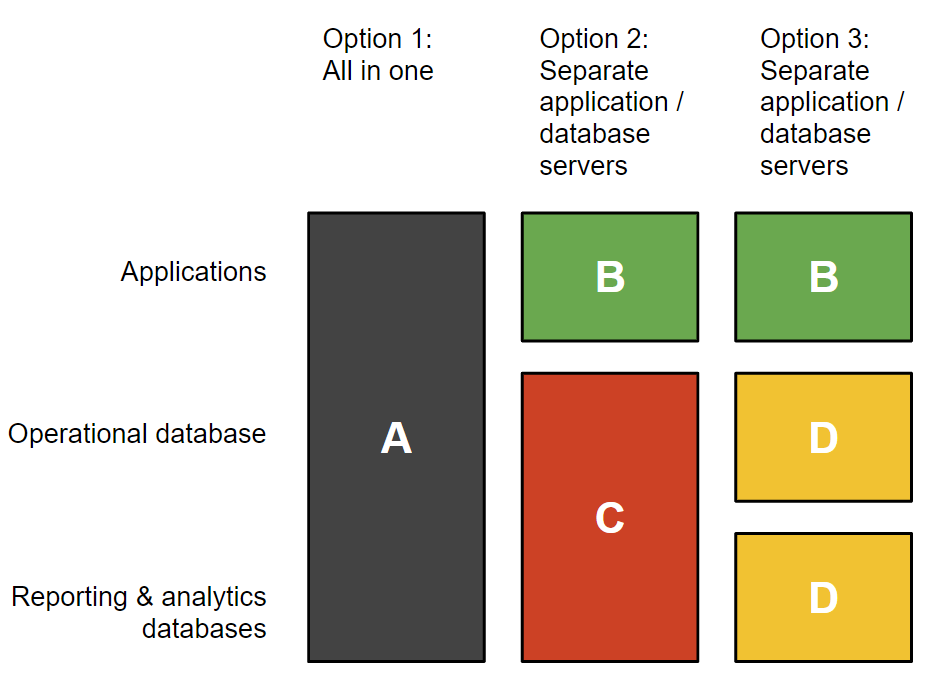
Server Identifier | CPU | Memory | Storage |
|---|---|---|---|
A (recommended) | 8 core (16 threads) Intel Xeon E5-2670 | 48GB DDR5 RAM (SQL Server capped to 32GB) | SSD 1 (100GB) - Operating system, SQL Server, SQL Server Reporting Services (SSRS), SQL Server Analysis Services (SSAS), Elements application |
B | 4 core (8 threads) | 16GB DDR5 RAM | SSD 1 (100GB) - Operating system, Elements application |
C | 6 core (12 threads) | 32GB DDR5 RAM | SSD 1 (100GB) - Operating system, SQL Server, SQL Server Reporting Services (SSRS), SQL Server Analysis Services (SSAS), Elements application database |
D | 4 core (8 threads) | 16GB DDR5 RAM | SSD 1 (100GB) - Operating system, SQL Server, SQL Server Reporting Services (SSRS), SQL Server Analysis Services (SSAS), Elements application database or Elements reporting and analytics databases as appropriate |
OS and other component requirements
Windows Server
Elements version | Supported Windows Server versions |
6.8 and later | 2016 or later |
6.0 to 6.7 | 2012 R2 or later |
5.17 to 5.21 | 2012 or later |
5.15 and earlier | 2008 or later |
.NET Framework
Elements version | Supported .NET Framework version |
5.17 and later | .NET Framework 4.7.2 or 4.8 |
5.16 and earlier | .NET Framework 4.5 or later |
.NET Core
Elements version | Supported .NET Core version |
6.17 and later 6.15 on version 6.15.0.4063 and later 6.14 on version 6.14.0.4064 and later | .NET 8 |
6.11 to 6.13 6.14 initial release until 6.14.0.4064 6.15 initial release until 6.15.0.4063 6.16 initial release until 6.16.0.4062 | .NET 6 |
5.21 to 6.10 | .NET Core 3.1 |
IIS
Hosting Bundle for ASP.NET Core Runtime (of matching major version to the .NET Core requirement).
IIS 7.0 (or above) role activated with the following features enabled:
Common HTTP features
Static Content
Default Document
Directory Browsing
HTTP Errors
Application Development
.NET Extensibility
ISAPI Extension
ISAPI Filters
Health and Diagnostics
HTTP Logging
Request Monitor
Security
Request Filtering
Management Tools
IIS Manage Console
IIS 6 Management Compatibility
ASP.NET 4.5 registered with IIS: https://support.microsoft.com/kb/2736284
Other requirements
SQL Server Management Studio (or at the very least MS SQLCMD Tools, which will require MS ODBC Driver for SQL Server, and may require SQL 2012 Native Client, which is part of the Microsoft® SQL Server® 2012 Feature Pack)
https://www.microsoft.com/en-us/download/details.aspx?id=36433
https://www.microsoft.com/en-us/download/details.aspx?id=36434
https://www.microsoft.com/en-us/download/details.aspx?id=16978
CA SSL Certificate (for website and secure API) in .PFX format marked as exportable and password protect
Service Account with ability to 'log on as a service' for running Elements.
SQL Server
Elements version | Supported SQL Server versions | Equivalent SQL Server version numbers |
|---|---|---|
5.2 to 5.14.0 | SQL Server 2014 to SQL Server 2016 | 12.0.0.0 to 13.0.* |
5.14.1 to 5.21 | SQL Server 2014 to SQL Server 2017 | 12.0.0.0 to 14.0.* |
6.0 to 6.1 | SQL Server 2014 to SQL Server 2019 | 12.0.0.0 to 15.0.* |
6.2 to 6.4 | SQL Server 2016 to SQL Server 2019 | 13.0.0.0 to 15.0.* |
6.7 o 6.9 | SQL Server 2016 (SP1 and later) to SQL Server 2019 | 13.0.4001.0 to 15.0.* |
6.10 to 6.11 |
|
|
6.12 and later |
|
|
Elements requires at least the Standard Edition of SQL Server for all of the above-supported versions. Elements does support Enterprise Edition for all supported versions, but does not require it.
Required SQL Server features
CLR activated (https://technet.microsoft.com/en-us/library/ms131048.aspx)
FILESTREAM activated for Transact-SQL and file I/O access. (UI and T-SQL configuration required - https://technet.microsoft.com/en-us/library/cc645923.aspx). If the database server is running on a separate server, Allow remote clients to have streaming access to FILESTREAM data option must be enabled.
SQL Server Reporting Services (SSRS) is required for stock and custom formatted reports such as CVs, group reports, waiver requests, and Assessment Module exercises at individual and whole exercise definition levels
Service Account with ability to connect to DB Server with minimum dbcreator
For Elements v5.14.1 onwards, SQL Server must be configured to allow the execution of code in Symplectic-signed CLR assemblies. To achieve this, have your DBA run the attached script Grant Symplectic CLR Assembly Execution Rights.sql against your instance of SQL Server before installing Elements. If the Elements setup utility is able to detect that you have not done this, then it will block installations/upgrades of Elements from proceeding. If the Elements setup utility has not been given sufficient SQL Server privileges to determine whether or not you have run the script, then it will return an installation warning advising you to manually check that you have run this script.
For any server which is to be used for both running the Elements application and hosting a database (either the Elements operational database, or the Elements reporting database), we would recommend that all items listed above are installed.
We recommend installing SSAS and SSRS on the same machine as the SQL Server Elements reporting database - generally because installing those components on additional machines would require additional SQL Server licence(s). Additionally, the expected overhead of adding SSRS and SSAS services on top of a SQL Server already supporting SQL against the reporting database is low. If customers prefer to install SSRS and/or SSAS on a separate server, then we recommend following the following Microsoft hardware recommendations for SQL Server: https://docs.microsoft.com/en-us/sql/sql-server/install/hardware-and-software-requirements-for-installing-sql-server
Installation and Test Tools
Web Browser
Although Internet Explorer (IE) comes pre-installed on Windows Servers, it is locked down by default with Enhanced Security Configuration (ESC). While it is possible to turn this off, there is a reason it comes pre-locked down; traditionally IE has been the source of many security breaches. Therefore we suggest the latest version of a third party browser instead such as Firefox or Chrome. This is required for downloading the Elements installer and testing Elements once installed. A portable version is acceptable.
Text Editor (Syntax highlighting)
We would recommend Notepad++, but any third party text editor with syntax highlighting will be sufficient. This is required for editing config files during the Elements install, and for examining log files when we undertake support on your behalf.A portable version is acceptable.
Server configuration
Website and API URLs that will be used to access the Symplectic Elements website
Authentication settings for chosen authentication system
SMTP server settings and account details of an email account to be used for alerts from Elements
Permissions needed for installation of Elements
VPN account to organisation’s VPN (if needed to access installation machine).
Local Administrator access via MS Remote Desktop Connection (mstsc) to application server.
Local Administrator access via MS Remote Desktop Connection (mstsc) to database server.
SA access to the SQL Server.
This assumes SQL Server will be running locally on an accessible database server. Other methods of installation are possible (for example, non-local SQL Server farm with CLR Integration and FILESTREAM enabled), please ask.
Test account for each authentication system used
A valid email address within your institution’s email system for Symplectic Elements (e.g.elements@yourinstitution.ac.uk).
This will be used for status and error reporting to Symplectic and/or local IT support staff. Symplectic does not need access to this email, but the system should be able to use it as a valid ‘from’ address via the local SMTP server.
Database permissions
The Elements installer can create the database during install, but will require running under an account with a minimum of DBCREATOR fixed server role and a default schema of dbo.
Alternatively, if wishing to create the Elements database in advance of the install, the following must be true:
Collation must be set to: Latin1_General_CI_AS.
Service account connecting must have a minimum of DBOWNER fixed server role for this database and a default schema of dbo.
Firewalls
Application server requires inbound traffic on the 80 (HTTP) and 443 (HTTPS), and to make outbound requests on the same ports. Additionally outbound ports 8430/50/60/70 (Symplectic Data Sources) are required.
Outbound traffic can be configured to run via a proxy.Database server requires inbound traffic on ports 139, 445 (Filestream), 1433 (SQL) from the Application server.
Institution firewalls need to allow traffic between application server and:
SMTP server (see SMTP section).
Server(s) that will handle user authentication.
Any systems that intend to take feeds from, or feed data to, Symplectic Elements API.
SMTP
Symplectic Elements sends various customisable email alerts to users, so access to an SMTP server is needed.
The settings for communicating to the SMTP server are fully configurable from within Symplectic Elements, supporting standard unencrypted traffic or encrypted traffic via SSL, and can connect anonymously or with a username and password combination.
HR
HR data is loaded into Symplectic Elements via a REST service, which is part of the API component. (See HR Data Import and Elements User Groups and Elements API documentation for further details).
You can use the Standard HR Importer to ingest the users' data (please see the installation guide here How to install the Elements Standard HR Importer). Alternatively, your institution can create an in-house solution for achieving this if the necessary internal resources exist. Firewalls need to be suitably configured to allow the necessary traffic.
Initial information
Additional information to complete a range of configuration options, during the initial installation of your system needs to be provided, such as default search terms to apply to users with common last names.
Clients should fill in the forms within the technical guidance document ‘Initial Information’ and discuss any queries with Symplectic’s consultants before your installation begins.
Change management
All responsibility for maintaining the hosting infrastructure (OS, database servers, etc.) for self-hosted instances of Elements lies with the client.