
HR Feed and Elements User Groups
This article begins by defining the HR data which the system requires and explains how this data is then processed within Symplectic Elements. It then concludes by providing a discussion on User Groups, of which a working knowledge is crucial at this stage.
"Feed": This refers to all the data fed to Symplectic Elements via the Elements API.
"Users": This refers to all the HR data in the Symplectic Elements user table.
HR Data Import
The Symplectic Elements API comes equipped with a set of REST services which allow human resources (HR) data to be imported into the system.
The HR data required by the system allows users to access the Symplectic Elements website, receive emails from the system and to be classified appropriately so that the system interacts with them in a correct manner.
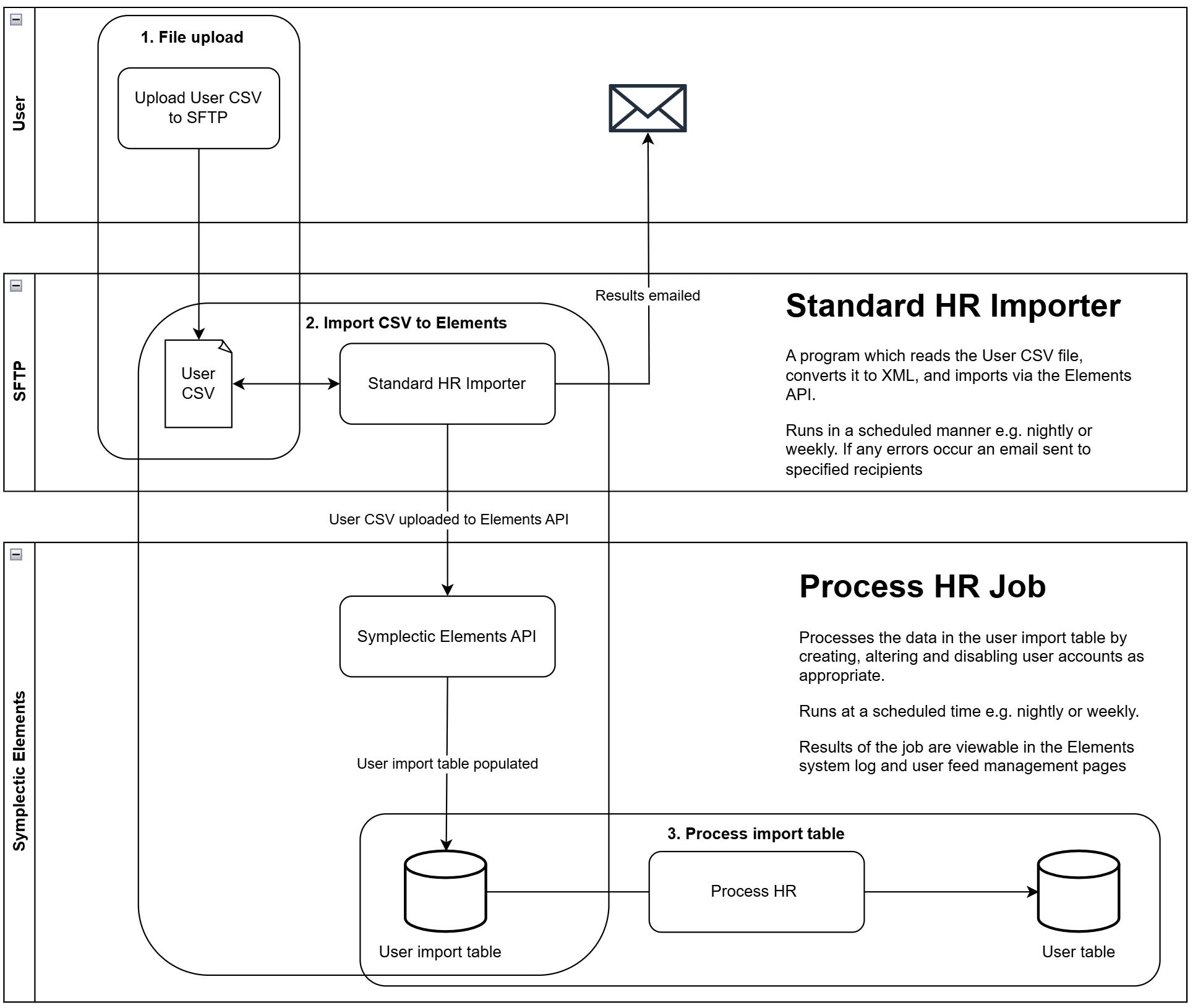
The creation of users within Elements is handled via three distinct steps.
Customer upload of a CSV file, containing users to import, to the Digital Science FTP server
Standard HR Importer importing the users in the CSV file, via the Elements API, to the Symplectic Elements user import table (staging).
Process HR (Scheduled Job) processing of the user import table, creating, updating, and deactivating users in Symplectic Elements.
Data requirements
This table defines the data that is expected by the import-users service. The data requirements for each field are discussed further in the following sections.
Field name | Type | Length | Mandatory | Examples | Description |
|---|---|---|---|---|---|
Title | nvarchar | 50 | N | 'Dr.', 'Prof.', 'Mr.', 'Ms.' | |
Initials | nvarchar | 50 | N | RP | All the user's initials, including the first. Having all initials present can improve search results, especially for users with common names. |
FirstName | nvarchar | 100 | N | Richard | |
LastName | nvarchar | 500 | Y | Feynman | |
KnownAs | nvarchar | 100 | N | Dick | If a user wishes to known by a name other than their first name, this can be entered here. This name will be used in Elements' user interface. |
Suffix | nvarchar | 50 | N | Ph.D. | |
varchar | 320 | Y | r.feynman@caltech.edu | Elements will send alerts and reminders to this email. | |
AuthenticatingAuthority | nvarchar | 50 | Y | 'Local', 'ORG' | See below. |
Username | nvarchar | 32 | Y | r.feynman | The username used to log in to Elements. |
Proprietary_ID | nvarchar | 100 | Y | 0123456789 | A stable, unique identifier that identifies the user in the HR feed. |
PrimaryGroupDescriptor | nvarchar | 100 | N (but recommended) | Physics | |
Generic01–Generic50 | nvarchar | Unlimited | N | 'Council Member', '183xhf92', 'banana' | Optional fields to enter custom data not catered for elsewhere. See below for more information. |
IsAcademic | bit | Y | 1 | See below. | |
IsCurrent | bit | N (default=1) | 1 | See below. | |
LoginAllowed | bit | N (default=1) | 1 | See below. | |
IsStudent | bit | N (default=0) | 1 | See below. | |
ArriveDate | datetime | N | 2001-10-01 | The user's date of arrival at your institution, in YYYY-MM-DD format (ISO 8601) | |
LeaveDate | datetime | N | 2007-06-15 | The user's date of leaving your institution, in YYYY-MM-DD format (ISO 8601) | |
Position | nvarchar | 250 | N | 'Fellow', 'Librarian', 'Personal Assistant' | The user's position or job title |
Department | nvarchar | 250 | N | 'Department of Physics', 'Library', 'Dean's Office' | The display name of the user's department. |
IsPublic | bit | N | 1, true, yes / 0, false, no / null- no value supplied | ||
InstitutionalEmailIsPublic | bit | N | 1, true, yes / 0, false, no / null- no value supplied | ||
PublicUrlPathFragment | nvarchar | 50 | N | r.feynman | A string unique to a user for use in constructing URLs on public facing websites. See below. |
Note: When uploading values in a comma-delimited format, if you have data where a comma is part of the data (and not a delimiter), enclose that data in quotes.
Example: Dr.,AM,Alan,Turing,,"OBE, FRS",aturing@lit.ac.uk,LITAuth,aturing,4455667788,Faculty of Computer Science
Note: if you are using the Symplectic Standard Data Importer and a CSV formatted HR file, enclose the column headers in square brackets i.e. [Title], [Initials], [Firstname], etc. If you have renamed the one of the Generic fields then you can (optionally) add the new name as follows; e.g. [Title], [Initials], [Firstname], Student ID[Generic11] etc.
IsAcademic
This field is only relevant for new users, as it determines whether or not default search settings are given to the user.
If it is set to TRUE, the new user will be given search settings according to her Primary Group defaults.
If it is set to FALSE, the new user will still have a profile created, but it will be configured to not search any data sources.
Note: Changing IsAcademic to TRUE from FALSE for a user, will not generate search settings automatically. You will need to reset the search terms for the changes to take effect.
Note: At any point the "non-academic" could go into their profile and configure the system to search. If such a thing occurs, the user would still have the "IsAcademic" flag set to "0" for reporting purposes.
IsCurrent and LoginAllowed (active users)
We define active users as those that have “IsCurrent” AND “LoginAllowed” set to true. If a user has either flag set to false, the user is said to be inactive and will not be added automatically to the User Sync Queues.
IsStudent
This field only affects the what affiliation type ('employment' vs 'education') is sent to a user's ORCID account, as part of the ORCID write integration. If no data is included this field will default to '0'.
Proprietary_ID
Proprietary_ID is the organisation-wide unique identifier for each user. It is essential when feeding HR data to Elements.
When the HR Feed is processed, Elements will use the Proprietary_ID to match each row of the HR Feed to the correct User. Then:
All matched rows will be used to update existing User data.
All unmatched rows will be used to create new Users.
Any Users already in Elements having a Proprietary_ ID that does not appear in the new HR Feed will have both "IsCurrent" and "LoginAllowed" set to false, i.e. they will be made inactive, will not be able to log into the system and will not be automatically added to search queues.
Initials
It is important that the Initials field includes all initials for the users, not just their middle initial. So, for example, Charles R Darwin would have ‘CR’ in the initials feed, not just ‘R’.
The system will use the initials for shortened versions of user’s names and – importantly – in their default search terms.
Where a middle initial is needed within the interface, the system will disregard the first character in this field and use the remaining characters in place of the middle initial.
Note: The treatment of initials detailed above may have some bearing on how you supply the initials field to users with 'compound', punctuated first names, e.g. Jean-Claude Duvall. To get the correct initials fed to the online data sources for this user, the best way of supplying the initials field is therefore "J-C", so that "J-C Duvall" is used in searches. This will mean, however, that occasionally within the system interface the user will be referred to as "Jean-Claude -C Duvall".
Authenticating Authority
The field AuthenticatingAuthority enables an organisation to use more than one authentication system for their users.
For example, an organisation’s faculties may each have their own authentication systems. Each user must be assigned an AuthenticatingAuthority string, a label of choice for which there should be a corresponding configuration within Elements, which will instruct the system how to authenticate the user (i.e. which system to contact and which protocol to use).
For organisations where there exists a single authentication system for all users this label becomes irrelevant. However, a non-NULL value must still be assigned and consistently used.
The process of configuring an authentication system is explained in Manage Authentication of Users.
Primary Group Descriptor
This is a string that allows Elements to allocate each user to a Primary Group.
The special nature of Primary Groups lies in the ability to configure various components of Elements to act differently for different Primary groups.
A good example of this is the 'help' page, which contains text that can be customised from within the system: you may wish people in different Primary Groups to see different people listed as a support contact.
Each user of the system therefore has to explicitly belong to one and only one Primary group, the membership of which is determined by the Primary Group Descriptor field.
Note that NULL is permitted in this field, in which case the user’s Primary Group will be the top-level group. This is also true for any users where their Primary Group Descriptor does not match any of the Primary Groups configured within Elements.
Due to the complexity involved in configuring various settings across large numbers of Primary Groups, it is recommended to limit their number to somewhere on the order of 5-10. However, this is only a guideline, and can vary depending on the institution’s size and structure.
A more complete discussion on the importance and fundamental nature of Primary Groups in Elements is included within the User Groups section at the end of the document.
Is Public
The optional IsPublic field allows your organisation to specify an overriding privacy level for the user's profile. Setting a value of false indicates that the user's account should be treated as "internal", such that the user's data should only be shared with other users of Elements. Setting a value of true indicates that the user' profile should be treated as "public" (may be displayed in public-facing systems/contexts). If you choose not to set a value for this field, then (with suitable system configuration) control over the user's privacy level will be given to the user themselves. Until such points as the user specifies a preferred privacy level for their profile, a configurable system-wide default level (which itself defaults to "internal") will be applied. Note that if your organisation uses the API or reporting database to extract data to public-facing systems, then it is your organisation's responsibility to maintain its integrations with the Elements API and/or reporting database in such a way that privacy flags such as this are appropriately respected. Please see Introduction to Data Privacy and Personal Data in Elements, and the API and reporting database documentation for more information about data privacy.
Institutional Email Is Public
The optional field InstitutionalEmailIsPublic allows your organisation to specify an overriding privacy behaviour for the user's Email field value. Setting a value of false indicates that the user's Email should be marked with an intention that it not be displayed in any public-facing systems/contexts. Setting a value of true or setting no value indicates that the user's Email may be displayed in public-facing systems/contexts. Note that it is your organisation's responsibility to maintain its integrations with the Elements API and/or reporting database in such a way that privacy flags such as this are respected.
Public URL Path Fragment
This is a string that is expected to be used by public facing websites when constructing a memorable and friendly URL to access the user's profile. Therefore, although this field is not mandatory, if a value is passed in, it will be enforced to be unique across all users that have a value. This value can be used by any client-configured downstream system which consumes user data from Elements.
It is also used by the Discovery module when constructing URLs that point to public facing user pages. If no value is supplied, Discovery constructs a URL using the format {user-id}-{firstname}-{lastname}. The elements User ID is used in order to ensure that a URL uniquely identifies every user.
A valid public URL path fragment can be empty, or up to 50 characters, starting with a letter and containing alaphanumeric, dot, underscore, dash and tilde characters only.
Typical examples may be "richard-feynman", "r.p.feynman" or "rfeynman".
Generic fields
Fifty Generic fields are provided to store additional data relevant to the individual, such as faculty or department information, which may be useful for upload to Elements.
Generic01 - Generic10 are unrestricted and can thus be viewed by any Elements API account and any end user in the Elements web application. On the other hand, Generic11 - Generic50 are defined as the "restricted HR data" fields. Data in these fields can only be accessed by suitably privileged system administrative web application users or by API accounts specifically granted access to "HR Data". Please see the User Generic Fields and Restricted HR Data article for more information.
Generic fields are often used for creating Auto Groups. These are explained later, in the 'User Groups' section of this document.
Not all generic fields need be used, although the structure and nature of data supplied in these fields must be consistent across the whole range of users.
Examples of data your institution might want to include in these generic fields are:
Country-wide Identifier
Faculty
Research group
Research institute
Honorary/Visiting status
Institution arrived from
Institution departed to
Constraints
Note that the REST service will allow import of empty or NULL mandatory data. However, all rows which are missing any mandatory data will be dropped during the processing of the HR Feed, in other words those rows will not make it to USERS. Within USERS, the following constraints apply:
Proprietary_ID is non-NULL and unique for all non-local users. Local users are allowed to have a NULL Proprietary_ID, as they are not updated via the HR Feed.
The pair (Username, Authenticating Authority) is unique for all active users. Otherwise, Elements would not be able to determine which user is logging into the system.
The PublicUrlPathFragment is unique for all users. Otherwise, the Elements Discovery module would not be able to determine which user profile to display when viewed in a browser.
Local users
Apart from loading users via the API from a HR feed, users can be maintained locally in Elements.
Local users can be created within the system and users imported originally via the API can be subsequently marked as local.
Once local, the particular user details are not updated by the automated HR feed processing, but have to be maintained manually by a System Administrator.
Local users (created manually or switched from being non-local in the past) can be switched to become non-local. From then on their data will be maintained by the automated HR feed.
Multiple HR feeds and Feed ID
Elements supports multiple HR feeds. This can be useful when, for example, an organisation’s faculties each maintains their own HR records. Each faculty would then be responsible for mananging their own HR data via the API.
A Feed ID is used to distinguish between multiple feeds. Since this Feed ID is identical for all users within a particular feed, we recommend that it is not included in HR data and is instead added to the feed by the HR importer application. For example, if you are using the Symplectic Standard HR Importer, you would set the Feed ID in the configuration file for that application. See How to install the Elements Standard HR Importer for details about this.
Organisations using only one one HR feed must still set a non-null Feed ID in their HR import process. This can be something trivial, for example, the default value of "1" in the Standard HR Importer configuration.
User feed cutoff
To protect against malformed or corrupted HR files, Elements calculates the total number of users created and/or rendered inactive before processing an HR import. If this number exceeds a user-defined cutoff value, the HR feed will not be processed.
This value can be set in Elements: navigate to System Admin > User > Users > Manage user and user feed, change the "Global user feed cutoff" value and click "Save". In normal operation this value should be kept low. You may need to increase it temporarily during large scale operations such as your first HR import, or incorporating a new faculty into the system.
User groups: role and importance
Within Elements you can create of a structured hierarchy (or tree) of user groups. There are three different membership models for user groups: Primary, Auto and Manual. They differ in the method used to assign users to the groups and, in the case of Primary Groups, in the functionality they provide within Elements.
Primary Groups
Chief amongst these is the Primary Group, which plays a crucial role within Elements as it can be configured to determine how the system behaves for different users.
For example, the following can be customised by Primary Group:
The availability of certain data sources.
A new user’s default search profile (i.e. databases to search, address affiliations, etc).
What Journal Statistics are displayed in summary boxes.
The content of the help page (e.g. the local help contact).
The content and sender of the email generated by Elements to inform users that new publications have been discovered.
This customisability is the main purpose of the Primary Group within Elements.
Each user is an explicit member of one, and only one, Primary Group, based on the Primary Group Descriptor passed in with their HR information. As a result, explicit Primary Group memberships are updated automatically whenever a HR import happens.
If no Primary Group exists matching a user’s descriptor, then their Primary Group will be the Top-Level Group.
Due to the complexity and time involved in maintaining a variety of settings across a large number of Primary Groups, it is recommended to limit the number of such groups to something of the order of 5 - 10. This is only a guideline however and can vary dependant on an institution’s size and structure.
Typically, institutions construct their primary group structure to reflect their high level groupings such as faculty, school or department, at which level this model of customisation would be expected.
Auto Groups
The explicit membership of an Auto Group is based on a specified query against one or more of the user’s HR fields, including the Generic fields mentioned above. As such, their explicit membership is also updated every time an HR import occurs.
Auto Groups do not provide customisation of system behaviour as is the case with Primary Groups. They are primarily used for the purposes of reporting and user management.
Examples of data your institution might want to use to create Auto Groups are:
Faculty
Department
Research group
Research institute
Unit of Assessment (UoA)
Position/Job title
How to create and maintain Auto Groups is detailed in the Managing User Groups article.
Manual Groups
The explicit membership of a Manual Group is maintained within Elements by an administrative user manually adding users to the group. As such, their explicit membership is not affected by HR imports. Some members of the group may be deactivated (e.g. a user in the group leaves the institution), but the inactive user remains an explicit member of the group.
As with Auto Groups, Manual Groups are primarily used for the purposes of reporting and user management. They offer no customisation of system behaviour.
Group Hierarchal Structure - Reporting
We’ve seen that each user of Elements has one, and only one, explicit Primary Group membership, defined by the relevant descriptor in their HR data.
On the other hand, a user can be an explicit member of many Auto or Manual Groups. Elements has no restrictions on how Primary, Auto and Manual Groups can be organised into a hierarchy. For example, it is entirely possible to have a structure as shown here.
When running a report against a group, it is the implicit membership of the group (based on the hierarchy) that determines what data is included in the report, not the explicit membership.
For example, a report run against PrimaryGroup1 in our example will output data for all the explicit members of PrimaryGroup1, PrimaryGroup2, AutoGroup1 and ManualGroup1. These users are considered to be the implicit members of PrimaryGroup1.
It is important to note that this hierarchy of user groups is only understood within the context of reporting and user management. It is not reflected when customising Primary Group settings.
For example, any changes made to the system configuration for PrimaryGroup1 will not affect explicit members of AutoGroup1 or ManualGroup1 unless they are also explicit members of PrimaryGroup1.
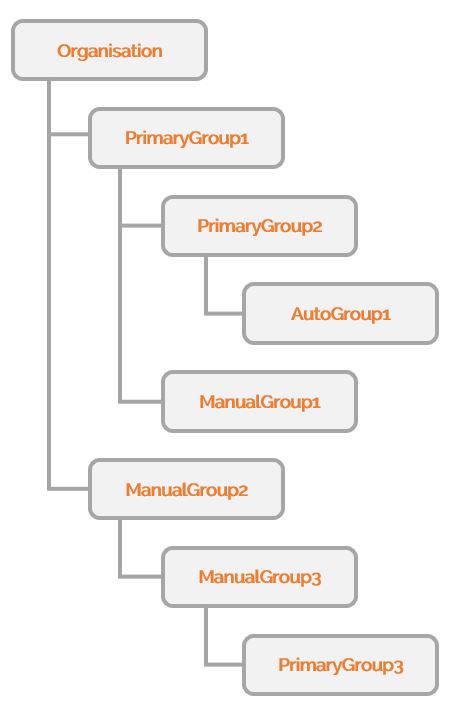
Furthermore, these changes will not affect explicit members of PrimaryGroup2 as the settings of PrimaryGroup1 are not inherited down the hierarchy. Each user has one, and only one, explicit primary group membership, and it is the settings of that Primary Group (here PrimaryGroup2) that define how the system behaves for that user.
The only exception to this inheritance rule is when override is used within the Top-Level Group's settings for Data source availability and Default search settings.
The Top-Level Group
For any users in the system who have no Primary Group Descriptor, or whose descriptor does not match any Primary Groups configured within Elements, their Primary Group is effectively the Top-Level Group.
For the Top-Level Group, Data source availability and Default search settings can be edited via the correspondingly-named main menu items (System Admin > Data Sources).
When editing these settings for the Top-Level Group, it is possible to override the corresponding settings for all Primary Groups, thus forcing the Top-Level Group's settings onto all Primary Groups. When the override is used, the values configured for the Top-Level Group are copied to all Primary Groups in the system, and the ability to edit those settings within the Primary Groups is removed.
Note that any previous configuration for the Primary Groups will be lost when the override is used. If the override is removed at a later date, the settings for the Primary Groups will not revert to their previous settings but will initially remain aligned with the settings for the Top-Level Group. However, the ability to edit these settings per Primary Group will be reintroduced.