
Publications Module - Manage Email Notifications
This article outlines the three types of emails associated with Publications:
Notification Email: Sent to users automatically when new publications are found in the online databases or entered by co-authors or administrators. The notification frequency is configured in the "Emailer: Notification" settings in the Scheduled jobs. Usually, this will be sent ca. every 14 days since Elements only enqueues a user search once every 14 days by default for each data source, but other events (such as results from other users' searches) may trigger these, too, if the frequency is set to shorter than 14 days.
Reminder Email: Can be sent manually by administrators when impersonating users if publications have not been claimed.
The email settings can either be applied to all users by checking the "Override" button or be specific to Primary Groups. For more information, consult the following article about Overriding module settings.
Manage Email Notifications
Elements can automatically push emails to users provided that email is enabled within System admin > Data category > Publications > Notification email settings and the Emailer: Notification in System admin > Jobs & Scheduling > Scheduled jobs is enabled.
Warning: When you activate email notifications, users will be notified about pending publications. To prevent any unexpected results, deactivate the email notifications. Send a test email to check if the content is appropriate prior to activating the emails.
Notification Email
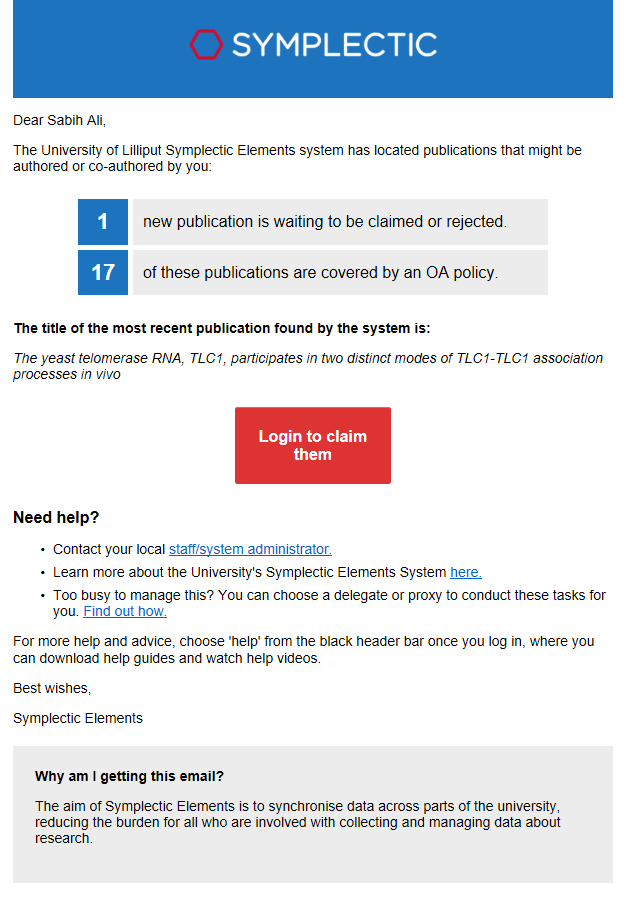
This is a screenshot of the notification email:
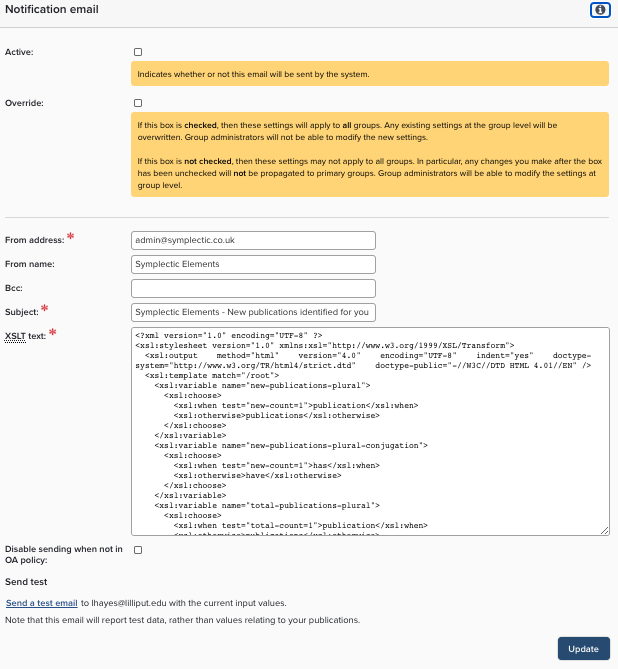
The following configurations options are available:
Active - Check this to turn the notification email on
Override - Check this to apply the email notification to all groups. Leaving this unchecked allows you to configure by Primary Groups.
From address - Change this to use your email address.
From name - Use your institutional name for Elements.
Bcc - Copy in additional emails (can be useful to monitor at go-live),
Subject - Customise text as appropriate.
XSLT Text - You can edit the HTML, but be careful to leave all the XSL tags intact. To change the body/text of the email you will need to edit the XSLT code. It is written with a range of tags that pull in values from the database. Some of the available fields are already represented in the default text. For reference, all available fields are listed below:
subject
to-name
first-name
last-name
new-count - a count of new publications:
in-oa-policy-count
total-count
base-url
most-recent-title
Disable sending when not in OA Policy - Check this to disable the notification email for publications not in the OA Policy. At least one publication must meet the criteria.
Reminder Email
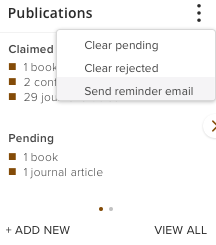
A reminder email can be sent to end users manually when pending publications have not been claimed. When the reminder email is activated, System Administrators, Group Administrators and Research Managers can send an email from the Publication tile while impersonating a user:
In the same way as for notification emails, you can choose to activate, override settings or change the ‘from address’, ‘from name’, subject line and parts of the email text for this email. Some of the available fields are already represented in the default text. For reference, all available fields are listed below:
subject
to-name
first-name
last-name
awaiting-approval
base-url
Other Email Settings
System Administrators, Group Administrators and Research Managers can send a one-off email to group members. Navigate to System admin > Users & groups > Group management > Manage groups. There is also a separate internal messaging Inbox that has no relationship to the email notification. More information is available in this article about the Elements Inbox.