
Managing registered reports
Note: In v6.1 of Elements, the Reporting Hub was introduced. From that version, more and more types of report are being steadily migrated away from the management interface described in this article, to the new Reporting Hub. In v6.1, group reports were migrated. Please also see the Managing reports in the Reporting Hub article.
This article provides guidance on how to manage the custom reports within the Elements Reporting menu. You will need to review the following article about Designing and deploying SSRS formatted reports so the necessary pre-requisites are in place for custom reports to be enabled.
Registered reports
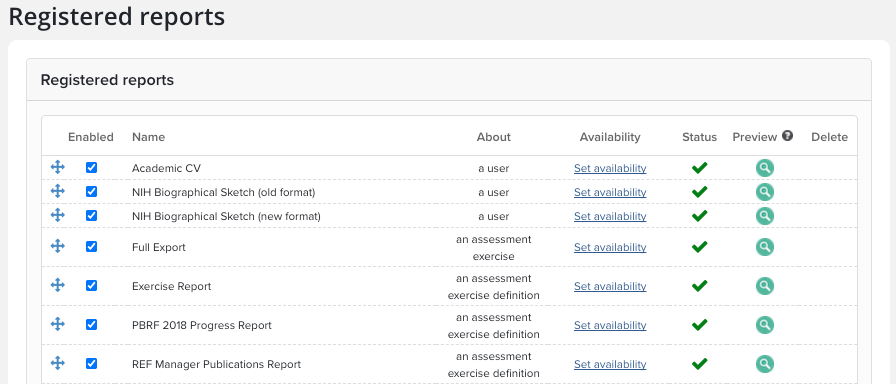
As a System Administrator, navigate to Search & reporting > Configure reporting > Registered reports. This page lists all the SSRS reports currently registered in Elements which have not yet been migrated to the Reporting Hub.
You have the following configuration options:
Enabled: Reports can be individually switched on or off by clicking the "Enabled" checkbox. The availability of each report can be adjusted using the "set availability" link. For reports about an individual user, you can set the groups whose members will have access to that report from their profile page. For reports about a specific group, select the report for which groups report can be generated.
Name: By default, the stock Symplectic reports should be visible (Academic CV, and two formats of the NIH Biosketch).
About: Reports can be about users and appear on the "my profile page". Reports about a group will appear on the group page.
Availability: This allows you to define which users and groups are able to view reports.
Status: A green tick indicates all is well, while a red triangle indicates the report has not been correctly configured.
Preview: Allows you to preview the report in the browser prior to running it.
Delete: Only reports that you have registered can be deleted, as indicated by the red cross. This does not delete the reports from SSRN. You may re-register available reports.
Refresh: Allows you to update the status.
Register a new report: Provided you have defined the custom report within SSRS, you will able to register it in Elements.
Availability
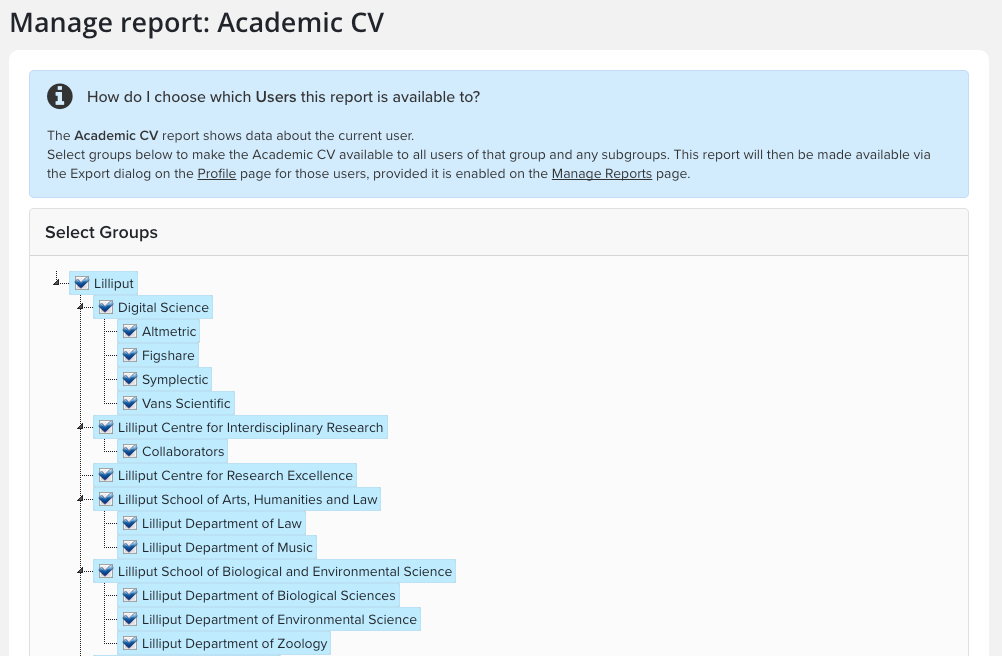
You can define who will be able to use the custom report in the "Availability" page.
User reports
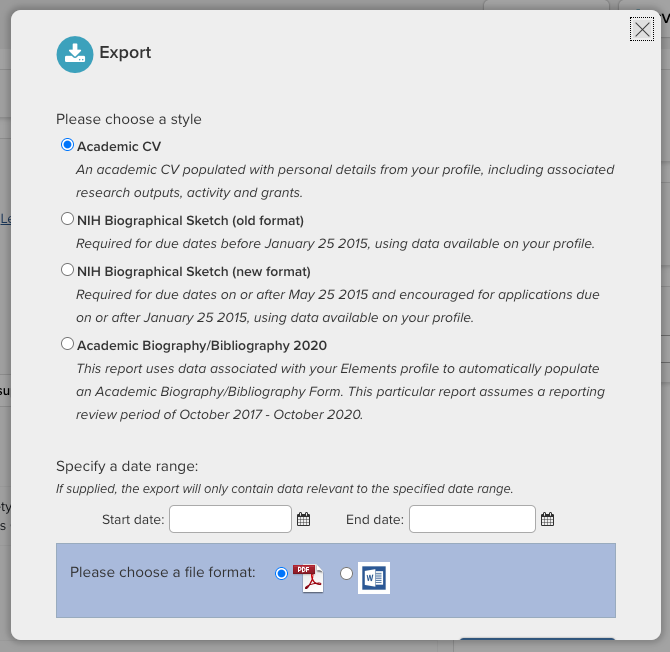
Select the group(s) who can use the report. Once the report is enabled, it will be available in the user profile via the Export dialogue. For reports which have been registered as accepting a user-defined date range, the option to enter a date range will be presented to the end-user in the export dialogue.
User Profile View
Group report view
Group Reports: Select the group(s) who can use the report. Once the report is enabled, navigate to the group page via System admin > Users & groups > Group management > Manage groups. On the group settings page, you will see the option to export the report on the top right hand section of the page. Note: Only users with appropriate access to the group’s data will be able to export the report (e.g. Statisticians, Research Managers, System Administrators, etc).

Status
Upon first visiting the Manage Reports page, the Status of all the registered reports will be checked. This will verify that the configuration of Elements and SSRS is correct; if the report status is "Failed," the reason for the failure will be displayed when the cursor is placed over the status icon. For successfully configured reports, there is the option to preview the report for the currently logged in (or impersonated) user, or their primary group depending on the type of report.

Register/Edit a Report
To register a new report, click the "Register Report" button. To edit an existing registration, click the name of the report. This will take you to the Report Definition page.
You have the following configuration options:
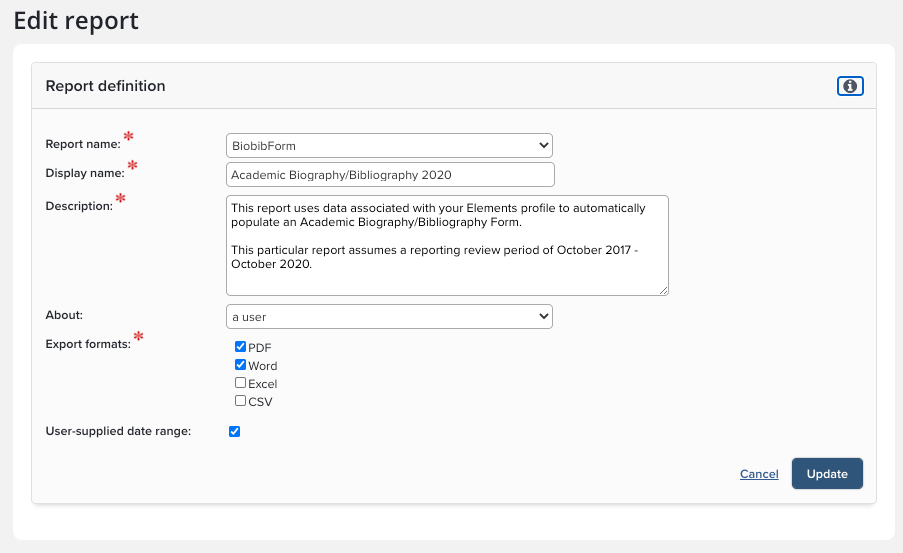
Report name: On the Register Report page, Elements will contact SSRS and retrieve a list of all the report definitions located in the corresponding Custom Reports folder on SSRS. Select the appropriate report definition from the dropdown.
Display name: Will be used to configure how the report is displayed within Elements.
Description: Defines how the report will be used.
About: The "About" dropdown determines whether the report is associated to users or to groups.
Export formats: Choose either PDF and Word formats or both.
User supplied date range: The "User supplied date range" should only be checked if the report was written to accept the Date_1 and Date_2 parameters.
Once the details are completed, click "Register" and you will be taken back to the Manage Reports page. On the Manage Reports page the newly registered report will appear as a new row, and it will automatically be tested to establish if Elements thinks it is configured appropriately. If the report status verification succeeds, preview the report to ensure that it looks as expected. Review and set the new report’s availability as appropriate and then enable it.
Note: The registration of default Symplectic reports cannot be altered, although you can still enable/disable them and configure their availability.
More Information
Reporting Tools support documentation