Equipment module settings
Managing Access
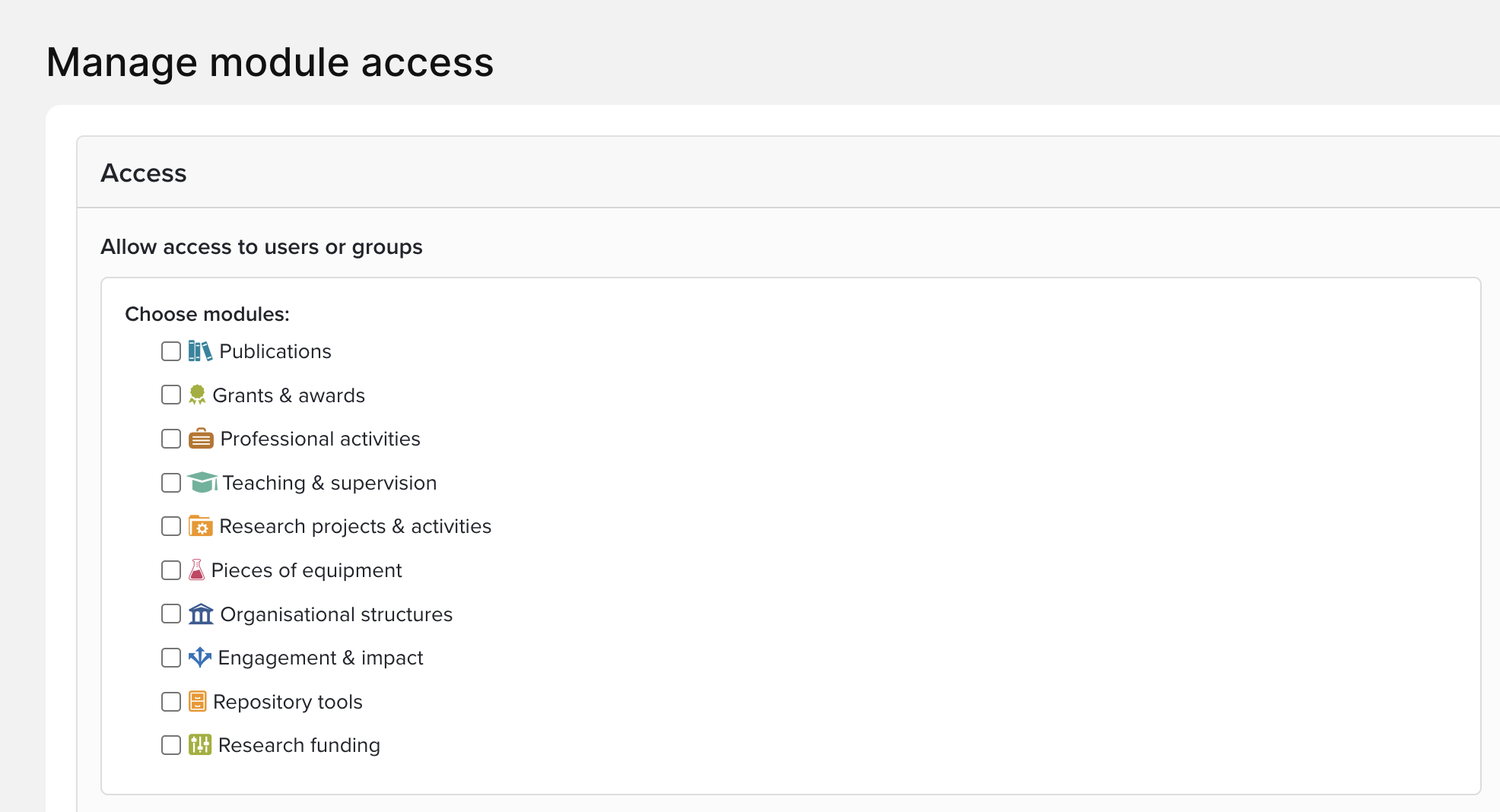
To manage access to the Equipment module, navigate to System Admin > Data Category Settings > Manage Module Access. From there, groups or individuals can be added.
Adding equipment
Unlike other modules, Equipment is not displayed on the Home page.
A list of the Equipment already entered into the system (either manually or via API) may be viewed at Profile & work > Other activities > Pieces of Equipment. Note: If you add items of equipment via the API, a link to users may be missing.
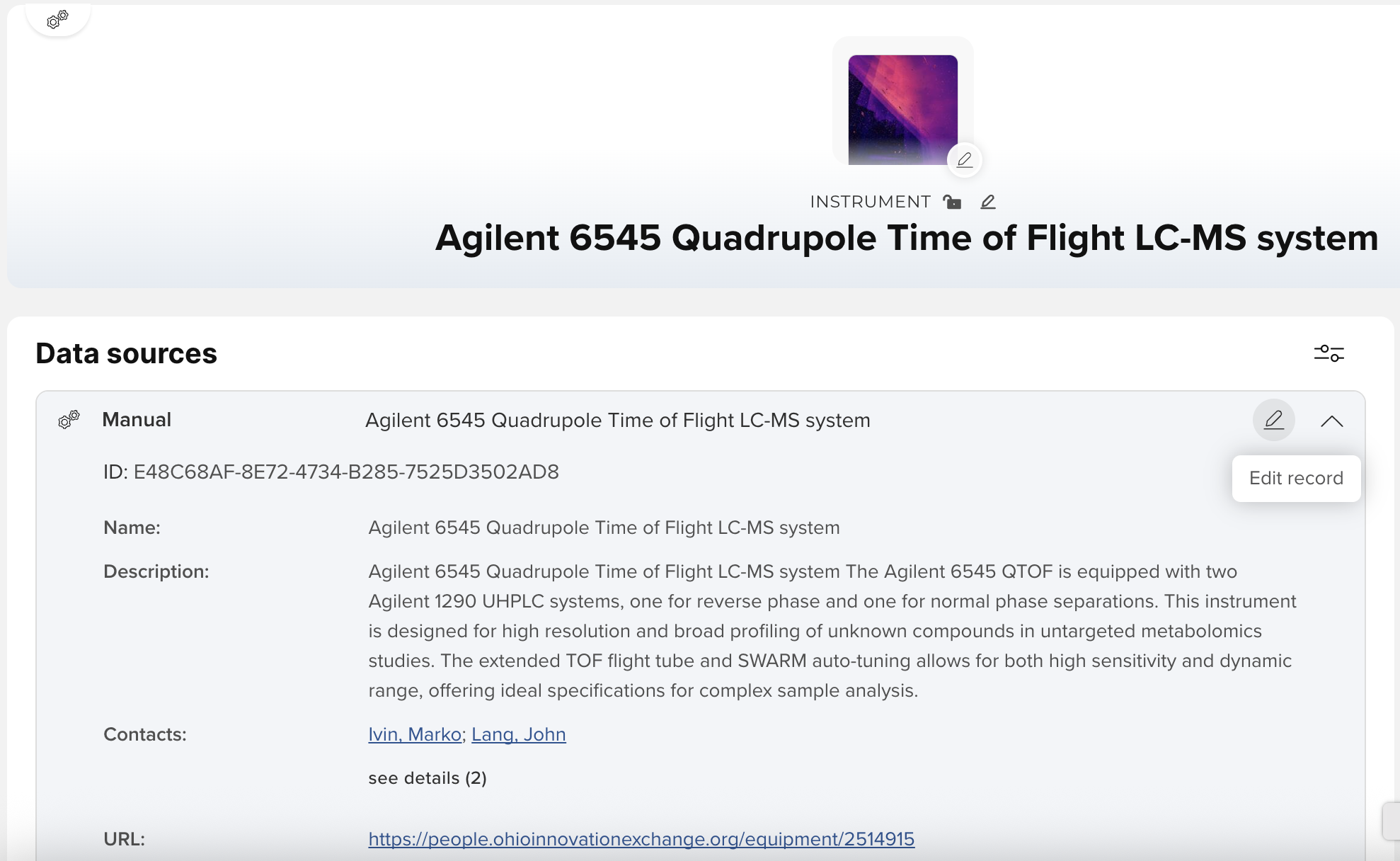
To edit a record, click on the equipment name and then the "Edit record" button.
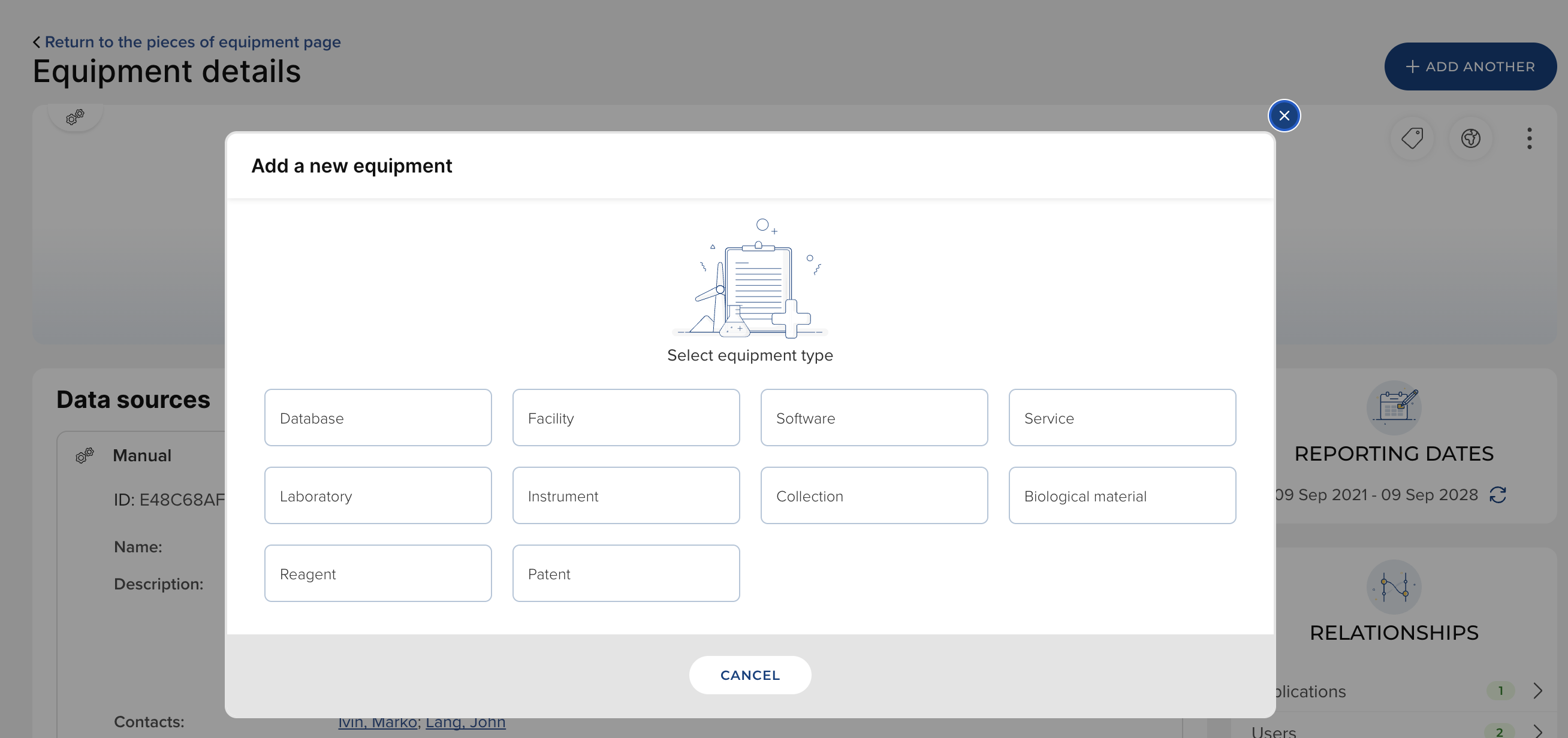
Alternately, you can manually add new records by clicking the "Add a new equipment" button at the top of the page. You'll be presented with the default equipment types available in your system:
Manage types
Several default types of Equipment have been populated into the system The preloaded types are:
- Database
- Instrument
- Software
- Service
- Laboratorie
- Collection
- Biological material
- Reagent
- Facility
They can be viewed by navigating to System Admin > Data Category Settings> Pieces of Equipment > Manage Pieces of Equipment.
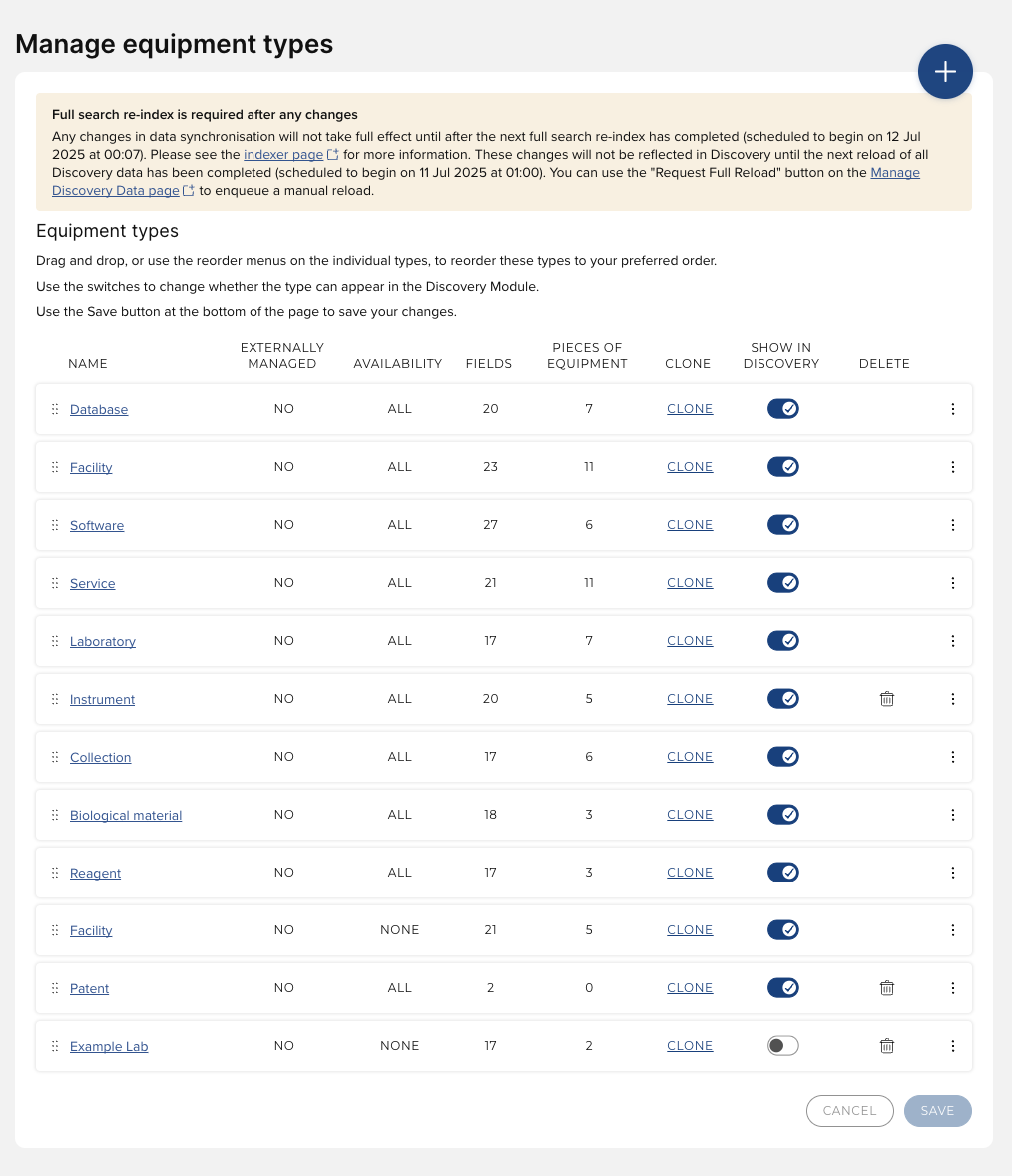
As you do with all other data types, you have the ability to configure which Equipment types you want to make visible per Primary Group through the Manage Types menu. Clicking on an equipment type will open the Properties menu:
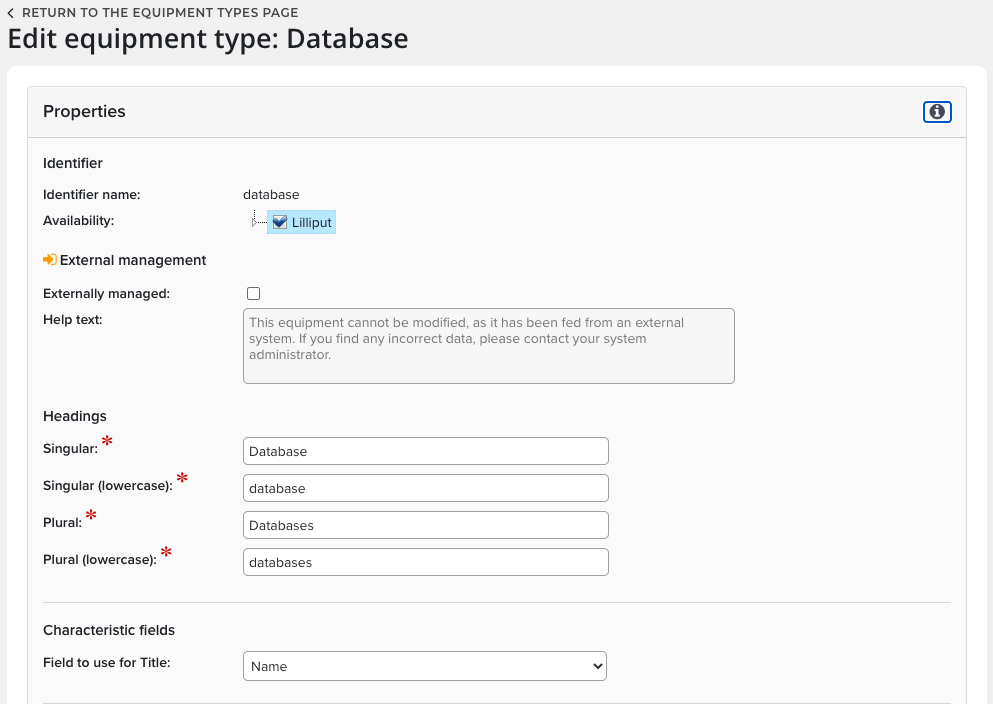
Manage underlying fields
An ‘underlying field’ is a property of every field associated with every element category in Elements. This property gives field a permanent ‘meaning,' enabling objects in all categories to be switched between types with no loss of data.
View existing underlying fields
Click on System Admin > Data Category Settings> Pieces of Equipment > Underlying fields to view the list of underlying fields. You cannot edit or remove the defaults; however, locally created or custom underlying fields can be deleted. On this page, you can also download a grid of the underlying fields.
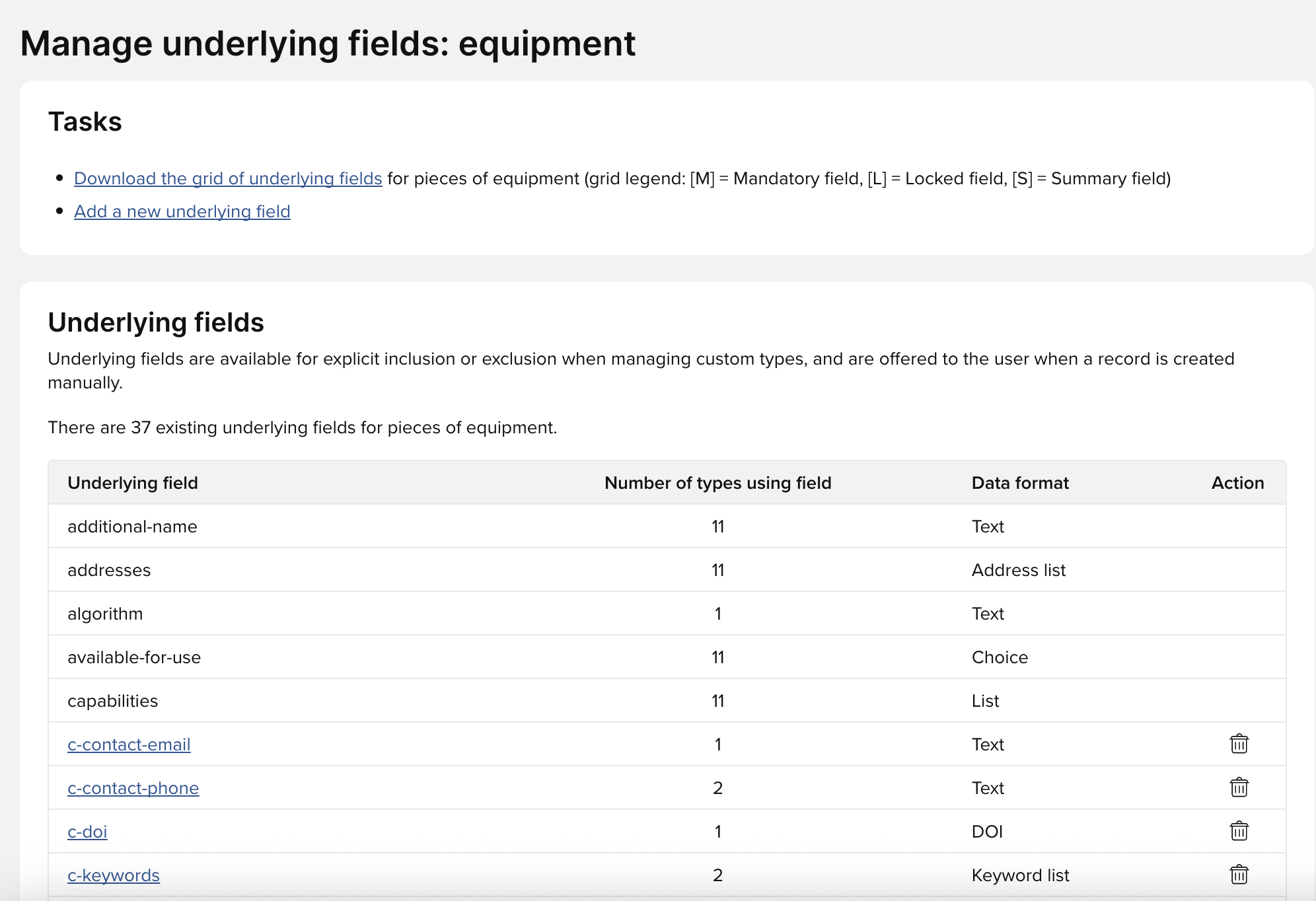
Please see Categories, Types and Underlying Fields for details on how these are managed. Whenever possible, restrict your use of underlying fields to the default fields.
Locking Fields
Any field type can be locked so that data cannot be manually entered by users. In the Field properties menu, look for the checkbox at the bottom of the page.
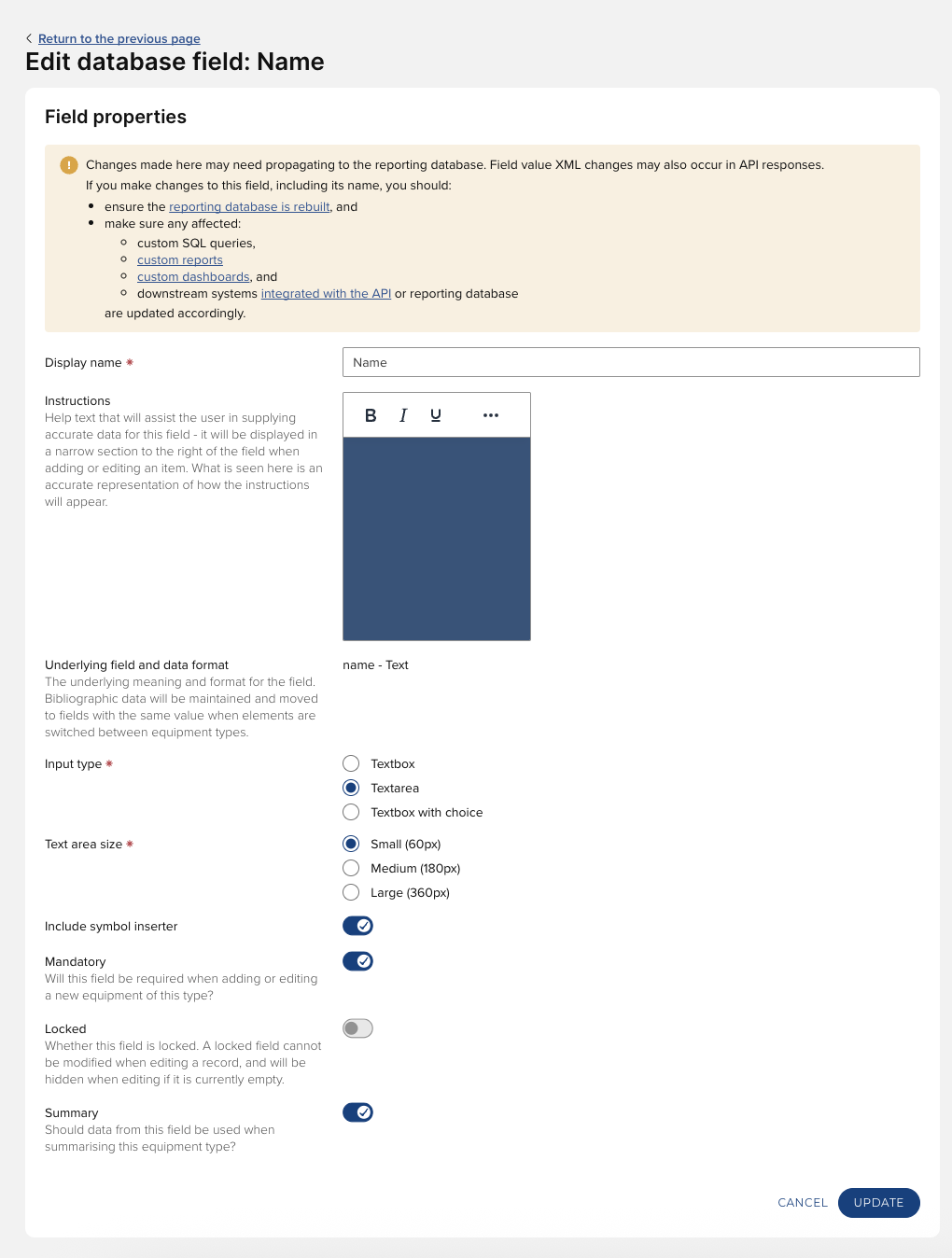
To users, the field will be displayed with the message "This field is locked and cannot be edited."
Create Links
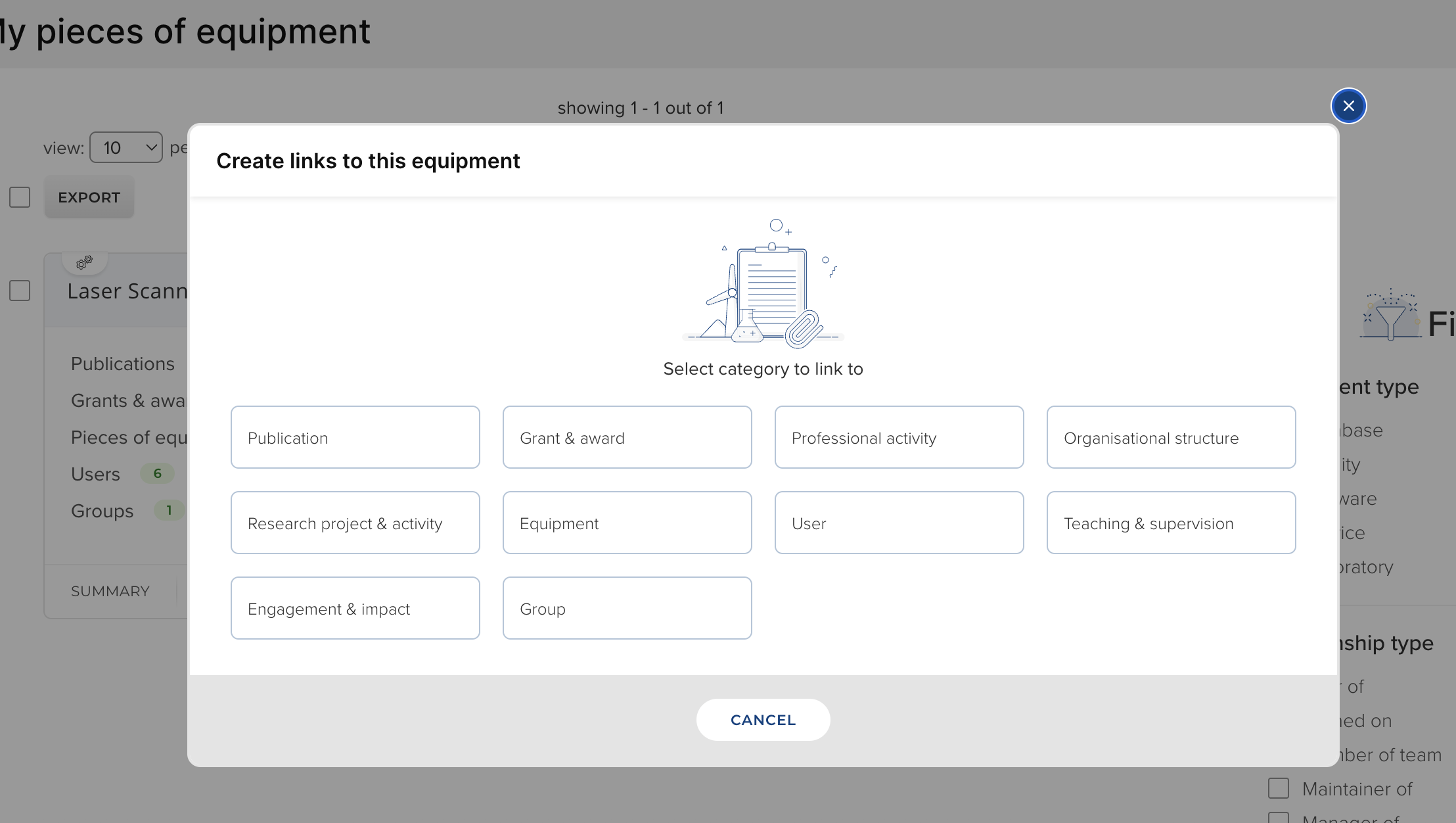
You can create links between any piece of equipment and other object types (Publications, Professional Activities, Grants, etc.) by clicking on the Relationship tab, and then the "Create links" button.
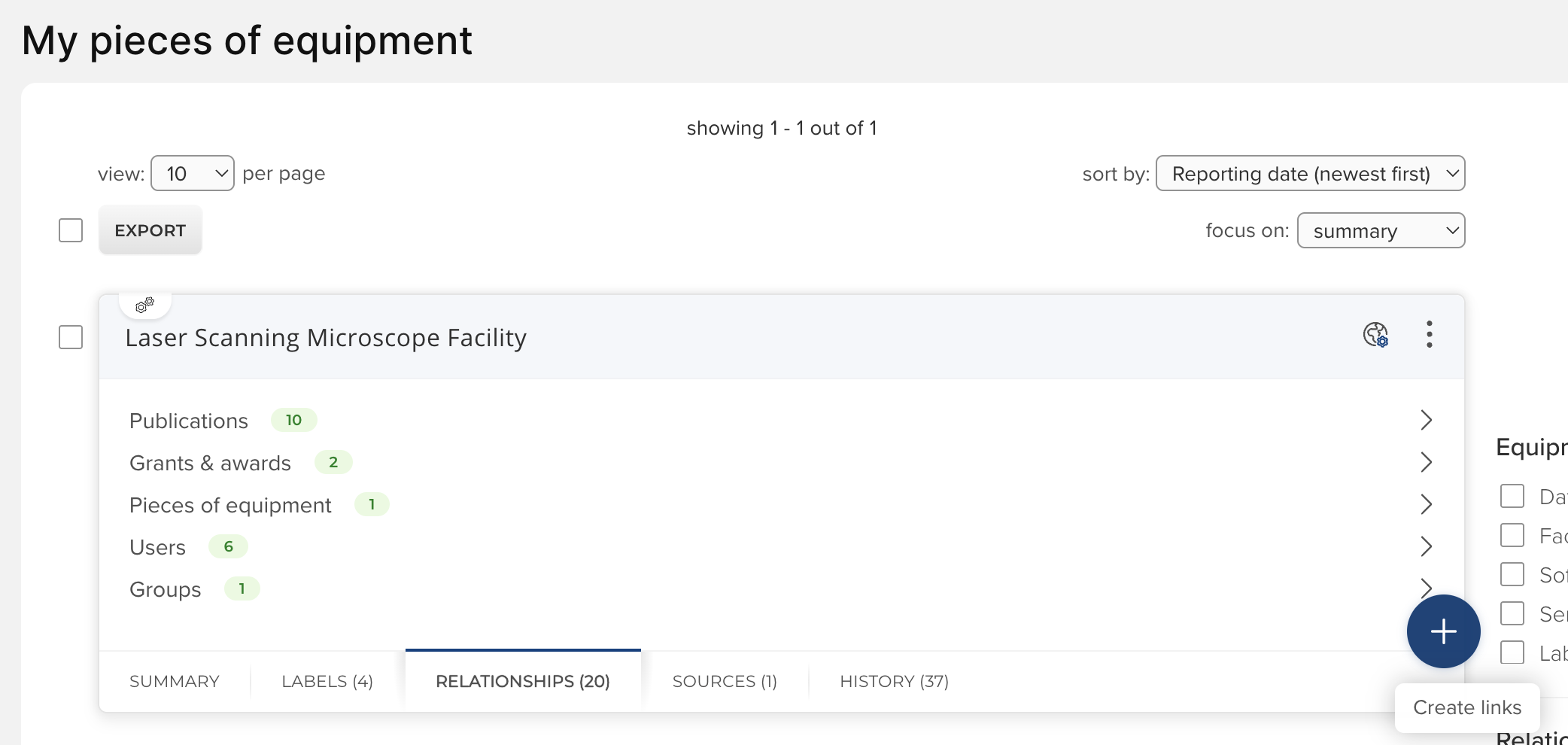
This will take you to the Create links page where you can select an object type and add links.