Categories, Types and Underlying Fields
Elements stores data in objects. Each object in the Elements database represents an object or activity in the real world. Elements uses Categories and Types to organise these objects into useful groups, and Underlying Fields to create a model for describing each group. This article explains what these are and how you can manage them within Elements.
Categories
Every object stored in Elements is assigned to a category. The available categories are:
Publications
Grants
Professional Activities
Teaching Activities
Projects
Equipment
Annotations (Annotations are a special object category that can be added to Publications, Grants, Projects (from v6.18), Professional Activities and Teaching Activities).
The modules in your system may have different names. For example, "Publications" could have been renamed "Scholarly Works."
Each object's category is fixed. For example, a Publication object cannot be be re-assigned to the Grants category. Each category is managed by a module in Elements. System Administrators will see these modules under the Category Admin navigation tab alongside other modules which are used to manage the various features of Elements.
Note: Exactly which modules you will see under Category Admin depends on what version of Elements you are using and your institution's licence.
Other users will only see the Category Admin tab if they have been assigned a Category Admin role, and their options will be limited compared to System Administrators.
Types
Each category contains multiple types of object. Navigate to Category Admin > Publications > Publication Types to see the list of available types for the Publications category. Each publication stored in Elements is assigned one of these types. The other categories each have similar pages within their respective modules.
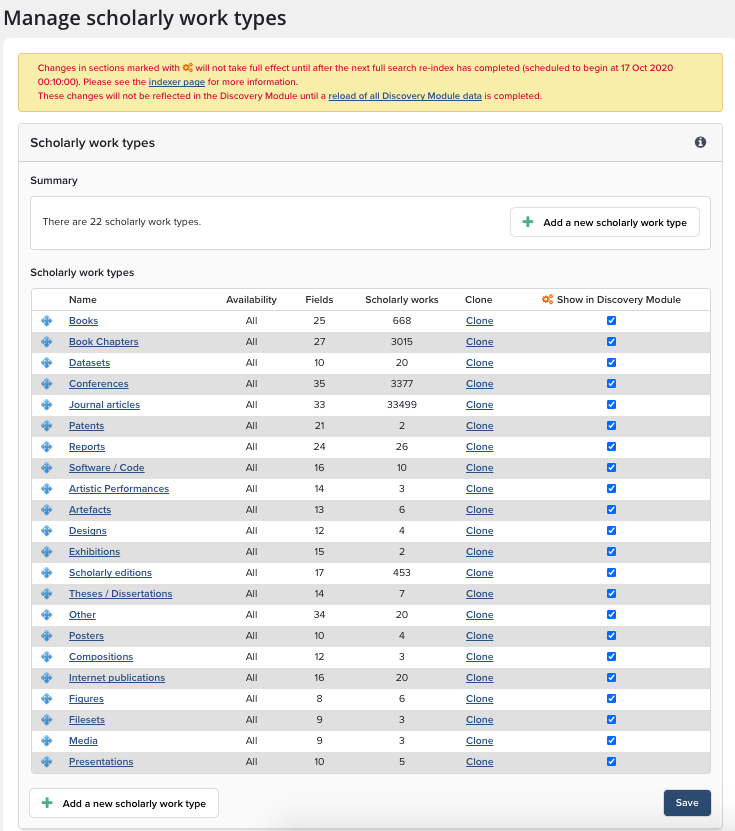
Managing Types
Note: the settings below apply to your whole organisation. They cannot be changed for individual Primary Groups and do not appear in the ‘module settings’ section of these group.
A fresh installation of Elements includes by default:
23 publication types.
20 grant types (1 available to users by default).
20 professional activity types.
7 teaching activity types.
1 project type.
4 equipment types.
1 annotation type.
If these default types do not cover all your needs, you can create new custom types within a category. To do this either:
click on 'Add a new publication type' to define a new type from scratch; or
clone an existing type to use it as a template for a new type.
On this page you can also:
change the order of types by dragging them to a new position. (e.g. to prioritise the more common types for your end users).
delete custom types (default types are not deletable).
To edit a type in more detail, click on its name. This will take you to a page where you can make several changes, including:
changing the display name of the type (e.g. to match a name more commonly used in your institution).
editing underlying fields for the type.
adding guidance text to help users add and edit records.
Detailed information about each category is available in the following articles:
Underlying Fields
Each category has a set of underlying fields. These are the data fields that are stored for all objects in that category (regardless of their type).
For example, by default, the Publications category has 49 underlying fields. Some of these fields, such as 'title', 'authors' and 'abstract', are used by all types within the category. Others, such as 'acceptance-date', 'edition' and 'name-of-conference', are not relevant to all types and so their use is restricted to types where where they make sense.
Note: if an object's type is changed, data stored in fields which are not used by the new type will be inaccessible via the Elements user interface. The data will not be deleted however, and will become accessible again if the type is changed back.
Navigate to Category Admin > Publications > Underlying Fields to see the list of underlying fields for the Publications category. The other categories each have similar pages within their respective modules.
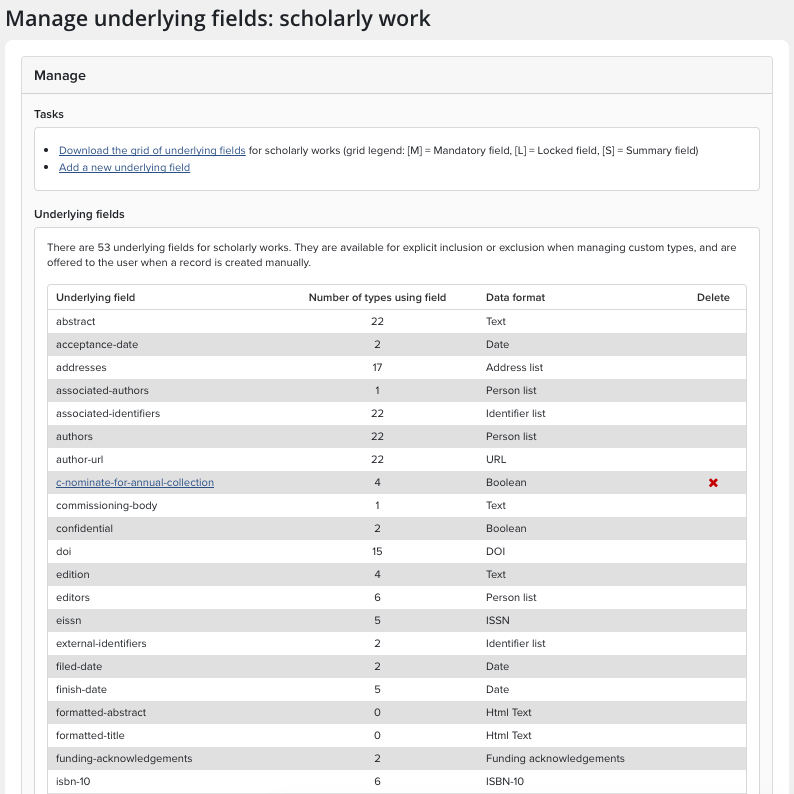
You can also create and delete custom underlying fields from this page (default underlying fields cannot be deleted). Using the link at the top of the page, you can also download a CSV-format grid of the underlying fields which details their names, data formats and usage for each type within the category.
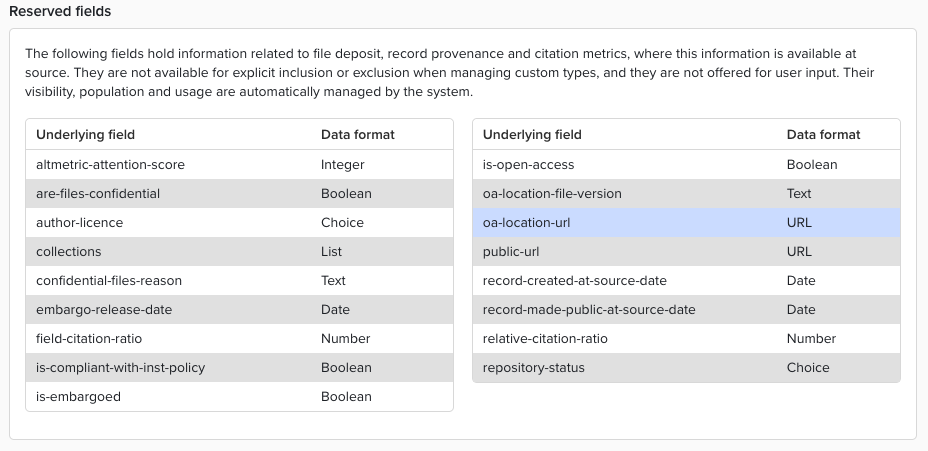
Reserved Fields
Publications and Grants have Reserved Fields, which are fields automatically managed by the system that hold information related to file deposit, record provenance and citation metrics. They are not available for explicit inclusion or exclusion when managing custom types and are not offered for user input.