
Manage Module Access
The Manage Module Access menu allows System Administrators to Groups or Users access to the different Elements modules. Each module either allows users to interact with a particular category of objects in Elements (e.g. Publications, Grants, Records of Impact) or allows to use a particular functionality (e.g. Repository Tools, which allows users to deposit via Elements to an institutional repository).
Allowing module access
Begin by navigating to System admin > Data category setting > Manage module access. Then, select the module(s) you want to administer.
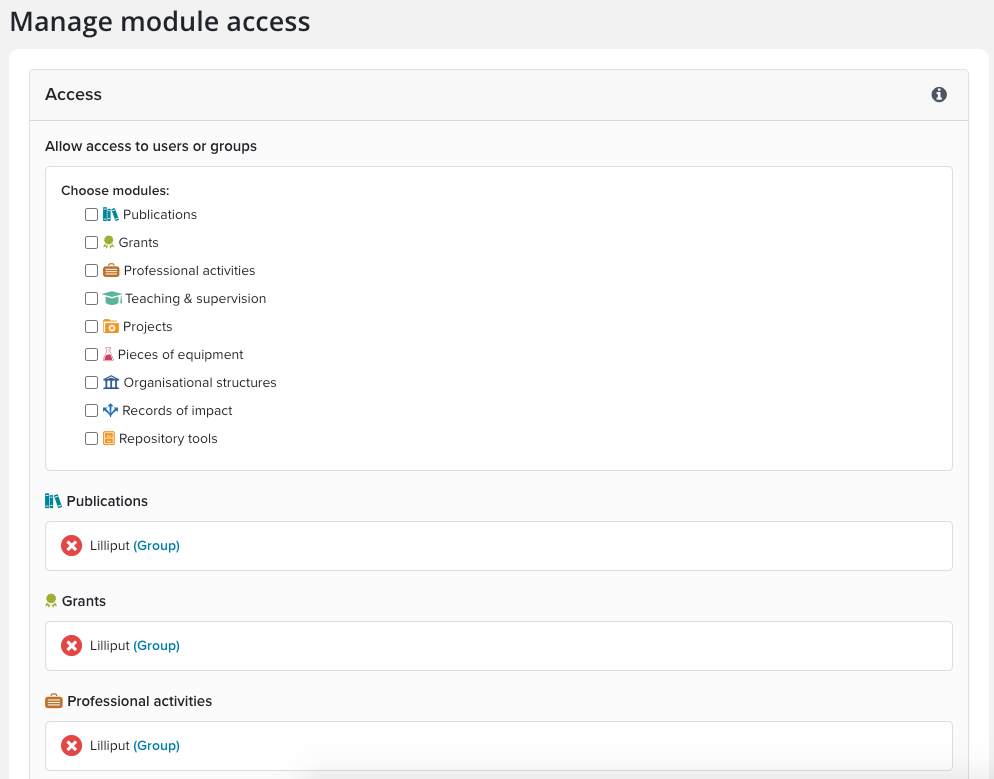
When you make a selection, you'll be presented with the Groups menu, and a search box for individual users.
Adding groups
Expand the Group tree and check the group(s) whose members should have access.
When you've selected the correct group(s), click the Add groups(s)button.
Adding individual users
You can also allow module access to an individual user. This can be useful if, for example, a particular user needs to administrate, test or demo a module.
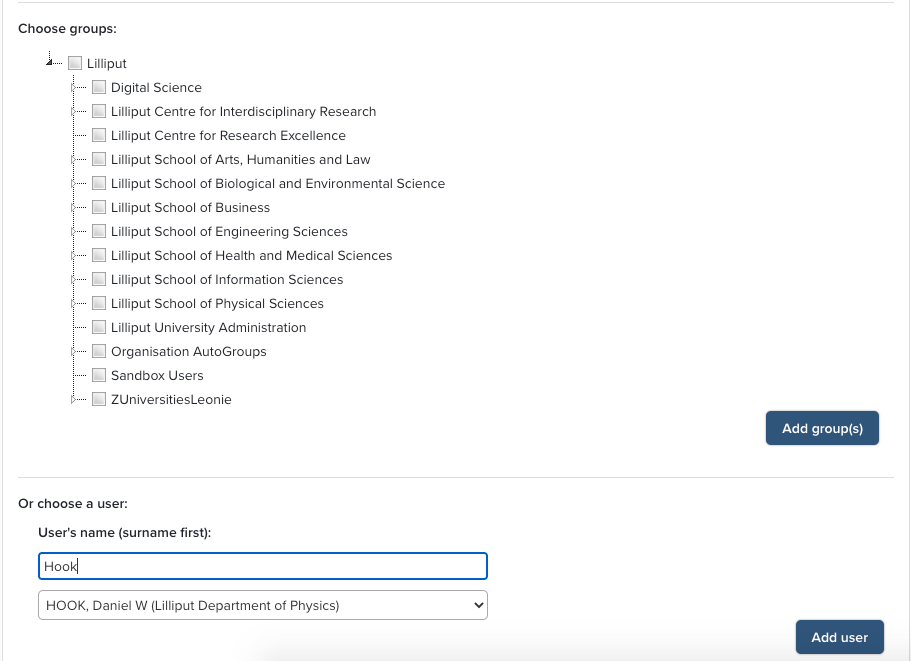
Start by typing the user's name, surname first, into the search box. As you type, suggestions will appear in the dropdown list below the search box. Select the correct user and click the Add user button.
Removing module access
The lower part of the page shows, for each module, the groups and users that are currently allowed to access it. To remove one of these access permission, simply click the red cross next to it.