
Assessment Module Administration - Creating an Exercise (v6.8 and earlier)
Note: In Elements v6.9+ the user interface for assessment users and reviewers changed significantly. In addition, a number of changes were made to configuration options. For more information please see this support article.
This guide will assist you in creating an Assessment Exercise definition. Licensing, Module Access and Role assignment will determine who can interact with an Assessment Exercise. Configuration options will determine the objects available for selection and if reviewing is enabled. You can also store additional information in an Assessment Exercise by configuring supporting information fields. The Assessment module can be used to support periodic institutional assessments such as the PBRF (NZ), REF (UK) and any other internal review exercises.
Glossary of Terms
Assessment Exercise is made up of lists and supplementary information, like summaries or description fields. Examples of names of Assessment Exercises include as REF, PBRF, Research Quality Review or others defined by your institution.
Lists are collections of items that you select, create, edit, order and manage. Example names of lists includes Research Outputs, Creative Outputs, NROs, and/or Narratives.
Items can be selected from Elements objects like individual Publications, Professional Activities, Teaching Activities, Impact and Grants. Items can also be created within the Exercise. These items not in Elements might be private and confidential and only exist in an Assessment Exercise. Items can be ordered and supplemented with additional information.
Supporting Fields are objects not sourced from Elements, but created within an Assessment.
Status indicates the stage of the Assessment Exercise.
Roles available are:
Users - Added under the Users tab of the Exercise definition
Reviewers - Added under the Stages tab of the Exercise definition
Assessment Managers - Added under the Managers tab of the Exercise definition
Assessment Administrators - Added under System Admin>User Management>Manage System Roles
For more information about Assessment Roles, see Introduction to the Assessment Module.
Guidance on Best Practice
Design principles - Consider engaging a usability expert. Users will not enjoy navigating through long pages of lists, so consolidate where possible and provide help and guidance text.
Supporting fields - It can be very useful to create pre-populated data options rather than asking users to enter freeform text.
Flexibility - Consider audience groups so your exercise meets a variety of needs.
Exercise Type - Choose the type that matches your requirements. If you're not sure about the type, please feel free to submit a support ticket to ask for advice.
Templates - Experiment with a template version and modify to get a feel for the process.
Licence
To see if you are licenced for the module go to System Admin>Setup>Licence. Assessment is listed in the 'Other' section. If it is greyed out, then you are not licenced. Depending on your subscription, the Assessment module may be subject to a separate licence key. Please raise a support request if you have questions.
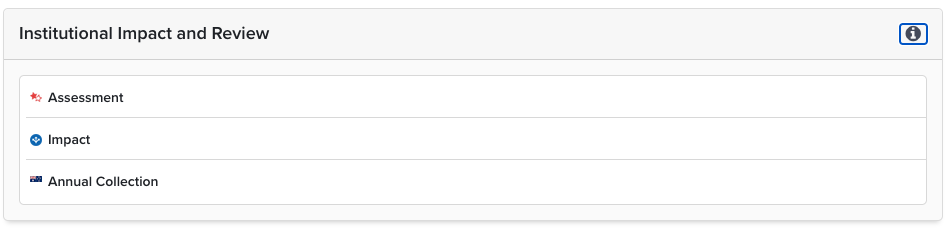
Assessment Exercise Configuration
Important: The module can be used to collect personal information about users. Misconfiguration can therefore cause inappropriate sharing of user data and/or review data. It is important the appropriate care is taken when configuring an Exercise. Testing of the Exercise process should be carried out before making the Exercise 'live' for users. Relevant individuals (e.g. Managers, Administrators), should receive appropriate training to ensure they have the necessary understanding to manage data privacy.
Select "Exercise Definitions" from the Assessment > Configure Assessments > Exercise Definitions menu. An Assessment Exercise is made up of several components arranged into tabs at the top of the page:
Exercise - Where the exercise is defined (including the Type) and the instructions for users are created.
Exercise Type - Options available for an Exercise are: Assessment, Review Process, Document, Survey, Acknowledgement Request. If you are unsure of what type to use, contact us with a support request.
Lists - This section allows the Assessment Administrator to determine what the author must select to complete their assessment exercise. For example, certain types of Publications, Grants in a particular date range, Evidence of Impact, or Service Activities may be included.
Supporting fields - Fields such as text boxes or pick list can be configured here.
Scoresets - Custom scoresets can be added here. There are also templates for the REF 5-point scale, the REF 13-point scale, and an Annual Review 5-point scale.
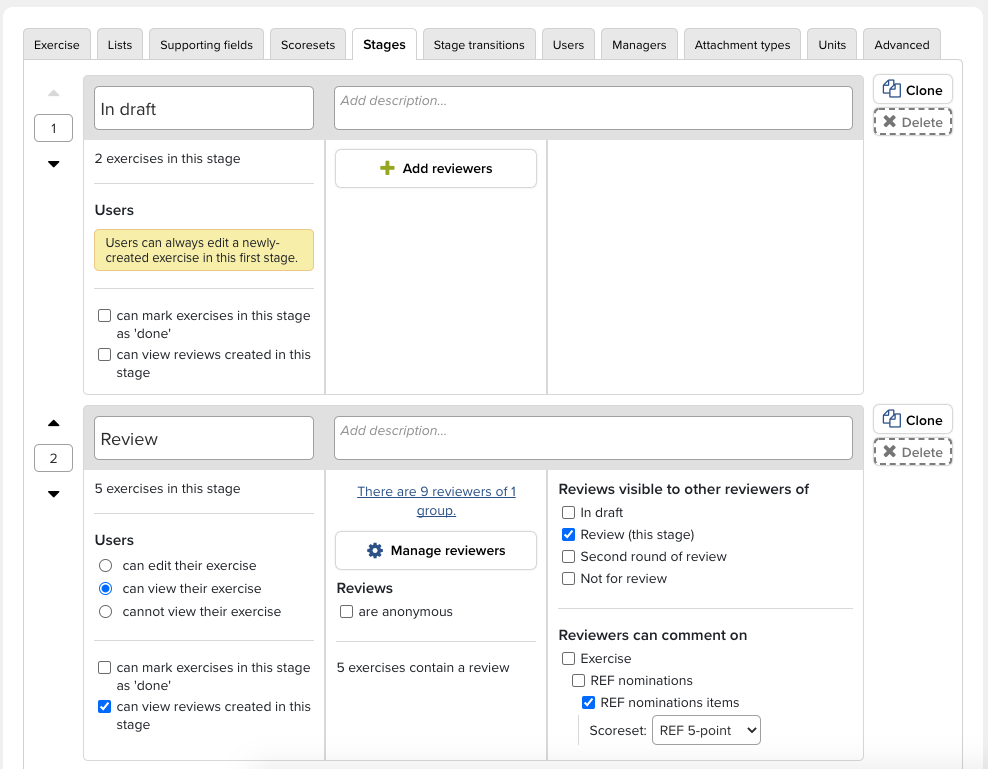
Stages - Included in this section are the ability to define how many stages an exercise includes, as well as who can view, edit, or mark an exercise as 'done.' Additionally, Reviewers are assigned here, as well as what stages reviewers can view or upon which they may comment.
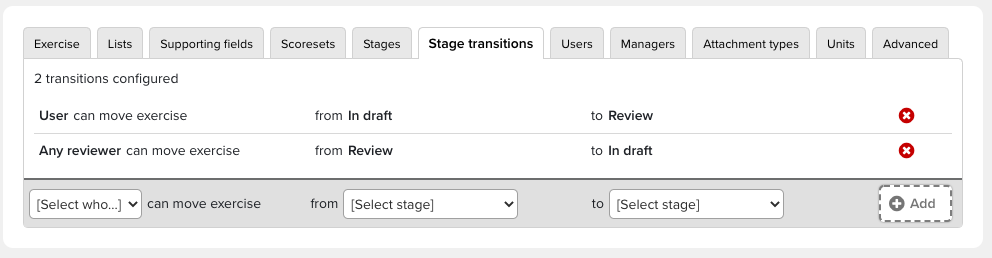
Stage transitions - The ability to move exercises is defined in this section.
Users - The groups and individuals who must complete the exercise are defined here.
Managers - The groups and individuals who can manage an assessment exercise are defined here.
Attachment types - Attachment types (documents and other types of evidence) are defined here.
Units - Units (specifically, UK REF Units of Assessment) are defined and managed here.
Advanced - Under the Advanced tab, specific warning types can be disabled in order to control which prompts will be shown to researchers, reviewers and managers.
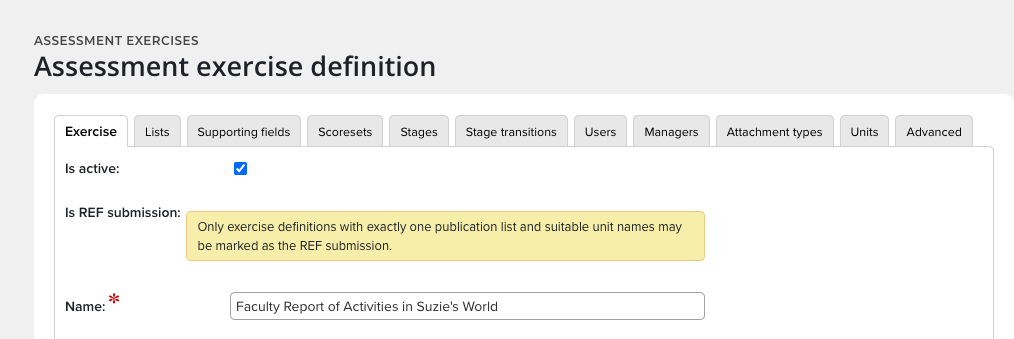
Manage an Exercise - Create or Edit
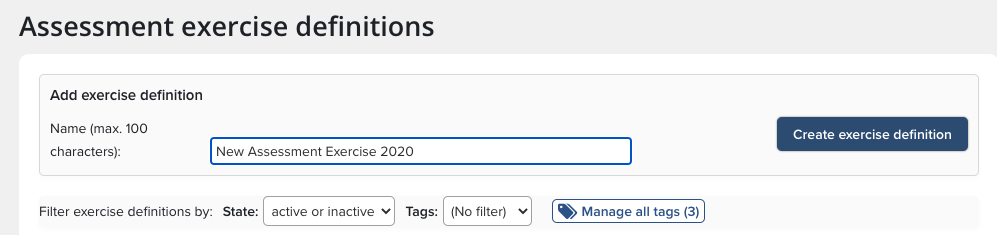
Only a System Administrator can create a new Assessment Exercise. To add a new exercise, begin by clicking on"Exercise definitions" link. In the text box, enter the name of the new exercise and then click the "Create exercise definition" button.
You can also create an Assessment Exercise from a template. The template pre-populates the eligibility, lists and supporting information of the Assessment.

On the Assessment exercise definition screen, you have the following configuration options:
Name: Edit or update the name of the exercise here.
Type: Define the type of exercise here. Options include: Assessment, Review Process, Document, Survey, and Acknowledgement Request. The choice made here will control how this exercise is described to both researcher users and reviewer in several places within the end user view of this Assessment module exercise. Different choices do not significantly impact the layout or options available in the exercise, but only the wording in some descriptions.
Allow researcher impersonation: If this box is unchecked, then it will not be possible to view the exercise by virtue of impersonating its owner.
Review overview page shows researcher information: If checked, the reviewer will see a summary of the researcher on the review overview page, including their position and academic appointments.
Overview text: Describes what this exercise is for. This text will be displayed to both users and reviewers when they first start working on the exercise. It may include rich text formatting, images, URLs to external sites and so on.
Guidance text for researcher: Describe how users are expected to complete the exercise. This text will appear each time users edit their response to the exercise. It may include details of criteria to be used for selection, guidance for entering information and so on.
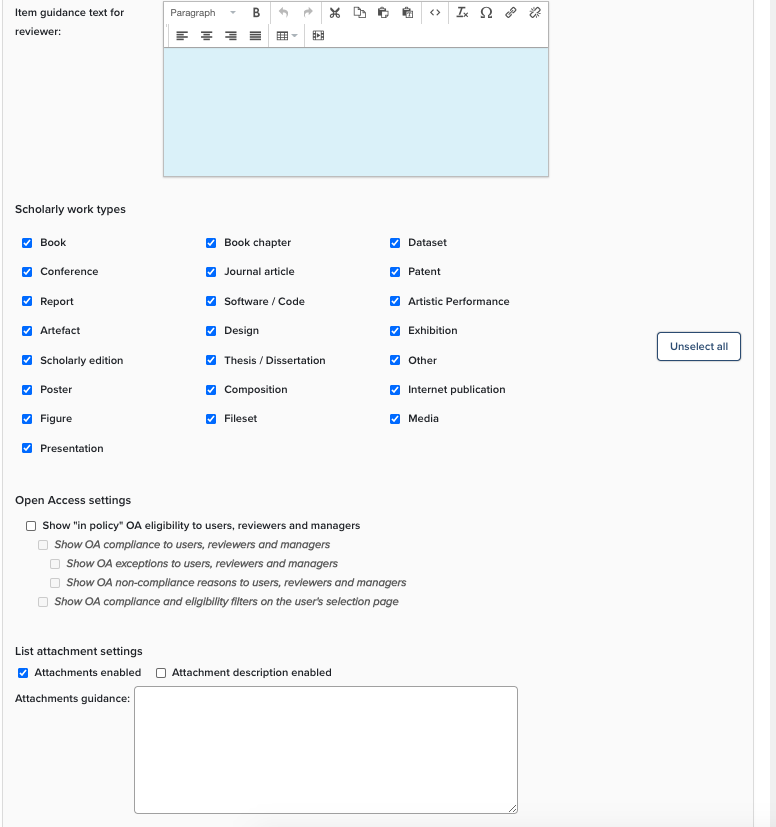
Guidance text for reviewer: Describe how reviewers are expected to review the exercise. This text will appear to reviewers, but not to the users responding to the exercise. It may include details of criteria to be used for review, guidance from institutional sources and so on.
Attachments enabled: If checked, attachments can be attached to an exercise.
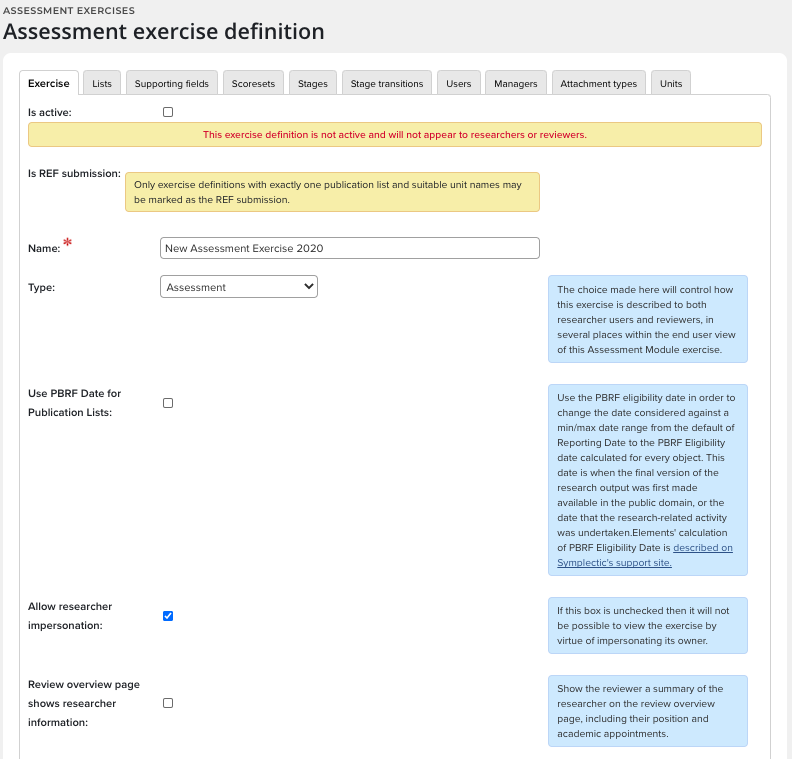
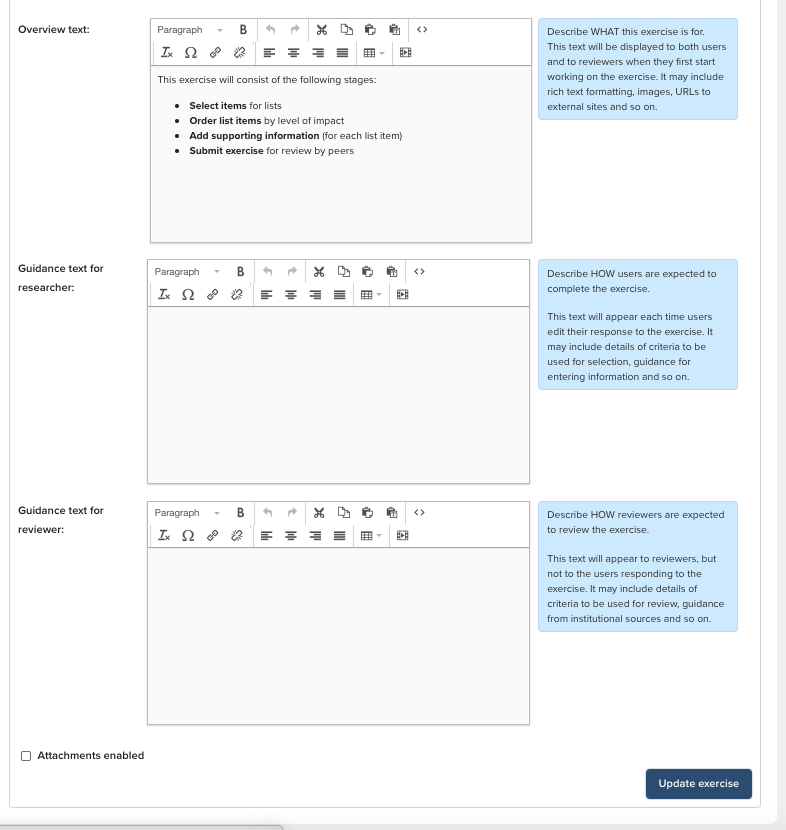
After making selections, save by clicking Update exercise and continue to the Lists tab.
Lists
This section allows you to determine what the user must select to complete their assessment exercise. For example, you might want them to select certain types of publications, or grants in a particular date range. Selections are grouped into lists of items. Each list can contain items of only one Elements category (e.g. publications, grants). You must create at least one list.
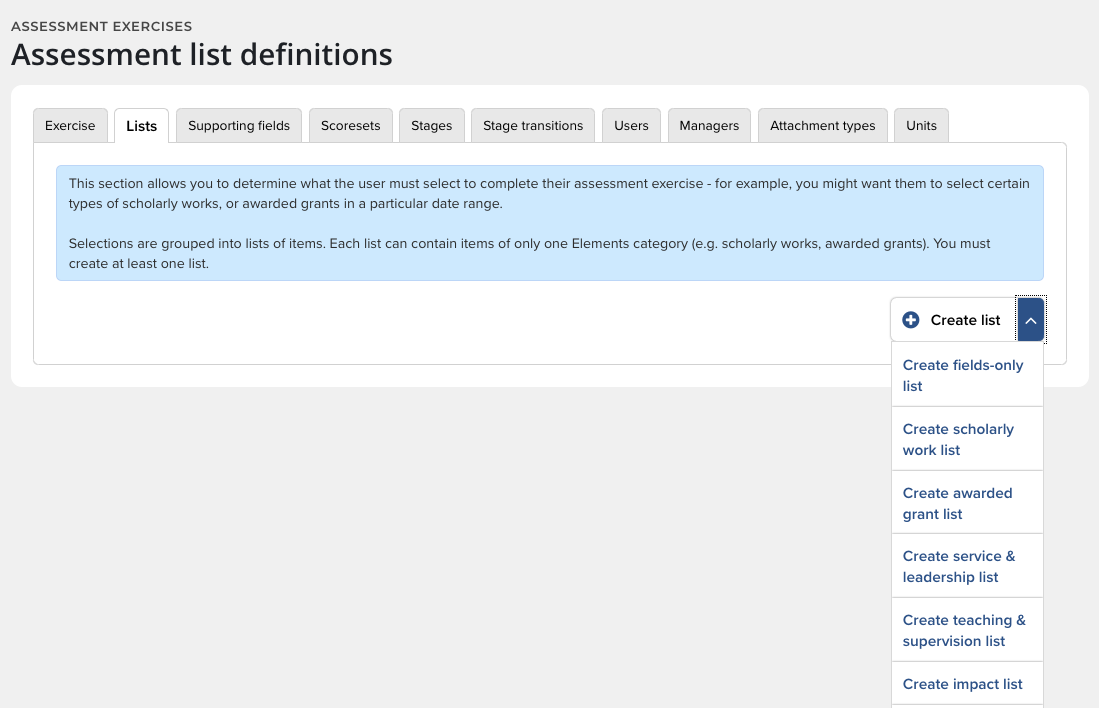
The available list options at the Assessment Exercise definition screen are:
Create fields-only list - this is made up of Supporting Fields and used to store data that is only entered in an Assessment Exercise.
Create publication list - this is made up of Publication items selected from the publications already entered into Elements.
Create grant list - this is made up of Grant items selected from the grants already entered into Elements.
Create professional activity list - this is made up of professional activity items selected from the professional activities already entered into Elements.
Create teaching activity list - this is made up of teaching activity items selected from the teaching activities already entered into Elements.
Create impact list - this is made up of impact items selected from the impacts already entered into Elements.
Create no-item list - this is made up of Supporting Fields and are used to store data that is only entered in an Assessment.
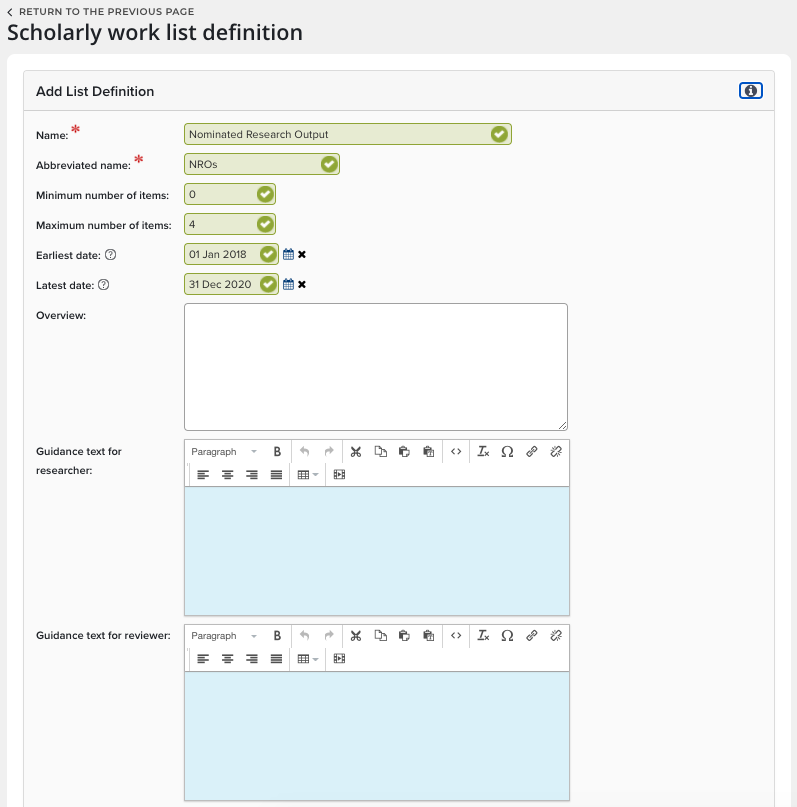
Add/Edit List Definition allows the configuration of a selection list from which the user will choose items to complete their assessment exercise. For example, the Assessment Manager may want User to select certain types of publications or grants in a particular date range. Use the menu to specify the minimum and maximum number of items the user can select, as well as the date range of the items and their type. Note: a list can contain items of only one Elements category (e.g. publications, grants).
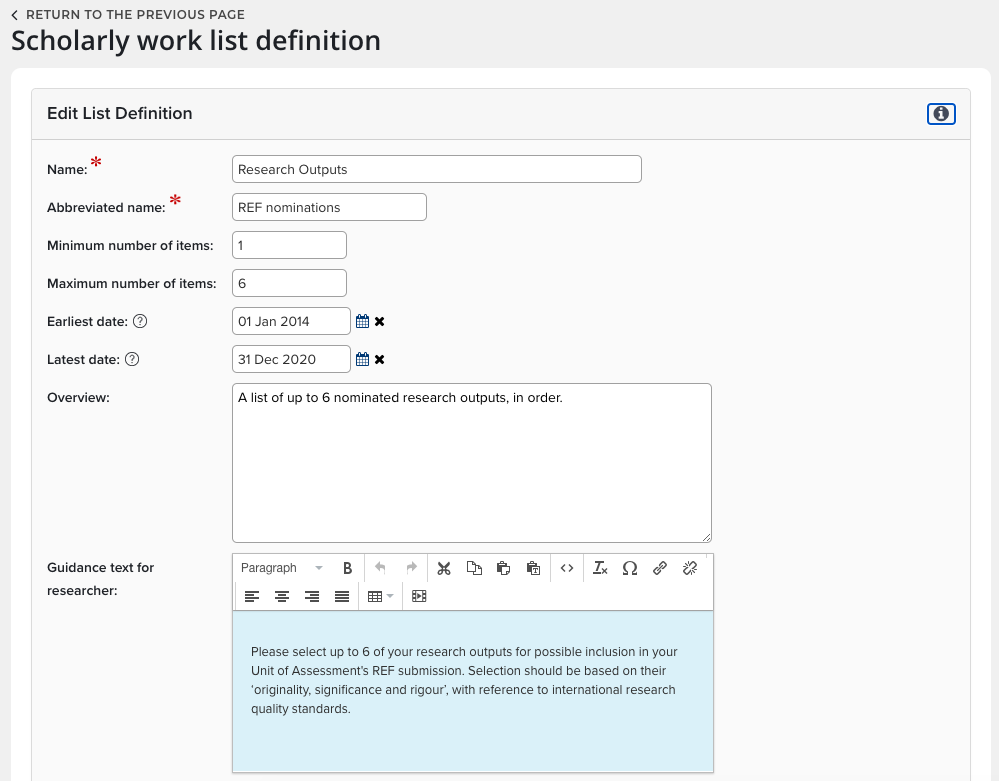
Publication Types: this section allows you to choose which types are made available for this selection
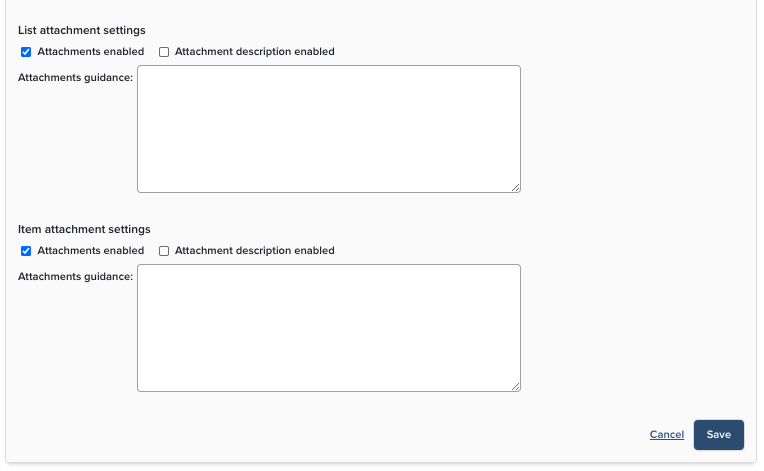
List settings: This section allows you to enable ratings and reviews for this list and determine the associated privacy settings. You can also enable attachments that can be added for a list and enable the file types defined in the exercise definition
Item settings: This section allows you to enable ratings and reviews for each item in a list and determine the associated privacy settings. You can also enable attachments that can be added for an item and enable the file types defined in the exercise definition.
When you have completed the list configuration save or update the settings by clicking Save or Update list.
Supporting Fields
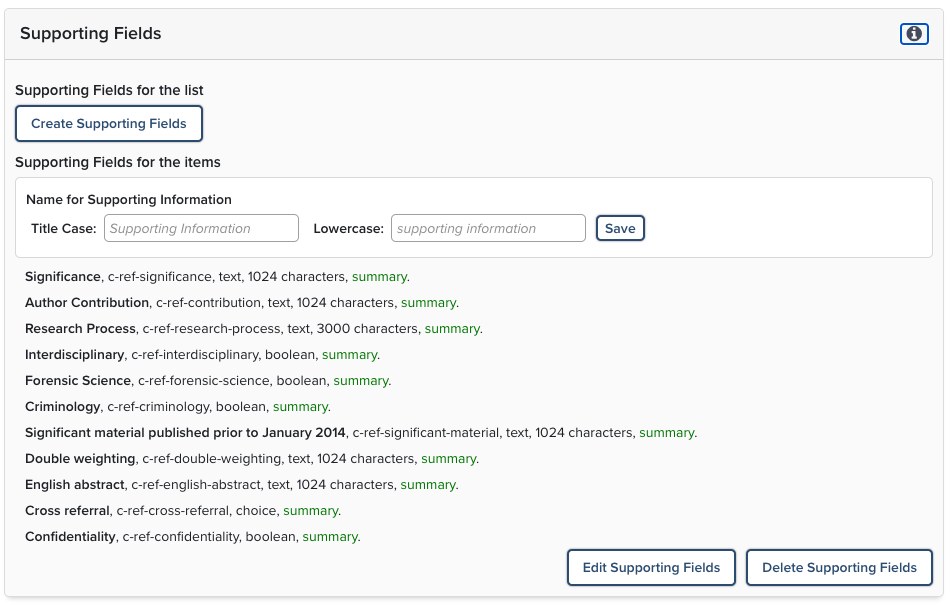
Supporting Fields can be created for an exercise, a list or an item. Examples of some are listed below:
Exercise Supporting Fields: Options include the overall summary that a researcher might complete for their exercise, an overview about recent research interests, Annual Planning goals, a Research code/category for the researcher, or a government prescribe exception category or circumstance.
List Supporting Fields: Options include an overall summary of a collection of items in a list, a description of the order of items in a list, a commentary about why the list items were selected or some general comments for a reviewer about how items relate to each other.
Item Supporting Fields: Options include a statement justification, a co-authoring contribution description, a description about the significance of the work, a code to describe the item, or a subject category.
You can add fields to store content for an Exercise or a List. Deleting the supporting fields removes every field, so use with caution.
To create a Supporting field, click the "Create Supporting Fields" button at the bottom of the List page.
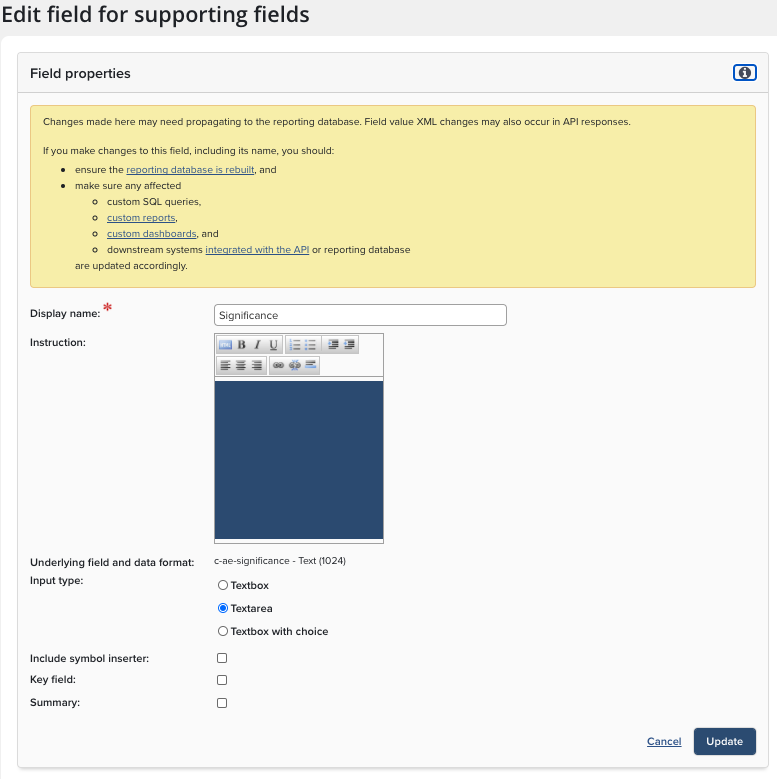
At the "Field properties" page, fill in the details for the new Supporting Field. While you cannot use an underlying field more than once in a given location, an underlying field with a generic name can be reused for other supporting fields at different locations within an exercise.
Display Name: Create a unique descriptive name, you can alter the name of the supporting fields populating from the template to suit your institution
Instructions: this guides your Researchers on how to use this field
Underlying field and data format: pick from the existing Underlying Fields - if you need to create a new field seen the section on Creating New Underlying Fields
Input Type: indicates if there are choices for the field format
Symbol inserter: for text formats you can use the Symbol Inserter to create encoded text
Key Field: you can define a key field, that will be used to flag that information has not been entered
Summary: you can choose if the information in the supporting fields should be used on the summary display
Underlying fields
Underlying fields are used throughout the Assessment Module; our advice is to set them up for all the Supporting Fields prior to configuring your exercise. Select "Update" to save changes. Note the caution about making changes to field properties.
The following options are available when creating underlying fields:
Name: can only consist of lowercase letters, numbers and hyphens(-); must begin with a letter; and must end with a letter or number. All your created underlying field names will be automatically prefixed with c- to distinguish them from system underlying field names
Data formats:
Text (allows you to specify the Length of the text field)
Date
Choice (a set number of choices to be filled with inputs such as radio button lists or drop-down menus)
Integer (a number, restricted to whole numbers)
Boolean (true/false)
Number (a number, without the integer restriction)
List (a set of separate pieces of data, such as keywords, which users will add one by one)
URL
DOI
Money
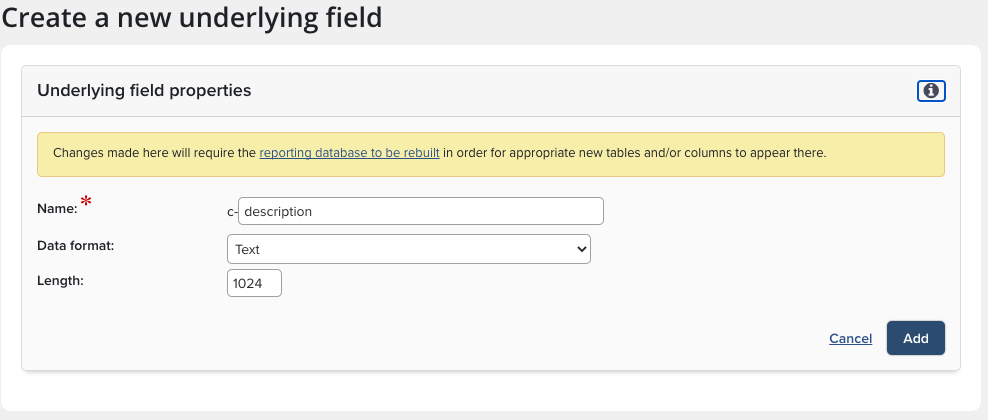
Manage the underlying fields in the Assessment Module:
Fields: select a new field based on an unassigned underlying field type. Each underlying field can be used exactly once on a type, so if you've used all the underlying fields then you'll have to define another one or delete an existing type field. reorder with the blue cross or delete fields using the checkbox
New field: pick from the available underlying fields
New underlying fields: define fields for use in the exercise, list or item
Manage underlying fields: displays all the fields in the exercise
Don't forget to use the Update button to save any changes before navigating away from this page.
Scoresets
Many internal and external assessments include a review and scoring process. Community consultation demonstrated that there can be significant differences in approaches to scoring for internal processes such as Activity Reviews in comparison to external Governmental or Accreditation processes, or even inter-departmental reviews in some cases.
Assessment exercise administrators can configure a number of optional scoresets to complement the existing reviewer comment functionality. A scoreset is a collection of ordered choices for reviewers to choose from.
Each option includes a:
Short name - shown to reviewers in a dropdown (max 20 characters)
Description - intended to convey scoring instructions and displayed to reviewers via a ‘?’ prompt
Numerical value - to allow for calculations to take place for reporting at individual, group or institution levels.
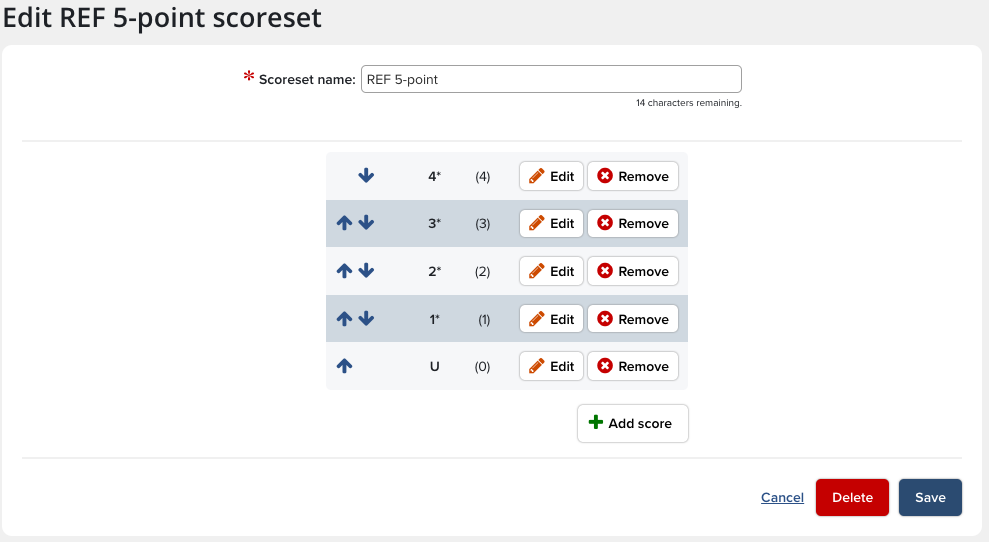
Creating a scoreset
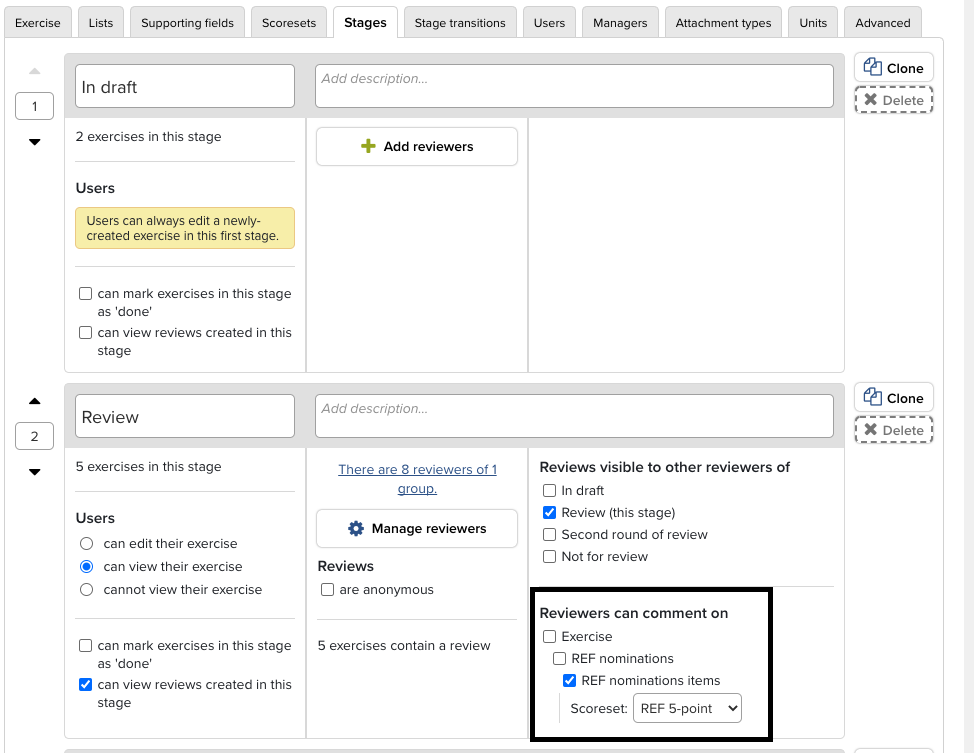
Scoresets can be used at exercise, list and/or item levels in any of the configured review stages.
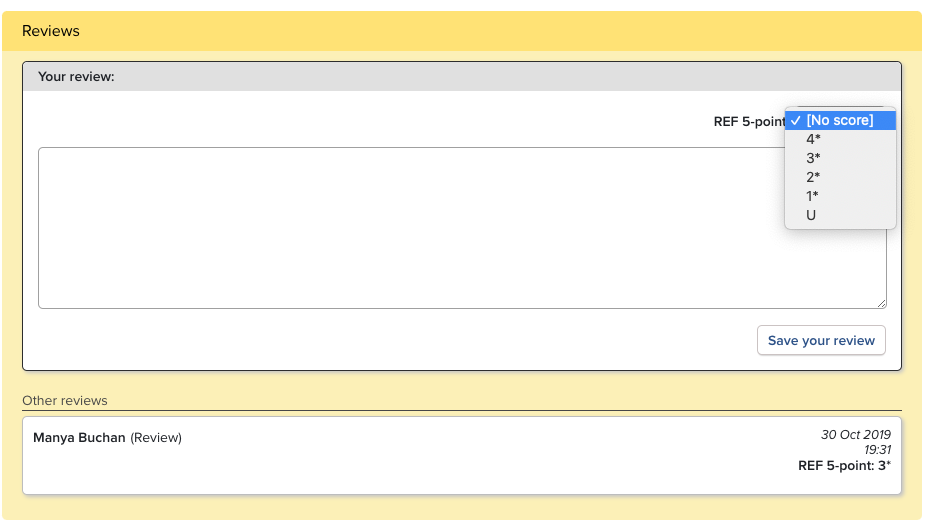
Reviewers select a score in the Supporting Information section of their review.
All score data is available in the Reporting Database for use in reports. The reports can be exported from within the Assessment module, with the numerical values providing the capability to compare progress and scores across departments.
Stages
Under the Stages tab, the Assessment Administrator can define how many stages each exercise will have, as well as how Users can interact with each stage. Additionally, this is where Reviewers are assigned to each stage and their options are defined. N.B. Only Reviewers can see Reviews. Even a System Admin impersonating a Reviewer cannot view Reviews.
Stage Transitions
Using the Stage Transitions tab, the Assessment Manager can define which Roles (User, Reviewer) can move an Assessment Exercise from stage to stage and in which direction (next stage/previous stage).
For example, the Assessment Manager may want to give Reviewers the ability to move an Exercise forward (from Stage 1 to Stage 2) and backward (from Stage 2 to Stage 1), but only give the User the ability to move an Exercise forward.
Users and Managers tabs
These two tabs are used to assign Users and Assessment Managers, either for individuals or in Groups. There is also a tool that will allow you to manage assignments in bulk by uploading a CSV file identifying people by user ID, username and/or proprietary ID. See the instructional text under the tabs for more details.
Attachment Types
Use this tab to define the type of attachments that are permitted for the exercise, after which they can be enabled in the exercise definition.
The default size limit for attachments is 5MB, but this can be increased or decreased. In the web.config file there are two entries as follows:
 <add key="max-streamed-file-upload-size" value="5242880" />
 <add key="max-unstreamed-file-upload-size" value="5242880" />
If you change the 524880 bytes to a different number, then that that will change the size limit (including changing the error message users see if they exceed it). Warning: changing any value in the web.config will log out all users.
Units
Units make it possible for institutions to consolidate cross-institutional assessment activities into a single exercise definition which can then be subdivided into units so that administrators can allocate users, assign managers and apply some custom configurations at the unit-level. In addition to supporting institutions with preparing for REF2021, this functionality assists institutions with multi-department faculty activity reporting to manage these assessments in more synthesised ways.
In effect, breaking an exercise definition into units allows institutions to group together collections of users in order to allow management and reporting of their responses. Each user can be allocated to only one unit, and can be moved between units without loss of selections or supporting information. Administrators can allocate users to their unit manually via the UI or can bulk-allocate the users in an exercise definition to the appropriate unit, using an Excel/CSV upload.
Managers can also be assigned at the unit level, granting those managers permissions only over the users allocated to their unit(s) rather than over the exercise definition as a whole. When setting up an exercise definition which will be subdivided into units it is recommended that the standard exercise definition includes each supporting field that anyone in any of the units will be asked to complete. This forms the default configuration which can then be overridden for each unit. For each of the different units in an exercise definition administrators can selectively hide supporting fields on each unit, modify the in-place guidance about each supporting field, and change the settings for attachments. Administrators can also override the guidance for researchers and reviewers to allow them to ensure each unit has clear instructions about the exercise they are being asked to complete.
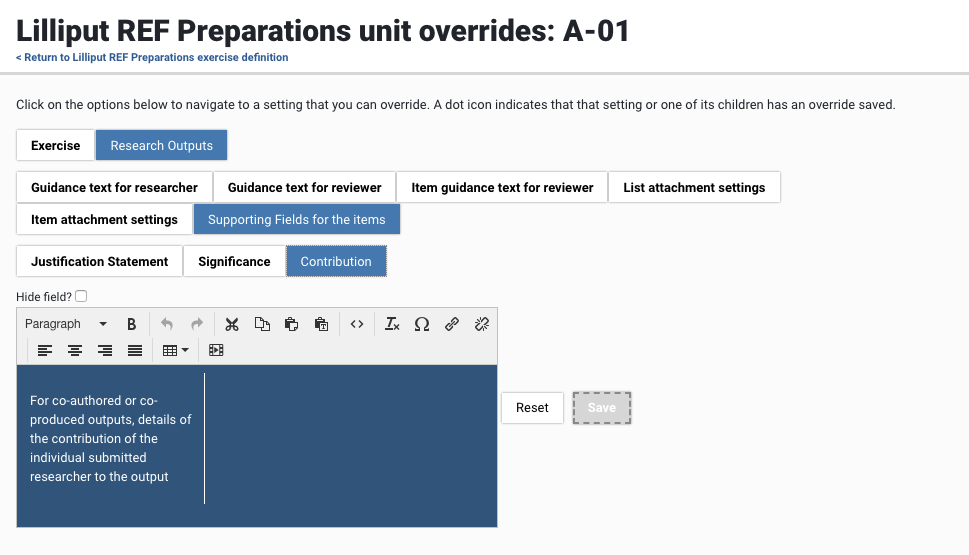
Image: Overriding the guidance text for the ‘Contribution’ supporting information field for a unit.
Once units are configured, administrators can report on the exercise as a whole to produce reports which span all of the units within an exercise with just a few clicks. Each user’s allocated unit is included in the stock exercise-definition level exports for both the Exercise Definition Report and the REF Manager Publications Export.
We have introduced a units template to match the REF2021 Units of Assessment. This should make it easier for institutions who are already using a single exercise definition for current REF preparations to begin configurations at a unit level. This functionality is the first of several iterative releases in the run up to full support for the Outputs component of REF2021. Future releases will introduce an official template exercise definition, aligned to the REF2021 data submission requirements as they become known.
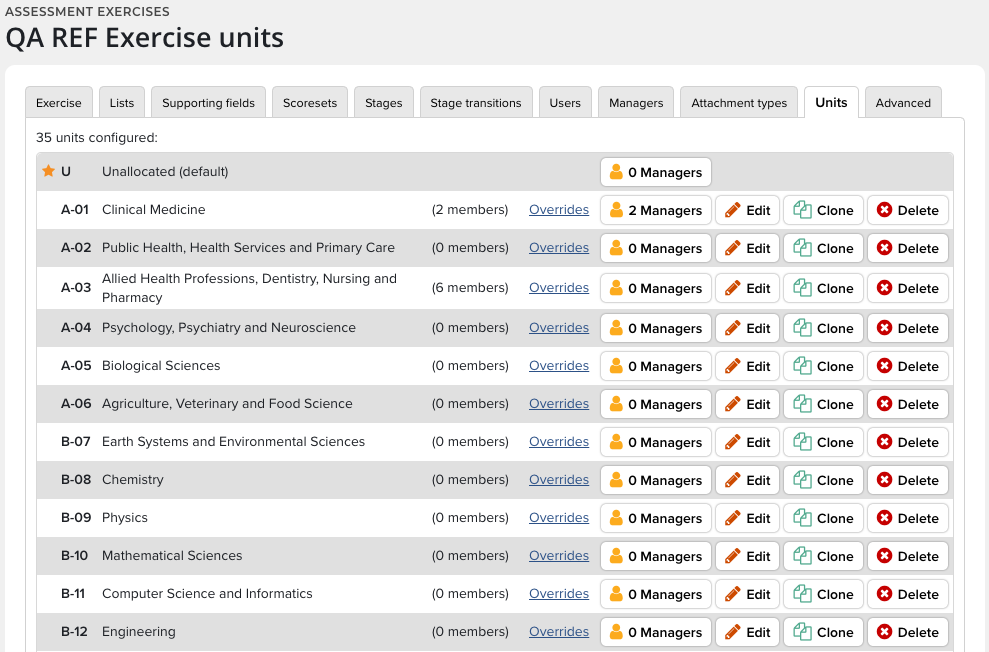
Image: Units created using the template for REF2021 preparations
Advanced
Under the Advanced tab, the Assessment Manager can disable specific warning types per list in order to control which prompts will be shown to researchers, reviewers and managers.

Archiving Exercise Definitions
You have the ability to archive inactive exercise definitions in order to retain the data, but remove them from day-to-day view for administrators of current exercise definitions. In addition, a filter is available on the Assessment Exercise definitions page, which defaults to show only active/inactive exercise definitions, and not archived exercises.