
How to review the User Sync Queues
The Elements Synchroniser is a service that ensures users' publications are up-to-date by performing regular searches against the online data sources licensed and configured in your system. All data sources are synchronised independently and the work is managed by a work queue into which:
Users are drip-fed when their profile becomes stale (every 14 days), their search settings change, or a system administrator places them in the queue.
Existing records are drip-fed for re-fetch when their data is considered stale (every 14 days).
Publications are drip-fed for supplementary search when their data changes, or becomes stale (every 35 days).
Results appear for processed user searches soon after the user search has been performed.
User Sync Queues
The synchronisation process can be monitored and managed from three perspectives:
All sources
Single source
Single user
All Sources
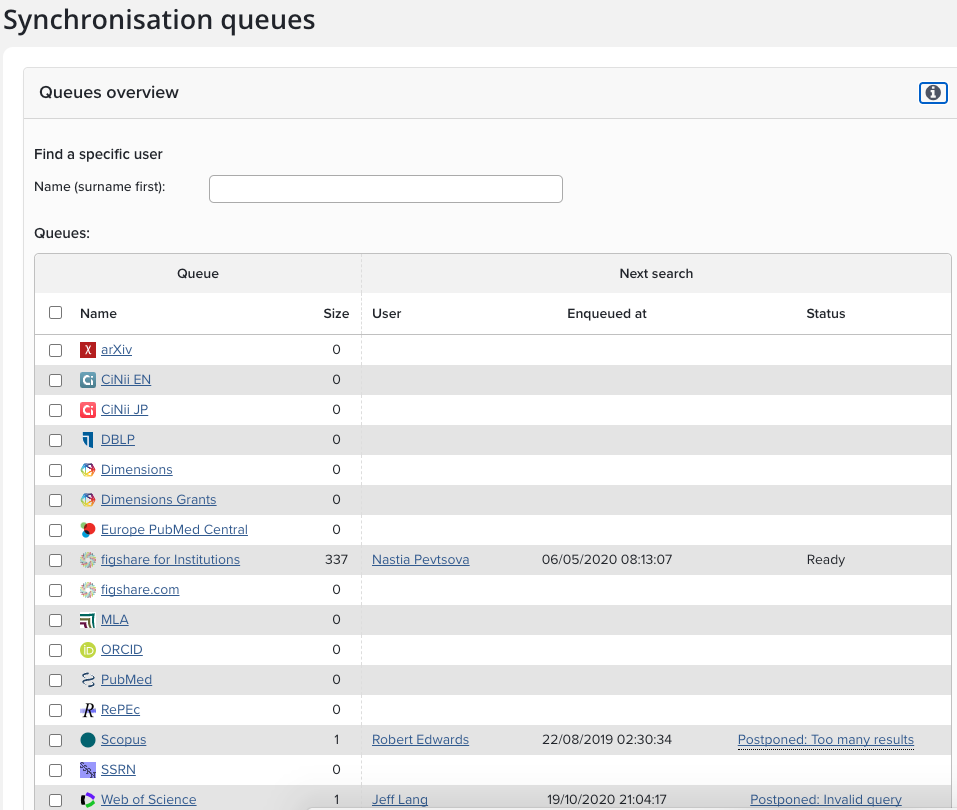
When you go to Menu > System admin > [DATA SOURCES] > User sync queues (V6.n System Admin > Data Sources > User Sync Queues) you will see the status of synchronisation across all the sources configured in your system. From left to right:
Name: name of the on-line data source
Size: number of users in the queue for the source
User: name of the user to be searched next
Enqueued at: time when the search was enqueued
Status: the status of the search
At this level searches can be filled/cleared by source.
Single Source
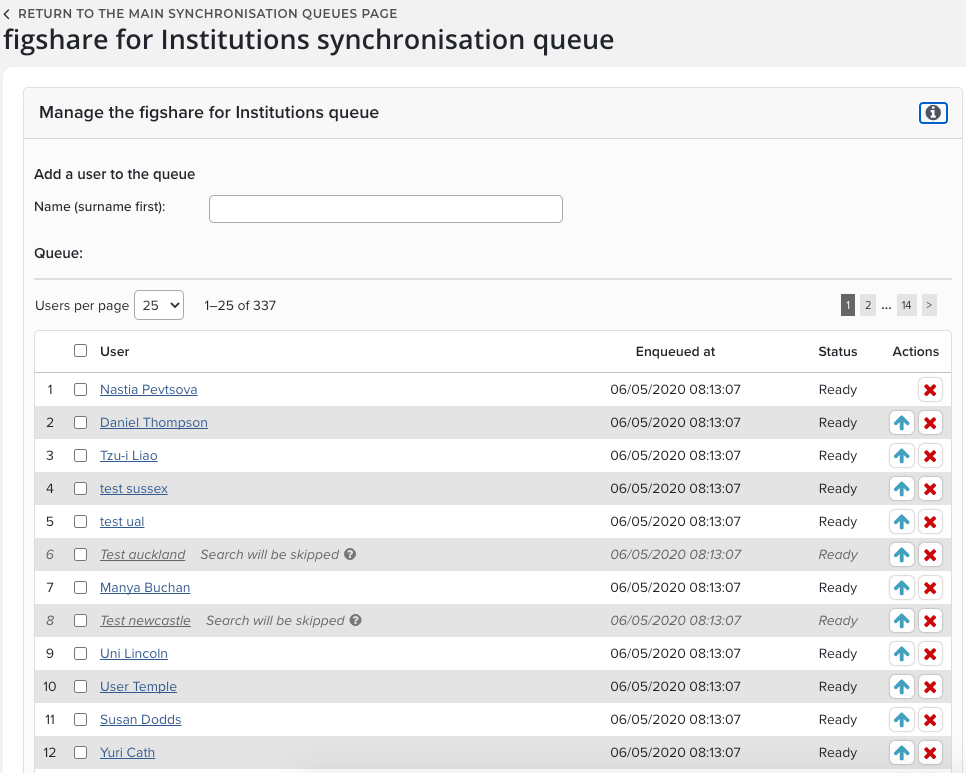
When you click on any source, you will be taken to the queue for this source.
From left to right:
User: name of the user to be searched next
Enqueued at: time when the search was enqueued
Status: the status of the search
Actions: ability to promote/remove user from in/from queue
At this level searches can be filled/cleared for the specific source.
Single User
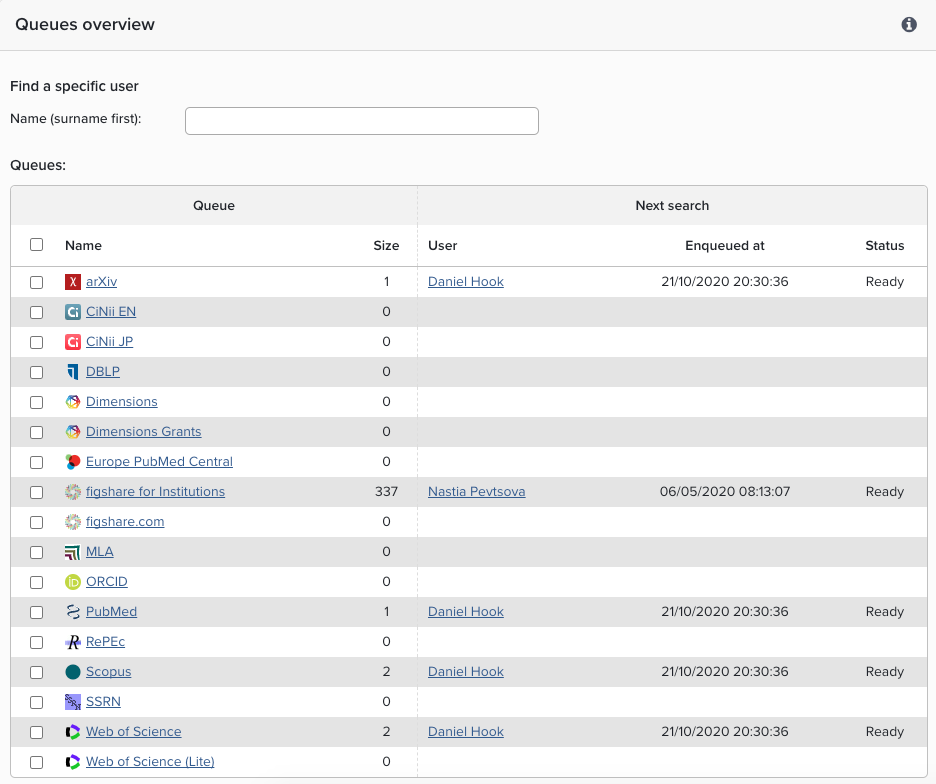
When you view a user's search queue, you will see the status of synchronisation for that individual across the sources configured in your system. From left to right:
Queue: name of the on-line data source/queue the user may be in
Position: the position of the user in a specific queue
Enqueued at: time when the search was enqueued
Status: the status of the search
Actions: ability to promote/remove user from in/from queue
At this level users searches can be promoted/enqueued/removed.
Troubleshooting the Elements Synchroniser
A user is not in the User Sync Queue or a Data source is not populated
The table below outlines criteria that must be met in order for synchronisation to take place
# | Rule |
|---|---|
1 | The data source must have a compatible API (that Elements can search) |
2 | The data source must be licensed |
3 | The data source must be activated in Elements |
4 | The data source must be enabled for the primary group |
5 | The data source must be enabled at user level |
6 | The Publication module must be licensed |
7 | The academic needs to be a user of the publication module |
8 | "Is current" is checked/true (on User) |
9 | "Login allowed" is checked/true (on User) |
Search Errors
The Elements Synchronizer performs searches against online data sources using search terms generated automatically for new users, or search terms modified since. Some users may enter search terms that are not compatible with one or more of the on-line publications sources, or may have terms set that retrieve more than the 2,000-result limit.
To help System Administrators, Group Administrators and Research Managers to identify and correct search terms that are causing problems, Elements keeps a log of all search errors, which you can access under Menu > System admin > [LOGS & MONITORING] > System log. (V6.n System Admin > Operations > System Log). Once search errors are known, Administrators and Research Managers can impersonate the users and correct their search terms.
For examples of problematic searches and how to correct them, please see Trouble-shooting Guide for Search Settings for help with search settings.