
Elements User Groups
User Groups: Role and Importance
Note: This article should probably be read after digesting the contents of HR Data Import.
Group structure in Elements can be made as simple or as complex as you would like. The system provides for the creation of a structured hierarchy (or tree) of groups, which can be of three different membership models: Primary, Auto and Manual. See the Managing User Groups article for more details.
Primary Groups
Chief amongst these membership models is the Primary Group, which plays a crucial role within Elements as it can be configured to determine how the system behaves for different users.
For example, the following can be customised by Primary Group:
The availability of certain data sources.
A new user’s default search profile (i.e. databases to search, address affiliations, etc).
What Journal Statistics are displayed in summary boxes.
The content of the help page (e.g. the local help contact).
The content and sender of the email generated by Elements to inform users that new publications have been discovered.
This customisability is the main purpose of the Primary Group within Elements.
Each user is an explicit member of one, and only one, Primary Group, based on the Primary Group Descriptor passed in with their HR information. As a result, explicit Primary Group memberships are updated automatically whenever a HR import happens.
If no Primary Group exists matching a user’s descriptor, then their Primary Group will be the top-level group.
Due to the complexity and time involved in maintaining a variety of settings across a large number of Primary Groups, it is recommended to limit the number of such groups to something of the order of 10-15. This is only a guideline however and can vary depending on an institution’s size, structure, and how the system will be used.
Typically, institutions construct their primary group structure to reflect the organisation’s high level groupings such as faculty, school or department, at which level this type of customisation would be expected.
Auto Groups
The explicit membership of an Auto Group is based on a specified query against one or more of the user’s HR generic fields. As such, their explicit membership is also updated every time an HR import occurs.
Auto Groups do not provide customisation of system behaviour as is the case with Primary Groups. They are primarily used for the purposes of reporting and user management.
Examples of data used to create Auto Groups are:
User Access Details - Is Academic
Personal Information - Department, Position, Leave Date
Organisational Specific Fields Generic Fields 1-50 - Research group, Research Institute, Assessment Eligibility or Previous Institution
Manual Groups
The explicit membership of a Manual Group is maintained within Elements by an administrative user manually adding users to the group. As such, their explicit membership is not affected by HR imports. Some members of the group may be deactivated (e.g. a user in the group leaves the institution), but the inactive user remains an explicit member of the group.
As with Auto Groups, Manual Groups are primarily used for the purposes of reporting and user management. They offer no customisation of system behaviour.
Group Hierarchal Structure - Reporting
We’ve seen that each user of Symplectic Elements has one, and only one, explicit Primary Group membership, defined by the relevant descriptor in their HR data.
On the other hand, a user can be an explicit member of many Auto or Manual Groups. Symplectic Elements has no restrictions on how Primary, Auto and Manual Groups can be organised into a hierarchy. For example, it is entirely possible to have a structure as shown here.
When running a report against a group, it is the implicit membership of the group (based on the hierarchy) that determines what data is included in the report, not the explicit membership.
For example, a report run against PrimaryGroup1 in our example will output data for all the explicit members of PrimaryGroup1, PrimaryGroup2, AutoGroup1 and ManualGroup1. These users are considered to be the implicit members of PrimaryGroup1.
It is important to note that this hierarchy of user groups is only understood within the context of reporting and user management. It is not reflected when customising Primary Group settings.
For example, any changes made to the system configuration for PrimaryGroup1 will not affect explicit members of AutoGroup1 or ManualGroup1 unless they are also explicit members of PrimaryGroup1.
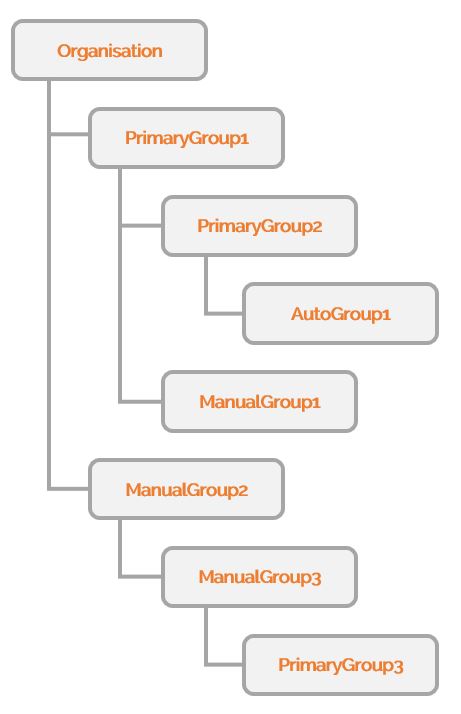
Furthermore, these changes will not affect explicit members of PrimaryGroup2 as the settings of PrimaryGroup1 are not inherited down the hierarchy. Each user has one, and only one, explicit primary group membership, and it is the settings of that Primary Group (here PrimaryGroup2) that define how the system behaves for that user.
The only exception to this inheritance rule is when override is used within the system-level settings (see below).
The Top Level Group
For any users in the system who have no Primary Group Descriptor, or whose descriptor does not match any Primary Groups configured within Elements, their Primary Group is effectively the top level group, i.e. the root of the group tree.
For settings that can be configured per Primary Group (e.g. data source availability), the top level group will use the appropriate system-level settings.
When editing such system-level settings, it is often possible to override the ability for those settings to be configured per Primary Group. When you save system-level settings with the override option checked, the settings you make will overwrite the equivalent settings for all Primary Groups in the system, and the ability to customise those settings for Primary Group is removed.
If you remove an override that is in effect, all Primary Groups settings will initially have the same value as the system-level settings. However, the option for those settings to be customised per Primary Group is returned. Consequently, using the override option can be a useful way to configure system-wide default settings, regardless of whether you eventually want to allow customisation at the Primary Group level.
Change Management
Symplectic understands that research institutions and universities are not static organizations and one of the challenges of managing a group structure in Elements is keeping it in synch with your institution's ever-evolving structure. While editing the names of groups is relatively straightforward, keep in mind you have to keep them in alignment with Primary Group Descriptors (for Primary Groups) or the designation in the WHERE clause (for Auto Groups).
Here are some tips we've found that makes group structure change management easier:
Keep the number of Primary Groups as small as possible. Whenever possible, align them with the largest units in your organization.
When you change the names of Auto Groups, remember to change the name in the appropriate Generic fields in the HR feed and also change the WHERE clause in the Auto Group in Elements.
There may be a benefit to collecting the changes that need to be made and doing them at fixed times - like at the beginning or end of a semester.