
Manage Home Page Actions
The My Actions carousel on the homepage is configurable, allowing institutions to give greater prominence to the tasks they deem most important. To work with the Actions, start by going to System admin > Notifications & Actions > Homepage actions. To re-order the Actions on the homepage, grab the handle, then drag and drop items in the preferred order. Several of the alerts are logic-driven and will not be displayed if they are not required or have already been completed.
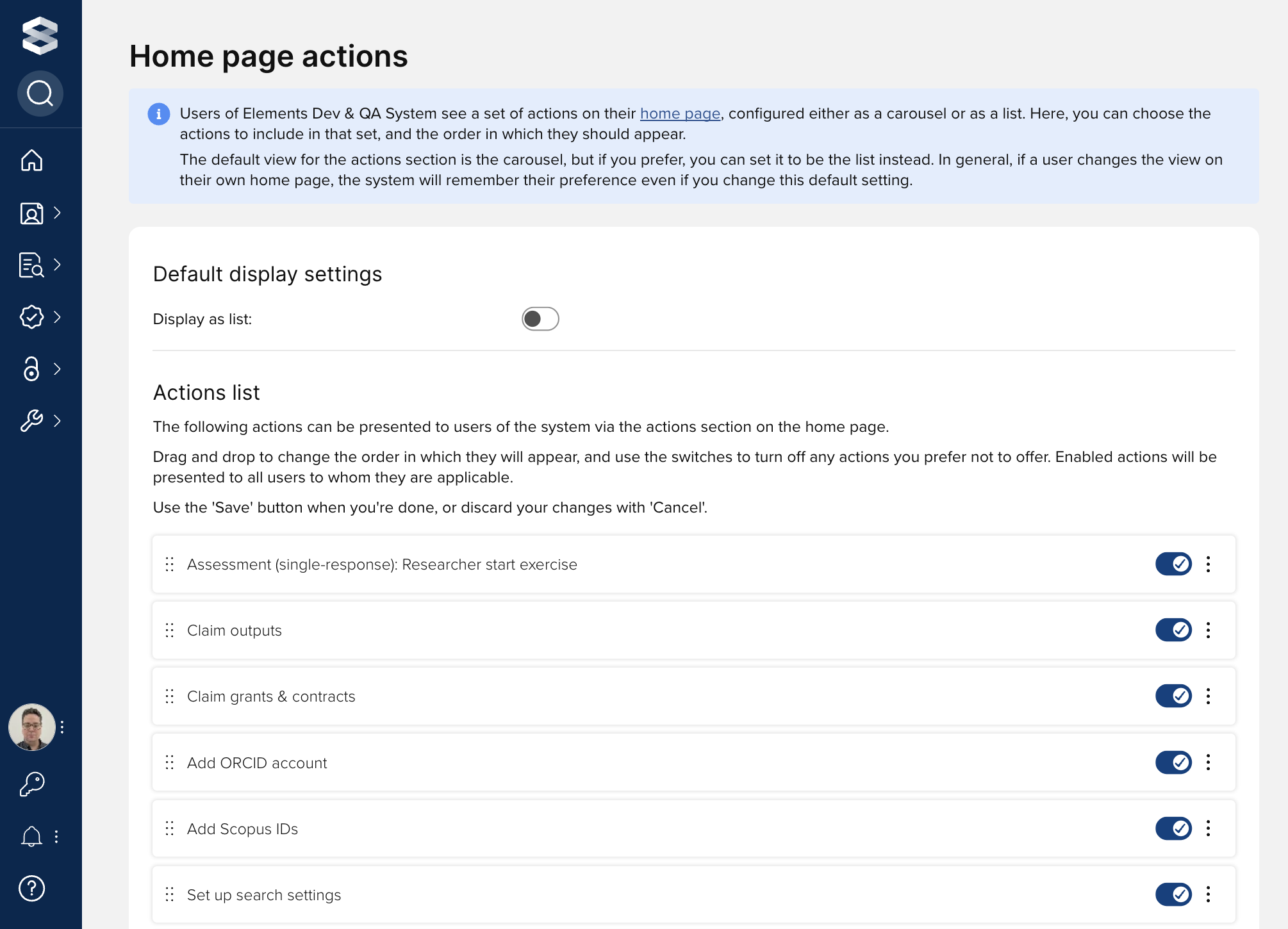
Details
Claim or reject publications is displayed if an author has pending items.
Claim or reject grants is displayed if an institution has Dimensions grants data in their system, an author has harvested grants, but the grants are in pending mode.
Add ORCiD account is displayed when ORCID is enabled as a data source and an ORCiD has not been claimed for auto-claiming. If the ORCID is claimed, but the author does not complete the connection by signing into ORCID from Elements, then a new message -- Connect your <ORCID number> to help us find your publications across the web -- will be displayed instead.
Add Scopus IDs is displayed when Scopus is enabled as a data source, but an identifier has not been claimed.
Set up search settings is displayed if search settings haven't been configured.
Deposit accepted publications is displayed if the user is within the scope of an Open Access scheme that includes deposit prompts, and that scheme uses acceptance date as its primary date and has "on-acceptance deposit" enabled. Clicking this action will begin a workflow of manual creating a publication then immediately depositing it to the repository targeted by the Open Access scheme.
Record evidence of impact is displayed if the Records of Impact module has been enabled for a group or individual.
Deposit publications is displayed if your system is configured with a repository and the author is within the scope of an OA scheme that includes deposit prompts and has publications available to deposit.
Supply missing acceptance dates is displayed if the author is within the scope of an Open Access scheme that includes deposit prompts, that scheme relies on acceptance date, and the author has publications that lack those dates.
Messages requiring action is displayed when you have full files for deposit from arXiv and EPMC and actions in the Annual Collection Module (Australia Only). Note. Only available in v5.x.
Link funding to publication is displayed if an author has claimed publications and grants in their profile.
Assessment: Researcher start exercise is displayed if a faculty member has not started an assessment exercise.
Assessment: Researcher continue exercise is displayed if a faculty member has started, but not completed an exercise.
Assessment: Reviewer mark exercise done is displayed if a reviewer has not completed an assessment review.
Link projects to publications is displayed when the Projects module has been enabled, includes projects data, but no publications have been linked to the projects.
Add publication with waiver is displayed if an institution has enabled the waiver functionality under Global Settings. Disabling this action will also remove the "Request a waiver" badge from the Home page.
Write to ORCID will display if an institution has enabled the "Write to ORCID" functionality AND if the author has claiming their ORCID AND if the author has connected to his ORCID account, BUT has not completed the configuration under Menu>My Account>ORCID settings.
Annual collection: Additional information needed displayed if the user has one or more publications with a “pending response” status in the Annual Collection Module.
Information needed for verification of publications is displayed if verification is enabled for publications and is set to be shown to all users, and the user has one or more publications with a status of at “Cannot verify”.
Assessment (multi-response): Researcher start/continue exercise prompts users to start new multi-response assessment exercises or view existing responses. The “Show home page actions” setting on the Assessment exercise must be enabled for this action to appear.
Update your profile is displayed if the user profile hasn’t been updated in 30 days.
Add professional activities is displayed if the user has access to ‘My professional activities’ page AND can create professional activities.
Add projects is displayed if the user has access to ‘My projects’ page AND can create projects.