
Manage Link Types
This article is aimed at System Administrators and explains the process of managing the link types for relationships. The page for updating the link types is found under System admin > > Links & labels > Configure link types.
If you have any questions regarding this topic, please contact our support team by raising a ticket.
Administrators can manage which link types are enabled in the user interface; however, there are implications elsewhere in the system to consider prior to making changes.
System wide setting: Management of link types occurs at the system wide level. As a result, link types cannot be enabled/disabled below the system wide level such as for a Department.
Existing feeds: If you have existing feeds coming into Elements via the API, they will continue to use the existing values, as there is no validation against enabled or disabled types.
Reporting on current link types: Administrators can review which link types are currently being used by downloading a CSV report from the “Manage Link Types” page.
Managing Person List fields: When adding a Person List field into a Category type (e.g. Grant), administrators are able to select from enabled and disabled link types. The only exception is the Elements’ Person List fields for Publications which are pre-established as a part of the system requirements.
Managing a Person List field within a Category type:
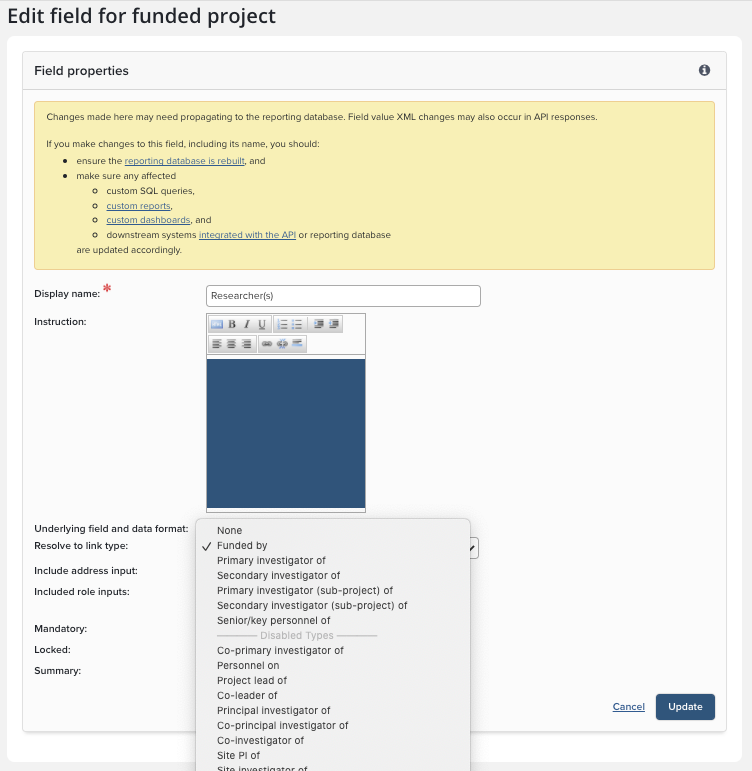
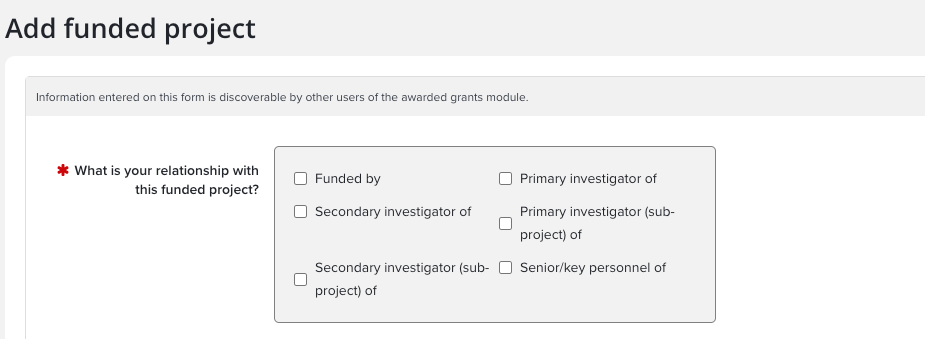
Adding single or multiple relationship types: If multiple relationship types are enabled, the user will be presented with a field to select the appropriate relationship type. If only a single relationship type is enabled between two categories (e.g. Publications and Grants), users will not have to select the relationship type in the user interface as the system applies it by default.
User interface with multiple link types enabled:
User interface with only a single link type enabled:
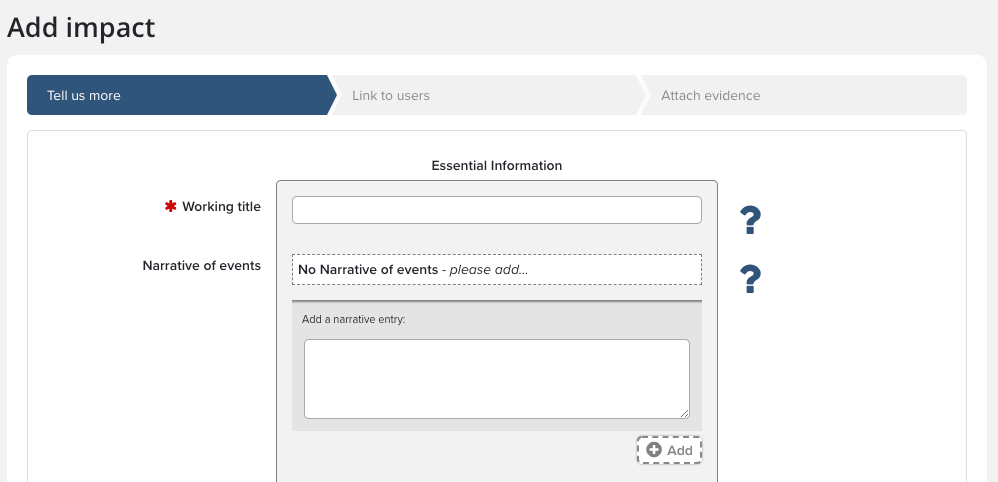
Minimum of one enabled link type: The system requires that at least a single enabled link type exists between categories. This is to prevent the creation of items that are not linked to anyone or anything which would produce orphaned data. Where there is only one link type in Elements e.g. a piece of Equipment and a Grant, this cannot be disabled and the row will appear as greyed out. They are included in the table for full visibility of all link types that are used in the system.
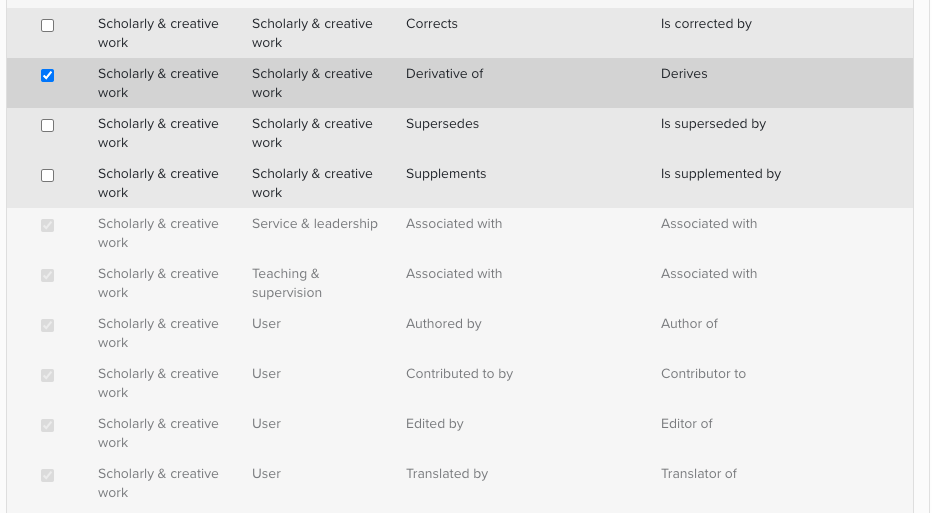
Core link types: There are a number of core links types which cannot be disabled. These are required for Elements to function correctly and are shown as greyed out rows. They are included in the table for full visibility of all link types that are used in the system. The Core link types are:
Publication - User - Authorship
Publication - User - Editorship
Publication - User - Translator
Publication - User - Contributor
In the above example, the link type 'Derivative of' is Enabled, whilst 'Supersedes' and 'Supplements' are Disabled. All three link types can be edited. 'Associated with' is a unique link type and 'Authored by' and 'Contributed to by' are Core link types. These cannot be disabled.
Note: Deciding to change the link types available may affect your reports. We that you test your reports to ensure they still function as expected after making any changes to your link types.