
Discovery Module System Configuration applied by Symplectic (Pre-v6.14)
In order to complete the setup of the Discovery Module there are a number of configuration options that Symplectic will apply on your behalf when implementing and upgrading the Discovery Module. These include:
Adding your branding to the Discovery Module using assets supplied by your organisation
User Profile Privacy Settings
Switching on "Media" to show YouTube Video content added to the Elements Profile in the Discovery Module
Enabling Collaboration networks to display on the Discovery Module
Review default setting for Dimensions Citation Counts and Altmetric Scores
Review default setting for "Anywhere Access"
Choose the landing page for researchers when clicking "View Profile"
Option to include a link to login to Elements from a Researchers Discovery Module Profile
Select whether "Favourites" are on or off by default when viewing researchers detail list pages and choose your preferred term for Favourites
Option to show "To present" on Appointments and Education entries
Enabling filter in the Discovery Module (links to a full article)
Renaming Discovery Module "tabs"
Renaming Discovery Module "list headings"
Choose whether to Autohide tabs
Choose whether to permanently switch off any of the tabs
DIRECT2Experts integration
Branding
The Discovery Module branding guide v6.9+ explains all of the branding assets required, the choices that you can make giving examples of good- and less good- imagery to use.
You are encouraged to read this before providing any branding assets as this streamlines the process and avoids us having to request different imagery which often has to provided by a Marketing or Communications team.
Finally, please be careful to provide the branding assets in the correct formats as specified in the Branding Guide.
User Profile Privacy Settings and the Discovery Module
The Discovery module is designed to natively respect the user profile privacy settings in Elements. Only users set as 'public' will have profiles appear on the Discovery Module. If a user it set to 'internal' then their profile will not be pushed to Discovery for display.
Please ensure you review and configure the Elements user profile settings as a part of implementing the Discovery Module. Once you've configured the User Profile Privacy settings in Elements there is nothing else for you to do.
Switching on "Media"(v5.20+)
As part of the Symplectic applied configuration, we can switch on a Media section for the Discovery Module which enables YouTube videos to be shown as a section on the "About" page of a public profile. This allows visitors to watch videos users have added to their profile by clicking on a ‘View Media’ link on the researcher’s profile page or the Discovery Module search results page.
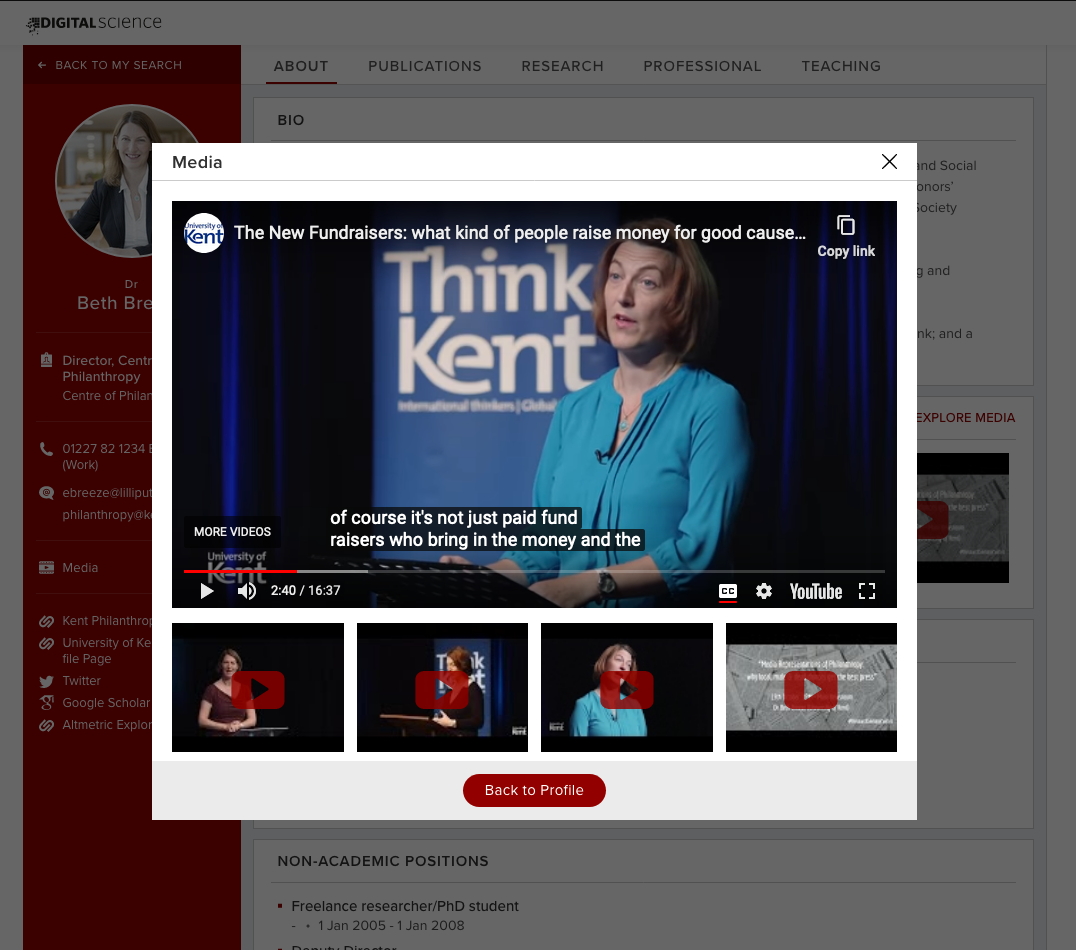
Image: A researcher’s Discovery Module Profile playing a YouTube video with auto-generated subtitles
To enable the "Media" function,
1. Symplectic have to make a change to the Configuration which can be requested via the Support Site on a ticket or via Basecamp if you are still in the Implementation phase, and
2. You will need to enable "Media" in the User Profile Field Settings in Elements (This is shipped with the Elements Software as a "locked" field.)
Enabling Collaboration networks (v5.20+)
This visualisation has been designed to highlight interdepartmental collaborations within your organisation which will enhance the discoverability of your researchers by introducing new ways to navigate between profiles.
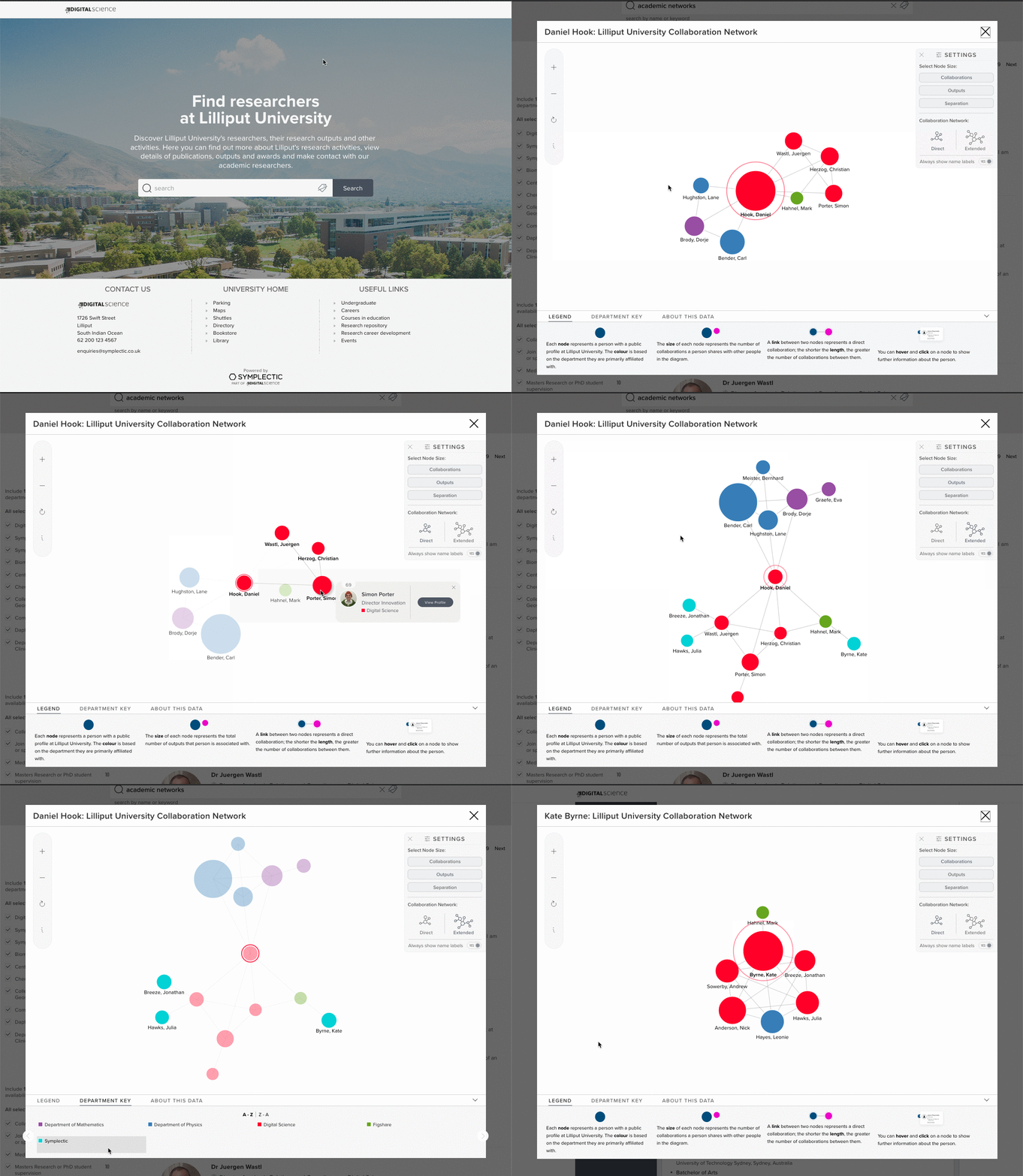
Visitors to the Discovery Module can interact with the visualisation to explore each researcher’s interdepartmental collaboration network. They can:
Click on a node to view more information about each researcher including a link to their full Discovery Module profile.
Hover over a node to see the links between each researcher and their collaborators within the diagram.
Toggle between the researcher’s direct and extended networks to see just the researcher’s own co-authors or an extended view also incorporating the collaborators of those co-authors.
Change the size of the nodes to represent either:
The number of collaborations the researcher shares with other researchers in the diagram.
The total number of outputs/publications belonging to each researcher (excluding ‘private’ publications), or
The degree of separation between the researcher the network belongs to and their collaborators.
Hover over a group on the Department Key to highlight on the diagram which researchers are associated with that department.
Each network diagram is generated based on the publications associated with the researcher’s profile within the Discovery Module (i.e. it excludes unclaimed publications and publications marked as ‘private’ within the Elements Publications module). The diagram will be enabled for all researchers which have two or more collaborators with public profiles within your Discovery Module. In this context, a collaboration is defined to be when two or more researchers share an association (e.g. co-author, translator, editor, contributor) with a single ‘publication’. Each collaborator is colour coded by department, as defined for your Discovery Module.
Use of this new functionality is configurable via a new global setting which allows organisations to enable/disable the diagram for all researchers.
To enable the "Collabration Network" visualisation for your Discovery Module
Please contact Symplectic to make a change to the Configuration which can be requested via the Support Site on a ticket or via Basecamp if you are still in the Implementation phase.
Dimensions Citations Counts
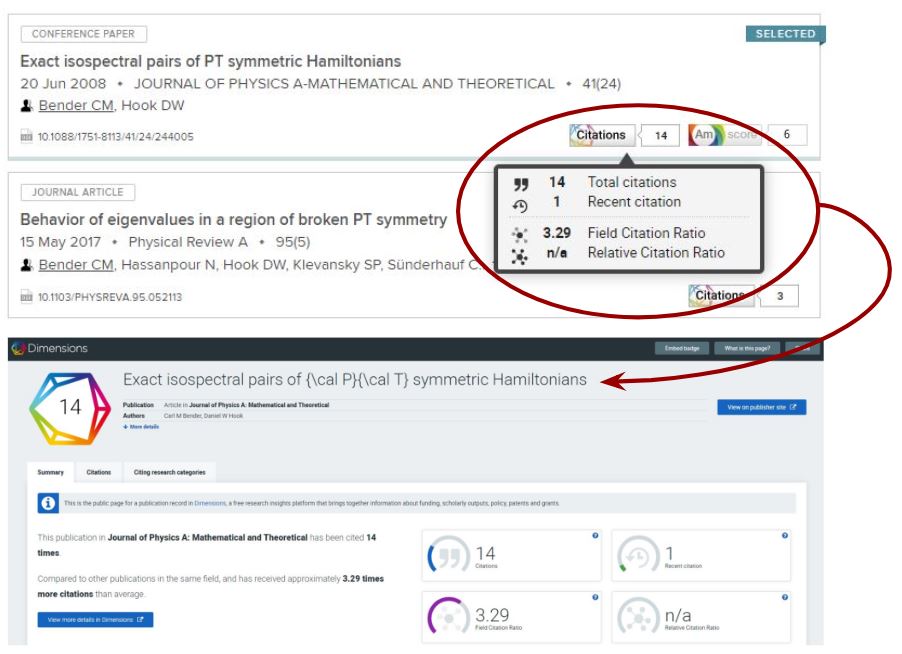
The Discovery Module will display Dimensions Citation Counts by default. This is to highlight publications which have received scholarly attention and to provide additional links through which users can discover more about the article.
The Dimensions Citation Counts are an optional feature which can be disabled on your instance of Discovery by Symplectic if desired.
Altmetric
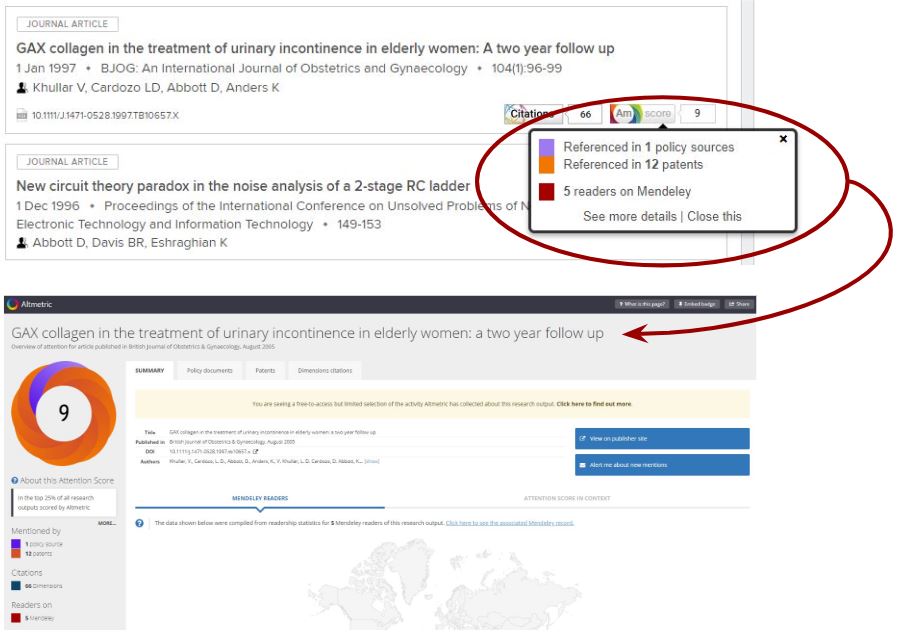
The Discovery Module will display Altmetric Scores by default. This is to highlight publications which have received online attention and to provide additional links through which users can discover more about the article.
The Altmetric scores are an optional feature which can be disabled on your instance of Discovery by Symplectic if desired.
"Anywhere Access"
To help provide relevant content and the best possible visitor experience for your Discovery Module, we include Open Access full texts that has been identified by our sister company Readcube.
This is shown when there is no Repository entry and his gives 1 click access to the PDF where there is an Open Access version available and identified.
Matches are made on the DOI of the article and the link will not appear if there is no match.
Anywhere Access is an optional feature which can be disabled on your instance of Discovery by Symplectic if desired.
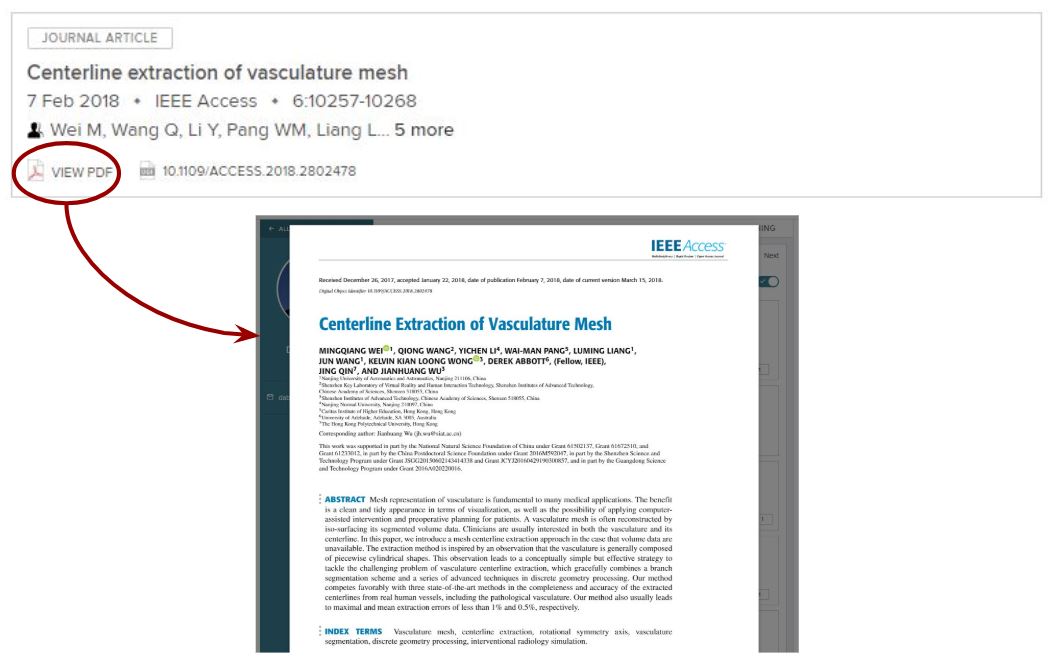
Choose the landing page for researchers when clicking "View Profile"
You can choose whether the View Profile button leads to the About page (Default) or the Publications page. This is a configuration setting made by Symplectic.
You may wish to review the Profile Completeness Report to help inform your decision. Information on this is later in this article.
A link to log into Elements from the Discovery Module
When viewing a persons Discovery Module profile, there is an option to have a link to make it simple for users to get to Elements to update their profile. This is available by defualt though you can request to have it switched off.
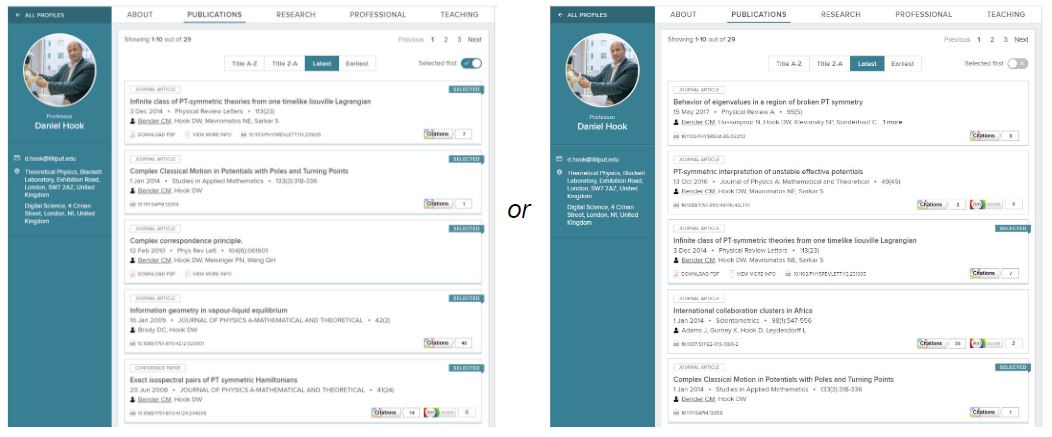
Select whether "Favorites" are on of off by default when viewing researchers detail list pages and choose your preferred term for Favorites.
Researchers can select Favorites in Elements. These are reflected on the Discovery Module automatically. Your organisation can choose a term to use for Favorites on the Discovery Module as you may prefer:
Favorites first (default)
Selected first
Featured first
Highlighted first
You can also choose whether the Discovery Module shows items selected as Favorites in Elements by default or not.
This is a configuration setting made by Symplectic.
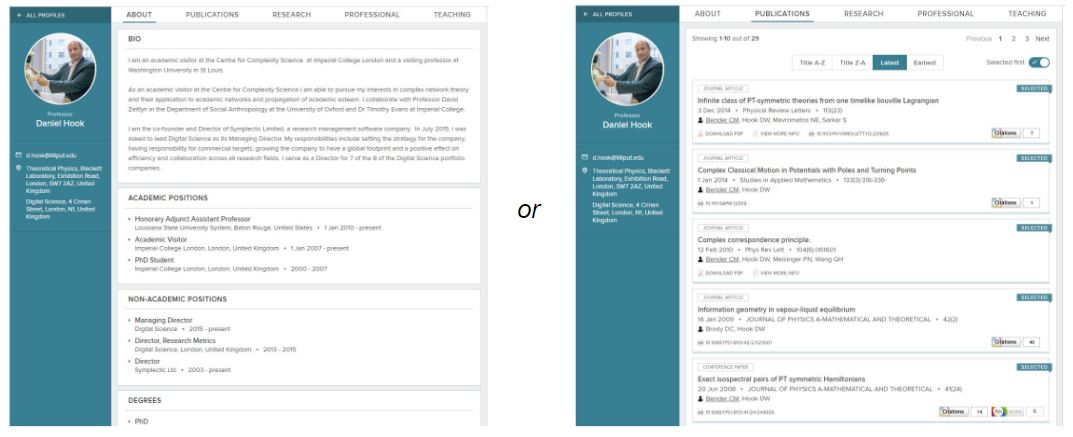
"to present" (v5.19+)
Organisations can now highlight current appointments by choosing to display “- present” on appointments and education entries without an end-date or with an end date in the future.
Please note, we recommend reviewing your appointments and education metadata to check current usage of end-dates before requesting we enable this configuration option.
Choose the preferred sort order for search results
Organisations can choose between Date order (default) or Elements "Type" order for each of the following Discovery Module tabs individually:
Publications
Research
Professional
Teaching
If you choose to use the "Type" order the list will reflect the order set in Elements on the relevant Types page for each of the categories of item above.
Note: A full reload of Discovery Module data is required for this to take effect.
Enabling Filters in the Discovery Module (v5.17+ and v5.19+)
Please see the full articles on
Renaming the "Tabs" (or sections headers) on the Discovery Module
You can choose to rename the "Tab's" from an option on the following list. Symplectic will add your selections as part of the configuration. This is done to allow you to review your choices and ensure that your selections fit appropriately on the page.
Default tab name: | About | Publications | Research | Professional | Teaching |
Primary Source: | Elements profile | Publications Module | Grants Module | Professional Activities Module | Teaching Activities Module |
Alternative tab names: | Background | Creative Works | Contracts & Grants | Contribution | Instruction |
Overview | Outputs | Funded Research | Engagement | Learning & Teaching | |
Bio | Research Output | Funding | Esteem | Mentoring | |
Research Outputs | Grants | Outreach | Pedagogy | ||
Scholarly & Creative Works | Sponsored Projects | Professional Experience | Supervision | ||
Scholarly Output | Service | Teaching & Mentoring | |||
Scholarly Work | Service & Leadership | Teaching & Supervision | |||
Scholarly Works | Service & Outreach | ||||
Scholarship | Leadership | ||||
Works |
This is done as part of a new implementation or you can raise a ticket on the Support site to ask for a change to be made.
Renaming the list headings on Publications, Grants, Professional and Teaching
In addition to the Tab renaming options, it is also possible to change the name of the list headings. An example is shown below outlined by a red box.
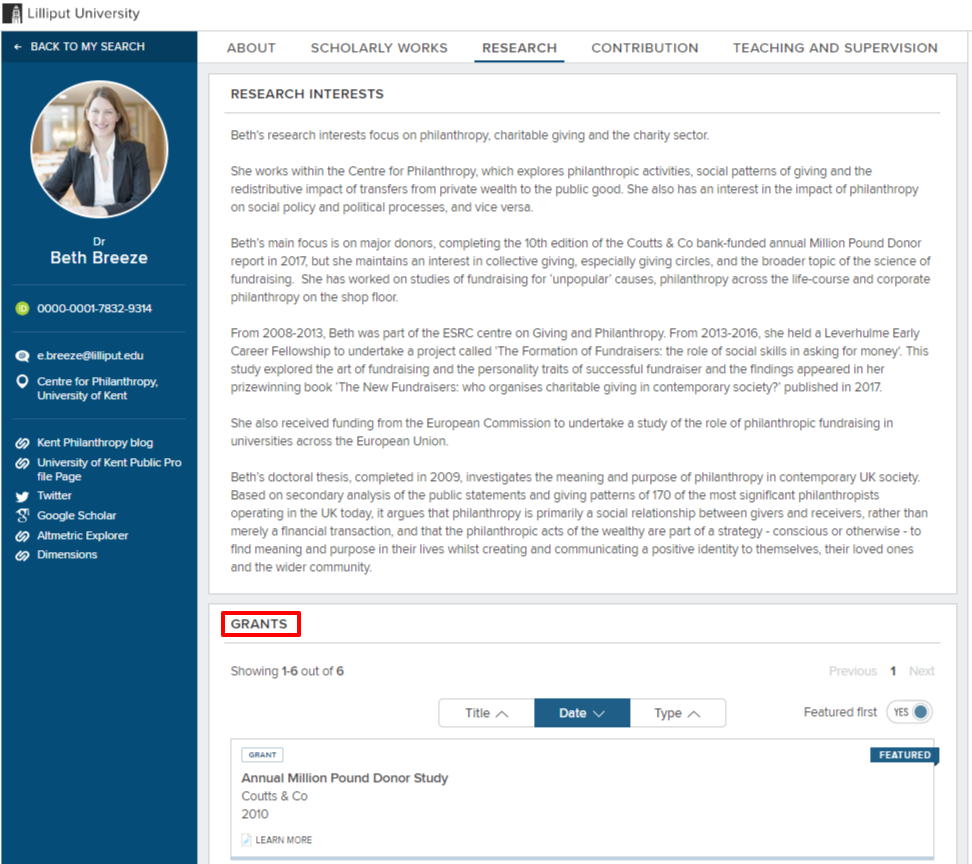
Tab's- "Always Hide" and "Autohide"
There are two additional configuration options for Tab's that affects when/if they appear.
Autohide: Automatically hide sections on individual profiles where there is no data to populate the section.
Always Hide: Permanently turn off a section if it is not relevant to your current implementation of Elements (e.g. you may not collect Teaching Activities.)
This can be applied to the following Tabs: Publications, Research, Professional, Teaching
Hiding the logo in the footer
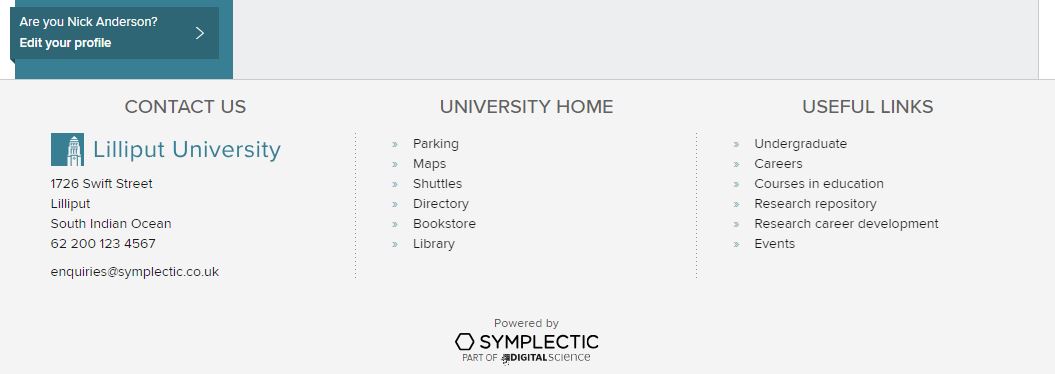
You can optionally choose to hide the logo in the "footer" section of the Discovery Module.
If you have a current implementation of the Discovery Module, don't forget to request that your Institution name is added to the address section.
DIRECT2Experts integration
The Discovery Module can now be integrated with DIRECT2Experts, a federated search tool for biomedical research expertise. For assistance enabling this integration, please contact Symplectic Support.
Back to the Discovery Module index