
User Profile privacy settings
Elements offers a number of different configurations relating to user profile privacy. These configurations have been designed to offer several levels at which an institution and its researchers can decide which profiles are selected for display on the Discovery Module or other public systems.
User Profile Privacy Settings
User profile privacy settings can now be set in the following ways:
Admin Override Privacy Setting: This is set by the institution on a per-researcher basis using the HR feed or for local users
User-defined Privacy Setting: This is set by individual researchers on their own Elements profile (if enabled by the institution, see details below)
System-wide Default Privacy setting: This is set by the institution as a system-wide default. If the institution has not set this, it will be automatically set to internal.
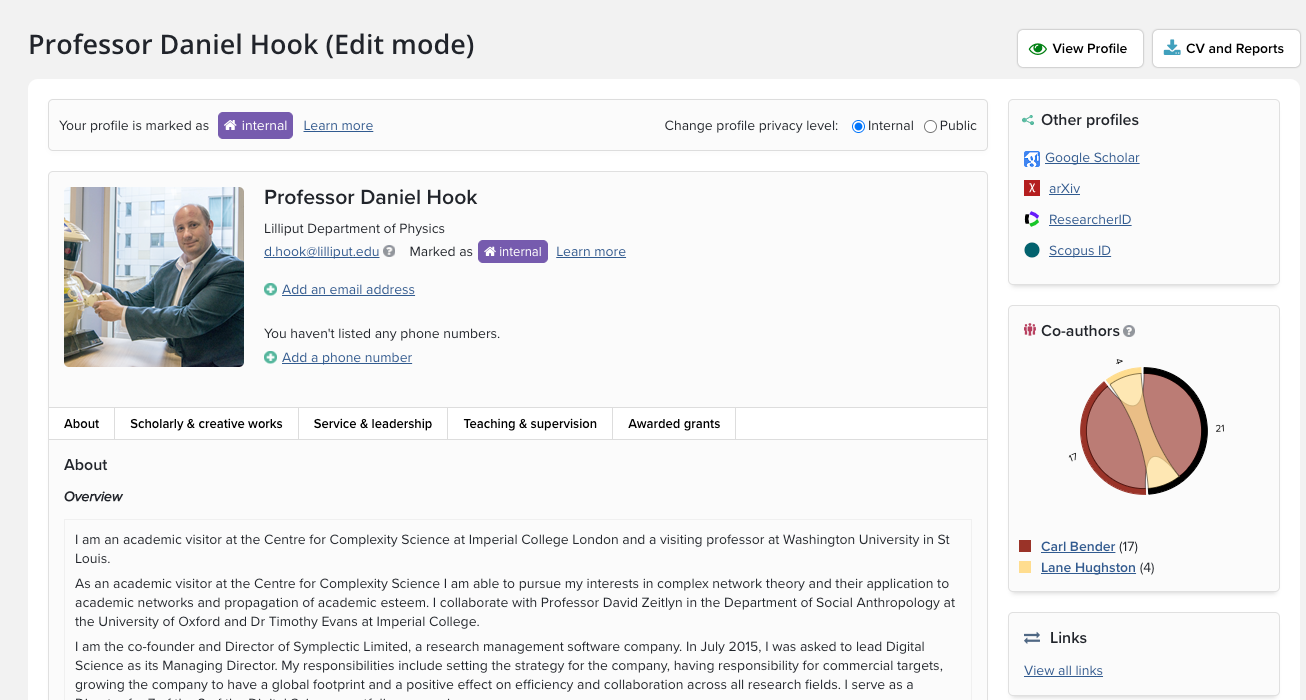
Image: A researcher's profile which has the user-defined privacy setting enabled.
Using one or more of these settings, each user profile can be set to public or internal:
Profiles marked as public may be shared publicly, possibly via external systems.
Profiles marked as internal may be shared with any other user of Symplectic Elements.
User Profile Privacy Settings Precedence order
As it is possible for more than one of these settings to be used simultaneously, Elements includes a precedence cascade for these settings to decide which setting ultimately decide the privacy level of a profile. Elements will look at the settings in the following precedence order:
1. Has the institution set an overriding privacy level for the user's profile via the HR feed (or on the locally-managed user's record)?
If Yes - then Elements will use the admin override privacy setting and not look at the user-defined privacy setting or the system-wide default privacy setting.
If No - then Elements will look at the user-defined privacy setting
2. Has the user (or their delegate) chosen a privacy level on their profile in Elements?
If Yes - then Elements will use the user-defined privacy setting and not look at the system-wide default privacy setting.
If No - then Elements will look at the system default privacy setting
3. What is the system-wide default privacy setting?
Elements will fall back to use the system-wide default privacy setting.
Because the admin override privacy setting will override a user-defined privacy setting, when the admin override has been applied for a user (either via the HR feed or on a local user), that user will no longer be presented with the ability to define their own privacy setting. Instead the User's profile page will display the setting that has been applied by the administrator and show that this is a setting which can't be changed on that page.

Image: A researcher's profile where the admin override privacy setting has been applied.
Supporting article on Setting Privacy for the HR Feed
Configuring User Profile Privacy Settings in Elements
To configure the User Profile Privacy settings in Elements go to System admin > General settings > Privacy configuration.
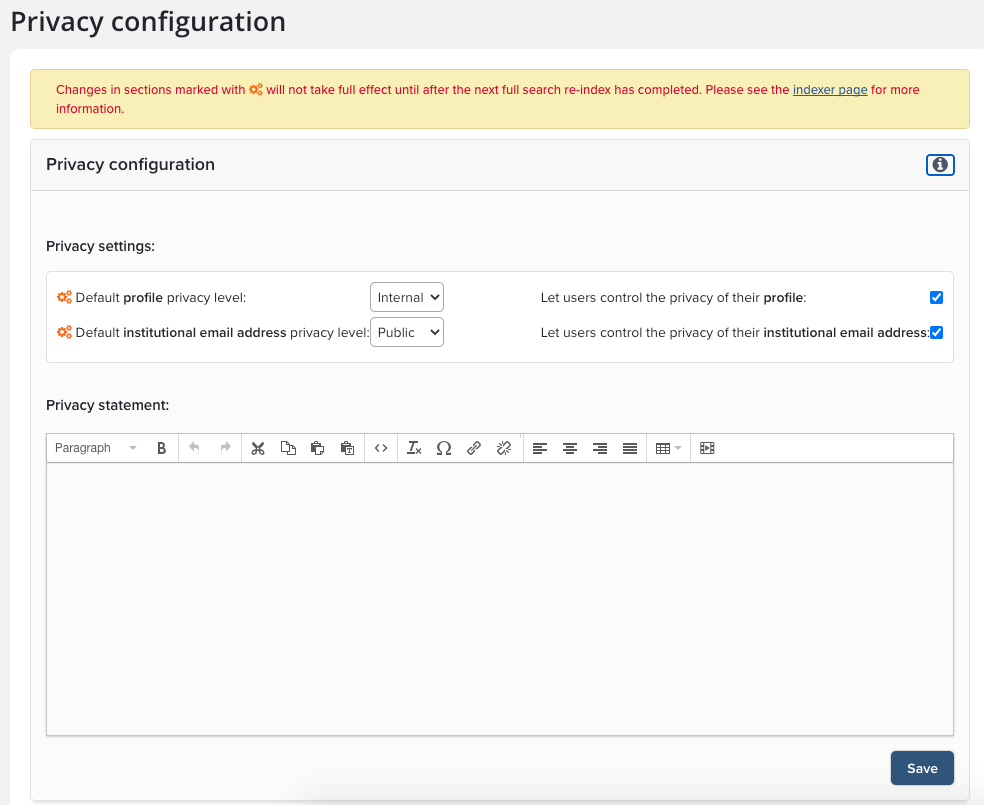
Image: The Privacy configuration page for administrators
Here you can make the following configurations:
Permit users to set their own profile privacy settings
Set the system-wide default privacy setting. This is set to internal by default.
Add a privacy statement on behalf of your institution which will be displayed to users on the 'Privacy' page available at Account > Privacy Information.
Privacy Settings for fields on the Elements user profiles
Researchers can also set the privacy level for each field on their Elements profile to determine whether the field should be ‘private’ or match the Elements Profile setting of internal or public. This gives researchers fine-grained control over how much of their profile information is made publicly available.
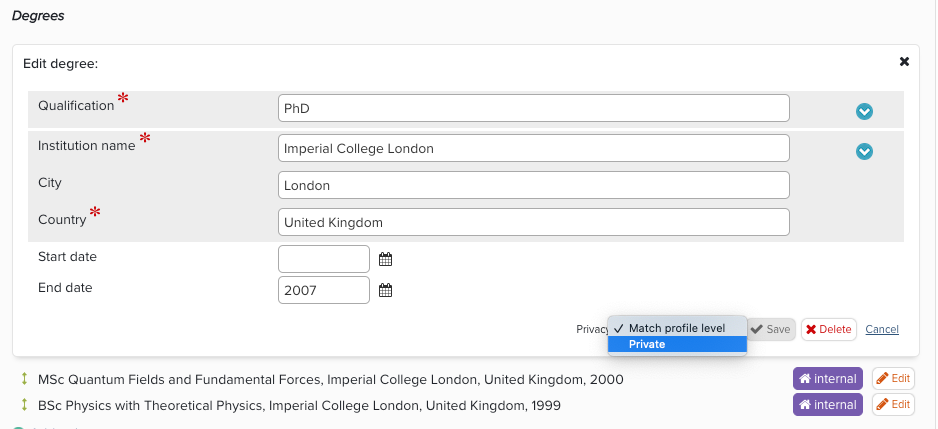
Image: Privacy settings for fields from the Elements profile page.
From v6.14 onwards, if you have locked fields on the User profile page (eg.because you are feeding the data in from elsewhere) you can choose whether you also wish to lock the associated field privacy setting. This can be configured via the User Profile Field Settings page in the System Admin menu.
History of User Profile Privacy Setting changes
When user privacy settings are changed, the changes are stored in the history table of the Elements operational database. We plan to surface these via the UI in a future release.
User Profile Privacy Settings and the Discovery Module
The Discovery module is designed to natively respect the user profile privacy settings in Elements. Only users set as public will have profiles appear on the Discovery Module. If a user it set to internal, then their profile will not be pushed to Discovery for display. Once you've configured the User Profile Privacy settings in Elements there is nothing else for you to do to manage user profile privacy for Discovery.
User Profile Privacy Settings and other profile systems
The user profile privacy settings in Elements set flags denoting the privacy settings of profiles and other kinds of data in Elements. These flags are available in the Elements API and Reporting Database. It is important that institutions include these flags in their profile system integrations to ensure they are respected and that data displayed on the public profiles is only data set to public. Please see the Reporting Database and API documentation for details.
If you are reading this as part of the series of Discovery Module Support articles, you should click the link below for the next one