
Which Elements report type should I create?
This article provides some guidance on which Elements reporting technology to use when creating a custom report.
Internal reports
Elements offers three choices of reporting technology with which you can create custom reports accessible within the Elements user interface: SSRS reports, dashboards and data extracts.
SSRS Reports
Also sometimes referred to as "formatted reports" (particularly when managed in the Reporting Hub), SSRS reports offer the ability to export formatted report documents. They are suitable for exporting text, static visuals and tables of human-readable data, as well as for exporting Excel files containing reasonable amounts of tabular data.
SSRS stands for SQL Server Reporting Services, which is the component of Microsoft SQL Server that can render PDFs, Word and Excel files from "report templates". This is what drives Elements CVs, Biosketches, Assessment spreadsheet reports and many other user and group reports within Elements. Custom reports can be authored using the free-to-use Microsoft SSRS Report Builder and then registered within the Elements application and served by Elements to end-users logged in to Elements. All SSRS reports draw their data from the Elements Reporting Database.
Please see the following support article for more information:

Dashboards
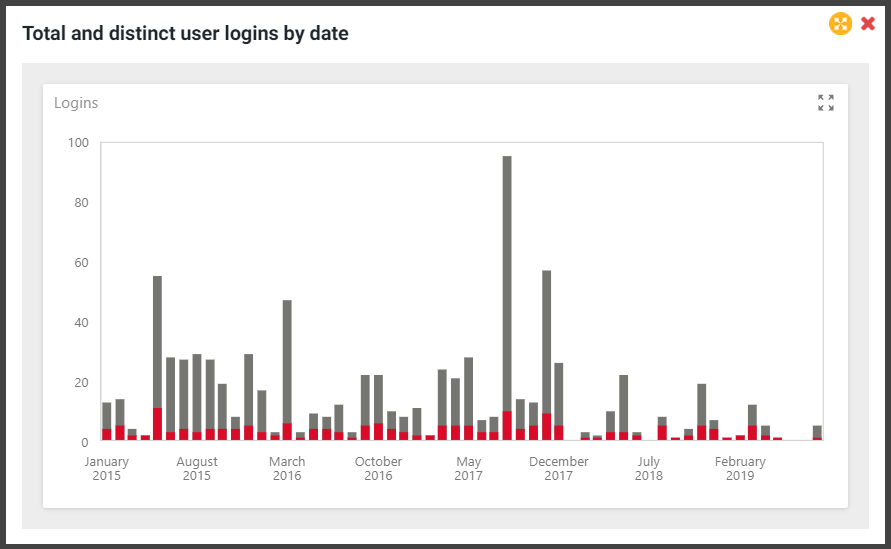
Elements supports the design and deployment of interactive custom dashboards for use within the Elements UI, summarising and exploring any data in either the Elements Reporting Database ("SQL-based dashboards") or the Elements Analytics Database ("Cube-based dashboards").
Please see the following article for more information:
Data extracts
Elements supports the design and deployment of custom data extracts for use within the Elements UI, exporting tabular data in the form of a CSV file from the Elements Reporting Database.
Please see the following article for more information:
External reports
Alternatively, clients can opt to create and consume reports externally to Elements by using any third-party reporting platform. The platform of choice can be configured to access Elements data in either of the two following ways:
Online processing. This is where you set up your third-party reporting or analysis platform to connect directly to the Elements Reporting Database or Elements Analytics Database so that it can issue all necessary data queries at the time the report is rendered/produced. This can be a convenient option for lightweight reports with a low-performance impact on Elements.
Offline processing. This is where you run (a perhaps automated regular nightly) extract of data from the Elements Reporting Database into a custom database/warehouse of your own, before executing your report or analysis against that database. This is the option of choice for reports which would otherwise have a high-performance impact in Elements, or where the capabilities of the external reporting tool are preferred.
External reports cannot be embedded in the Elements user interface.
Choose report type by data volume
Different reporting technologies and types are suitable for different volumes of data. Below is a set of rough guidelines to help you choose the correct reporting technology for your report.
Volume of processed data. This column refers to the amount of data (e.g. the number of data rows) that the queries behind your report must read when producing your report. This is often much larger than the amount of data actually shown by the report - for example if the report is aggregating or filtering underlying data.
Volume of post-aggregated/displayed data. This column refers to the amount of data (e.g. the number of data rows or visual data points) shown to the consumer of your report.
Technology | Volume of processed data | Volume of post-aggregated/displayed data |
Custom SQL-based Elements Dashboard | Up to tens of thousands (or at most low hundreds of thousands) of rows analysed | Up to tens, or at most low hundreds, of visual data points (e.g. bars in a bar chart or rows in a grid). |
Cube-based Elements Dashboards | Up to millions of rows processed | Tens, or at most low hundreds, of visual data points (e.g. bars in a bar chart or rows in a grid). |
Custom formatted report (An SSRS report using the Reporting Database as its data source | Up to millions of rows processed | Up to thousands (or at most low tens of thousands) or exported rows or visual elements |
Custom data extracts (An SQL script using the Reporting Database as its data source | Any number of rows processed | Any number of rows exported |
External platform | (see below) | (see below) |
The above guidelines aim to provide an initial feeling for which types of report/technology might not be suitable for the volumes of data you intend to process/show in your report. However, many other factors are relevant, so your mileage may vary. Please ensure you take into account the maximum likely volume of data to be processed and displayed by your report when authoring it, and test for acceptable performance characteristics during development, against real data.
You may discover for very large or processing-intensive reports that your particular performance requirements cannot be met by using reports internal to Elements. In this case, you may need to use an external platform and offline processing.
External platforms and online/offline processing
Whether you implement an external analysis or report using an online or offline approach (and how often your analysis is run) can have an impact on the performance of the Elements system, for obvious reasons. If your analysis is heavy, inefficient or frequent enough, the only supported option to maintain acceptable performance in your Elements system may be for you to move from online to offline processing.