
Manage Login Announcements
This article relates to the page found under System admin > Notifications & actions > Edit login announcement in the navigation menu. It describes how to display custom announcements to their users when they log into Elements to highlight key deadlines, new features or system downtime. Institutions can now display custom login announcements, not only on the Elements login screen but also as a pop-up when a user logs in to ensure that institutions can share announcements with their users even if they use Shibboleth or another authentication system that skips the Elements login page.
Add custom login announcements
From the System admin menu, there are now two display options available to display your message to users:
On the Elements login page (as previously available in Elements)
In a dialogue box immediately after login
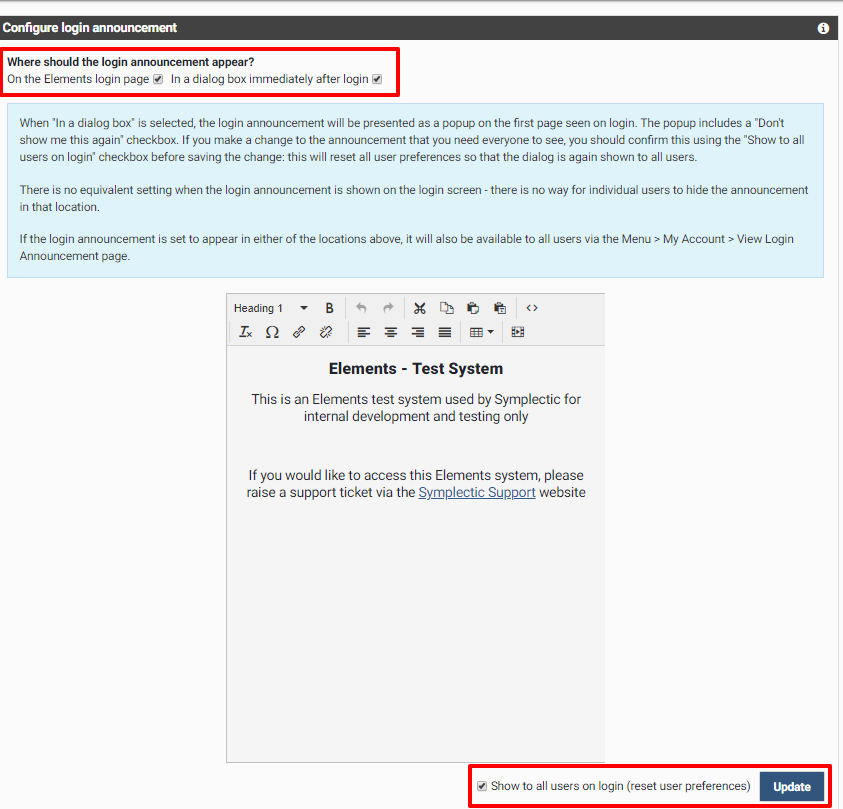
Image: (Top left) Select where the announcement should appear and (bottom right) override user preferences to ensure the message is shown to all users.
Users have been given the option to dismiss the notice once they have seen it. To ensure no-one misses an important notification, administrators can override this user preference so that all users will be shown the new announcement.
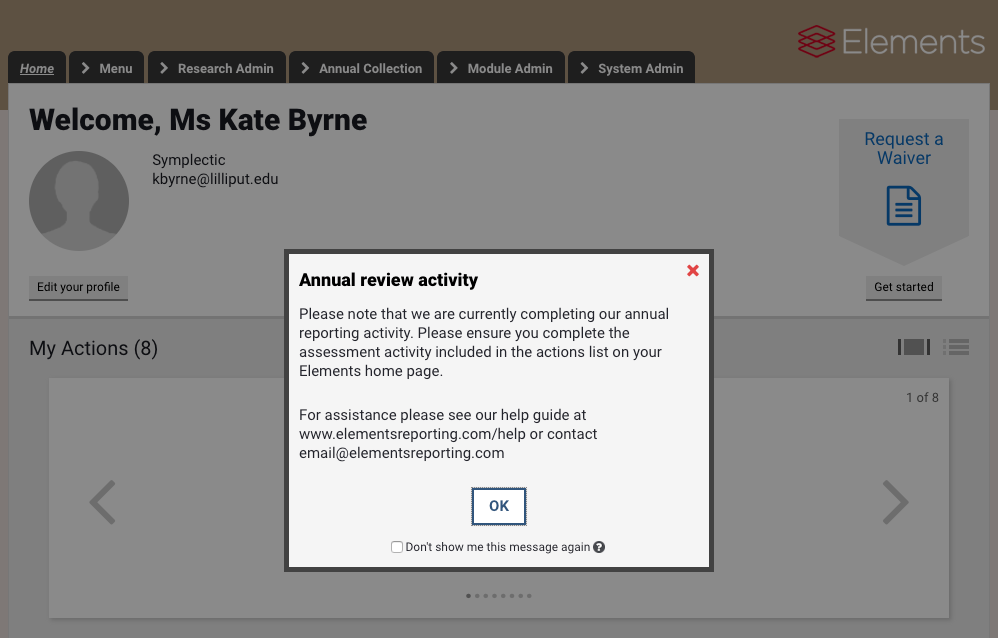
Image: Shows the message after login and ability for users to dismiss the message.