
Funding reports in the Reporting Hub
Organisations that license the Awards Management module gain access to a number of stock reports on funding opportunities, proposals, reviews, projects, deliverables, change requests, etc. These can be easily identified in the Reporting Hub as their report type has ‘(funding)’ appended e.g. Formatted Group Report (Funding).
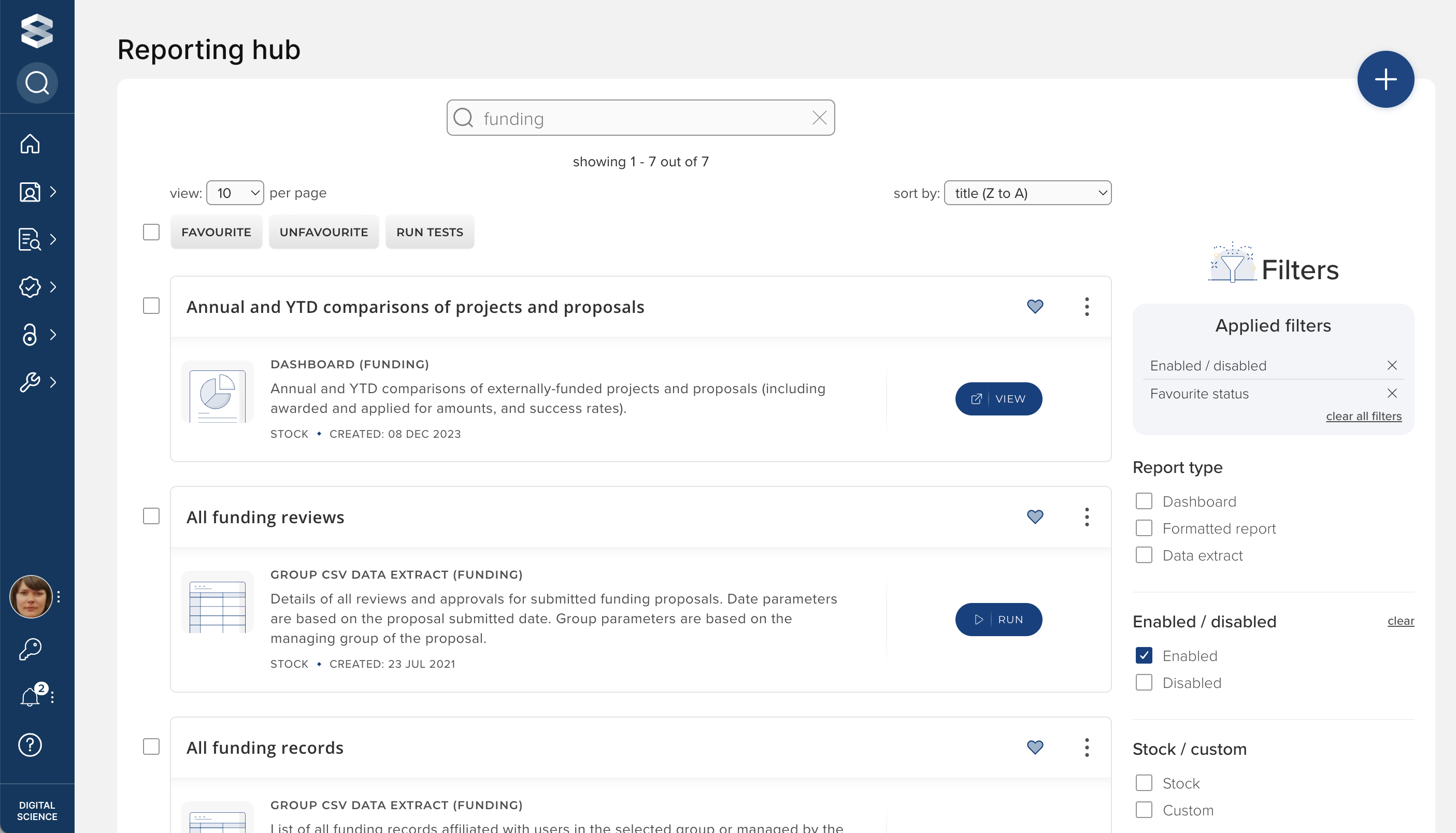
To support reporting on funding data, an additional security layer controls access to funding reports in the Reporting Hub. This mirrors the existing approach taken in the Reporting Hub but limits access based on funding roles. Reports that are flagged as containing funding data are only viewable by users with specific Awards Management roles (and vice versa; non-Funding reports are only viewable by users with specific non-Awards Management roles)). Awards Management introduces a number of new roles to Elements to provide control over the confidential data captured in the module. More information about Awards Management roles can be found in this support article.
Custom Formatted Group Reports (Funding)
For information about registering custom Formatted Reports in the Reporting Hub please see the ‘Creating new custom reports’ section of the Managing reports in the Reporting Hub article.
If Awards Management is licensed, when adding a custom Formatted Report, the option to add a report with the parameter - ‘Group (funding)’ becomes available. This enables the registration of SSRS reports in the system with the specific funding related security layer described above.
Funding Data Extracts
Data Extracts are reports that produce CSV files by running scripts against the Reporting Database and are designed to support exporting large volumes of data from the system.
The Data Extracts introduced as part of Awards Management have either a Group (funding) parameter, or no parameters. Unlike parameterless Dashboards, parameterless funding Data Extracts have an additional layer of security for ‘Viewing permissions’ as they are still recognised as ‘funding’ reports by the system. This means users will still require specific Awards Management roles to view these reports, as described in the section above.
User roles
In order to report on user and group roles assigned in Elements (including Awards Management), authorised users can access such a list via System Admin > User management > Manage users and user feed, then Download all roles in CSV/Excel format.
Viewing and running permissions for funding reports
For information on setting up, viewing, and running permissions on non-funding reports please see the ‘Report viewing and running permissions’ section of the support article Managing reports in the Reporting Hub. The principle of requiring permission to both view and run a report also applies to funding reports.
Users with any of the group roles: Statistician (funding), Research Manager (funding) and Finance Manager (funding), are able to view a funding report if they have been given explicit permission via the ‘Viewing permissions’ control. These roles do not grant the user permission to view non-funding Formatted Group Reports.
For Formatted Group Reports (funding), as well as requiring permission to view a report, users with these roles require permission over an available target groups’ data. Please see the ‘Managing parameters’ section of the support article Managing reports in the Reporting Hub for details of how to set parameter availability.
Users with any of the system roles: Research Funding Administrator, Research Funding Data Administrator or Reporting Hub Super-Viewer (funding) can view all funding reports by default (e.g. explicit ‘Viewing permission’ is not required). These roles do not grant the user permission to view non-funding Formatted Group Reports.
The system roles System Administrator and Reporting Hub Administrator can view all reports in the Reporting Hub, irrespective of whether or not they are flagged as funding reports. These roles also have permission to manage all reports (e.g. add, copy, delete, edit).
Users with these system roles automatically have permissions over all groups’ data.