
Awards Management User roles and permissions
General information on user roles in Elements is available here.
Note that all users who are to have access to the Awards Management module (regardless of role) must also be given module access, as described at the bottom of this article.
Awards Management system roles
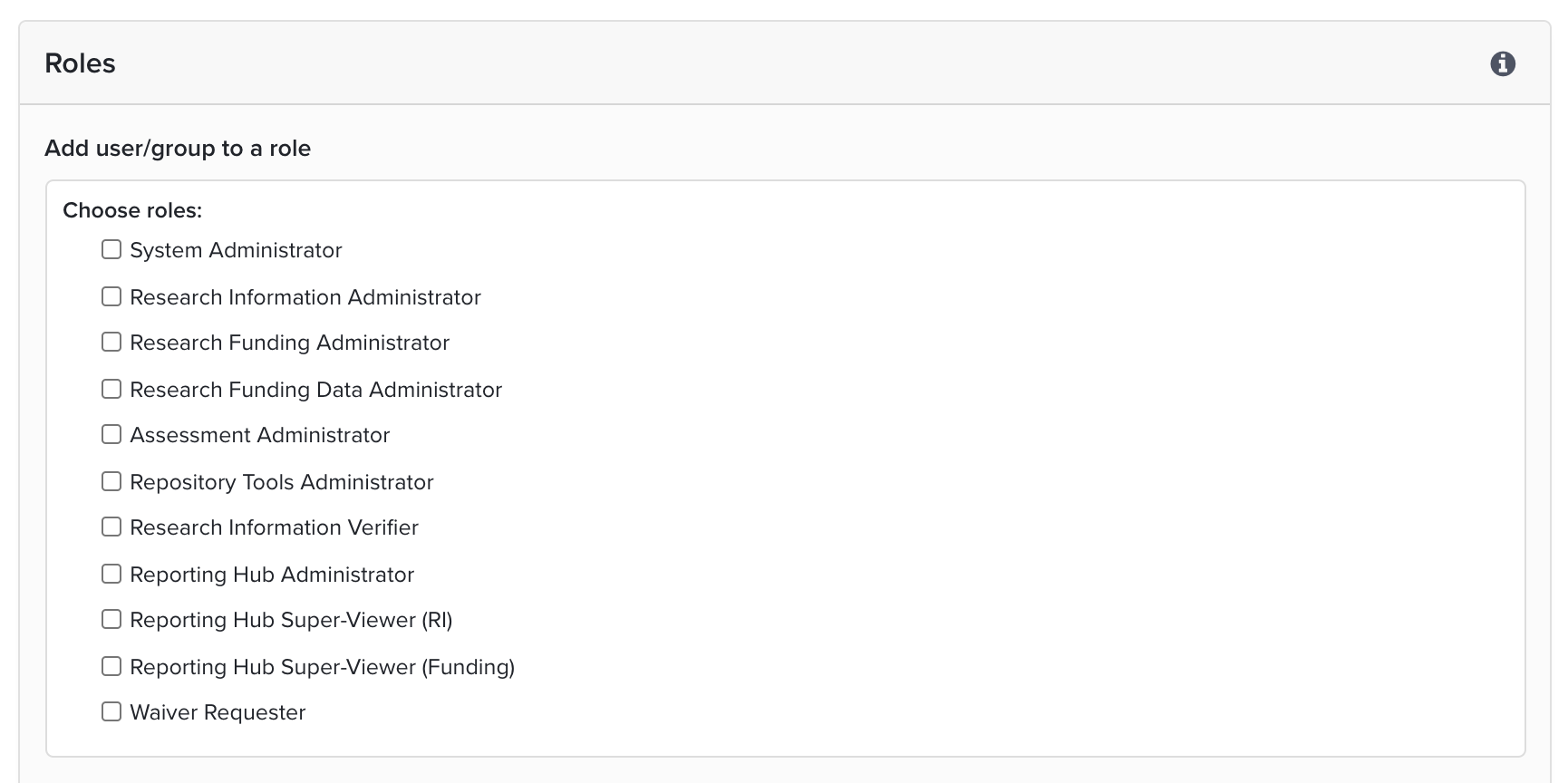
System Administrator
The most powerful role in Elements is the System Administrator. They see all the menu options, can make changes to all parts of the system and embody all other roles in Elements. Further information on this role is available here.
Research Funding Administrator
The Research Funding Administrator is the most powerful Awards Management role. They see all Awards Management menu options, have full access to the Funding Management Console (including the right to configure form templates (e.g. Proposal forms, Eligibility forms, Review forms), and Review and Approval workflow templates), and can grant any Awards Management roles.
Research Funding Data Administrator
The Research Funding Data Administrator has similar rights to the Research Funding Administrator, with the main difference being they are not able to configure form templates, or Review and Approval workflow templates.
Reporting Hub Super-Viewer (Funding)
A Reporting Hub Super-Viewer (Funding) can view all Awards Management funding reports in the Reporting Hub but does not have the ability to manage them. This role has usage rights of all groups Awards Management data and, like the Reporting Hub Administrator, will be able to run Formatted Reports on any group that the Awards Management report has been configured to run against.
Rights for Awards Management system roles
The following table summarises the rights available to Awards Management system roles:
Activity type | Research Funding Administrator | Research Funding Data Administrator | Reporting Hub Super-Viewer (Funding) |
Assign Awards Management roles | x | x | |
Impersonate Awards Management users | x | x | |
Access to Funding Management Console | x | x | |
Configure form templates | x | ||
Configure Review and Approval workflow templates | x | ||
Create / edit Funding Opportunities | x | x | |
Create proposals in the Management Console | x | x | |
Create / manage reviews and approvals, including allocating and dispatching reviews & approvals | x | x | |
Manage Proposals and Projects (e.g. return Proposal to PI, modify budgets) | x | x | |
Bulk import funder outcome data | x | ||
Manage system-wide default deliverable schedule | x | ||
Manage Project Deliverables and Change requests | x | x | |
Revert activation / approval | x | ||
Project closure | x | x | |
Manage Finance integration | x | ||
View Scheduled job logs | x | ||
Manage central list of Cost Centres | x | ||
Create related projects | x | x | |
Perform budget transfers | x | ||
Access all Awards Management data | x | x | |
Administer Awards Management reports | x | x | |
Generate Awards Management reports | x | x | x |
x |
Awards Management group roles
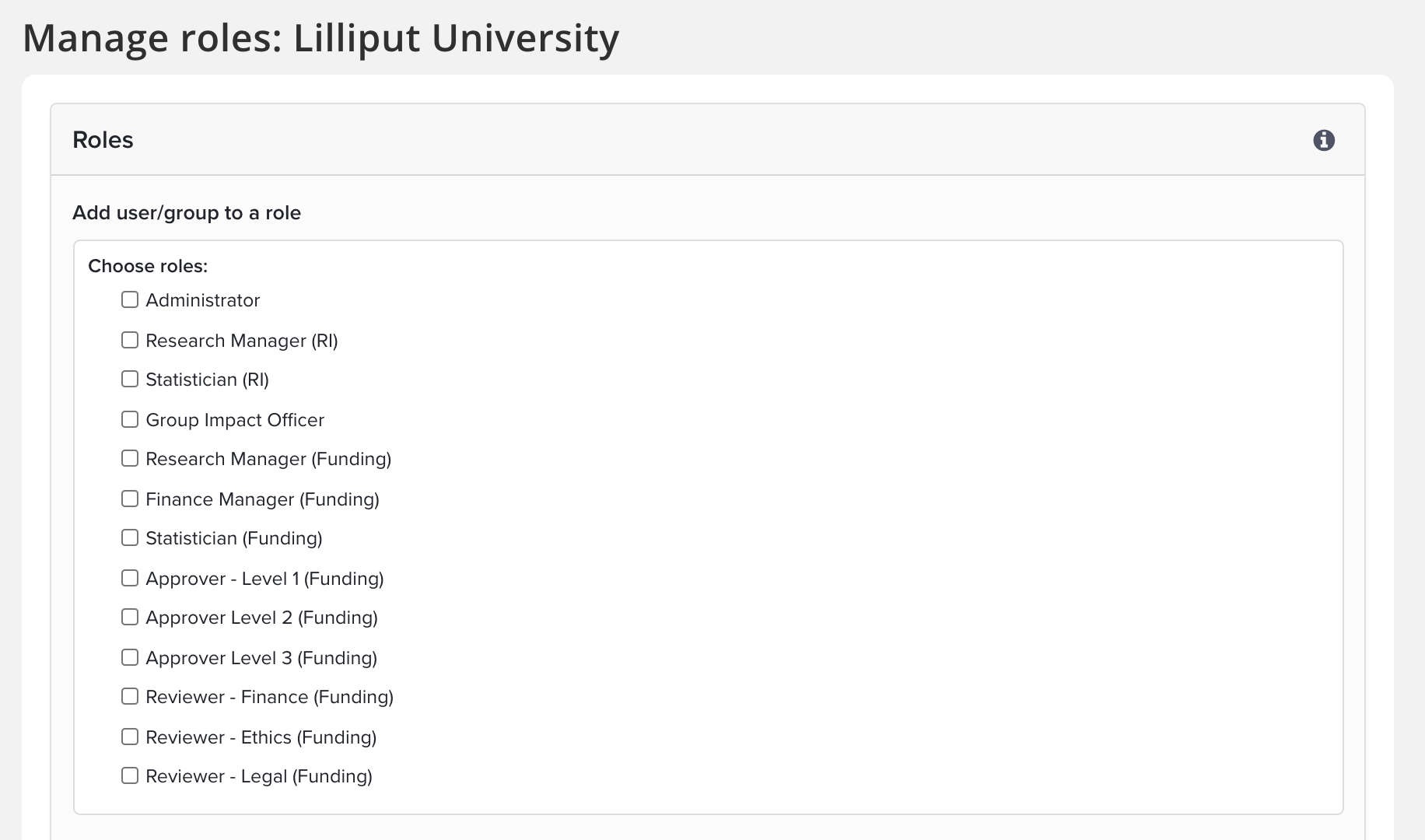
Begin by navigating to System Admin > [USERS & GROUPS] > Group management > Manage Groups. Select the group you wish to manage, then select 'Manage' in the Roles tile on the right-hand side of the page.
Research Manager (Funding)
Research Managers (Funding) can access all Awards Management data affiliated with their Group(s) and have access to the Funding Management Console where they can manage funding records and create Funding Opportunities. Research Managers (Funding) have the right to impersonate all members in their group, enabling them to perform Awards Management actions on behalf of users.
Finance Manager (Funding)
Finance Managers (Funding) can access all Awards Management data affiliated with their Group(s) and have access to the Funding Management Console where they can view and edit funding records.
Viewer (Funding)
Viewers (Funding) can access all Awards Management data affiliated with their Group(s) and have access to the Funding Management Console where they can view funding records and create journal entries. They are not able to edit any data in the Console, nor send emails.
Note that this role does NOT support a user having read only access to one group and wider access to another; full access would override the read only role. For example, if a user has been assigned the Viewer (Funding) role for School X and the Research Manager (Funding) role for School Y, the user will be granted the rights of the Research Manager (Funding) role for both schools.
Statistician (Funding)
Statisticians (Funding) have the ability to run Awards Management reports on groups, and members of the groups, that they have statistician access to.
Reviewers
There are three Awards Management Reviewer roles, tied to the Awards Management Review types available:
Reviewer - Finance (Funding)
Reviewer - Ethics (Funding)
Reviewer - Legal (Funding)
Where a Reviewer has been assigned to a Proposal (either individually, or as a Reviewer for the Group in question), they will have access to that Proposal for the purposes of submitting a review.
More information on Reviews and Approvals in Awards Management is available here.
Approvers
There are three Awards Management Approver roles, tied to the Awards Management Approval types available:
Approver - Level 1 (Funding)
Approver - Level 2 (Funding)
Approver - Level 3 (Funding)
Where an Approver has been assigned to a Proposal (either individually, or as an Approver for the Group in question), they will have access to that Proposal for the purposes of submitting an approval decision.
More information on Reviews and Approvals in Awards Management is available here.
Rights for Awards Management group roles
The following table summarises the rights available to the Awards Management Group roles.
Activity type | Research Manager (Funding) | Finance Manager (Funding) | Viewer (Funding) | Statistician (Funding) | Reviewer | Approver |
Impersonate Awards Management users | x | |||||
Access to Funding Management Console | x | x | o | |||
Create / edit Funding Opportunities | x | x | ||||
Create proposals in the Management Console | ||||||
Create / manage reviews and approvals, including allocating and dispatching reviews and approvals | x | |||||
Manage Proposals and Projects (e.g. return Proposal to PI, modify budgets) | x | x | ||||
Manage Project Deliverables and Change requests | x | x | ||||
Project closure | x | x | ||||
Access all Awards Management data | x | x | o | |||
Generate Awards Management reports | x | x | x | x | ||
Review / Approve Proposals | x | x |
o = read only
Access to content in the Management Console
System users have access to all content in Awards Management, regardless of the group affiliation of the content.
Where a user has a Group-based console role (i.e. Research Manager (Funding), Finance Manager (Funding)), their access to content is limited to content affiliated with that user’s Group role assignment (e.g. School of X, Faculty of Y) (and the implied child groups). Note that for these Group-based console roles, the individual’s group membership is irrelevant when determining access to content - access to content is only defined by the Group(s) against which their roles are assigned.
A Group-based Console user’s functional rights are restricted to their Group role assignment. This means that while they may have the right to perform certain functions in the Console, they can only perform these functions on content with an affiliation with their Group assignment. So, for example, a Funding Opportunity is available institution-wide. Research Officer assigned to Department A is only be able to view and manage those Proposals affiliated with Department A.
Parent-child relationships are respected with Group-based user roles. So, for example, if there is a Faculty of Science parent with two children: Department of Physics and Department of Chemistry. If the Proposal has an affiliation with the Department of Physics, a Research Manager (Funding) assigned to Faculty of Science will be able to access that Proposal.
*Affiliation in this context means any named participant on the Proposal is a member of Department X, or the Managing Group of the Proposal is Department X.
Impersonating Awards Management users
The following users have the right to impersonate Awards Management users:
System Administrator
Research Funding Administrator
Research Funding Data Administrator
Research Manager (Funding)
Other, non-Awards Management, roles that have impersonation rights will continue to be able to impersonate appropriate users, but they cannot view or modify Awards Management content. So, for example, a Research Information Administrator impersonating a Researcher will not be able to see that Researcher’s Awards Management content.
While impersonating a user, the Awards Management Administrator / Manager can do anything the end user does: initiate, edit, and submit a Proposal, submit a Review or Approval, etc.
Notes:
The user does not have to grant any rights to an Awards Management Administrator / Manager in order for the Awards Management Administrator / Manager to perform these activities. This is distinct from a Delegate, a person to whom the user explicitly grants those rights. Users can elect a Delegate by going to My Profile > Settings > Account Settings. If a user elects a delegate, the delegate is able to perform all Awards Management actions on that individual’s behalf (even if not explicitly an Awards Management user themselves) (e.g. if the user is a PI and they have elected a delegate, that delegate will be able to submit proposals, view and modify budgets, flag project deliverables as complete).
Funding Management Console access is restricted when impersonating another user. You cannot access the Console when impersonating another user.
Awards Management module access
Navigating to System Admin > [DATA CATEGORY SETTINGS] > Manage module access. Select the Research Funding checkbox and check the groups or users who require access and click add. After you select "Add" the role assignment will be updated in the lower part of the screen. To remove groups or users use the red cross.
Awards Management configuration support role
There is an additional ‘Symplectic Configuration Support’ role assigned during Awards Management implementation for use by the Elements support team. This is a role that will enable us to support you with the implementation of advanced Awards Management configuration requirements (such as complex form templates). We will only ever use this role with your permission for a specified immediate purpose.
Further information on roles in Elements is available here.