
Submit a review or an approval decision
Once a review / approval has been dispatched, it will appear in the reviewer's 'My Reviews and Approvals' list.
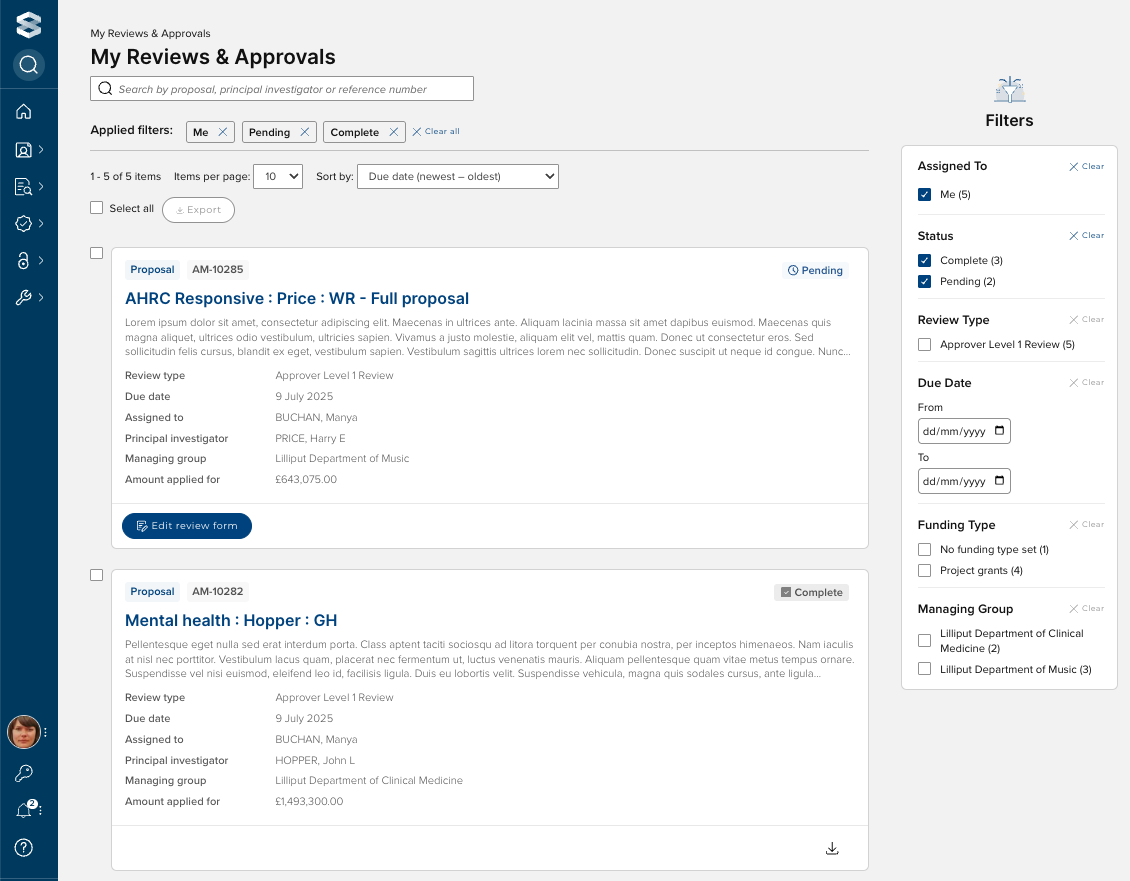
Click 'Edit review form' for the review you wish to action / view.
The Review screen includes the following sections:
Proposal feedback section, where you are asked to provide your review
Proposal reviews & approvals workflow table
Project team
Funding Opportunity details
Support contact details
Proposal timeline
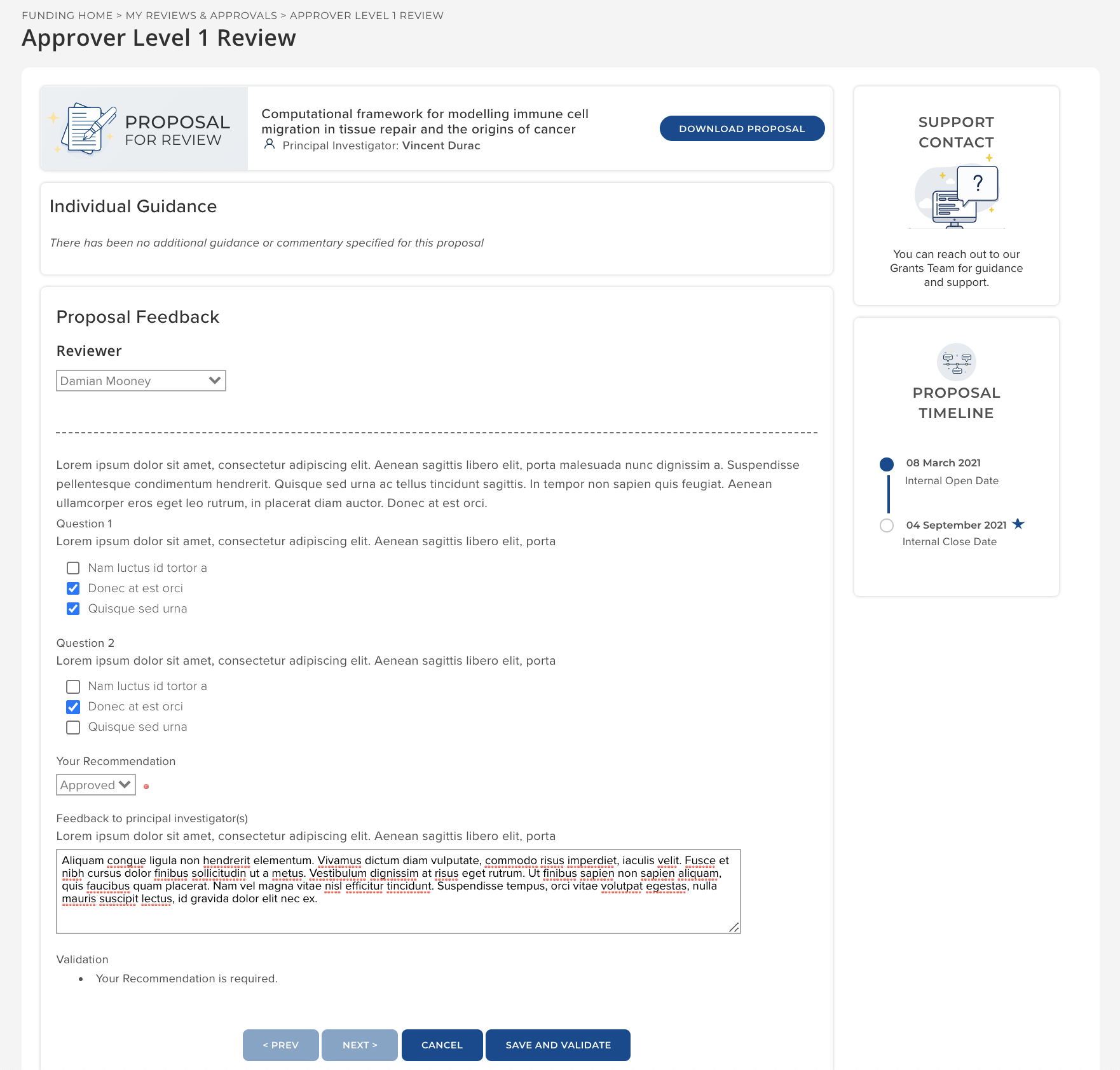
Once you have completed the review / approval and selected your recommendation, select 'Save and validate'. Once the page re-loads, you will then have a 'Submit' option available at the bottom of the screen. Click 'Submit' to submit your review / approval decision.
'Claiming' / Assigning a review / approval
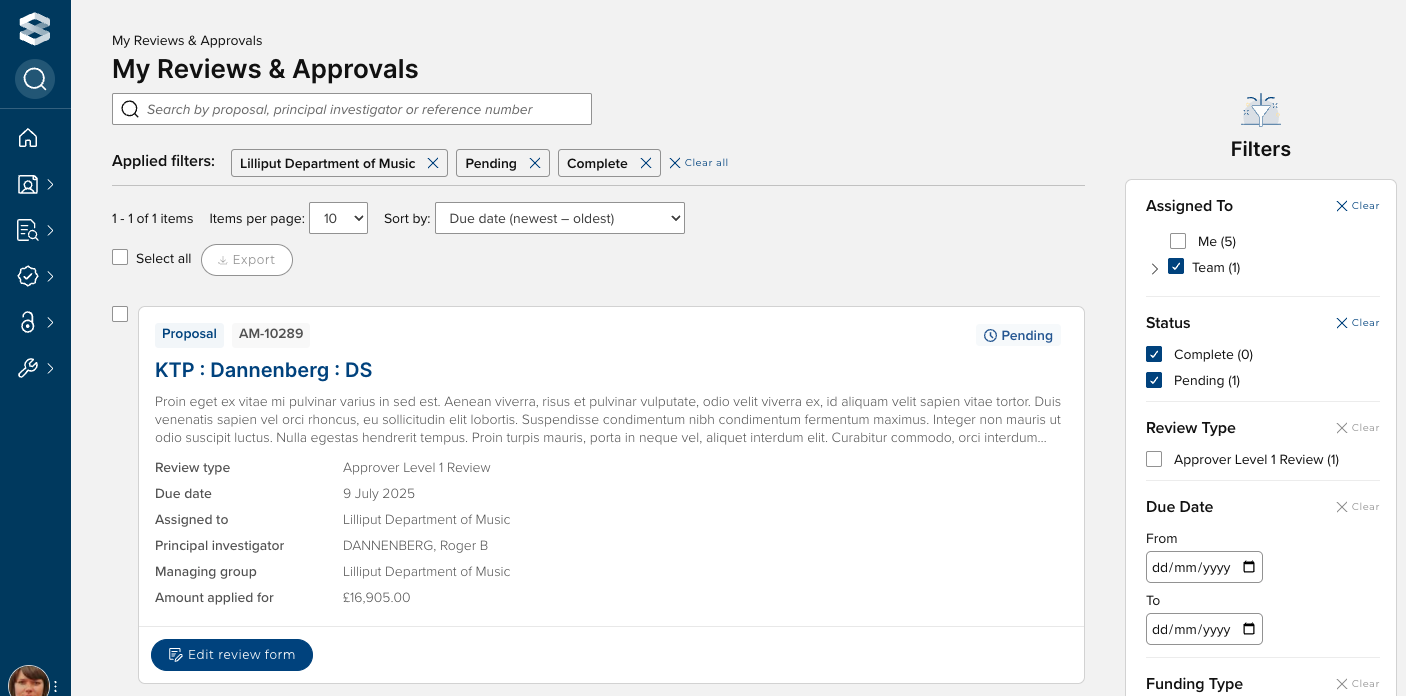
Where a Review / Approval has been assigned to your group, but not assigned to an individual reviewer / approver, it is deemed to be a 'team' review that needs to be claimed by one of the group reviewers / approvers.
These 'team' reviews can be located by filtering on Assigned to = Team
To 'claim' a review / approval (or assign to another colleague), open the review in question and select the relevant colleague to undertake the review, and select 'Save and validate' at the bottom of the page. Note that assigning a review to a colleague in this way will not specifically notify them of the pending review.
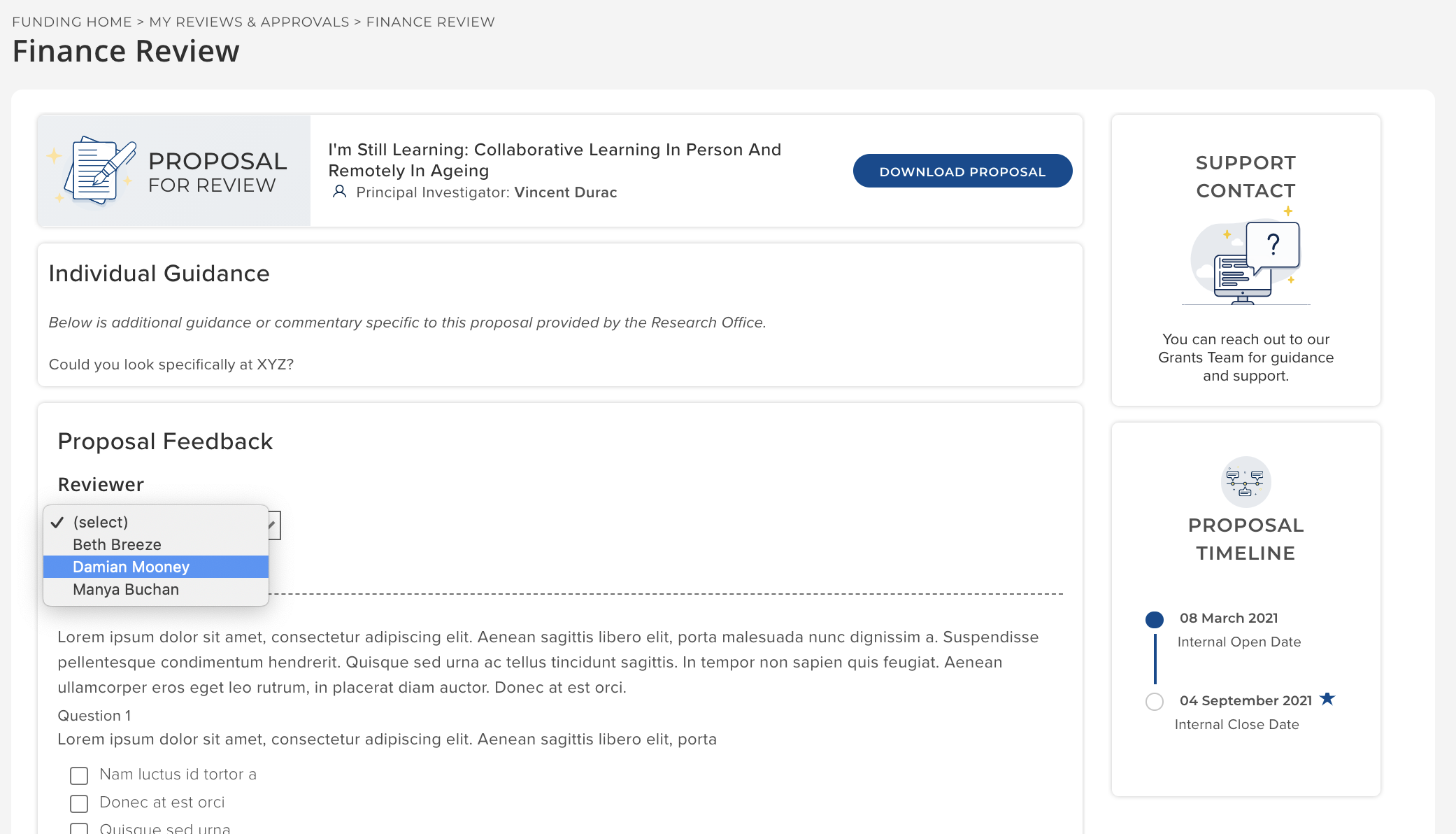
Re-assigning a review / approval
To re-assign a review / approval to a colleague (a user with the same reviewer / approver group role assignment), open the review in question, select the reviewer to re-assign the review to, and select 'Save and validate'. This will then move the review into their list of 'My reviews & approvals' (but will not specifically notify them).