Assigning and dispatching reviews and approvals
After validation, reviews and approvals can be created, allocated, and then dispatched to relevant users to endorse (or not) the Proposal for full application to the funder. Reviews and approvals are optional, and the default configuration is set up for all Proposals for a particular Funding Opportunity (see the Review and approval configuration support article). Setting up and dispatching reviews and approvals can be undertaken by relevant Admin Console users.
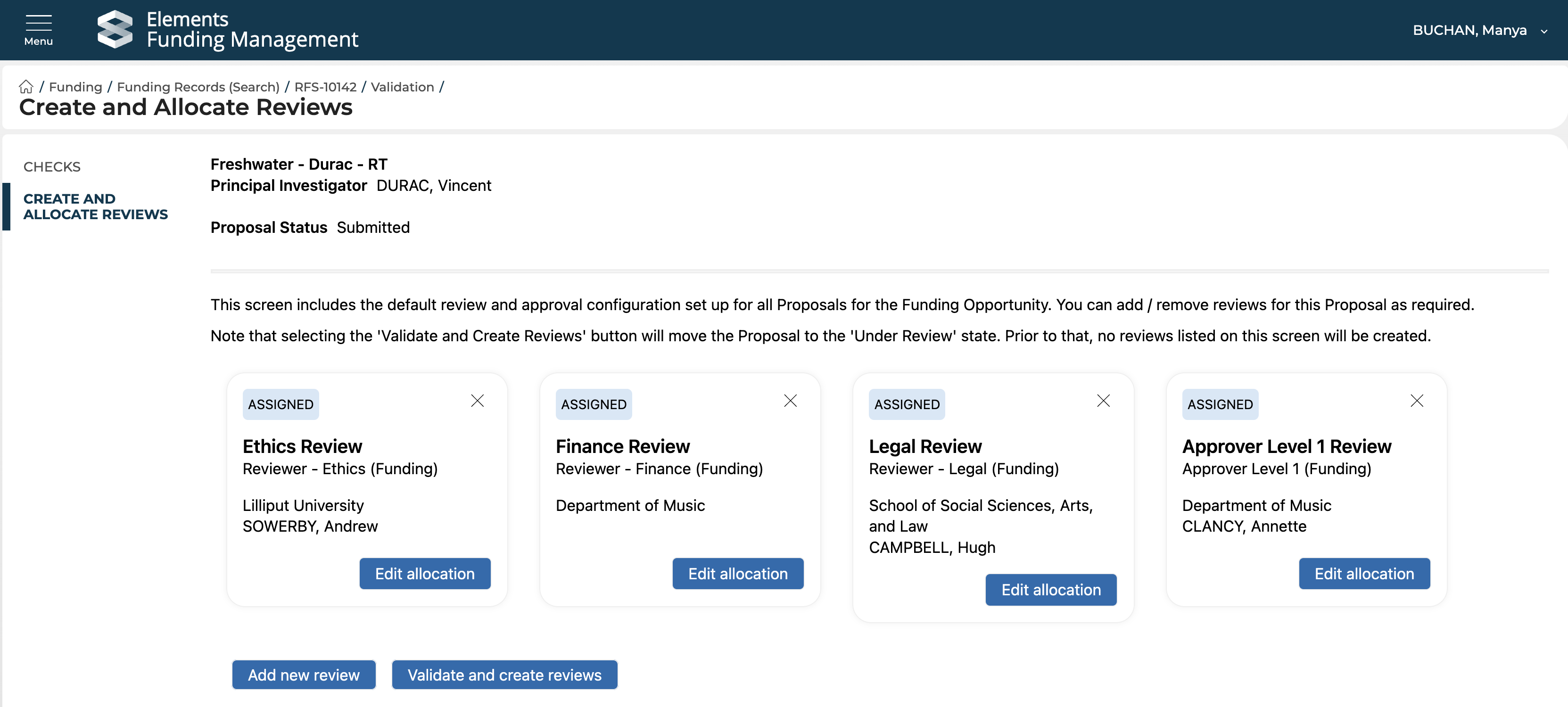
If you have come straight from validating the Proposal, you will be directed to the 'Create and allocate reviews' page within the Validation function. Otherwise, you can get to the same function by going to the submitted Proposal > Manage Reviews.
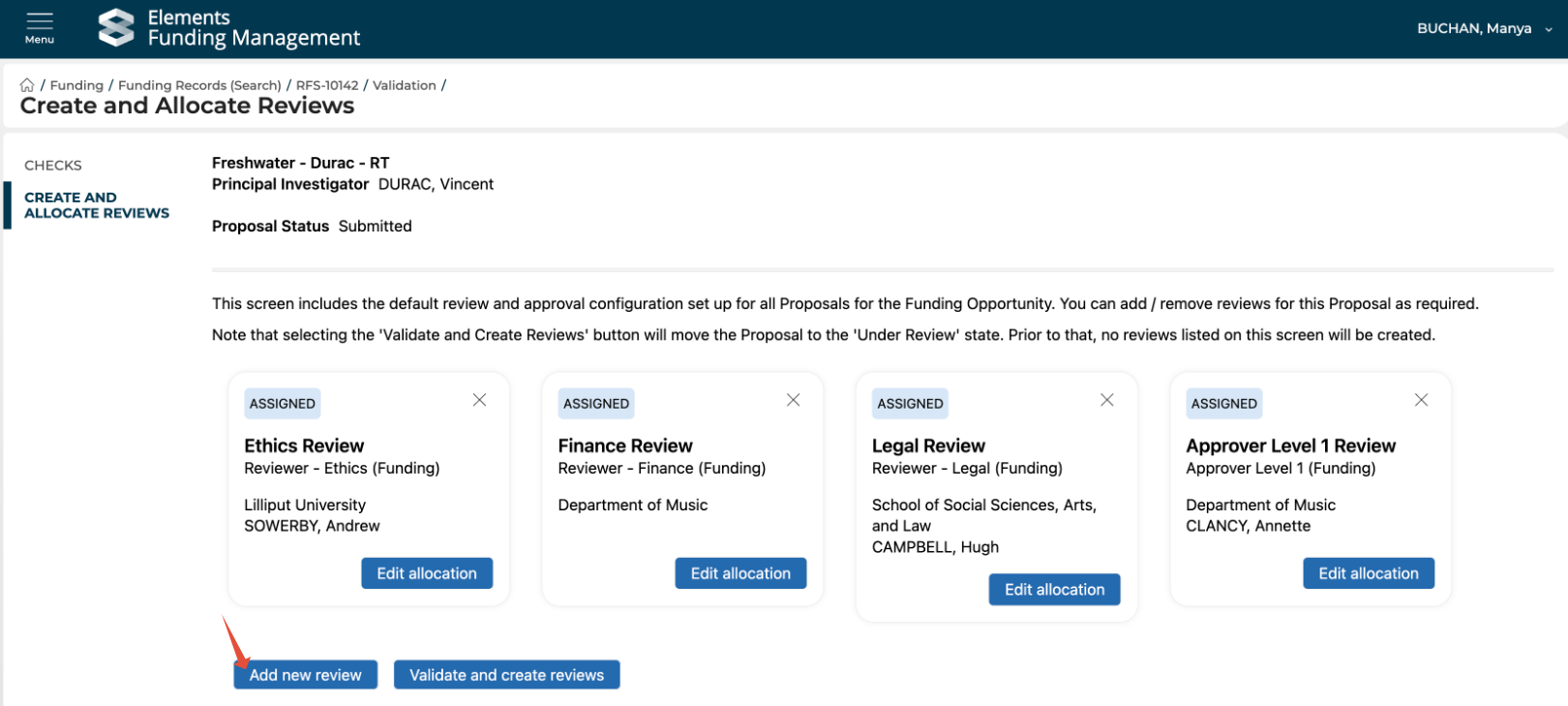
When you first land on the page, you will see the default review and approval configuration set up for all Proposals for the Funding Opportunity in question (excluding post-award approvals).
Assigning Reviews / Approvals
Each review is automatically assigned, as per the following rules:
For each review type created (either automatically as per the Funding Opportunity default configuration, or added manually (see below):
Group
The direct match for the Managing Group of the Proposal is selected
If no reviewer roles have been assigned to users for that Group, the next level up in the Managing Group's hierarchy is searched until the level where a reviewer role has been assigned
Reviewer
If only one reviewer with the role for that Group, the review is automatically assigned to them
If multiple reviewers with the role for that Group, none is assigned - will remain a 'team' assignment
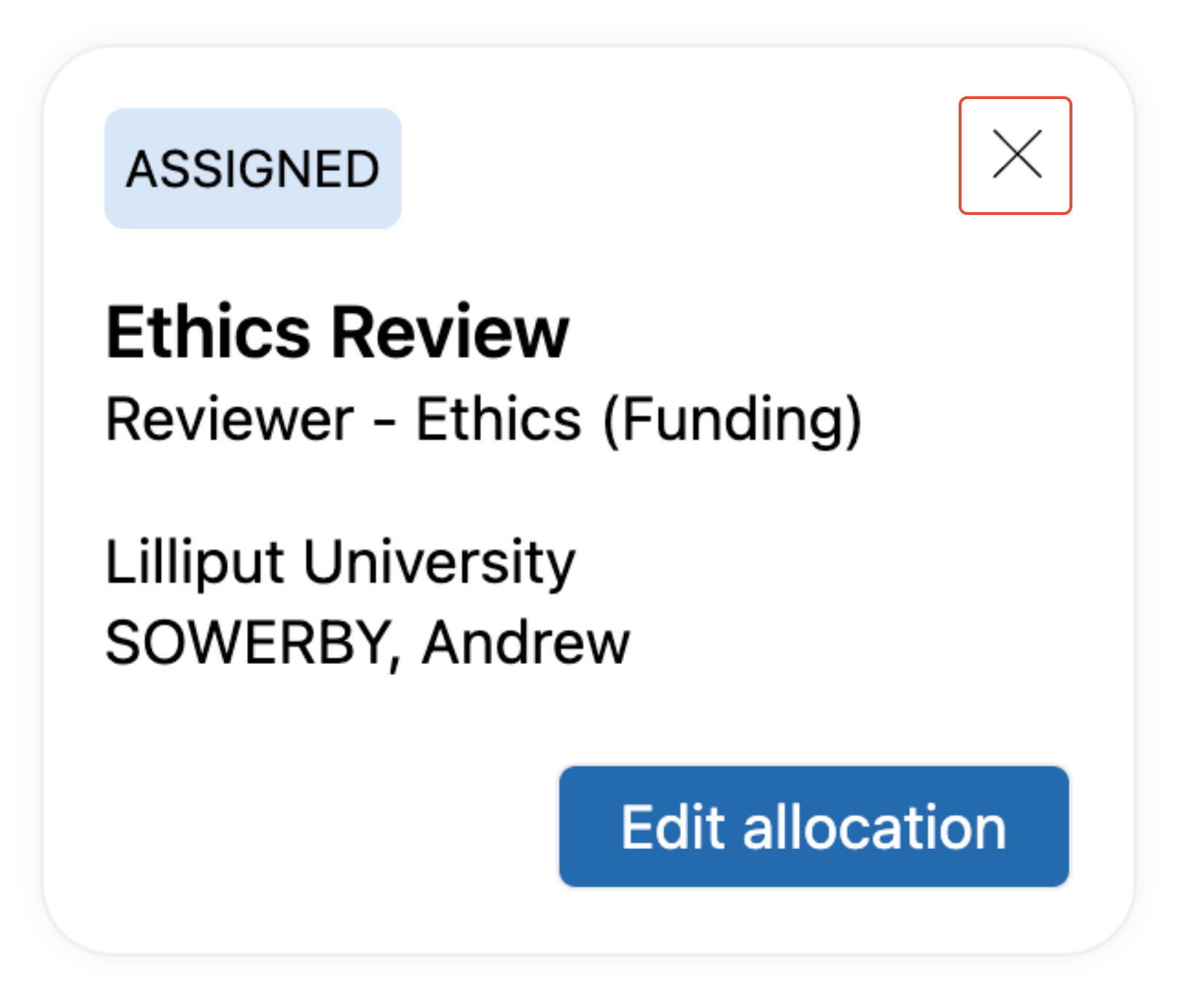
Note that where no user has been assigned the relevant role for the Review (either for the direct Group or any of its parent Groups), the review will appear as 'Unassigned'. You will either need to either delete this review (using the X in the top right-hand corner of the tile), or assign a user the appropriate role for the Group and review type.
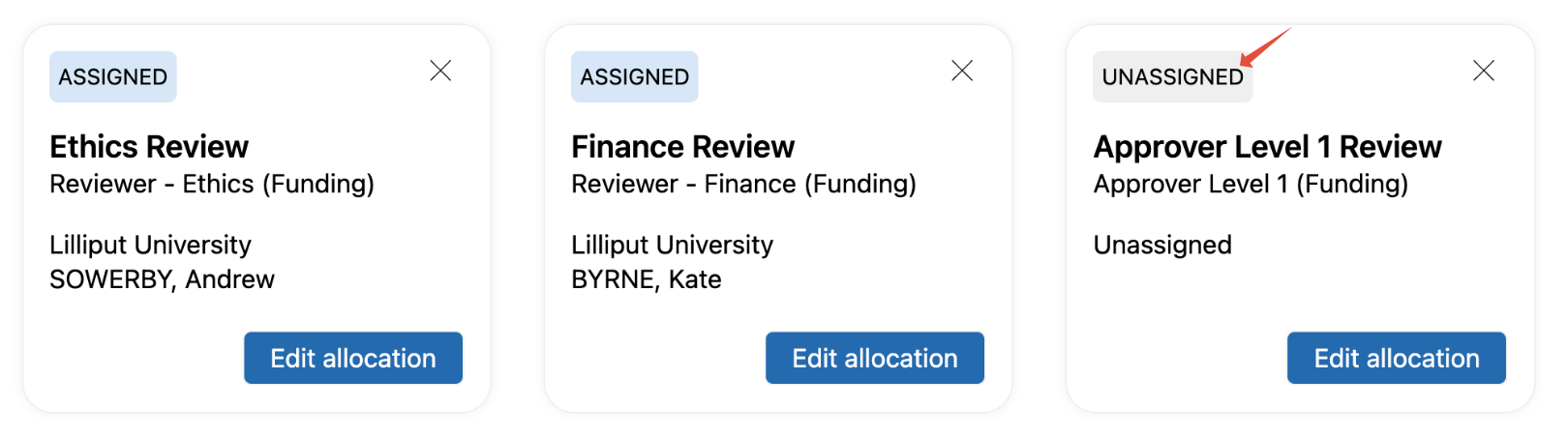
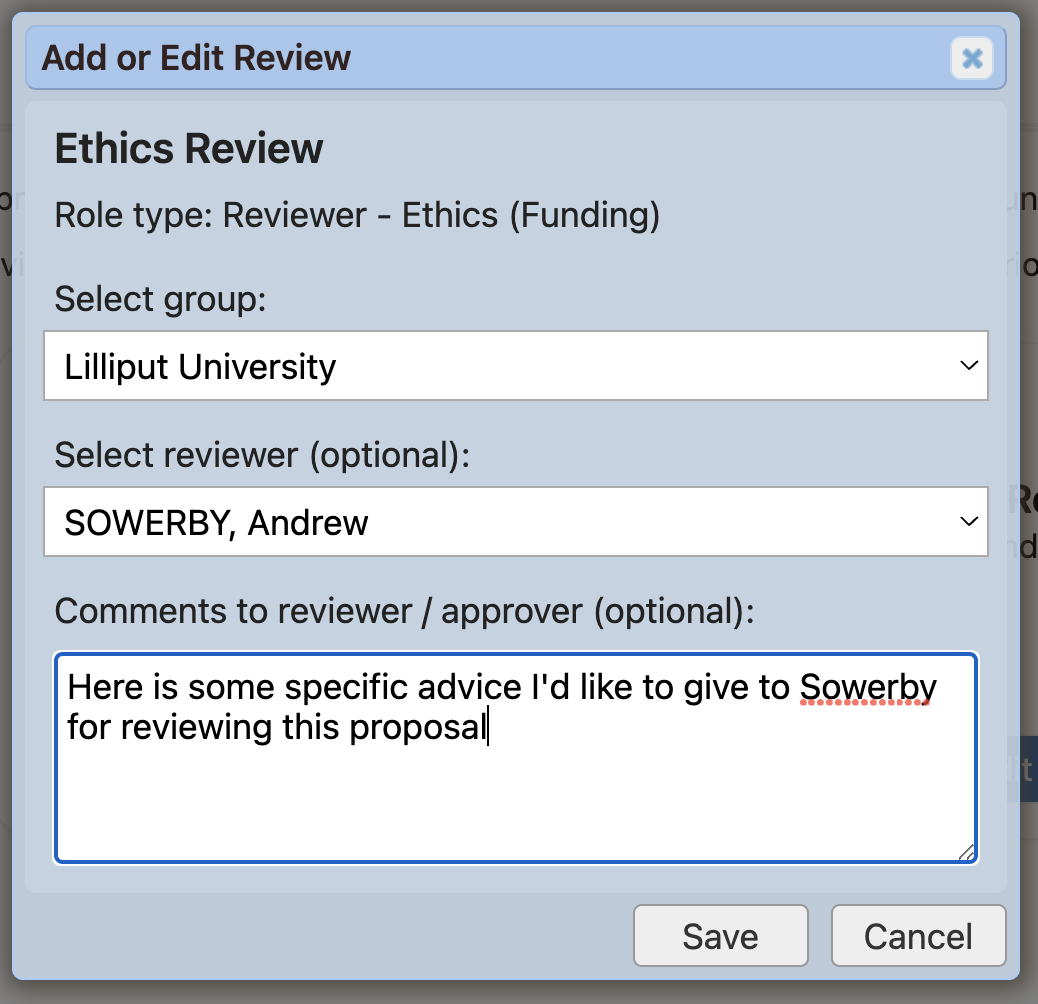
You can edit the automatic allocation (for example, if you'd like to assign to a specific reviewer or you'd like another reviewer elsewhere in the Group hierarchy to undertake the review) by selecting 'Edit allocation'. The Groups available for selection are presented in the following order:
Managing Group
Parents of the Managing Group
Other Groups (in alphabetical order)
The Groups / Reviewers available for selection will depend on the reviewers assigned the relevant role.
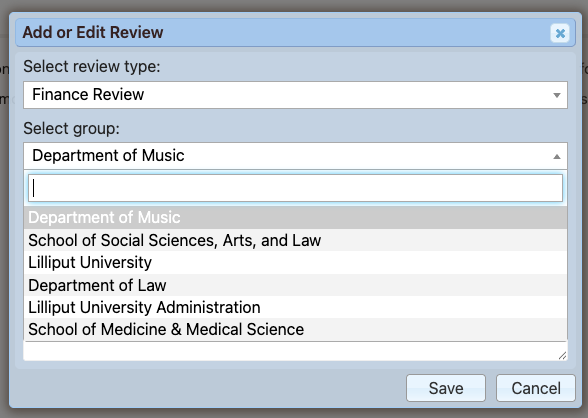
You can also add specific comments for this review, visible only to that reviewer (or group of reviewers if no individual has been selected).
You can edit the review allocation at any point prior to dispatch.
Adding new Reviews / Approvals
If you would like to add additional reviews / approvals to this Proposal (e.g. if the proposal exceeds a certain value threshold that requires and additional level of approval, or you would like to add a post-award approval), you can do so by selecting the 'Add new review' button.
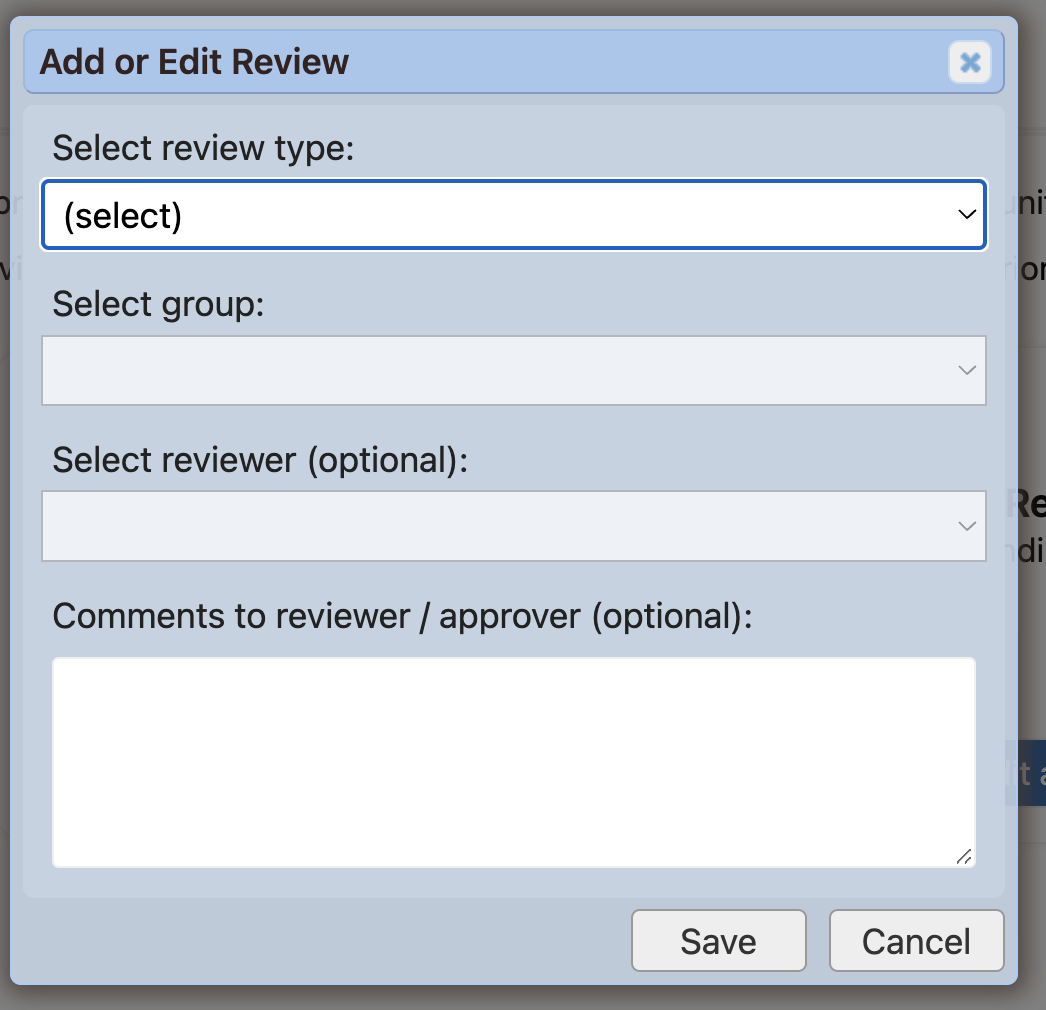
Once the Review type is selected, the Group and/or reviewers will be automatically populated as per the logic described above, and can be modified as also described above.
You can add new Reviews at any point prior to the Proposal becoming an active Project.
Removing Reviews / Approvals
It may be that the default configuration includes more Review types than are required for this specific Proposal (or you may have manually added one that is no longer needed). To delete / withdraw a Review / Approval type for this Proposal, click the X in the top right-hand corner of the tile.
If prior to dispatch, the Review will be deleted and no record kept. If after dispatch, the Review's status will be updated to Complete (Withdrawn).
You can delete / withdraw Reviews at any point prior to them being completed.
Validate and create reviews
When all review types have been assigned, a button for 'Validate and create reviews' button is available on the page.
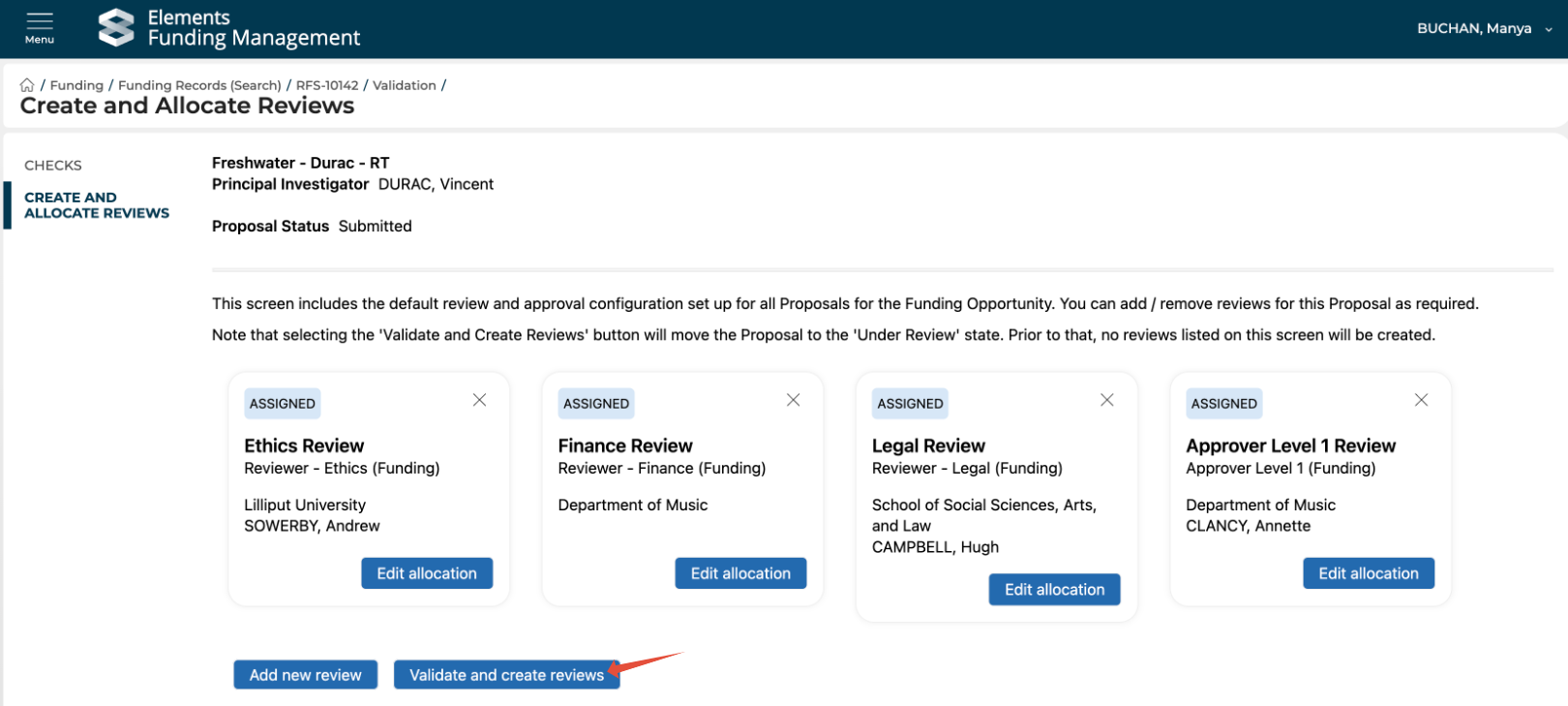
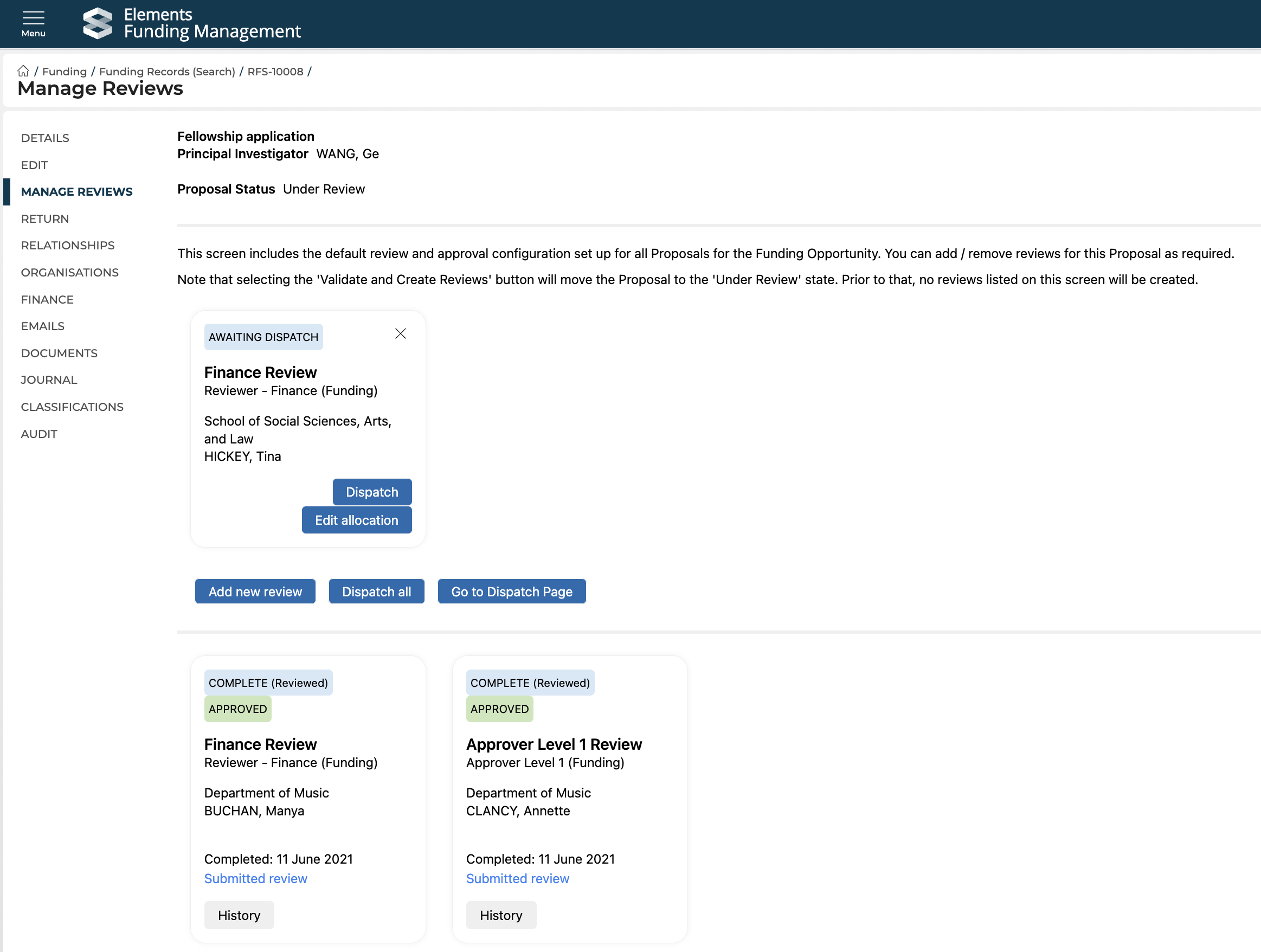
Click this - you will then be asked to confirm the action. You will see that your reviews are now 'Awaiting dispatch', and a new Dispatch buttons are available.
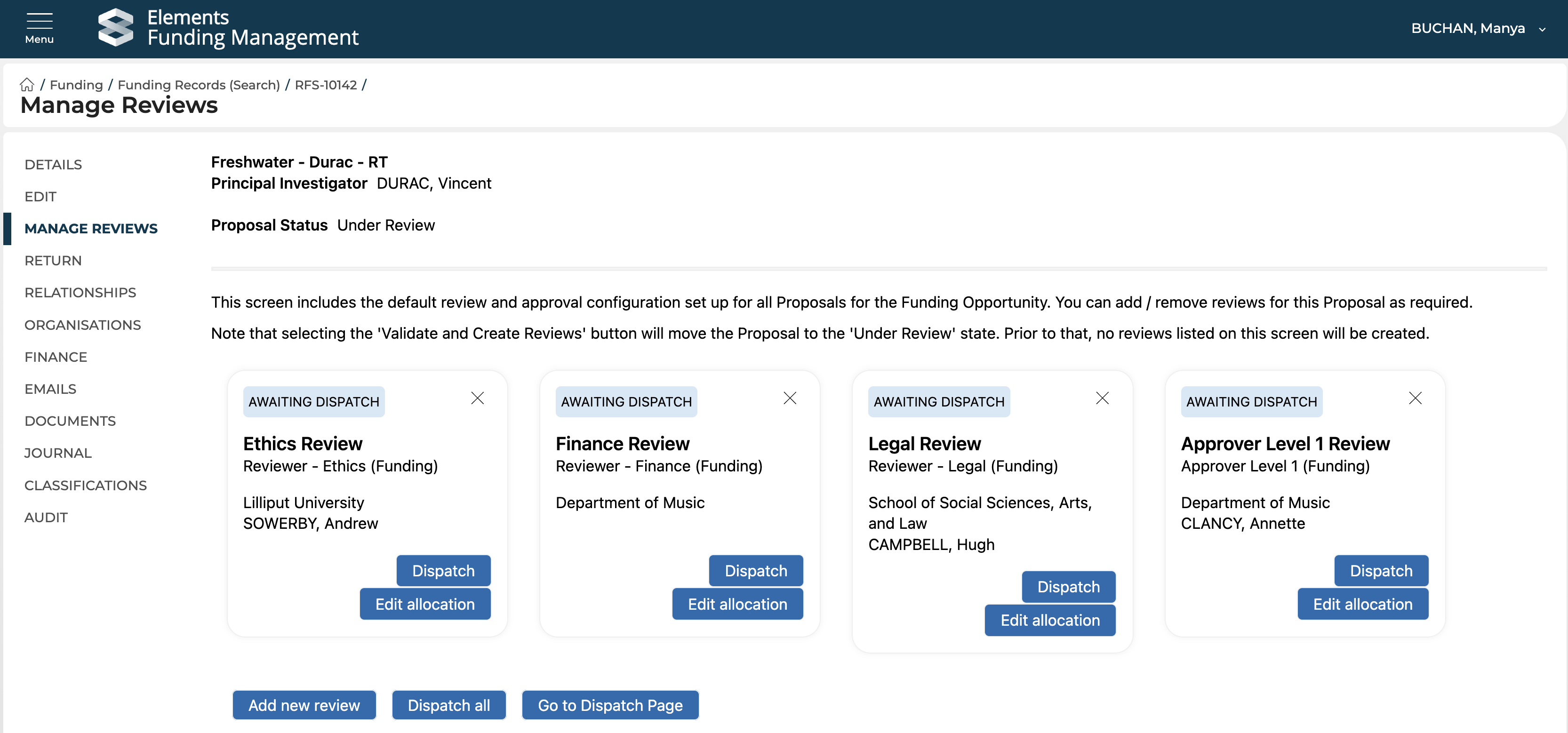
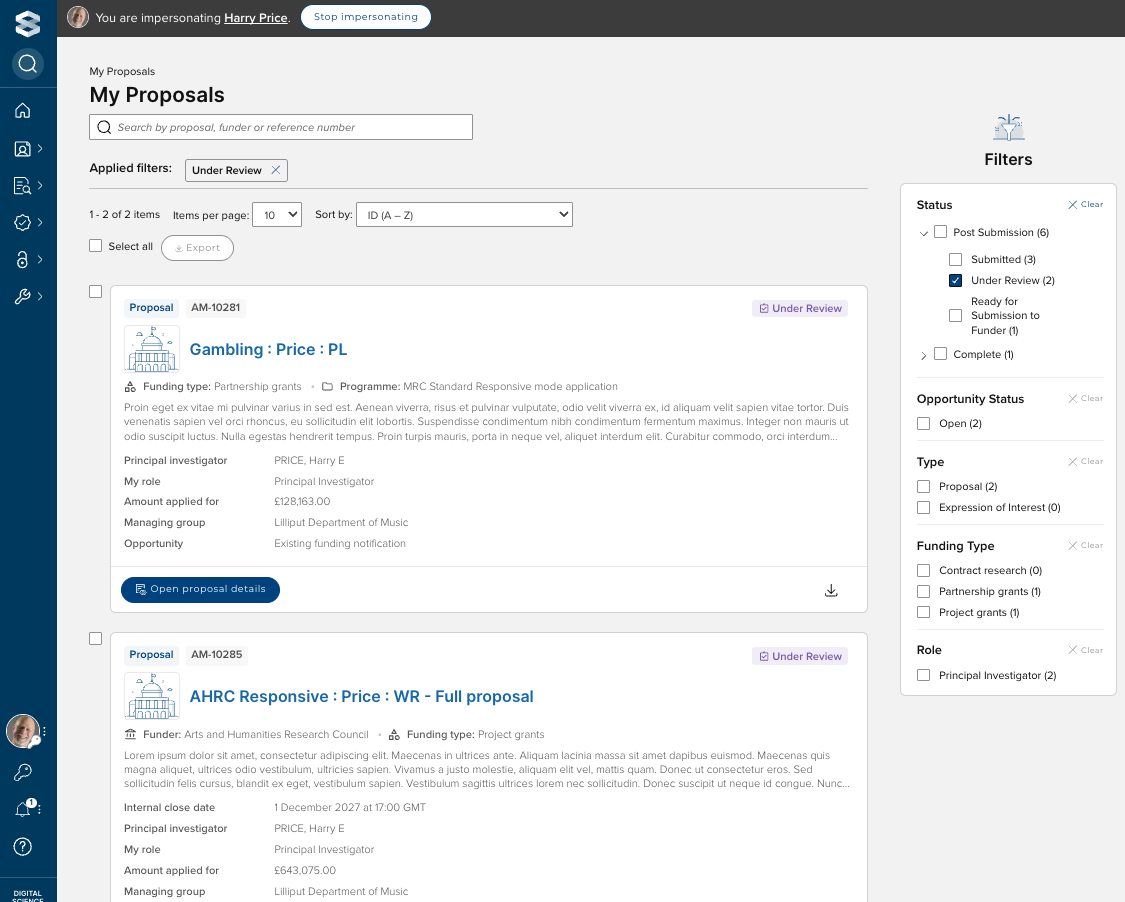
Once you create the reviews, the status of the Proposal will change from 'Submitted' to 'Under review' (both in the Admin Console, and for project participants).
Dispatch reviews / approvals
You have a few options to dispatch Reviews...
Manage Reviews screen
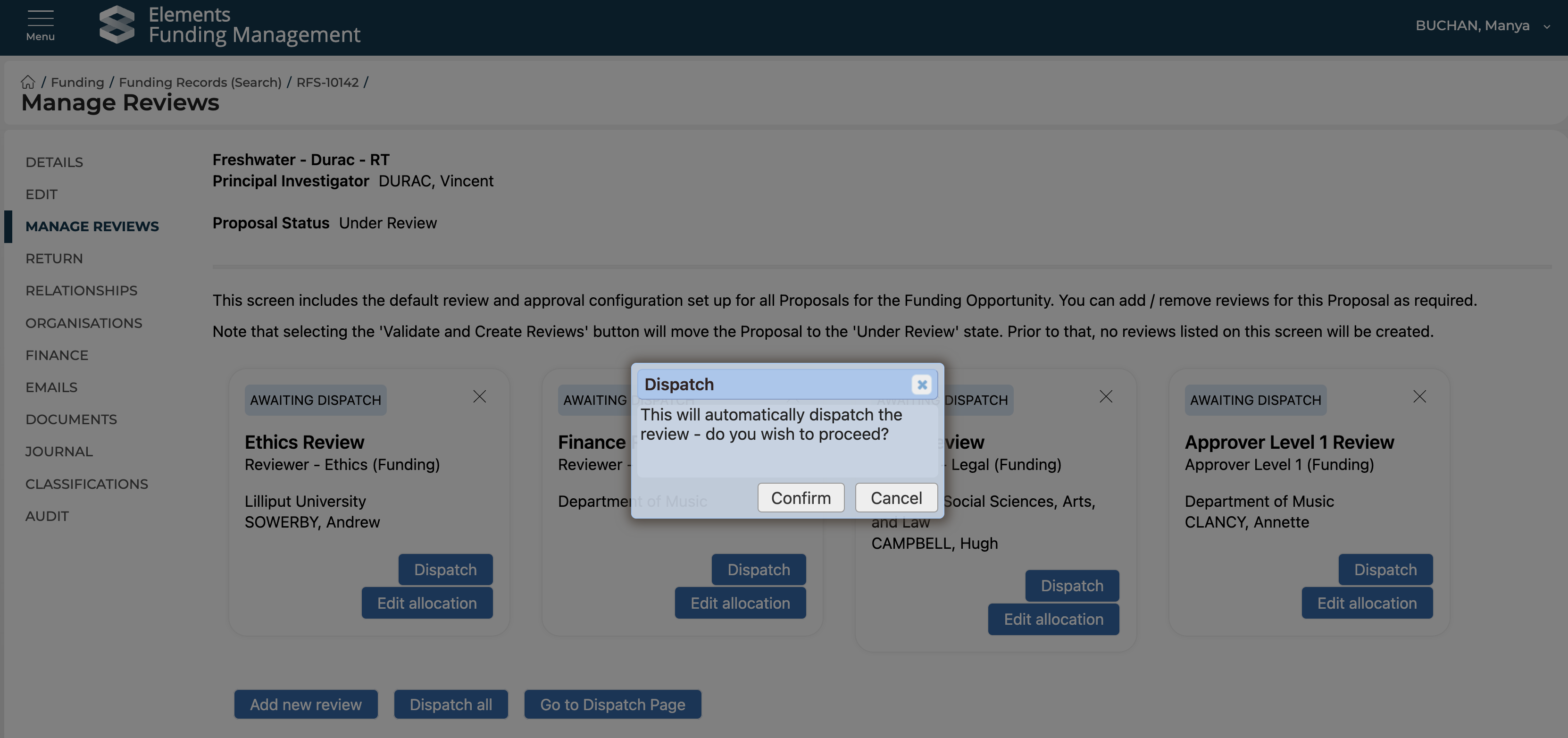
From the 'Manage Reviews' screen, you can dispatch individual reviews or dispatch all that are Awaiting Dispatch for that Proposal
Dispatching from the 'Manage Reviews' screen sends the dispatch emails automatically (using the relevant email template for the review) - you have no opportunity to modify the email(s) sent
Dispatch screen
From the 'Dispatch' screen (via the 'Go to Dispatch Page' button, or via Main menu > Pre-award > Reviews > Dispatch)
Dispatching from the 'Dispatch' screen enables you to modify the text of the email prior to dispatch
This way also enables you to filter reviews ready for dispatch by Funding Opportunity, Review type, Proposal managing group, etc.
Where an individual user has multiple reviews / approvals ready for dispatch, this way enables multiple reviews to be dispatched via a single email (using the 'Dispatch All (n)' function)
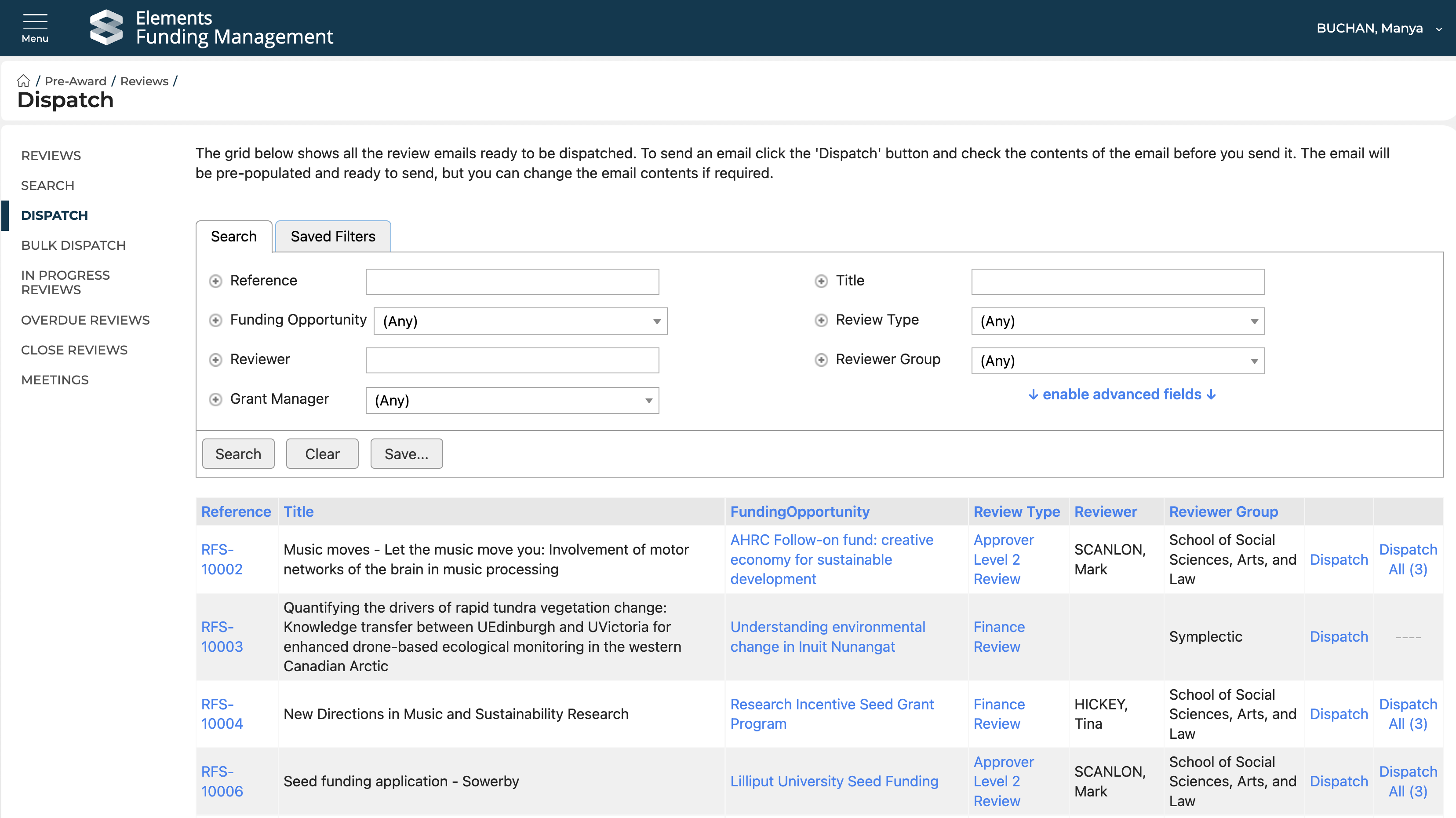
Selecting 'Dispatch' or 'Dispatch All (n)', will open an email page with the recipient's email and relevant email template already populated. You can modify the subject, body of the email, add attachments, etc.
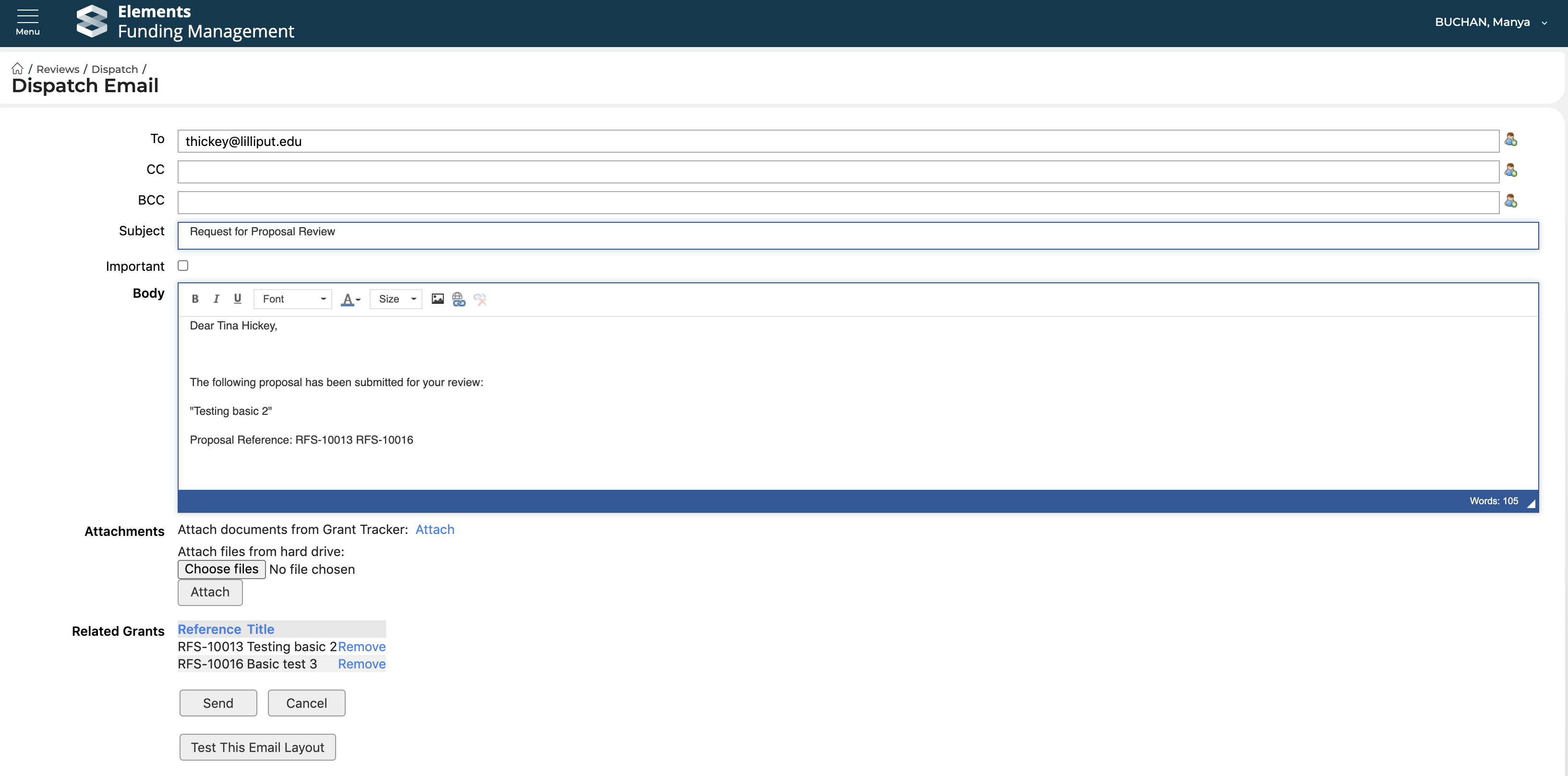
Bulk Dispatch screen
From the 'Bulk Dispatch' screen (via Main menu > Pre-award > Reviews > Bulk Dispatch)
Dispatching from the 'Bulk dispatch' screen sends the dispatch emails automatically (using the relevant email template for the review) - you have no opportunity to modify the email(s) sent
You can send emails in bulk per review type, across all / any number of Funding Opportunities
You can also use this screen to set selected Reviews as dispatched, without sending an email notification (note though that this results in no due date for the review being recorded)
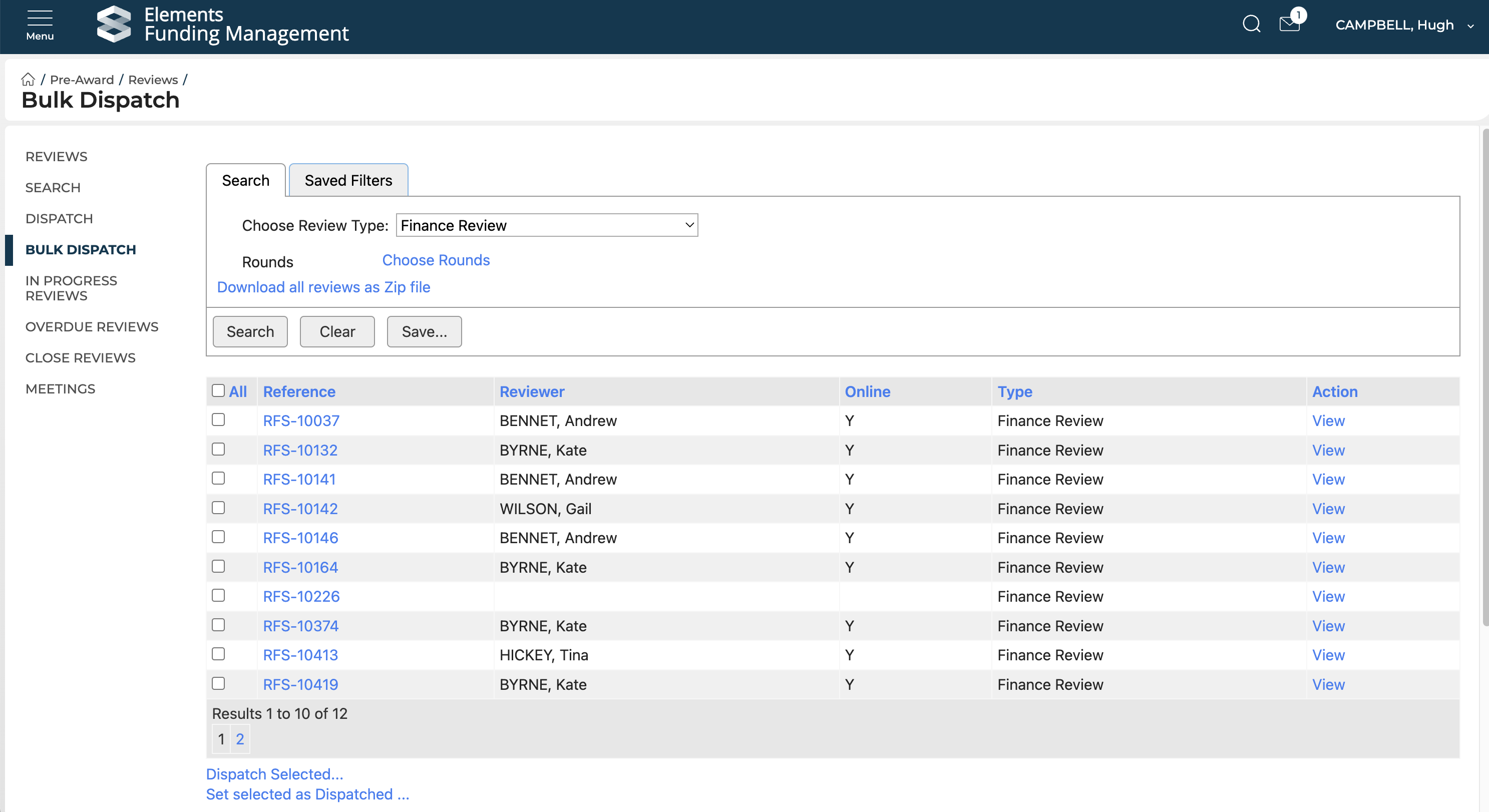
Once a review is dispatched, this will email the reviewer, notifying them of the action required, and the Proposal will be listed in their 'My Reviews and Approvals' screen in Elements. See the Submit a review or approval decision support article for details on how this is actioned.
Upon dispatch, the Review's status is updated to 'Pending'.
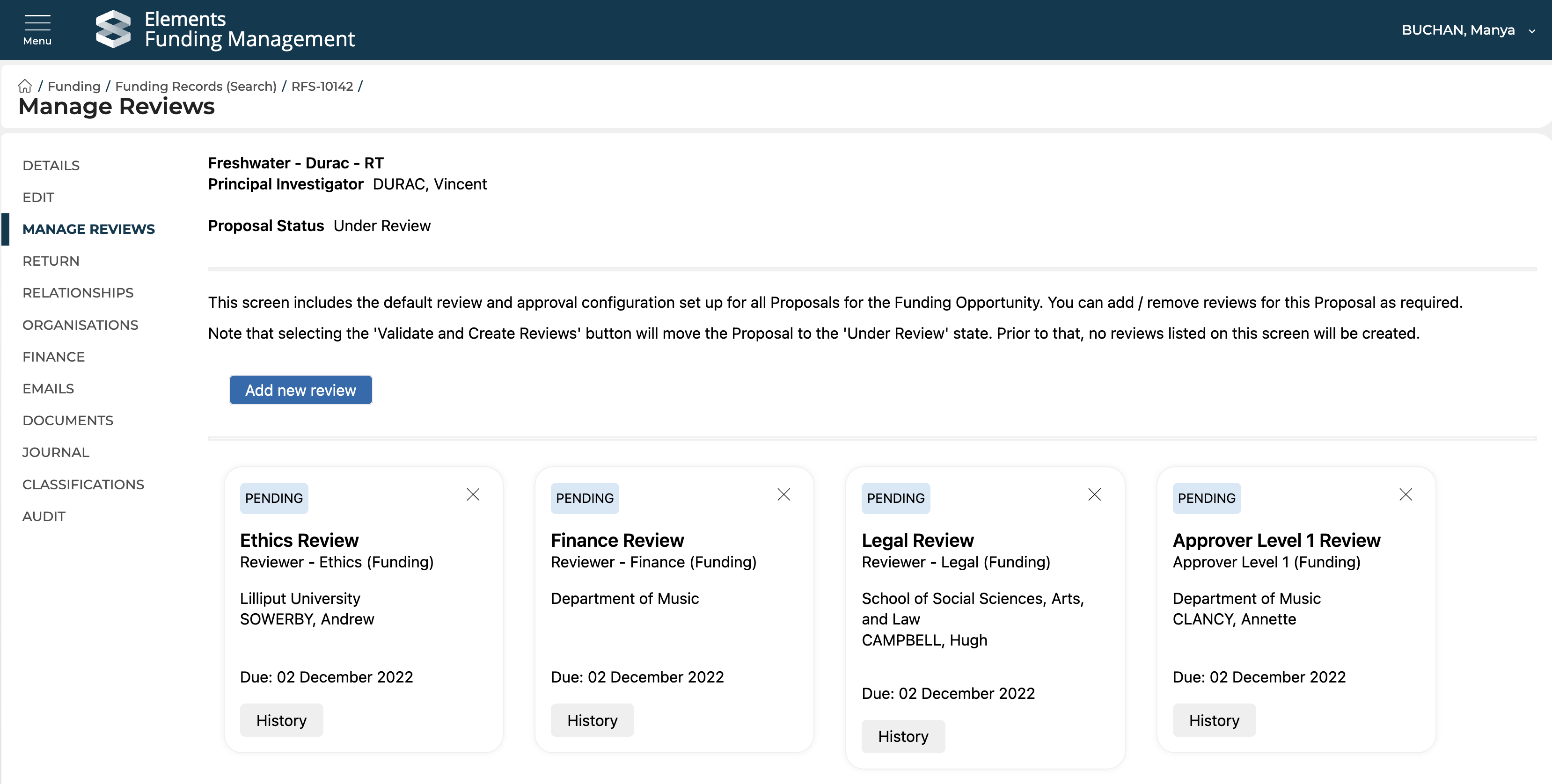
Once all reviews and approvals have been submitted, you will then need to record the overall Approval decision.