Encryption for hosted Elements clients offsite backups
Introduction
Hosted Elements instances are automatically backed up daily to Amazon S3 storage. Clients may also request weekly Elements backup uploads to our FTP servers, which are then made available for download.
A backup contains:
operational database backup
last day’s log files
Elements configuration files
custom SSRS reports
Full operational database backups are taken on Sundays and differential backups are taken on Monday through Saturday. Client weekly backups are created and uploaded to our FTP servers on Sundays, so they will always contain a full operational database backup.
Backup encryption
Elements backup archives are encrypted using AES256 encryption. The algorithm is an industry standard and is FIPS 140-2 compliant. It is also one of the most widely-used algorithms in encryption tools.
Symplectic uses an Open Source tool AES Crypt to handle AES256 encryption. It has an extremely simple GUI which integrates with Windows Explorer, as well as a CLI tool.
Each Elements backup archive is encrypted using a different, long and randomly generated symmetric key (i.e. password). This ensures that if a key is compromised, minimal amount of data is exposed to attackers. Weekly client backups are encrypted using a different key from standard scheduled Elements backups.
Each data encryption key is encrypted using a backup certificate (i.e. asymmetric encryption), saved as a text file and uploaded alongside corresponding encrypted backup archive.
Provision backup encryption certificate
Backup certificates used to encrypt weekly client backups are provisioned and renewed by clients. Client is responsible for securely storing and handling certificate private key and providing Symplectic with public certificate used to encrypt archive symmetric keys.
The only requirements for the certificate is that Key Usage attribute contains Key Encipherment, Data Encipherment and Enhanced Key Usage attribute contains Document Encryption (1.3.6.1.4.1.311.80.1).
Create encryption certificate using PowerShell
The easiest way to create a backup encryption certificate on Windows Server 2012 or newer (including Windows 7 and 10) is using PowerShell (5.1 or 7.x).
Windows PowerShell has a built-in command for creating self-signed certificates, which can be used to create an encryption certificate. The following command will create a new certificate valid for 2 years and store it to Personal local machine certificate storage:
$backupCert = New-SelfSignedCertificate `
    -DnsName "<certificate name>" `
    -FriendlyName "<certificate name>" `
    -Type DocumentEncryptionCert `
    -HashAlgorithm SHA512 `
    -KeyLength 4096 `
    -KeyExportPolicy Exportable `
    -NotAfter ([System.DateTime]::Today.AddYears(2)) `
-CertStoreLocation Cert:\LocalMachine\MyChange<certificate name> to something descriptive.
Certificate validity period can be changed on line 8, -NotAfter parameter.
To be able to store the certificate into local machine storage, PowerShell must run under elevated privileges (“As Administrator”). Alternatively, change -CertStoreLocation to Cert:\CurrentUser\Mywhich will store the new certificate to current user’s certificate store.
Export certificate
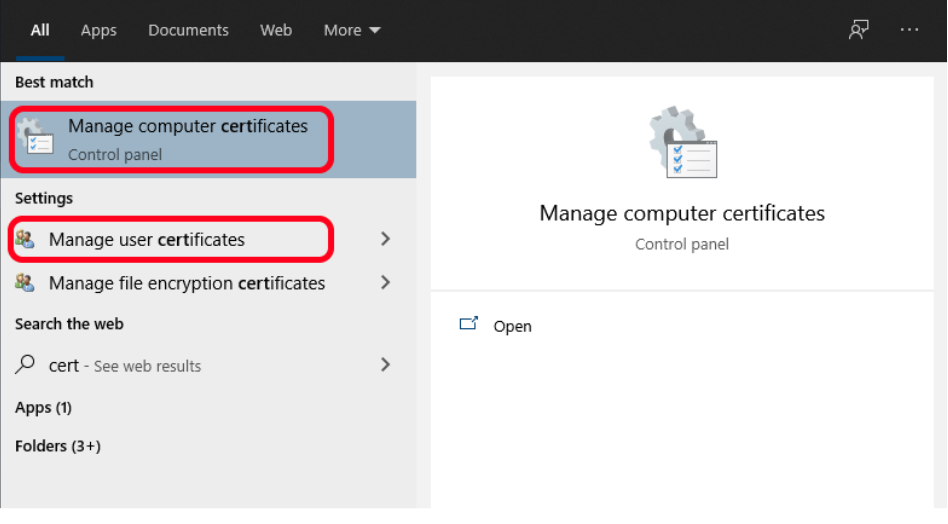
Elements backup process only requires public encryption certificate, without the private key. To export your backup encryption certificate, start the appropriate certificate manager, depending on where the certificate is stored: “Manage computer certificates” or “Manage user certificates”:
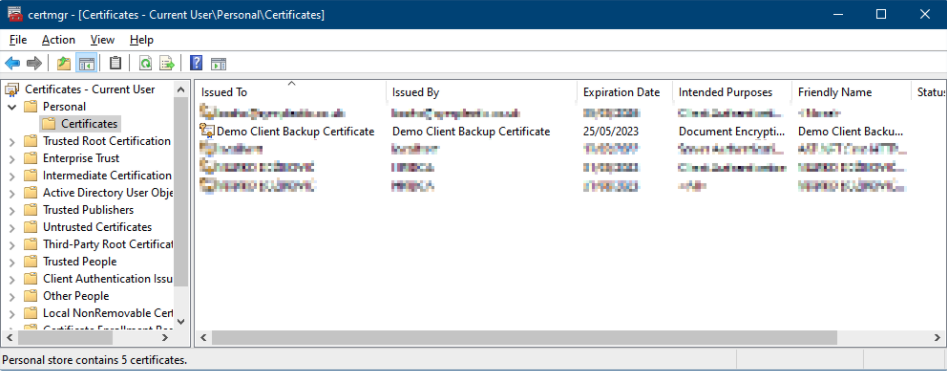
Locate the backup encryption certificate in the Personal store and right click on it.
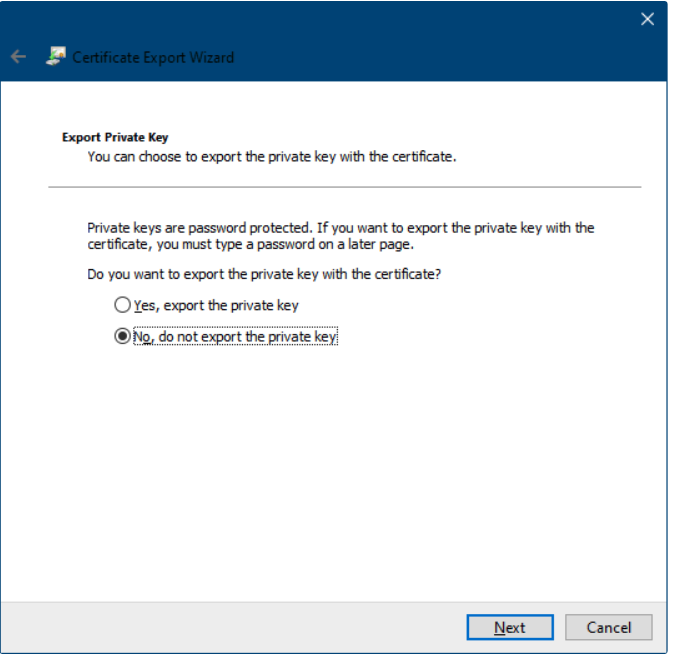
Select All Tasks → Export… A Certificate Export Wizard will appear. Click Next on the first page. Select the option to not export private key on the next window:
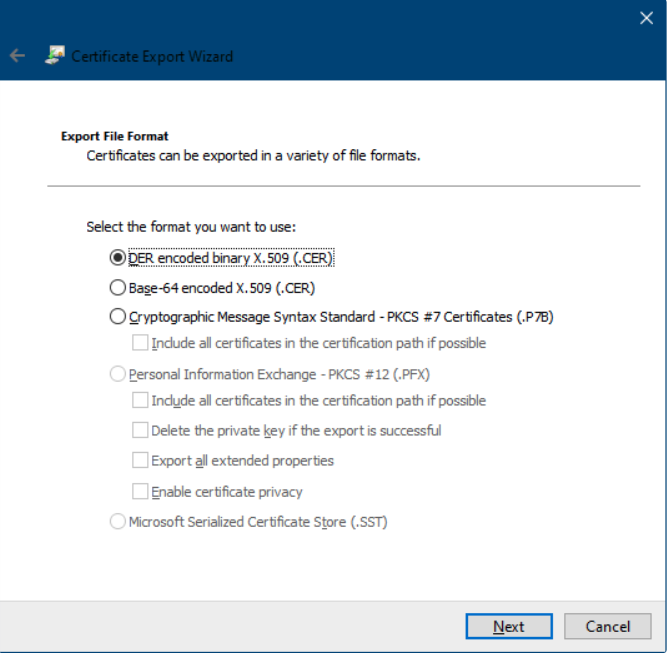
Select export format on the next window. Any supported format will do:
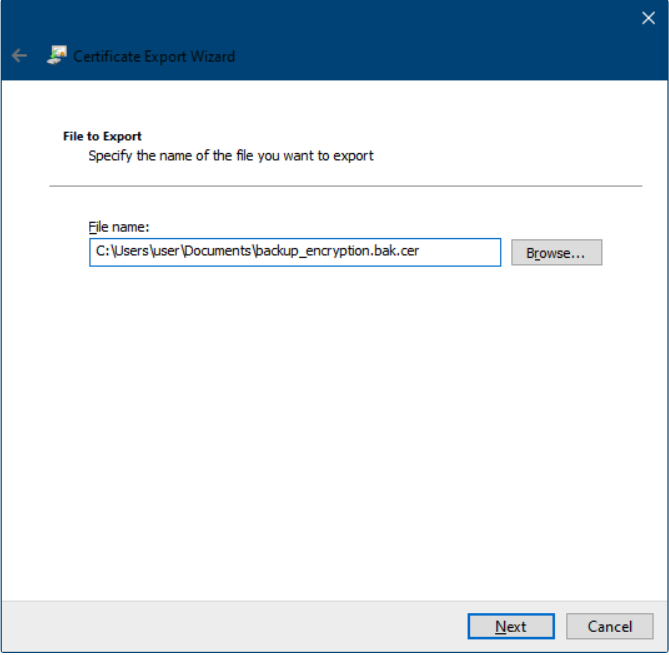
Specify output file path on the next window:
Finally, click Finish on the last window to export the certificate.
Send the exported certificate file to Symplectic.
You can also export the certificate with the private key if you need to copy/move the certificate to another computer.
Decrypting weekly Elements backup file
To decrypt and unpack an Elements backup archive, you will need both the encrypted Elements backup archive file and the accompanying certificate-encrypted key file. They do not need to be on the same computer.
The computer used to decrypt the key file needs to have PowerShell 5.1 or 7.x and the backup encryption certificate with the private key installed in Windows certificate store (e.g. Personal certificates machine-level store).
The computer used to decrypt the backup archive file needs to have AES Crypt ( 
If using two different computers, you will need a safe way to transfer the decryption key (e.g. using Privnote or copy/paste via an RDP client).
For simplicity, the decryption example uses a single computer.
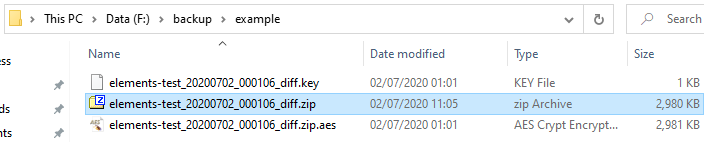
We have downloaded key and encrypted backup archive files. We are working with a differential backup file here, but the process is identical for full backups:

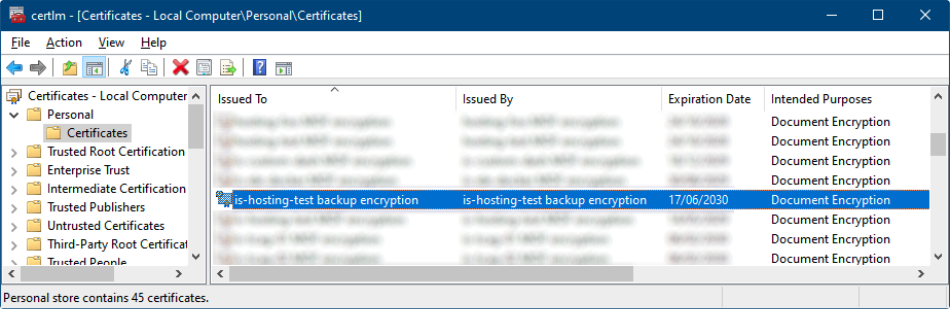
We need to make sure the corresponding backup encryption certificate with the private key is installed on the machine (notice the little key in the upper left corner on the certificate icon):
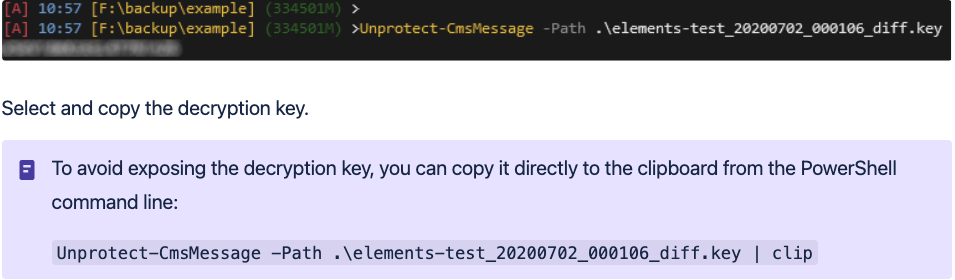
To get the archive key, we need to decrypt the key file. Start
PowerShell
, go to the download directory and run
Unprotect-CmsMessage
command on the downloaded
.key
file:
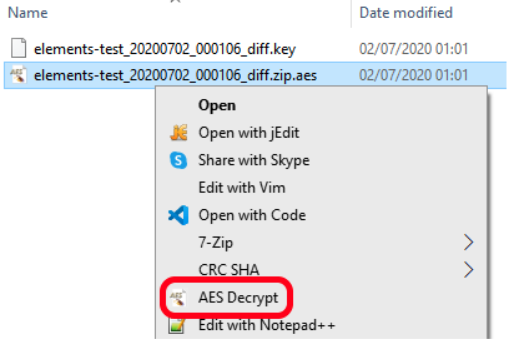
In Windows File Explorer, right-click on the .zip.aes file and select AES Deccrypt:
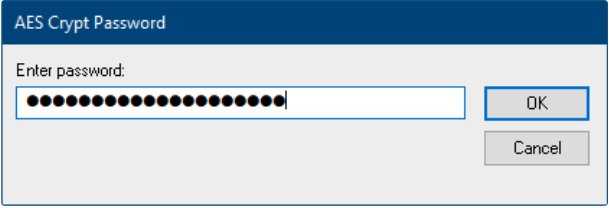
Paste the copied decryption key and click OK:
The decrypted backup archive will be saved to the same directory: