
Configuring Annotations
Annotations provide the ability for Elements to collect contextual information about a user’s relationship with an object. Annotations can be added to other Elements objects (i.e. Publications, Grants, Professional Activities, Projects, and Teaching Activities) by users. Annotations support the collection of a set of data per-linked user, meaning that each collaborator can capture information about their contribution to an object which is unique to them.
Setting up Annotation types
There is one stock Annotation type configured to be displayed on journal articles by default. Organisations can modify the stock Annotation type and configure any number of Annotation types, setting specific fields, data types and guidance for each field.
Configuring Annotations is a two step process;
1. Configuring Annotation types
In order to configure Annotation types go to System Admin > Data Category Settings > Annotations. Elements include one stock Annotation type called ‘Contributions’ as standard. This contains one underlying field called ‘Description’.
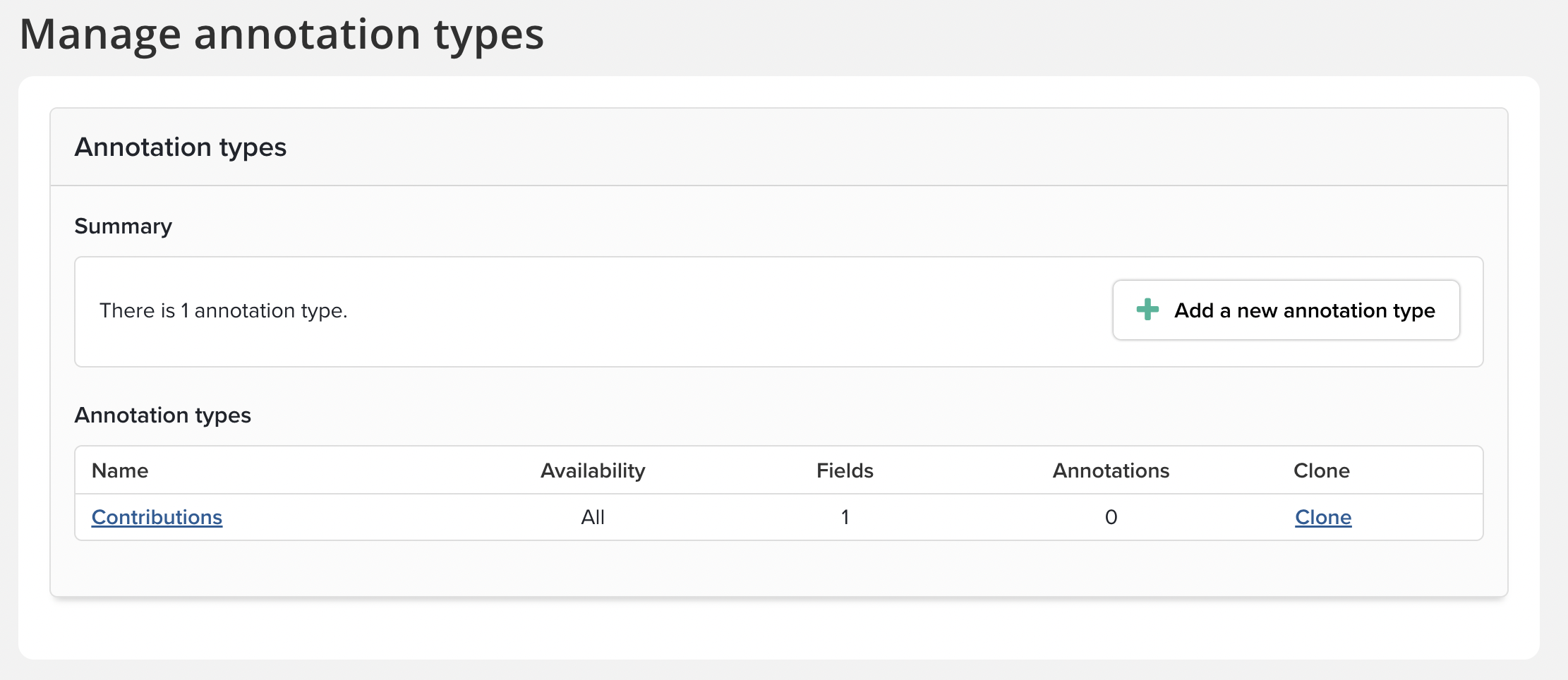
Just like any other type of Elements object, it is possible to edit the existing stock type, or add new Annotation types. Please see this support article categories types and underlying fields for more information. You can configure underlying fields for Annotations on the ‘Edit annotation type’ page.
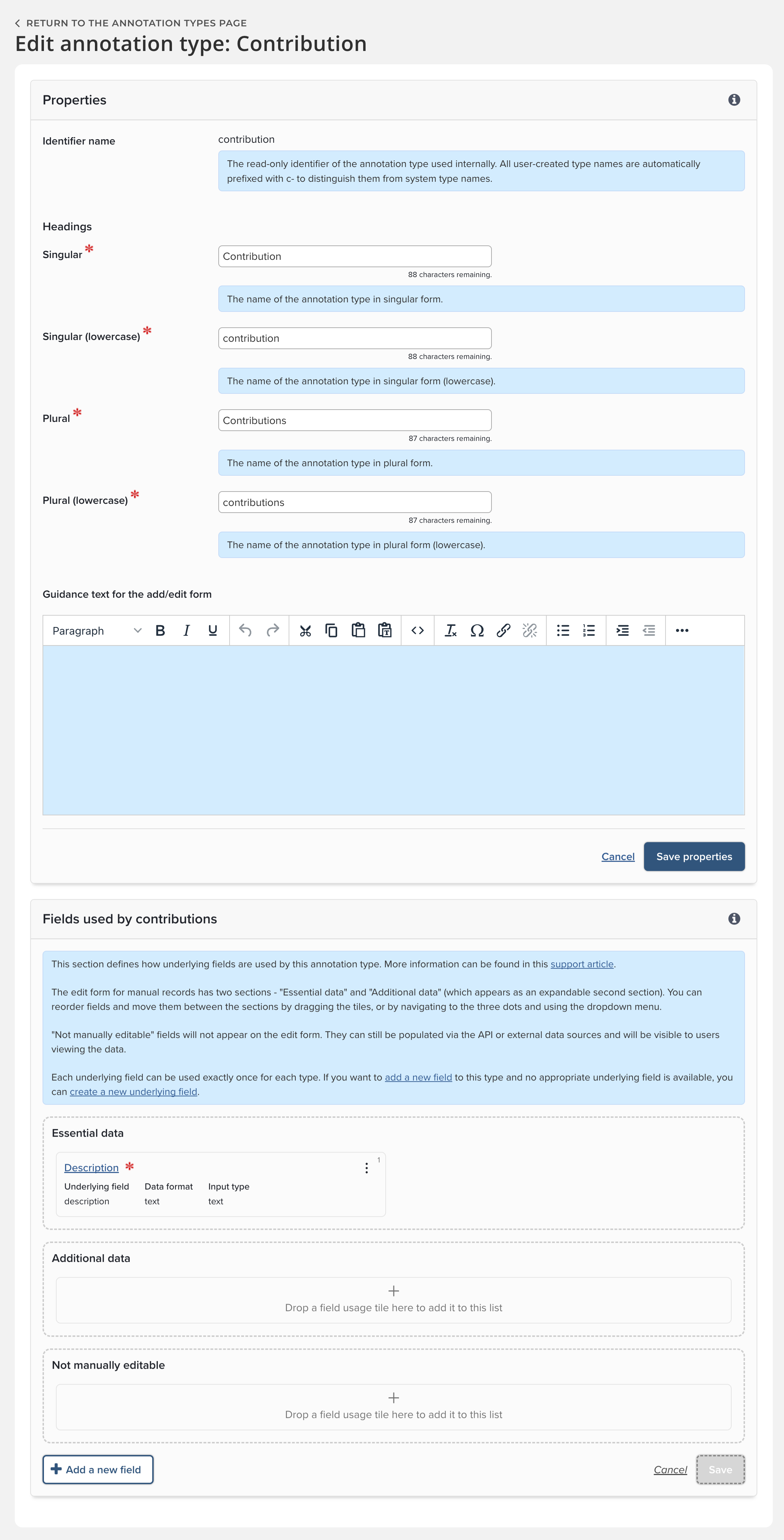
Note:
The ‘Edit annotation type’ page does not include the ability to set the availability of Annotation types - these are always available for the whole organisation.
Annotation types cannot be externally managed.
Because of the way that annotations are displayed, it is not possible to configure ‘Characteristic fields’ for Annotations.
Annotations do not support reporting dates. Because annotations are always added against objects, the reporting dates of the associated object can be used for reporting purposes.
Unlike other Elements objects, it is not possible to change one Annotation type to another Annotation type. See the section ‘Changing object types - unsupported annotation types’ for more information.
2. Configuring Annotation availability
Once Annotation types have been configured, they can be made available for use on other object types. First, configure which object categories Annotations should be available for by going to System admin > data category Settings > Annotations > Availability settings. Removing the availability of annotations for a particular data category will delete all existing Annotations added against that data category.
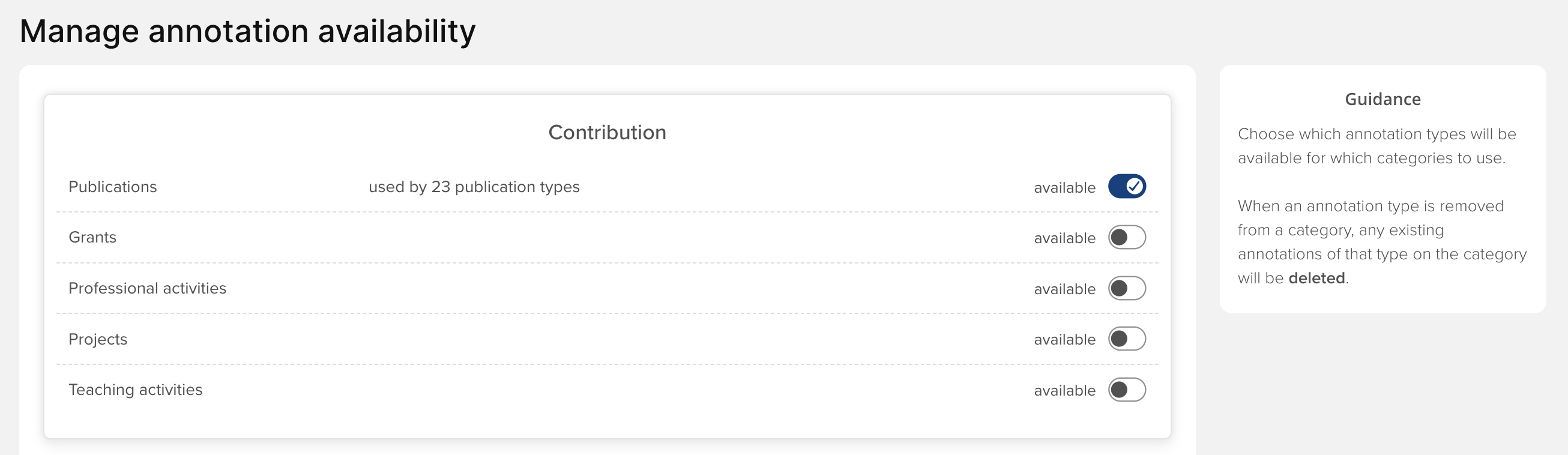
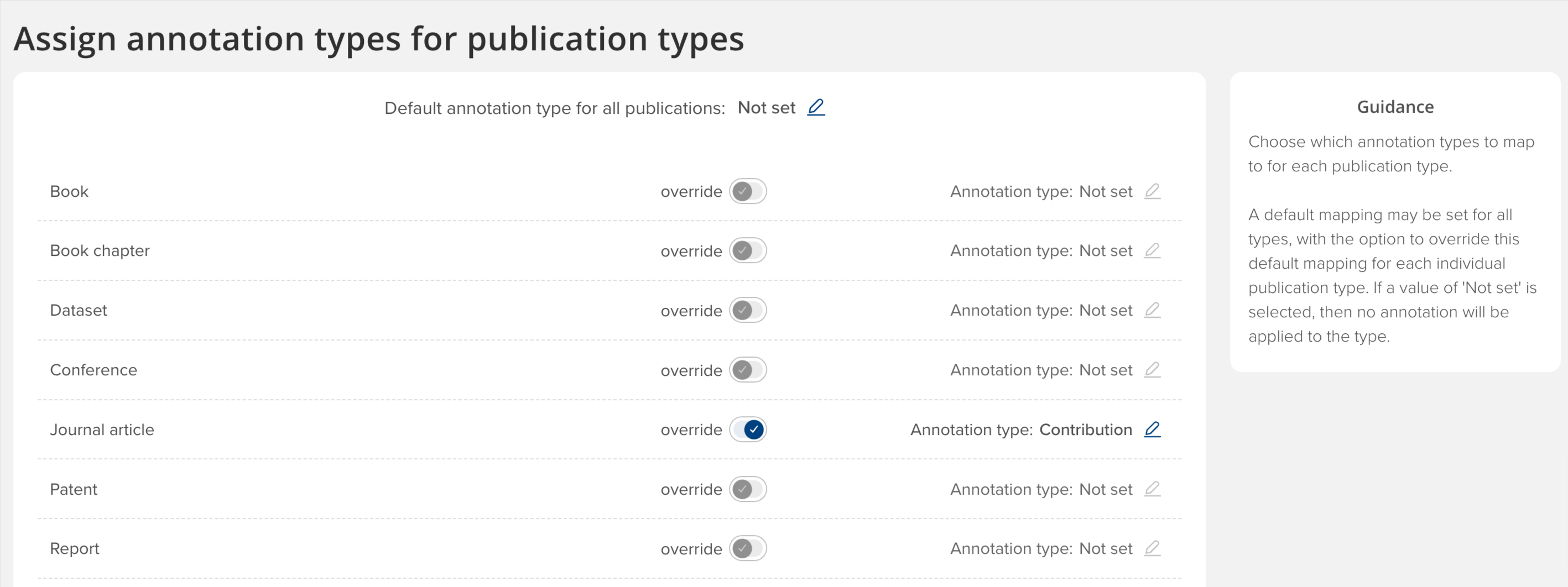
Once you have made an Annotation type available for a particular data category, you can configure which object types use which Annotation type. This can be done on the Category Admin menu option for a particular data category e.g. System admin > Data category settings > Publications > Publication annotations . Each category can have a default Annotation type set. It is then possible to override this default on a per-type basis.
Changing the assignment of Annotations against types will not delete any underlying data. However, existing Annotations may become of an unsupported type.
Changing object types - unsupported Annotation types
As it is possible to change the type of an object (e.g. changing a journal article to a preprint), a situation can arise where Annotations can be of an unsupported type. For example if the Journal Article type had the ‘Contribution’ Annotation assigned and was changed to a Preprint type, which didn’t have any Annotation type assigned - any ‘Contribution’ Annotations would be considered an unsupported type for preprints.
Unsupported Annotation types are still displayed. They cannot be edited but they can be deleted. No new Annotations of an unsupported type can be added.

Merging, splitting and copying objects
When merging objects, any Annotations that are present will remain. These Annotations may or may not become an unsupported type. In addition, this action may result in a user having multiple Annotations on the same object - a situation that will not occur under standard usage of Annotations.
When splitting a record from an object, Annotations are not copied to the new object. Any existing Annotations will remain on the object the record has been split from.
When a user copies a teaching activity or a professional activity that they have added an Annotation to, they have the option to copy that Annotation onto the new object. Any other user’s existing Annotation will not be copied onto the new object.
Annotation privacy
The information added to the Annotation section on the object details page is private and can only be seen by the user who added it - and not by their co-authors and contributors linked to the object.
Like other data with a privacy level of ‘private’, this information can be viewed by a user’s delegates and users with elevated permissions such as System Administrators.