
Configuring User Profile Field Settings (v6.14+)
The User Profile Field Settings page is available via the System Admin tab in the Elements Menu (System Admin > Users & Groups > User management > User profile field settings). This page allows you to manage the configurations associated with the Elements User Profile page.
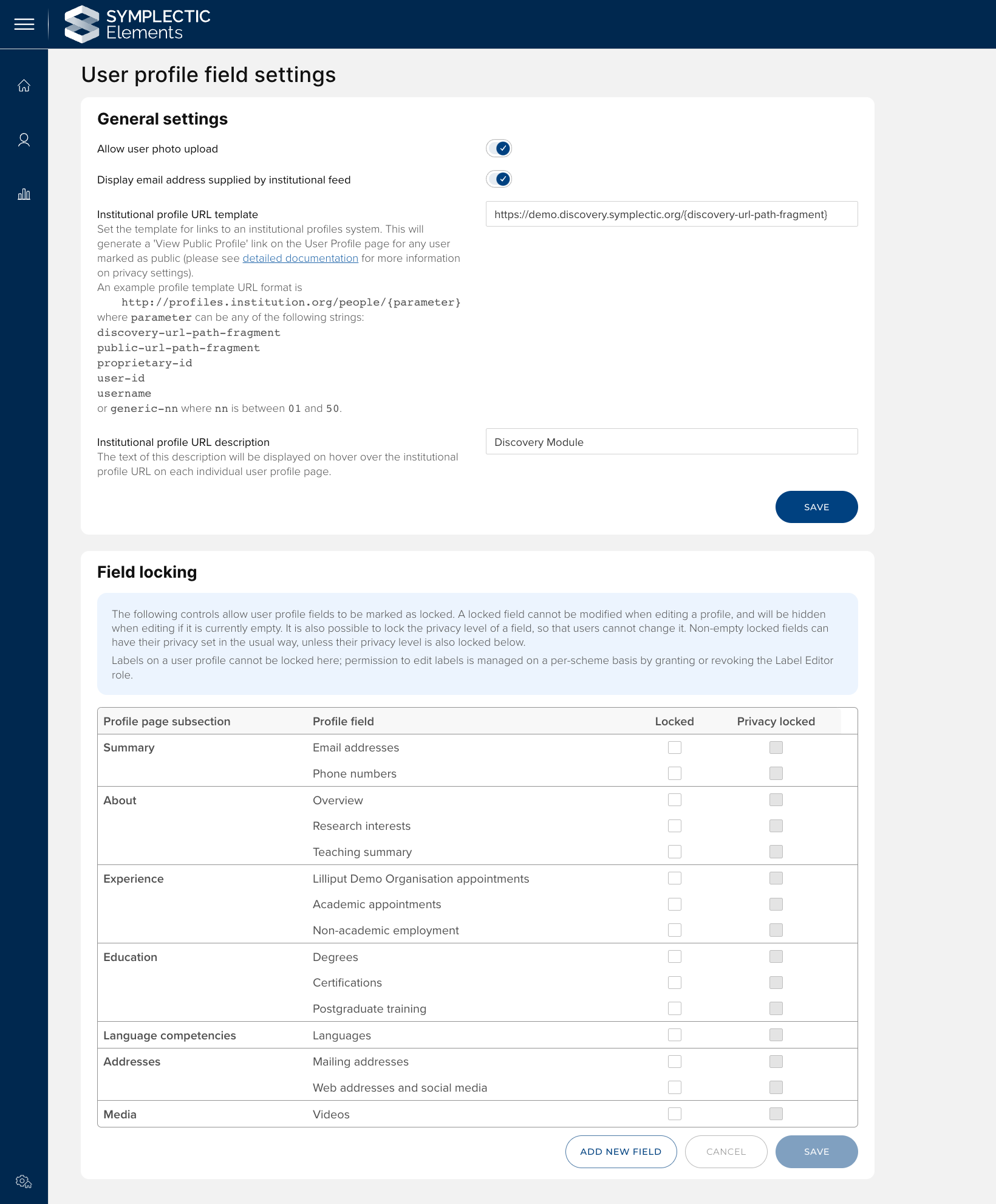
General configuration settings
On this page you can configure:
Whether users should be permitted to upload profile photos
Whether to display the institutional email address supplied via your user feed
The institutional profile URL field
The institutional profile URL description
Field Locking
This page will also allow to you choose to lock profile page fields. There are two main reasons to lock a profile page field:
To hide irrelevant fields, as locked, empty fields will be not be displayed on the profile page.
To prevent users from editing fields which are populated from an external source of truth (eg. from another organisational system.)
For each locked field, you also have the option to choose whether to lock the associated privacy setting. This allows you to prevent users from editing privacy levels, where the data is being supplied from an external source.
Creating custom profile fields
You can choose to consider additional text 'Summary' or Overview fields to appear on the Elements profile page and support the capture of alternative information about your users' experience or expertise. Examples for this could be: an alternative biography, to capture an impact summary or industry experience. To configure a new field, click the 'Add new field' button at the bottom of the page, and supply an underlying field name and display name for the field. Once created, the field will immediately become available to your users. You can also choose to lock custom fields if desired.