
The Elements group structure importer - v6.15
This article relates to group importer functionality in Elements v6.15. If you are on Elements v6.16+, please refer to this support article.
Note: If you are interested in setting up the group structure importer, it is important that a number of key steps are followed. Please contact Symplectic Support to arrange a consultation and to enable the functionality, to ensure that set up of the group importer can be done seamlessly.
Released in Elements v6.15, the group importer allows organisations to programmatically update the group hierarchy in Elements. This means that upstream systems can be used as a source of truth for your organisational hierarchy, and that administrators can make changes to group structure based on this data in bulk.
Groups in Elements have a key role in structuring user data, underpinning system configuration, and reporting and analytics. The group importer reduces the administrative burden associated with ensuring your organisational hierarchy is kept up-to-date.
In the v6.15 release, the group importer supports the manual upload of a CSV file containing all data managed by the importer. Elements processes the imported file, and a high-level summary is displayed to administrators. To reduce the risk of unintended changes to group structure, a manual review and confirmation of the impact that the import will have is required prior to applying the changes.
Note: The deletion of groups results in any record metadata and object data (e.g. relationships and labels) associated with the deleted group being lost. This is not recoverable.
Group Import Manager role
We have created a new role to provide granular control over users with permission to manage the group importer. Only users with the ‘Group import Manager’ or ‘System Administrator’ roles can make changes relating to the feed.
Externally managed vs locally managed groups
When the group importer functionality is enabled, all groups in the system will either be ‘externally managed’, or ‘locally managed’. This determines whether certain group properties are managed by the group importer, or continue to be managed via the user interface. The management state of a group is indicated on both the group management page and the group details page. When the group importer is first enabled, all existing groups will be locally managed.
In order for groups to be managed by the importer, they need to be set to ‘externally managed’. This can be toggled on/off from the group details page by users with the relevant permission. In order for a group to be externally managed, a unique institutional identifier needs to be added (see below).
Organisations will usually wish to make the majority (or all) groups ‘externally managed’. To update the management state of groups in bulk, it is necessary to contact Symplectic who will be able to work with you to effect this bulk change.
If the group structure importer is enabled, it is still possible to add locally managed groups to the system via the user interface.
Note: An externally managed group must have an externally managed parent. This means that you cannot change a group to be locally managed if it has externally managed children. The top level group can be locally managed or externally managed. If the top level group is locally managed, it must not appear in the feed file and vice versa. The top level group must have an IID if the structure importer is enabled.
Externally managed group properties
The group structure importer allows groups to be created, deleted, moved, and updated. Only certain group properties can be updated via the feed:
Name
Parent (defines the group’s position in the hierarchy)
Membership model
Primary group descriptor (for primary groups)
WHERE clause (for auto groups)
Groups that are externally managed using the structure importer cannot be deleted, moved, or have these group properties updated via the user interface. This ensures that externally managed groups are controlled by the structure importer itself and cannot be mistakenly modified via the user interface.
Externally managed manual groups can have their membership model set via the feed. However, control over the members of a manual group is controlled via the user interface.
Note: Group type and group privacy cannot be set by the structure importer. The group structure importer is also not intended to update group record metadata, labels or relationships.
Understanding Institutional Identifiers
Setting up the group structure importer is a multistep process. In order to be able to uniquely identify which groups should be managed by the structure importer, it is necessary to add an Institutional Identifier (IID) to any group that will be externally managed by the structure importer.
IIDs will often be an ID that is used to identify the group in your upstream system/s. IIDs must be unique and, while they can be added and edited manually via the user interface, it is more likely that you will want to import these from an external system and map them to existing Elements groups. Please contact Symplectic support to assist with the import process.
IIDs can optionally be added to locally managed groups. In this case, they have no functional impact on the structure importer and are instead used to aid the identification of groups and/or map between Elements data and external systems.
When the importer runs, the updates to groups will be based on the relationship between the IIDs in the system and the IIDs contained in the feed file as follows:
For externally managed groups;
IID in import file, no matching IID in system - A new group will be created.
IID in import file, matching IID in system - The group may be updated based on the data contained in the import file.
IID in system, no matching IID in the import file - The group will be deleted
For internally managed groups;
If the import file contains an IID that matches an internally managed group, the import validation will fail.
Generating a CSV file to import group structure
In order to update the structure of your organisational hierarchy within Elements, it is necessary to create a CSV file that conforms to the specific schema and contains all required fields for externally managed properties.
InstitutionalId - The Institutional Identifier used to identify an externally managed group. IIDs are case insensitive. Must not be null.
Name - The name of the group. Matching between the feed CSV and groups in Elements is not based on the name. Must not be null.
ParentInstitutionalID - The Institution Identifier used to identify the parent of the group. Parent-child relationships are used to model the group hierarchy. Must not be ‘null’, except in the case of the top-level group. It is only possible for there to be one top-level group.
MembershipModel- The membership model of the group.
everyone - only applies to the top level group
primary
auto
manual
PrimaryGroupDescriptor - The Primary Group Descriptor for any group with MembershipModel = primary.
WhereClause - The WhereClause for any group with MembershipModel = auto
Enabling the group structure importer
In the v6.15 release, the group structure importer is enabled via a script to ensure that Clients work in partnership with Symplectic during setup. The addition of IIDs to the system and the bulk update of groups to external management must also be done in consultation with the Symplectic team, and can be included in the setup process.
If you would like to enable the group structure importer, please contact Symplectic Support.
Important: If the group structure importer is disabled, all externally managed groups will revert to being internally managed. This information will then be lost and would need to be added to the system again.
Managing the import process
Once the initial configuration steps have been completed in collaboration with the Symplectic services team, it is possible to import your organisational group structure via the ‘Group import’ page. The initial configuration steps will involve:
Importing IIDs
Enabling the structure importer
Configuring a set of groups to be externally managed.
Tip: It is recommended that you familiarise yourself with the behaviour of the group structure feed on your test instance, prior to carrying out an update on your production instance.
Export
The Export button allows details on all externally managed groups to be exported from the system. This can be used to compare an import CSV file against the current state of the system.
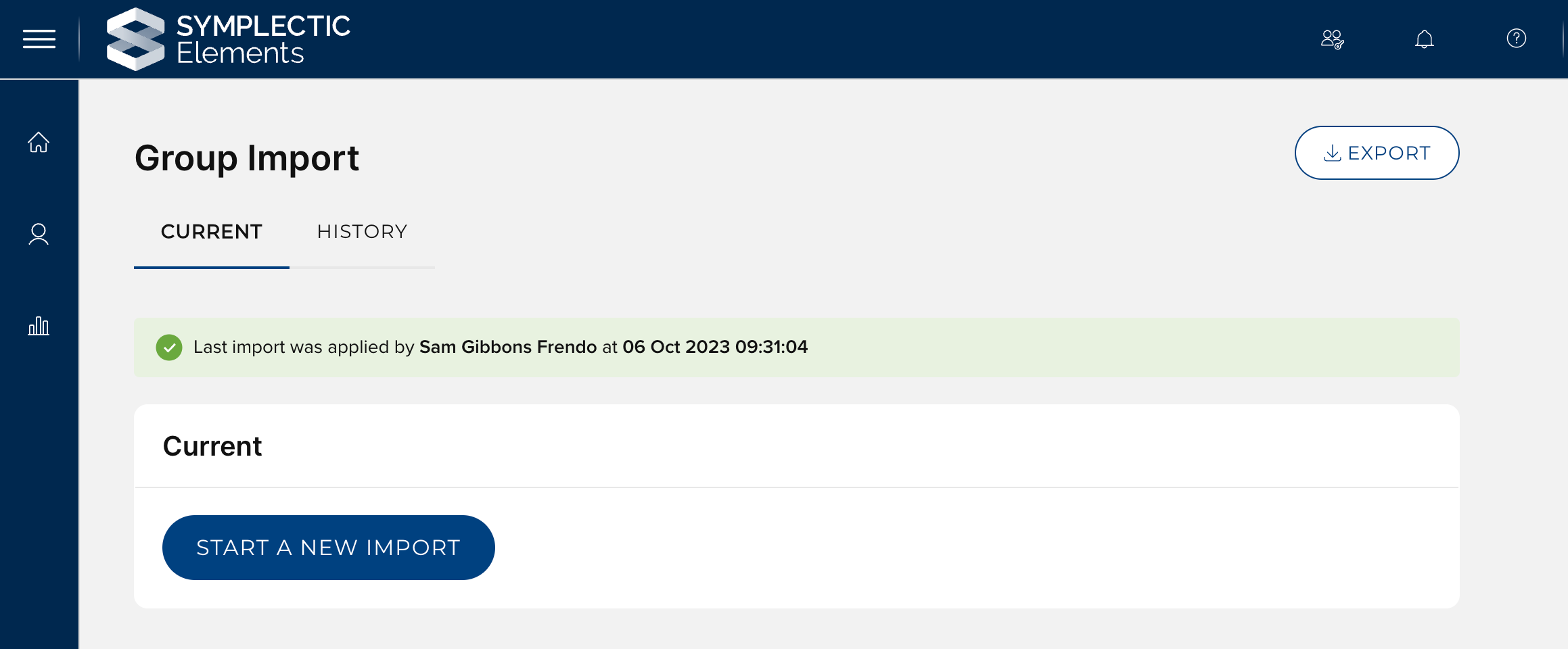
Start new structure import
A new import of data is initiated by pressing the ‘Start a new import’ button on the Group Import page.
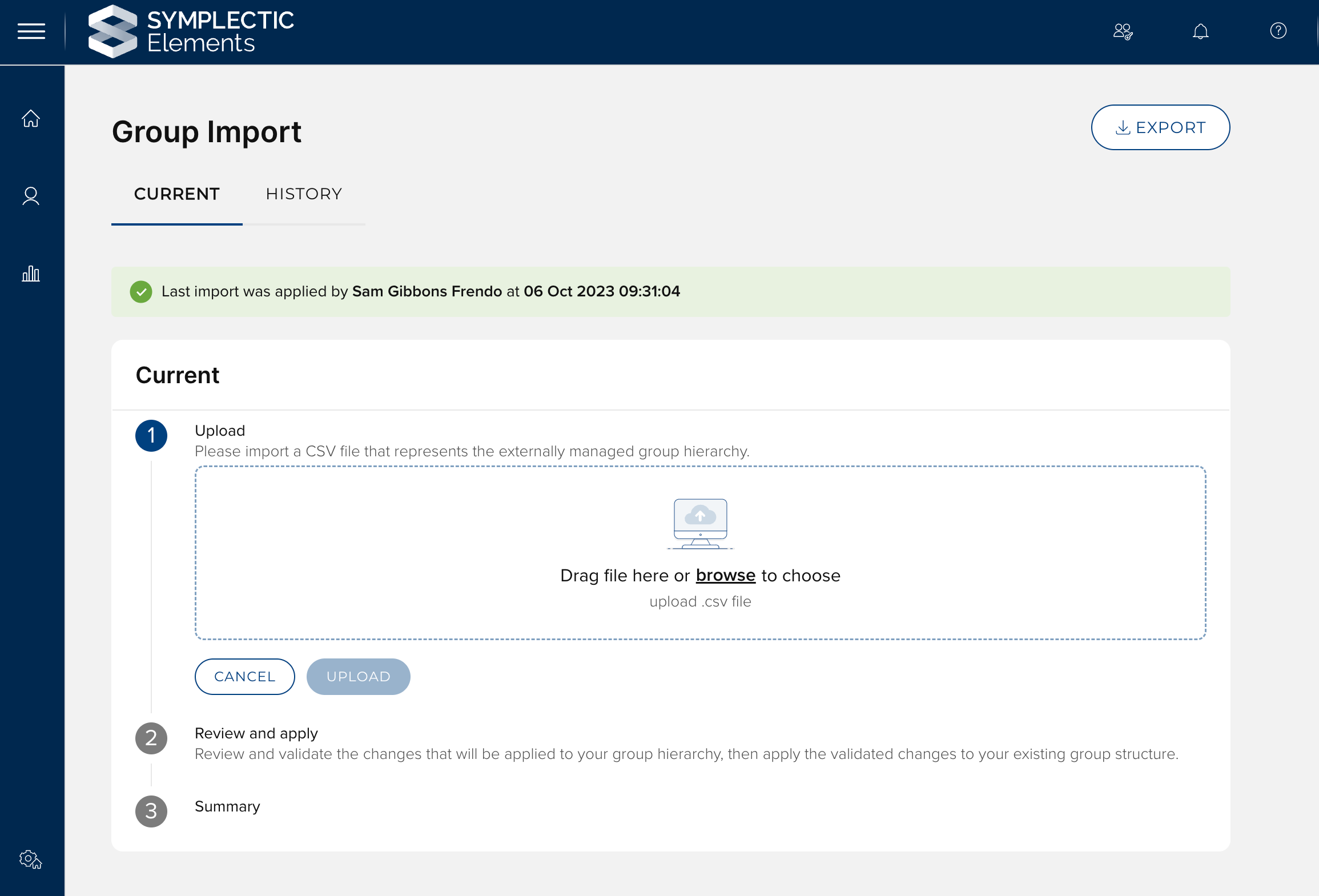
1. Upload
Import a CSV file that conforms to the required schema. When you click ‘Upload’, the data is added to the system in a ‘staging’ state. This allows the system to calculate the impact of the import process.
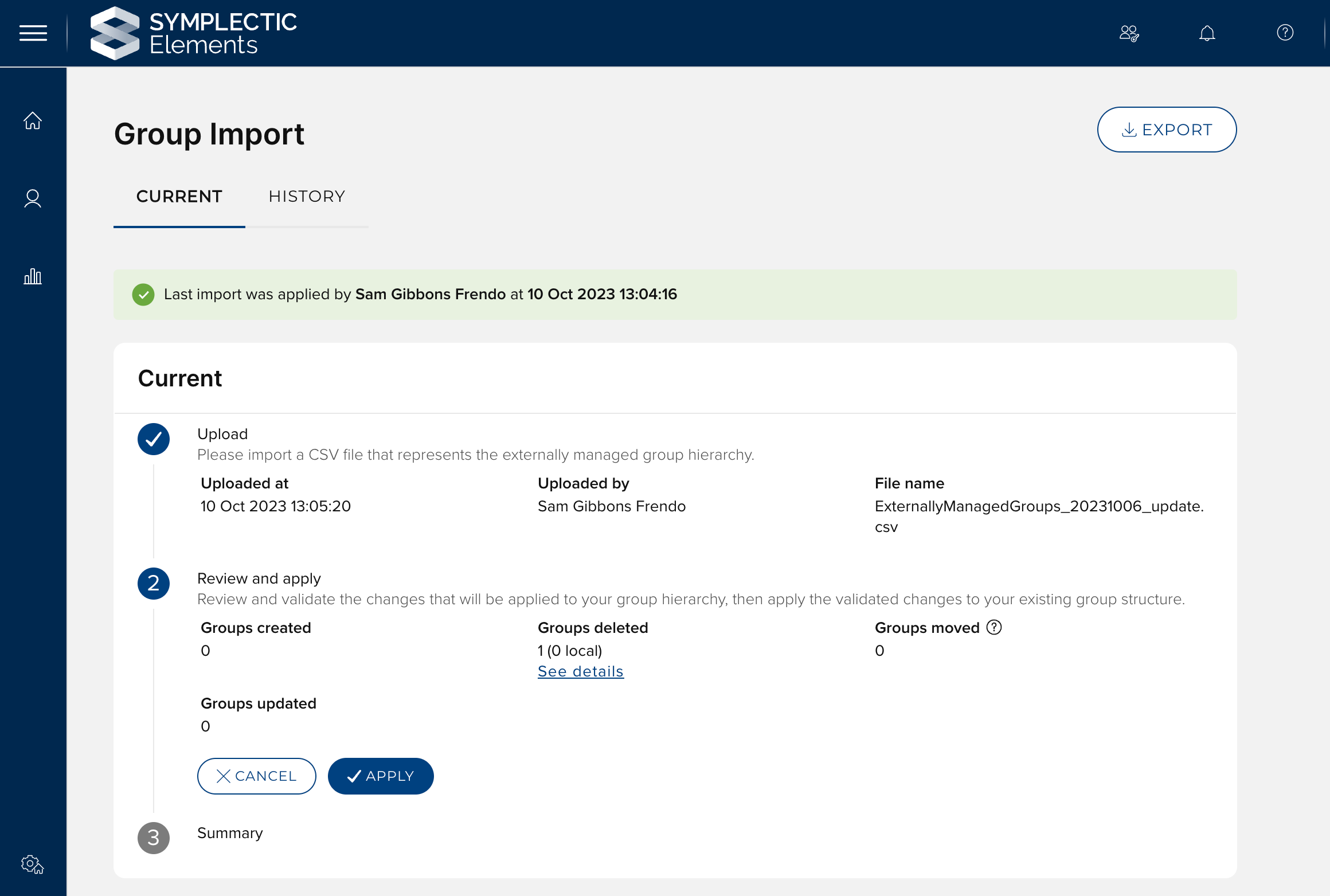
2. Review and apply
The review and apply step displays the impact on your existing group structure based on the imported data.
Groups created - A count of the number of new groups that will be created if the import is applied.
Groups deleted - A count of the number of existing groups that will be deleted if the import is applied. The ‘see details’ link will open a modal displaying the name and links to any groups that will be deleted. Note: Deleted groups cannot be recovered. Any data associated with the group (e.g. record metadata, labels, links etc.) will be permanently deleted.
Important: An externally managed group can have locally managed children. When an externally managed group is deleted, any internally managed children will also be deleted.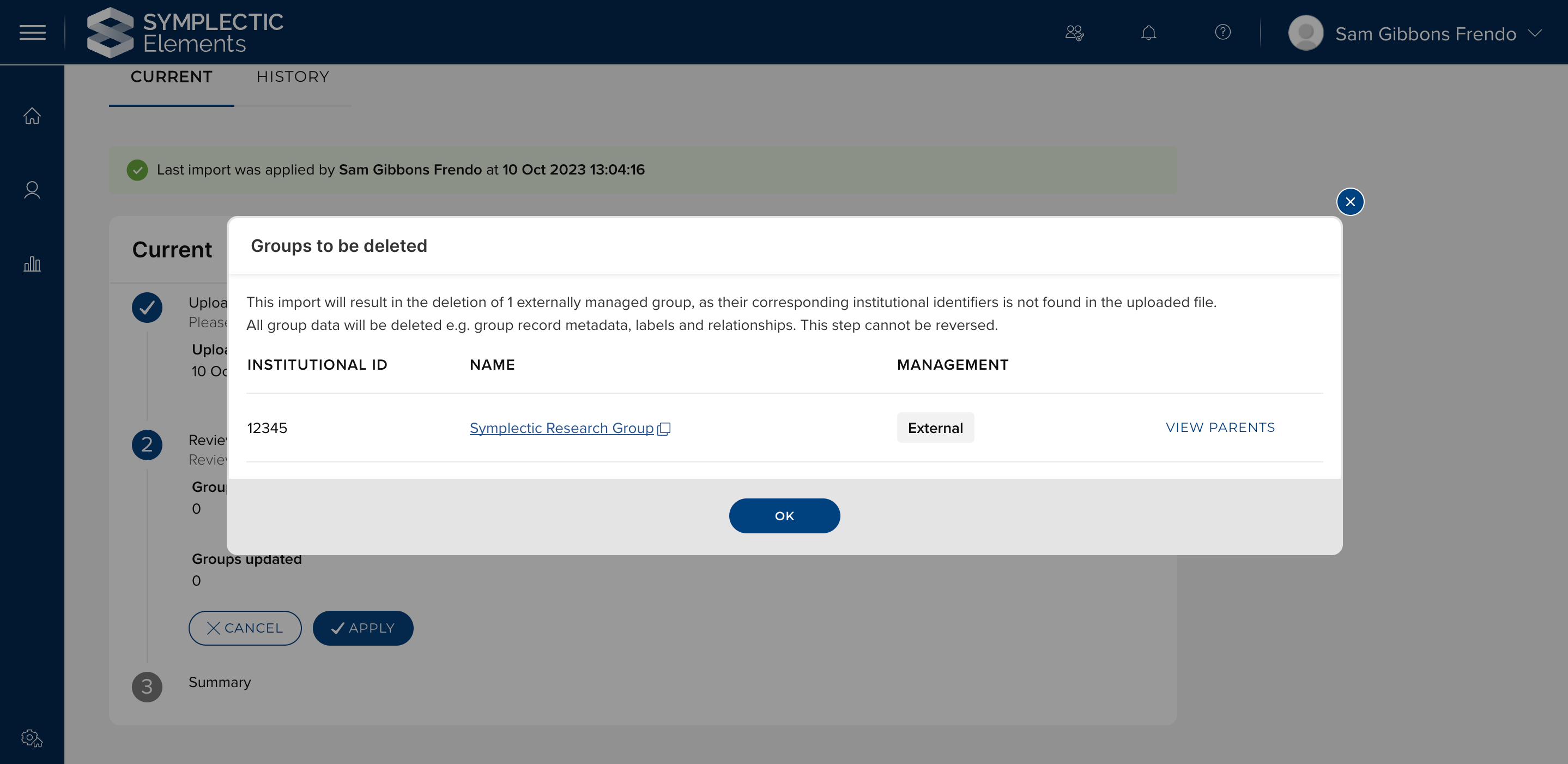
Groups moved - A count of groups that have had their parent group changed.
Groups updated - A count of groups that have had either their name, membership model, primary group descriptor, or WHERE clause changed.
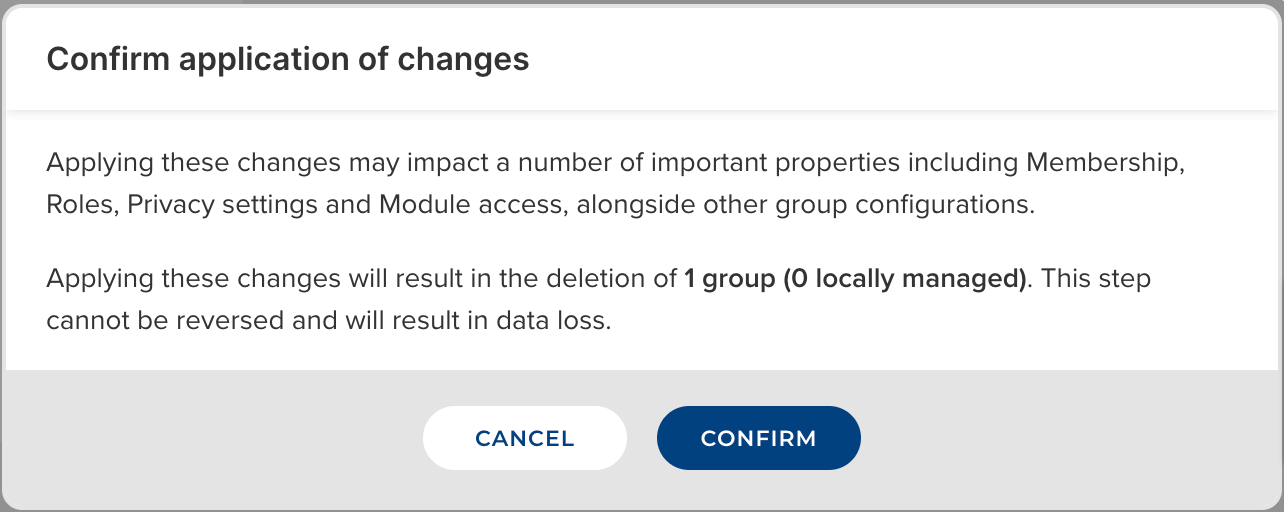
Once you choose to apply the changes, a confirmation model appears to allow users to make a final check before applying. The model will specifically highlight if any groups are going to be deleted.
Note: The analysis carried out by the system to determine the impact of applying the import file compares the imported group structure with the existing group structure. Any changes to the existing group structure (specifically to the user cache) will invalidate the analysis and it will need to be rerun. We therefore recommend that you carry out checks and apply the changes in a timely manner. Navigating away from the Group import page will cancel any ongoing processes.
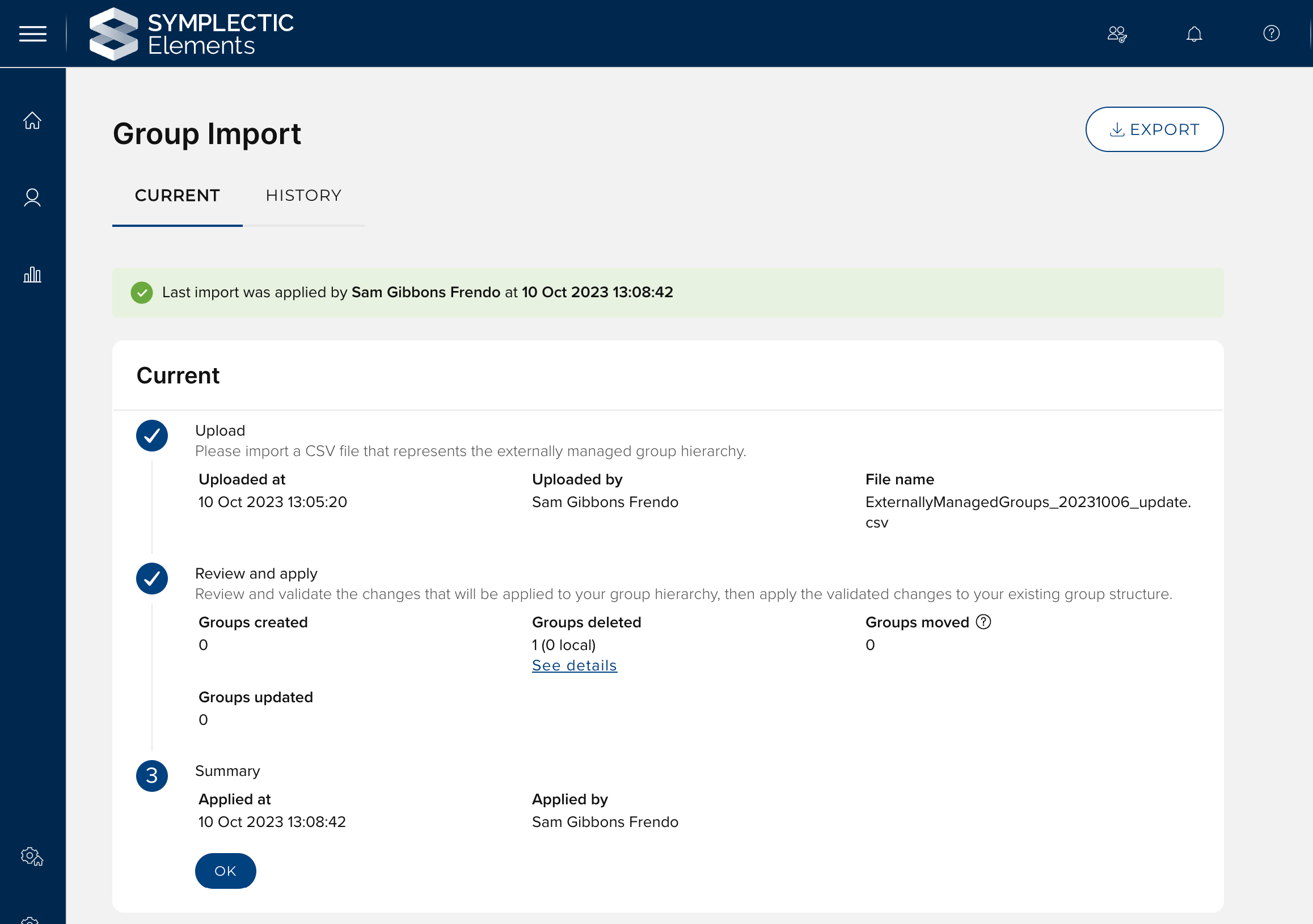
3. Summary
The summary step displays the date and time that the import was completed. At this point a new record will be added to the history tab. Clicking ‘OK’ will reset the page, ready for a new import.
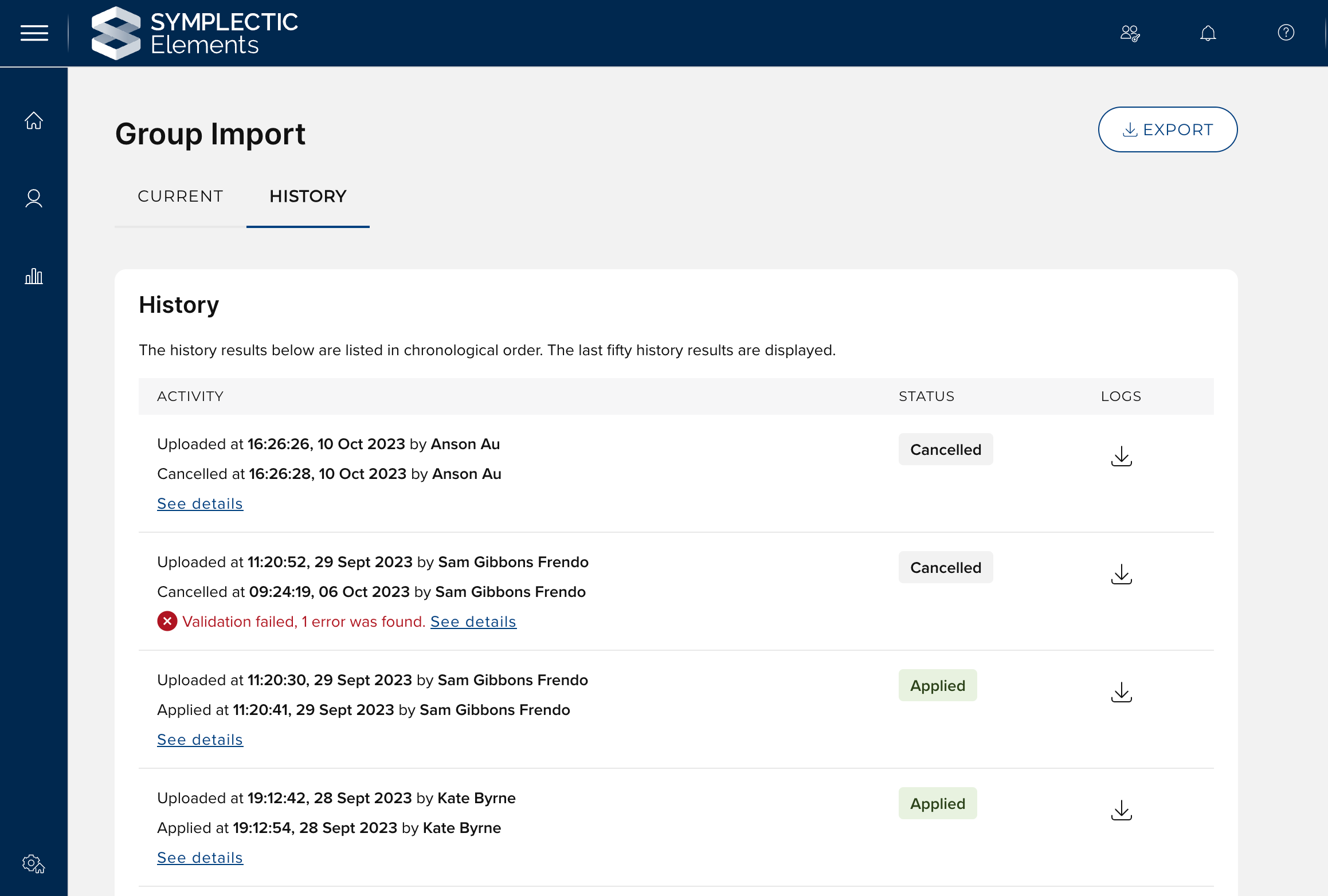
History tab
The history tab displays information on each completed import run, each cancelled import run and any import runs that error. This allows you to keep track of the historical activity of the group importer. For each history item it is possible to download a zip folder of history files. These files are intended to give you a complete picture of the import process. The first three files listed are associated with the ‘Load step’. If this fails, the remaining files will not be present.
Load Validation Data - A JSON file containing a summary of any errors that were found while trying to load the input CSV
Load Notes - A text file outlining the time-stamped events of the import process.
GroupImport - A copy of the input CSV file itself
Group-structure-before-apply - A CSV file containing the group structure immediately before applying the import data. This file includes details of the set of properties managed by the importer for both externally managed and locally managed groups
Group-structure-after-apply - As above, but after the changes have been applied.
Conclusion Data - If no errors a change summary of the feed, this JSON file includes the object ids and institutional ids of any groups, created, deleted, local deleted, updated or moved. If errors were found when validating the import file against the existing elements group structure, these will be shown here.
Conclusion Notes - A text file outlining the outcome of the import process (i.e. ‘Applied’, ‘Cancelled’, ‘Upload failed’).
Time taken to perform updates to the system
The time taken for different steps of the group importer to complete will depend on a number of different factors. It is most likely that the ‘Apply’ step will take the longest to complete. The time taken will depend on the type and number of changes being carried out by the feed. Our expectation is that during normal usage (e.g. the deletion/creation/update of approx. 100 groups) the Apply step will take <20s.
If you are using the group structure importer to bulk add groups to the system as part of an implementation process, or are otherwise making significant one off changes you can expect the Apply step to take significantly longer. E.g. The creation of ~5000 groups could take ~15 minutes to complete. In this circumstance you should ensure the import process is carried outside of a time of significant usage to maintain a performant system.